DevExpress AI-powered Extensions for ASP.NET Core
- 8 minutes to read
This topic explains how to integrate AI-powered features into your ASP.NET Core applications using DevExpress AI-powered Extensions and the Microsoft.Extensions.AI framework. These features include:
Chat
You can use the Chat control to create an AI assistant in your ASP.NET Core application.
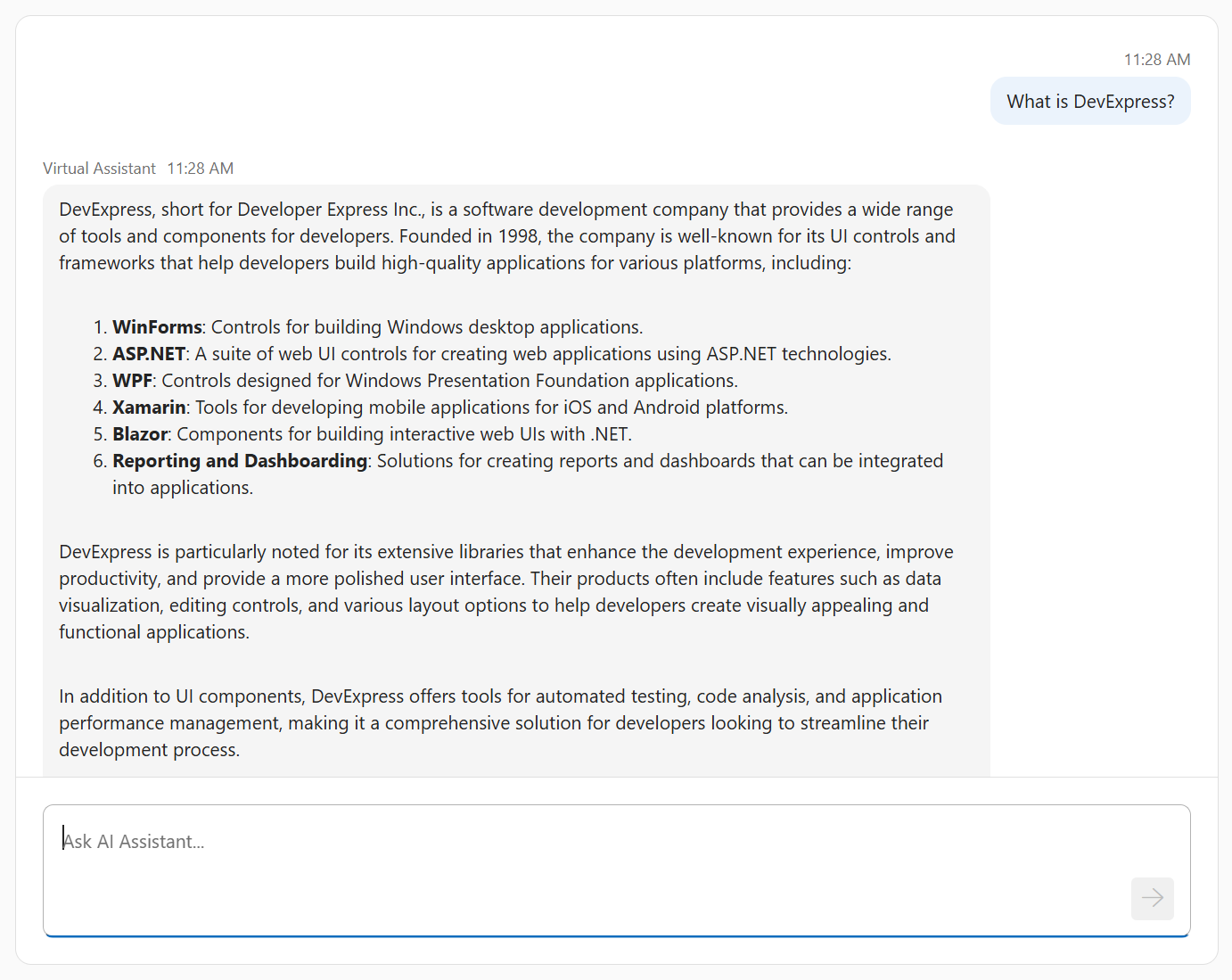
The control can be connected to any AI language model that supports the IChatClient interface, such as OpenAI and Azure OpenAI. See the following resources for instructions and examples that show how to integrate an AI assistant into an ASP.NET Core app with the Chat control:
Reporting & BI Dashboard
- Summarize and Translate Functionality for the Web Document Viewer
- Prompt-to-Report Functionality for the Web Report Designer (CTP)
- Test Data Source Functionality for the Web Report Designer
- Localize Functionality for the Web Report Designer
- Prompt-to-Expression Functionality for the Web Report Designer
The DevExpress.AIIntegration.AspNetCore.Reporting NuGet package contains classes and methods required for AI-powered Extensions for ASP.NET Core Reporting Controls. Call the AddWebReportingAIIntegration method to configure AI-powered Extensions in your application.
Examples
The following examples integrate an AI assistant (based on dxChat) into ASP.NET Core Dashboard and Reporting controls:
Demos
Review the following Reporting AI Extensions demos:
How It Works
DevExpress AI APIs leverage the Microsoft.Extensions.AI libraries for integration and interoperability with a wide range of AI services. These libraries establish a unified C# abstraction layer for standardized interaction with language models.
The architecture decouples application code from specific AI SDKs. You can switch the underlying AI model or provider with minimal code changes. For example, you can build a prototype with a locally deployed AI model and then move to an enterprise-grade online LLM provider. These changes require only updates to the app’s startup logic and the necessary NuGet packages.
The IChatClient interface serves as the central mechanism for language model interaction. Supported AI providers include:
- OpenAI (through Microsoft’s reference implementation)
- Azure OpenAI (through Microsoft’s reference implementation)
- Self-hosted Ollama (through the OllamaSharp library)
- Google Gemini, DeepSeek, Claude, and other major AI services through Semantic Kernel AI connectors
- Custom
IChatClientimplementation for unsupported providers or private language models.
The Microsoft.Extensions.AI framework allows developers to integrate AI language models and services without modifying the core library. You can use third-party libraries for new AI providers or create a custom implementation for in-house language models.
Note
DevExpress does not expose a REST API or include built-in LLMs or SLMs. To use AI services, you need an active Azure OpenAI or OpenAI subscription to obtain the REST API endpoint and key. Specify this information at application startup to register AI clients and enable DevExpress AI-powered Extensions.
Prerequisites
- .NET 8+ SDK
AI language model (choose one of the following):
OpenAI Service
- Create an OpenAI account
- Create a secret key to access the OpenAI API
- Subscribe to the OpenAI API
Azure OpenAI Service
- Create an Azure account
- Create and deploy an Azure OpenAI resource
- Get an Azure OpenAI key and endpoint
Ollama (self-hosted models)
- Download and install Ollama
- Pull a model from the Ollama library
- Run the downloaded model:
ollama run <model_name>
Semantic Kernel
- Search for an available AI connector or implement a custom connector
- Subscribe to the desired AI service if needed
AI Services Integration
Follow the instructions below to register an AI model and enable DevExpress AI Services in your application.
OpenAI
Install the following NuGet packages to your project:
- DevExpress.AIIntegration.Web
- Microsoft.Extensions.AI (version 9.7.1)
- Microsoft.Extensions.AI.OpenAI (version 9.7.1-preview.1.25365.4)
Register the OpenAI model in the project’s entry point class:
using Azure.AI.OpenAI;
using Microsoft.Extensions.AI;
using OpenAI;
// ...
string openAiApiKey = Environment.GetEnvironmentVariable("OPENAI_API_KEY")
    ?? throw new InvalidOperationException("OPENAI_API_KEY environment variable is not set.");
string openAiModel = "OPENAI_MODEL";
OpenAIClient openAIClient = new OpenAIClient(openAiApiKey);
IChatClient openAiChatClient = openAIClient.GetChatClient(openAiModel).AsIChatClient();
builder.Services.AddChatClient(openAiChatClient);
Create an
OPENAI_API_KEYenvironment variable and set it to your OpenAI API key. If the application throws an exception because the variable is not set, restart the IDE or terminal so it loads the new variable.Important
Never hardcode an OpenAI API key in source code. This creates a security risk and can lead to unauthorized access or account misuse. Follow Microsoft’s guidance on safe secret management in ASP.NET Core apps.
Set the
openAiModelvariable to the OpenAI model ID.
Register DevExpress AI Service in the project’s entry point class:
builder.Services.AddDevExpressAI();
Azure OpenAI
Install the following NuGet packages to your project:
- DevExpress.AIIntegration.Web
- Microsoft.Extensions.AI (version 9.7.1)
- Microsoft.Extensions.AI.OpenAI (version 9.7.1-preview.1.25365.4)
- Azure.AI.OpenAI (version 2.2.0-beta.5)
Register the Azure OpenAI model in the project’s entry point class:
using Azure.AI.OpenAI;
using Microsoft.Extensions.AI;
using System.ClientModel;
// ...
string azureOpenAiKey = Environment.GetEnvironmentVariable("AZURE_OPENAI_KEY")
    ?? throw new InvalidOperationException("AZURE_OPENAI_KEY environment variable is not set.");
string azureOpenAiEndpoint = "AZURE_OPENAI_ENDPOINT";
string azureOpenAiModel = "AZURE_OPENAI_MODEL";
AzureOpenAIClient azureOpenAIClient = new AzureOpenAIClient(
     new Uri(azureOpenAiEndpoint),
     new ApiKeyCredential(azureOpenAiKey)
);
IChatClient azureOpenAiChatClient = azureOpenAIClient.GetChatClient(azureOpenAiModel).AsIChatClient();
builder.Services.AddChatClient(azureOpenAiChatClient);
Create an environment variable named
AZURE_OPENAI_KEYand set its value to your Azure OpenAI key. If your application throws an exception because the variable is not set, restart your IDE or terminal so it loads the new variable.Important
Never hardcode an Azure OpenAI key in your source code. This is a critical security risk that can lead to unauthorized access and misuse of your account. Follow Microsoft’s guidance on safe secret management in ASP.NET Core apps.
Set the
azureOpenAiEndpointvariable to your Azure OpenAI endpoint.- Set the
azureOpenAiModelvariable to the Azure OpenAI model ID.
Register DevExpress AI Service in the project’s entry point class:
builder.Services.AddDevExpressAI();
Ollama
Install the following NuGet packages to your project:
- DevExpress.AIIntegration.Web
- Microsoft.Extensions.AI (version 9.7.1)
- OllamaSharp
Register the self-hosted AI model in the project’s entry point class:
using Microsoft.Extensions.AI;
using OllamaSharp;
// ...
string aiModel = "MODEL_NAME";
IChatClient chatClient = new OllamaApiClient("http://localhost:11434", aiModel);
builder.Services.AddChatClient(chatClient);
Set the
aiModelvariable to the name of your Ollama model.Register DevExpress AI Service in the project’s entry point class:
builder.Services.AddDevExpressAI();
Semantic Kernel
The Semantic Kernel SDK offers a common interface to interact with different AI services. The Kernel communicates with AI services through AI Connectors, which expose multiple AI service types from different providers.
Semantic Kernel works with an ecosystem of ready-to-use connectors that support leading AI models from OpenAI, Google, Anthropic, DeepSeek, Mistral AI, Hugging Face, and other providers. You can also build custom connectors for other services, such as in-house language models.
The following example connects DevExpress AI Service to Google Gemini through the Semantic Kernel SDK:
Note
The Google chat completion connector is currently experimental. To acknowledge this and use the feature, you must explicitly suppress the compiler warnings with the #pragma warning disable directive.
- Sign in to Google AI Studio.
- Create an API key.
Install the following NuGet packages to your project:
Register the Gemini model in the project’s entry point class:
using Microsoft.Extensions.AI;
using Microsoft.SemanticKernel;
using Microsoft.SemanticKernel.ChatCompletion;
// ...
string geminiApiKey = Environment.GetEnvironmentVariable("GEMINI_API_KEY")
    ?? throw new InvalidOperationException("GEMINI_API_KEY environment variable is not set.");
string geminiAiModel = "GEMINI_MODEL";
#pragma warning disable SKEXP0070
var kernelBuilder = Kernel
    .CreateBuilder()
    .AddGoogleAIGeminiChatCompletion(geminiAiModel, geminiApiKey);
Kernel kernel = kernelBuilder.Build();
#pragma warning disable SKEXP0001
IChatClient geminiChatClient = kernel.GetRequiredService<IChatCompletionService>().AsChatClient();
builder.Services.AddChatClient(geminiChatClient);
Create a
GEMINI_API_KEYenvironment variable and set it to your Gemini API key. If the application throws an exception because the variable is not set, restart the IDE or terminal so it loads the new variable.Important
Never hardcode API keys in your source code. This is a critical security risk that can lead to unauthorized access and misuse of your subscriptions. Follow Microsoft’s guidance on safe secret management in ASP.NET Core apps.
Set the
geminiAiModelvariable to the Gemini model ID.
Register DevExpress AI Service in the project’s entry point class:
builder.Services.AddDevExpressAI();
Configure Inference Parameters
To control the AI model’s behavior and creativity, set inference parameters using IChatClient options. These parameters are configured once when you register the IChatClient service in the project’s entry point class. The settings then apply to all DevExpress AI-powered features, ensuring a consistent tone and style across your app.
The following code snippet configures an Azure OpenAI client that is moderately creative, avoids repeating itself, and produces reasonably detailed but not excessively long responses:
AzureOpenAIClient azureOpenAIClient = new AzureOpenAIClient(
        new Uri(azureOpenAiEndpoint),
        new ApiKeyCredential(azureOpenAiKey)
);
IChatClient azureOpenAIChatClient = azureOpenAIClient.GetChatClient(azureOpenAiModel).AsIChatClient();
IChatClient chatClient = new ChatClientBuilder(azureOpenAIChatClient)
    .ConfigureOptions(options => {
        options.Temperature = 0.7f;
        options.MaxOutputTokens = 1200;
        options.PresencePenalty = 0.5f;
    })
    .Build();
builder.Services.AddChatClient(chatClient);
Note
A specific IChatClient implementation might have its own internal representation of options. It may use a subset of options or ignore the specified options entirely.