Demos
- 2 minutes to read
DevExpress ASP.NET Core controls ship with the following demos:
| Controls | Online Demos | Local Demos (installed using the Unified Component Installer) |
|---|---|---|
| DevExtreme-based UI Controls | Run Demo | C:\Users\Public\Public Documents\DevExpress Demos 26.1\Components\ASP.NET MVC Controls\CS\DevExtreme.NETCore.Demos |
| Rich Text Editor | Run Demo | C:\Users\Public\Public Documents\DevExpress Demos 26.1\Components\ASP.NET\CS\AspNetCoreDemos.RichEdit |
| Spreadsheet | Run Demo | C:\Users\Public\Public Documents\DevExpress Demos 26.1\Components\ASP.NET\CS\AspNetCoreDemos.Spreadsheet |
| Business Intelligence Dashboard | Run Demo | C:\Users\Public\Public Documents\DevExpress Demos 26.1\Components\Dashboard\CS\AspNetCoreDashboard |
| Reporting | Run Demo | C:\Users\Public\Public Documents\DevExpress Demos 26.1\Components\Reporting\CS\AspNetCoreDemos.Reporting |
Run Demos Locally
Demos in the Installation Folder
If you use the Unified Component Installer to install ASP.NET Core controls, you can find demo sources in the DevExpress product installation folder. The default path is C:\Users\Public\Public Documents\DevExpress Demos 26.1\Components\. You can run solutions from this folder or use the Demo Center to view demos.
Note
The demo project may throw an exception if the project path exceeds the maximum path length allowed on your device. In this case, move the demo project to a location with a shorter path or remove the path limit. For more information, see Enable Long Paths in Windows 10.
Follow the steps below to view demos in the Demo Center:
Launch the Demo Center in one of the following ways:
- Click the Demo Center 26.1 shortcut in Windows Start Menu.
- Open the DevExpress product installation folder and run the Demo Center. The default path is C:\Users\Public\Public Documents\DevExpress Demos 26.1\Components\Components\Bin\DevExpress.DemoCenter.v26.1.exe.
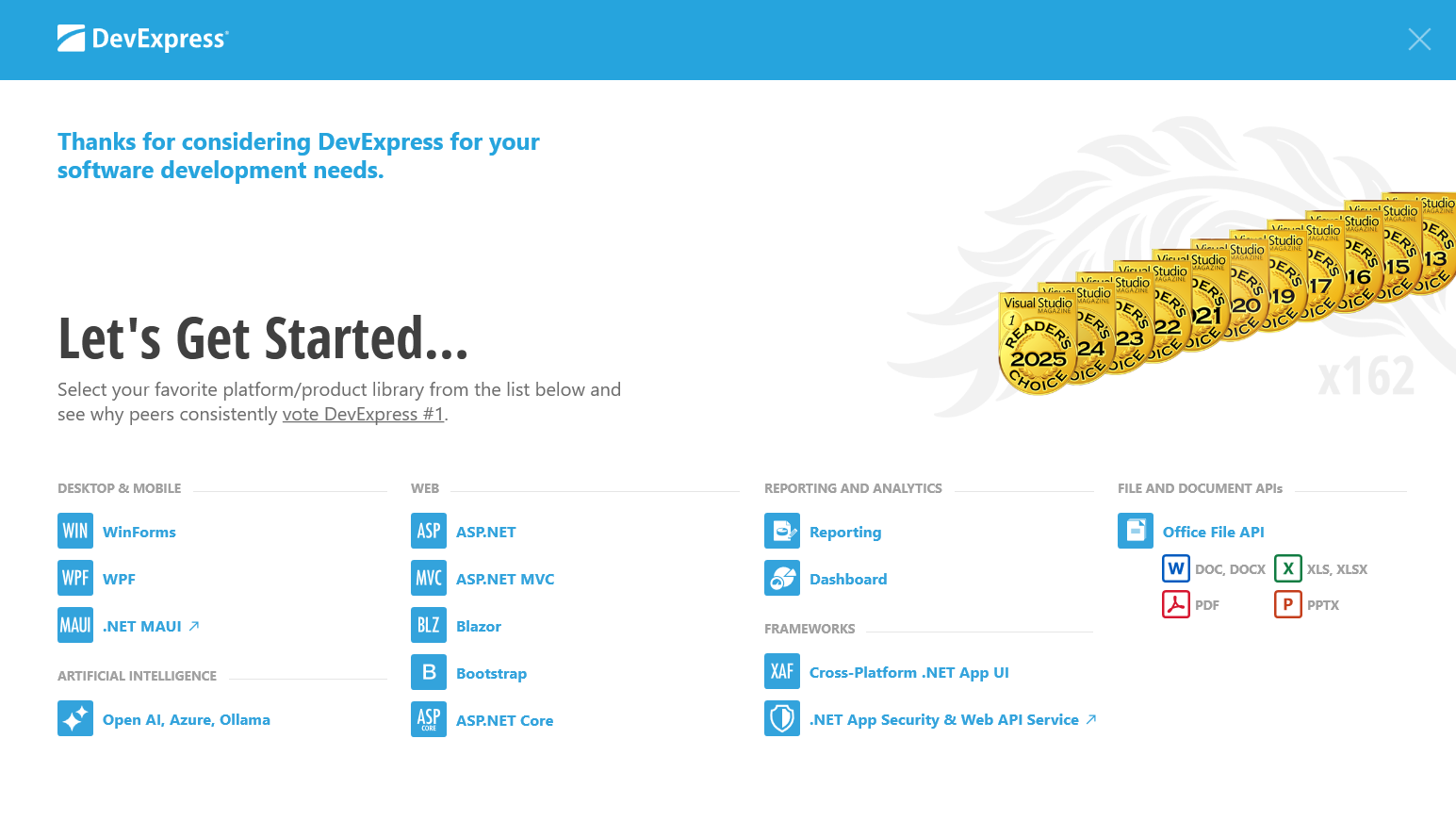
Click ASP.NET Core, then select a control to explore. The demos open in a browser.
Demos on GitHub
Demo sources for controls are available on GitHub:
To run demos locally, you must:
Clone the repository:
# HTTPS
git clone https://github.com/DevExpress/demos-aspnet-core.git
# SSH
git clone git@github.com:DevExpress/demos-aspnet-core.git
Open one of the following solutions in your IDE:
- ASP.NET MVC Controls/CS/DevExtreme.NETCore.Demos/DevExtreme.NETCore.Demos.sln
- ASP.NET/CS/AspNetCoreDemos.RichEdit/AspNetCoreDemos.RichEdit.sln
- ASP.NET/CS/AspNetCoreDemos.Spreadsheet/AspNetCoreDemos.Spreadsheet.sln
- Reporting/CS/AspNetCoreDemos.Reporting/AspNetCoreDemos.Reporting.sln
Run the application in a supported browser.
UI Template Gallery
The UI Template Gallery contains a collection of sample applications built with DevExpress ASP.NET Core controls. You can use these applications as a starting point for your projects.
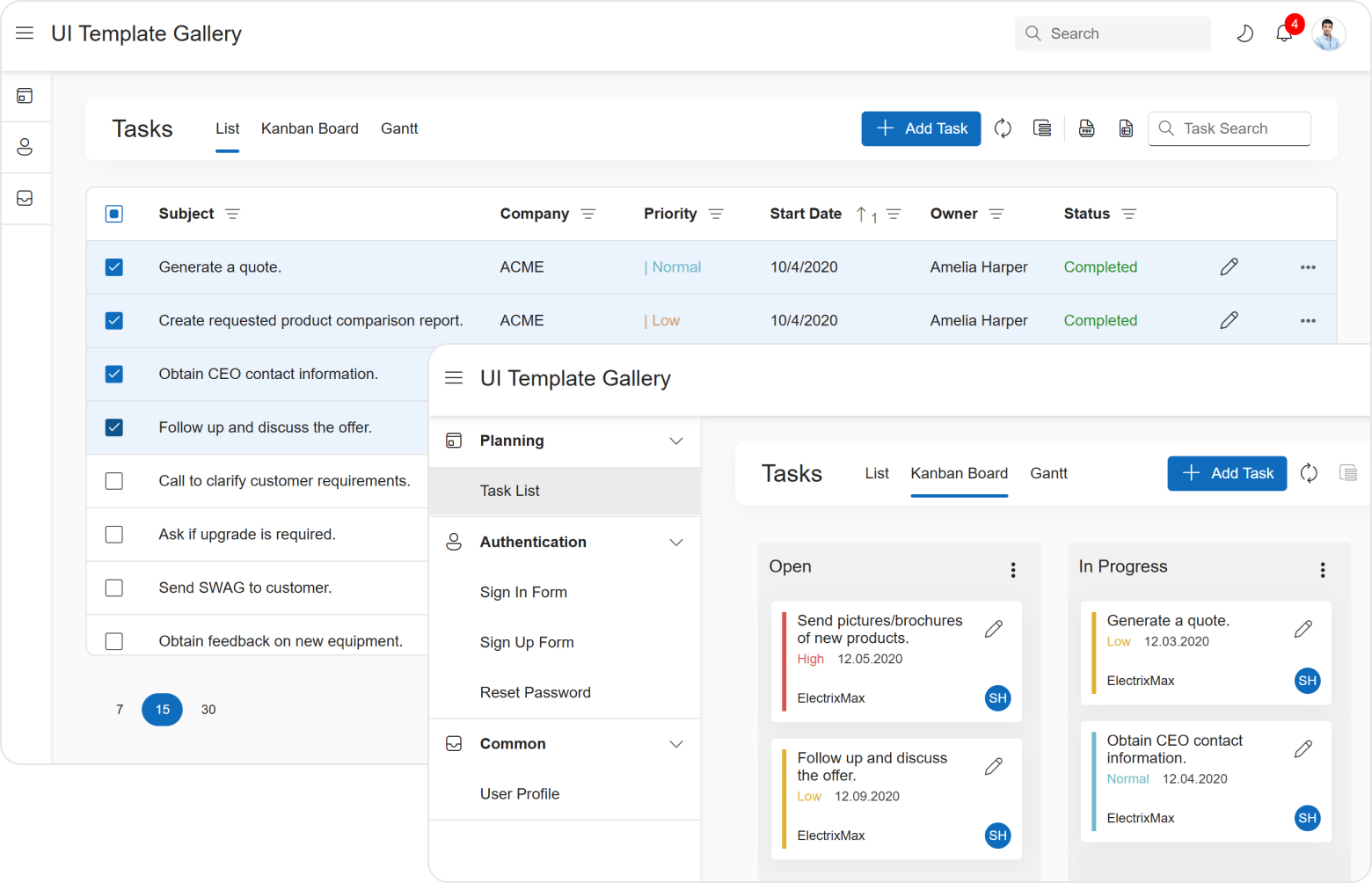
The UI Template Gallery includes the following templates:
- Task List - a simple task management layout built with DataGrid and Gantt controls.
- User Profile - a form used to edit user profile information built with Form and Popup controls.
- Sign In Form - a template for user authentication.
- Register Form - a template for new user registration.
- Reset Password Form - a template for password recovery.