Template Customization
- 4 minutes to read
XAF built-in Templates generate UIs suitable for most business applications. You can modify these default templates or create fully custom templates at design time, or change template settings at runtime.
XAF determines the type of template to display based on TemplateContext. The following table lists the built-in XAF templates and their Contexts.
| Template | Blazor Template Class | WinForms Template Class | Template Context |
|---|---|---|---|
| Main Form Template (with a toolbar menu) | ApplicationWindowTemplate | LightStyleMainForm | ApplicationWindow |
| Main Ribbon Form Template | ApplicationRibbonWindowTemplate | LightStyleMainRibbonForm | ApplicationWindow |
| Detail Form Template (with a toolbar menu) | DetailFormTemplate | DetailFormV2 | View |
| Detail Ribbon Form Template | DetailRibbonFormTemplate | DetailRibbonFormV2 | View |
| Popup Window/Form Template | PopupWindowTemplate | PopupForm | PopupWindow |
| Nested Frame Template | NestedFrameTemplate | NestedFrameTemplateV2 | NestedFrame |
| Lookup Form Template | — | LookupForm | LookupWindow |
| Lookup Control Template | — | LookupControlTemplate | LookupControl |
| Logon Window Template | LogonWindowTemplate | LogonPopupForm | LogonWindow |
Create a Custom Template at Design Time
The DevExpress Template Kit allows you to add default XAF Template code to your application, customize it, and use your modified Templates instead of default Templates.
Add Template code in your project (SolutionName.Blazor.Server or SolutionName.Win) as described in the following help topic: Template Kit: Create a new item.
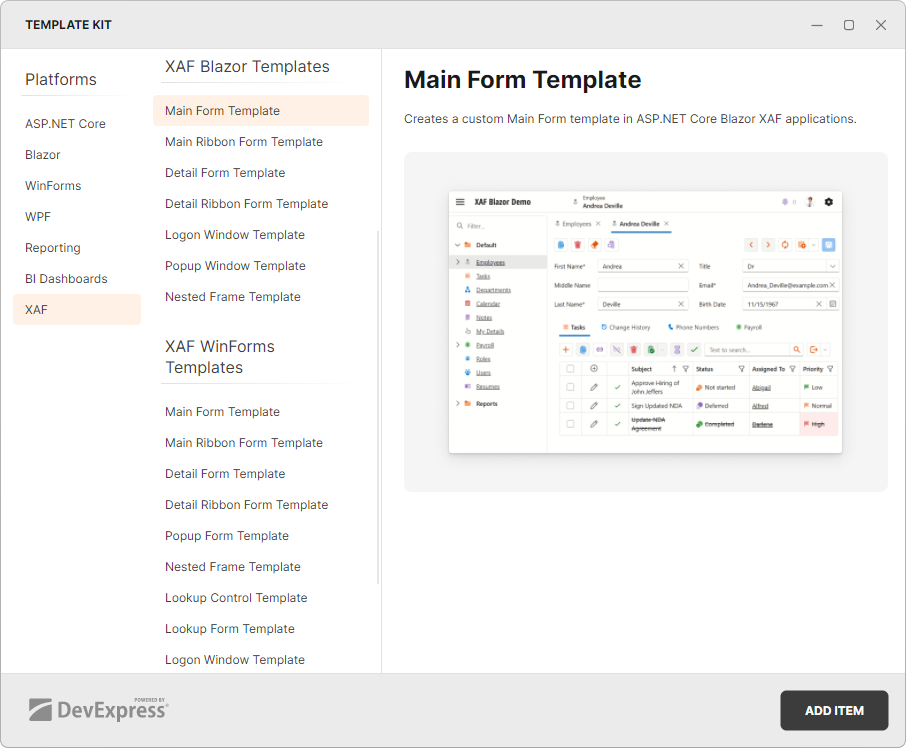
Modify the added template according to your needs.
For WinForms templates, ensure that the DevExpress.ExpressApp.Win.Design NuGet package is added to the SolutionName.Win project. This package contains design-time functionality required for Visual Studio designer.
Alternatively, you can create a custom Template from scratch, inherit it from a control, and implement the IFrameTemplate or IWindowTemplate interface.
Handle the XafApplication.CreateCustomTemplate event to make the application to use your Template instead of the default Template. In the event handler, assign your Template class to the Template property.
public class SolutionNameBlazorApplication : BlazorApplication {
    // ...
    public SolutionNameBlazorApplication() {
        // ...
        CreateCustomTemplate += application_CreateCustomTemplate;
    }
    static void application_CreateCustomTemplate(object sender, CreateCustomTemplateEventArgs e) {
        if (e.Context == TemplateContext.ApplicationWindow)
            e.Template = new SolutionName.Blazor.Server.Templates.CustomBlazorMainFormTemplate();
    }
}
Examples
- How To: Create a Custom Blazor Application Template
- How to: Create a Custom WinForms Ribbon Template
- How to: Create a Custom WinForms Standard Template
Customize Template Settings at Runtime
Handle the XafApplication.CustomizeTemplate event to customize a Template every time it is created.
The following code sample accesses the Popup Window Template and specifies the template’s size limits.
- SolutionName.Blazor.Server\Controllers\LimitPopupSize.cs
- SolutionName.Win\Controllers\LimitPopupSize.cs
using DevExpress.ExpressApp;
using DevExpress.ExpressApp.Blazor.Templates;

public class LimitPopupSizeController : WindowController {
    public LimitPopupSizeController() {
        TargetWindowType = WindowType.Main;
    }
    protected override void OnActivated() {
        base.OnActivated();
        Application.CustomizeTemplate += Application_CustomizeTemplate;
    }
    void Application_CustomizeTemplate(object sender, CustomizeTemplateEventArgs e) {
        if ((e.Context == TemplateContext.PopupWindow || e.Context == TemplateContext.LookupWindow)
            && e.Template is PopupWindowTemplate popupWindow) {
            popupWindow.MaxWidth = "900px";
            popupWindow.MaxHeight = "600px";
        }
    }
    protected override void OnDeactivated() {
        Application.CustomizeTemplate -= Application_CustomizeTemplate;
        base.OnDeactivated();
    }
}
- To customize a particular Window’s (Frame) Template, handle the TemplateChanged event.
- To customize a Template of a pop-up window displayed by PopupWindowShowAction, handle the Action’s PopupWindowShowAction.CustomizeTemplate event.
Examples
- How to: Adjust the Size and Style of Pop-up Dialogs (Blazor)
- How to Access the Tab Control to Customize Tabbed UI Behavior in Code (Blazor)
- Display and Customize the Ribbon UI in an XAF Blazor Application
- How to: Access the Bar Manager (WinForms)
- How to: Access the Document Manager (WinForms)
- How to: Access the Ribbon Control (WinForms)
- How to: Adjust Window Size and Style (WinForms)