Use Helper Classes
- 10 minutes to read
This section lists helper classes (utilities) you can use to customize report rendering and implement additional functionality in reporting applications.
Graphics Utilities
- GraphicsUnitConverter
- Converts values to different measurement units.
The following code snippet calculates the clipping region of the drawing surface. The Graphics measurement unit is Document and the report measurement unit is specified by the XtraReport.ReportUnit property.
var clipBounds = GraphicsUnitConverter.Convert(report.PageSize, report.Dpi, GraphicsDpi.Document);
For additional information, review the following help topic: Report Units of Measurement.
- BestSizeEstimator
- Allows you to find the optimal boundaries for a font or get a font that fits the boundaries.
The following code adjusts the font to fit the XRLabel:
Data Source Utility
- DataSourceManager
- Contains methods that allow you to manage report data sources at runtime.
When you create a reporting application, you might need to modify or configure data sources for your reports at runtime. Refer to the following topic for more information: Manage Data Sources at Runtime.
The following code snippet replaces the report’s data sources with the test data sources:
foreach(var ods in DataSourceManager.GetDataSources<ObjectDataSource>(report)) {
    TestObjectDataSource tds = new TestObjectDataSource(ods.Container) {
        Constructor = ods.Constructor,
        DataMember = ods.DataMember,
        DataSource = ods.DataSource,
        Name = ods.Name
    };
    tds.Parameters.AddRange(ods.Parameters);
    DataSourceManager.ReplaceDataSource(report, ods, tds);
}
Page Rendering Utility
- BrickSelector
- Selects bricks from a document or document page(s).
The methods stored in the BrickSelector class allow you to select bricks:
GetBricks(page) - returns all bricks on a page.
GetBricksByXRControl(page, control) - returns bricks generated by a specific report control.
GetBricksByTag(page, tag) - returns bricks by tag.
After a report is generated, its layout is transformed into a document that consists of bricks. A brick is a visual element that is the rendered output of a report control. Bricks are placed on document pages and contain visual properties such as bounds, borders, text, colors, and visibility. Since the layout is determined prior to the generation of bricks, they do not affect layout calculation.
If you need to change the layout configuration, modify the report controls prior to document generation.
To post-process the final document - modify bricks.
Most brick-based customizations are made in the XRControl.AfterPrint event, after the document is fully created.
Use bricks in the following cases:
Adjust visual properties after layout is complete.
Add or remove borders dynamically.
Align elements across pages.
Detect first/last page of a group.
Create custom navigation links.
Hide or modify specific rendered elements.
Tip
Modifications are page-specific. If the same control appears on multiple pages, process each page separately.
For additional information on bricks, refer to the following help topic: Bricks.
Examples
Add Borders to the Last Cell
Post-process a rendered document and add a vertical border line to the last cell in each row (for example, to complete a crosstab grid when design-time borders are not enough).
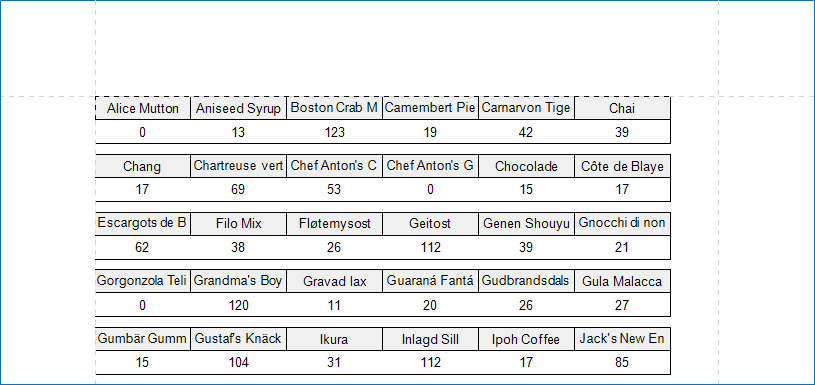
using System.Drawing;
using System.Linq;

private void XtraReport1_AfterPrint(object sender, EventArgs e) {
    // Handle AfterPrint.
    foreach (DevExpress.XtraPrinting.Page page in Pages) {
        // For each page, get bricks generated by a specific XRControl (crossTabDataCell1).
        var bricks = DevExpress.XtraPrinting.BrickSelector
            .GetBricksByXRControl(page, crossTabDataCell1);
        // Group bricks by row coordinate.
        var rows = bricks.GroupBy(b => b.Rect.Top);
        foreach (var row in rows) {
            // Identify the last brick in the row.
            var lastBrick = (DevExpress.XtraPrinting.VisualBrick)
                row.OrderBy(b => b.Rect.Left).Last();
            // Apply the required border settings to that brick.
            lastBrick.Sides =
                DevExpress.XtraPrinting.BorderSide.Right |
                DevExpress.XtraPrinting.BorderSide.Bottom;
            lastBrick.BorderWidth = 1;
            lastBrick.BorderColor = Color.Black;
        }
    }
}
Adjust Line Height
When detail content height varies, make each printed line uniform by adjusting all bricks in that line to the maximum height in the group, without increasing every row globally.
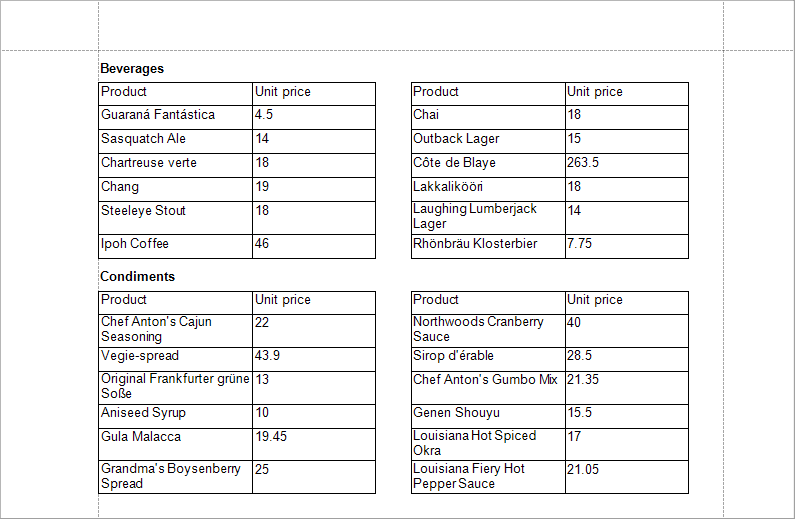
using DevExpress.XtraReports.UI;
using DevExpress.XtraPrinting;

private void Report_AfterPrint(object sender, EventArgs e) {
    // Cast sender to XtraReport to get access to the PrintingSystem and its pages.
    XtraReport report = (XtraReport)sender;
    // Iterate through all rendered pages.
    foreach (DevExpress.XtraPrinting.Page page in report.PrintingSystem.Pages) {
        // Get bricks generated by a specific XRControl (xrTable1).
        var bricks = DevExpress.XtraPrinting.BrickSelector
            .GetBricksByXRControl(page, xrTable1);
        // Group bricks by vertical coordinate.
        var lines = bricks.GroupBy(b => b.Rect.Y);
        foreach (var line in lines) {
            // Determine the maximum height within this line.
            var height = line.Max(b => b.Size.Height);
            foreach (var tableBrick in line)
                foreach (var rowBrick in tableBrick.Bricks)
                    foreach (var cell in rowBrick.Bricks)
                        // Apply uniform height to each cell.
                        cell.Size = new System.Drawing.SizeF(
                            cell.Size.Width,
                            height
                        );
        }
    }
}
Show or Hide Elements Based on Group Boundaries
Hide or show elements depending on whether the current page is the first or last page of a group, based on tags stored in bricks.
private void XtraReport1_AfterPrint(object sender, EventArgs e) {
    // Detect first page of each group.
    string prevGroup = string.Empty;
    for (int i = 0; i < Pages.Count; i++) {
        DevExpress.XtraPrinting.Page page = Pages[i];
        // Get the brick generated by xrLine1 on this page.
        var line1 = System.Linq.Enumerable.FirstOrDefault(
            DevExpress.XtraPrinting.BrickSelector
                .GetBricksByXRControl(page, xrLine1)
        );
        if (line1 == null)
            continue;
        // Extract group key from Tag.
        string currGroup = line1.Tag?.ToString() ?? string.Empty;
        // Show only if this is the first page of the group.
        line1.IsVisible = currGroup != prevGroup;
        prevGroup = currGroup;
    }
    // Detect last page of each group.
    string nextGroup = string.Empty;
    for (int i = Pages.Count - 1; i >= 0; i--) {
        DevExpress.XtraPrinting.Page page = Pages[i];
        var line2 = System.Linq.Enumerable.FirstOrDefault(
            DevExpress.XtraPrinting.BrickSelector
                .GetBricksByXRControl(page, xrLine2)
        );
        if (line2 == null)
            continue;
        string currGroup = line2.Tag?.ToString() ?? string.Empty;
        // Show only if this is the last page of the group.
        line2.IsVisible = currGroup != nextGroup;
        nextGroup = currGroup;
    }
}
Create Custom Navigation Links (TOC)
Generate clickable links in a document by pairing link bricks with target bricks and updating page numbers dynamically (custom table of contents).
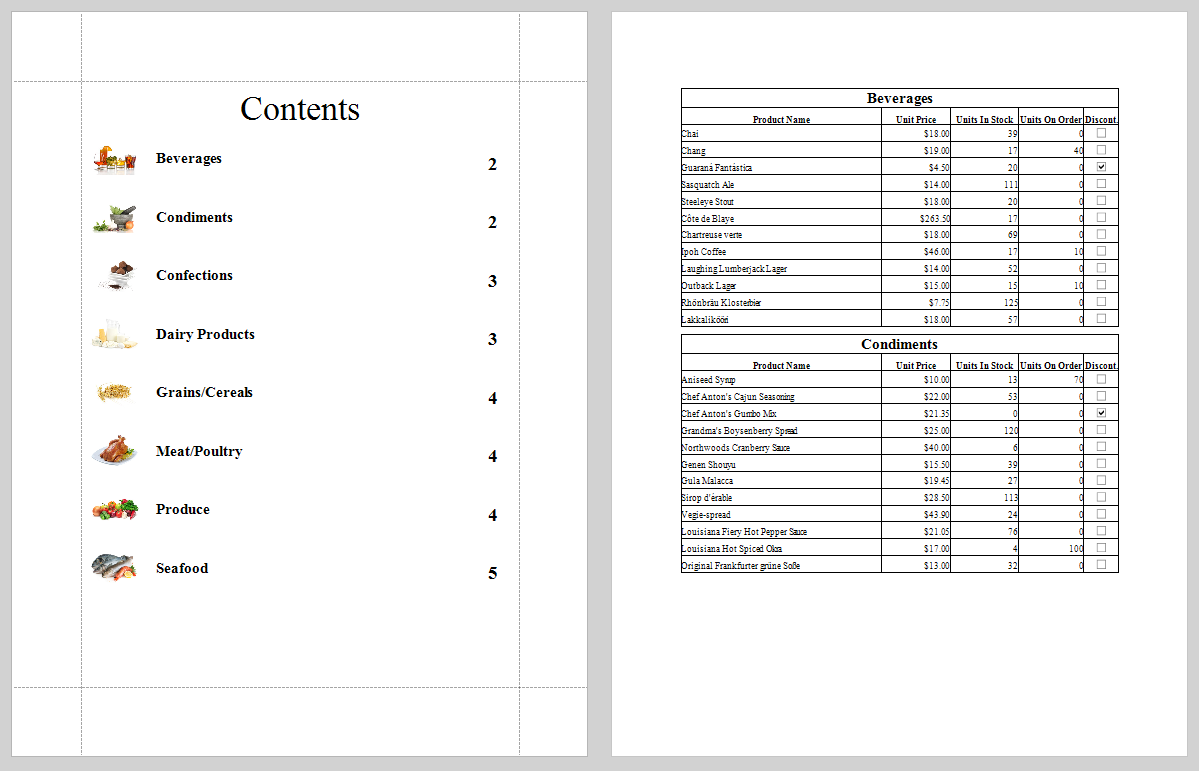
using DevExpress.XtraReports.UI;
using DevExpress.XtraPrinting;
using System.Collections.Generic;

private static void CreateLinks(XtraReport report) {
    // Prepare collections for link, target and page-number bricks.
    List<DevExpress.XtraPrinting.VisualBrick> linkBricks = new();
    List<DevExpress.XtraPrinting.VisualBrick> pageBricks = new();
    List<TargetBrick> targetBricks = new();
    // Enumerate all pages and all bricks.
    foreach (DevExpress.XtraPrinting.Page page in report.Pages) {
        foreach (DevExpress.XtraPrinting.VisualBrick brick in
                 DevExpress.XtraPrinting.BrickSelector.GetBricks(page)) {
            if (brick.Tag == null)
                continue;
            string tagString = brick.Tag.ToString();
            // Separate bricks by tag prefix.
            if (tagString.StartsWith("Link_"))
                linkBricks.Add(brick);
            if (tagString.StartsWith("Target_"))
                targetBricks.Add(new TargetBrick { Brick = brick, Page = page });
            if (tagString.StartsWith("PageBrick_"))
                pageBricks.Add(brick);
        }
    }
    // Pair link bricks with their target bricks.
    foreach (DevExpress.XtraPrinting.VisualBrick link in linkBricks) {
        string key = link.Tag.ToString().Substring(5);
        TargetBrick target = targetBricks.Find(
            t => (string)t.Brick.Tag == string.Concat("Target_", key)
        );
        if (target == null)
            continue;
        // Configure navigation.
        target.Brick.AnchorName = key;
        link.Url = key;
        link.NavigationPair =
            DevExpress.XtraPrinting.BrickPagePair.Create(
                target.Brick,
                target.Page
            );
        // Update page number placeholder.
        DevExpress.XtraPrinting.VisualBrick pageBrick =
            pageBricks.Find(
                b => (string)b.Tag == string.Concat("PageBrick_", key)
            );
        if (pageBrick != null)
            pageBrick.Text = (target.Page.Index + 1).ToString();
    }
}
private class TargetBrick {
    public DevExpress.XtraPrinting.VisualBrick Brick { get; set; }
    public DevExpress.XtraPrinting.Page Page { get; set; }
}
Hide Rendered Elements by Tag
The following code hides report elements in a document whose predecessors in a report (report controls) are tagged with the XRControl.Tag property set to “hide this”: