Customize Presentation Themes
- 10 minutes to read
Themes define shared colors, fonts, and formatting effects that control how slides, layouts, and masters look.
The DevExpress Presentation API supports the following theme customization options:
- Access and modify the presentation theme.
- Create custom color, font, and format schemes.
- Override themes for individual slides, layouts, or notes slides.
- Remap theme colors through color mappings.
- Apply theme-based styles to shapes to maintain a consistent appearance.
Presentation elements can reference theme values. Theme changes update all dependent objects in the presentation.
Note
Themes affect only objects that reference theme colors, fonts, or formatting styles. Objects that use explicitly assigned RGB colors, fonts, or formatting properties are not automatically updated when the theme changes.
Theme Hierarchy
Presentations use a hierarchical theme system:
- Master Theme
- Defines colors, fonts, and formatting effects for the entire presentation.
- Theme Override
- Overrides the master theme for specific slides, layouts, or notes slides.
- Shape Style
- Allows shapes to reference theme colors and formatting elements to maintain visual consistency.
Master Theme
The Theme class defines the master theme for a presentation. Slide masters and notes masters inherit this theme and expose it through the getTheme() method.
Access the Master Theme
The following code snippet retrieves the theme associated with the second slide:
import com.devexpress.docs.presentation.*;
import com.devexpress.docs.office.*;
import java.nio.file.*;

// Load a presentation.
try(Presentation presentation = new Presentation(
        Files.readAllBytes(Path.of("presentation.pptx")))) {
    // Access the second slide.
    Slide slide = presentation.getSlides().get(1);

    // Find the slide master associated with the slide layout.
    SlideMaster slideMaster = null;
    SlideLayout targetLayout = slide.getLayout();

    for (SlideMaster master : presentation.getSlideMasters()) {
        for(SlideLayout layout : master.getLayouts()) {
            if (layout == targetLayout) {
                slideMaster = master;
                break;
            }
        }
        if(slideMaster != null) {
            break;
        }
    }

    // Access the master theme associated with the slide.
    Theme theme = slideMaster != null ? slideMaster.getTheme() : null;

    // Perform additional presentation processing logic.
}
Theme Overrides
A theme override allows you to customize the appearance of specific presentation elements without modifying the master theme.
Use the setThemeOverride() method to override theme colors, fonts, or formatting effects for individual slides, layouts, and notes slides.
Note
When you create a theme override that includes a format scheme, PowerPoint requires format scheme collections to contain at least three items.
Override a Slide Theme
The following code snippet overrides the master theme for the first slide:
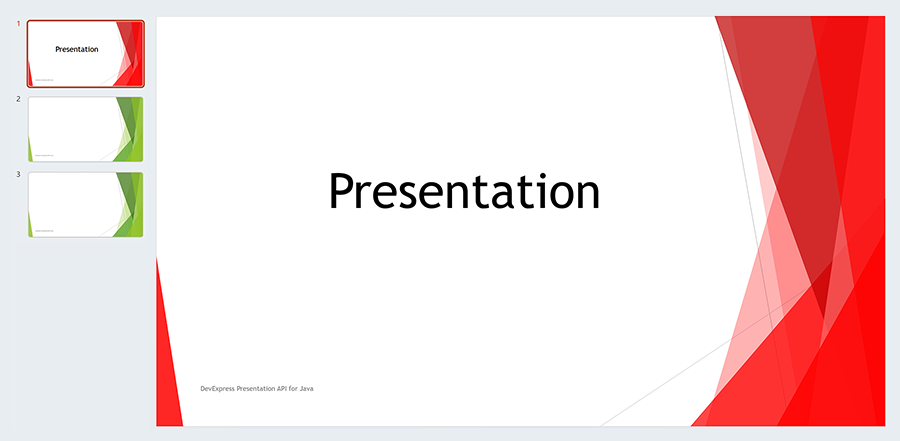
// Load a presentation.
try(Presentation presentation = new Presentation(
        Files.readAllBytes(Path.of("presentation.pptx")))) {
    // Access the first slide.
    Slide slide = presentation.getSlides().getFirst();

    // Create a theme override.
    ThemeOverride themeOverride = new ThemeOverride();

    // Override the slide color scheme.
    ThemeColorScheme colorScheme = new ThemeColorScheme();
    colorScheme.setAccent1(new OfficeColor(Color.getRed()));
    colorScheme.setAccent2(new OfficeColor(Color.getRed()));
    themeOverride.setColorScheme(colorScheme);

    // Create a format scheme.
    ThemeFormatScheme formatScheme = new ThemeFormatScheme();

    // Add required minimum fills (PowerPoint standard requires at least 3 elements).
    List<Fill> fills = new ArrayList<>();
    fills.add(new SolidFill(Color.getRed()));
    fills.add(new SolidFill(Color.getMagenta()));
    fills.add(new SolidFill(Color.getLime()));

    formatScheme.getFills().resetTo(fills);

    themeOverride.setFormatScheme(formatScheme);

    // Apply the override.
    slide.setThemeOverride(themeOverride);

    // Perform additional presentation processing logic.
}
Shape Style
Shapes can reference theme format scheme elements through the ShapeStyle object. When the theme changes, shapes that use theme-based styles automatically update their appearance.
The following code snippet replaces the theme’s background fill scheme with custom fills and applies the first theme background fill to a shape on the first slide:

// Load an existing presentation.
try(Presentation presentation = new Presentation(
        Files.readAllBytes(Path.of("presentation.pptx")))) {

    // Access the first slide.
    Slide slide = presentation.getSlides().getFirst();

    // For demonstration purposes, this example assumes that the first slide
    // uses a layout associated with the first slide master in the presentation.
    // Access the slide master and obtain its theme.
    SlideMaster slideMaster = presentation.getSlideMasters().get(0);
    Theme theme = slideMaster.getTheme();

    // Create a collection of background fills for the theme.
    // PowerPoint requires at least three fills.
    List<Fill> fills = new ArrayList<>();
    fills.add(new SolidFill(Color.fromArgb(148, 198, 56)));
    fills.add(new SolidFill(Color.getBlack()));
    fills.add(new SolidFill(Color.getBlue()));

    // Replace the theme's background fill scheme.
    theme.getFormatScheme().getBackgroundFills().resetTo(fills);

    // Access a shape on the first slide.
    Shape shape = (Shape)slide.getShapes().get(1);

    // Apply the first background fill from the theme's background fill scheme to the shape.
    ShapeStyle style = new ShapeStyle();
    style.setFillThemeIndex(0);
    shape.setStyle(style);

    // Perform additional presentation processing logic.
}
Theme Components
A theme consists of three main components:
- Color Scheme
- Defines theme colors.
- Font Scheme
- Defines fonts for titles and body text.
- Format Scheme
- Defines fills, line styles, and visual effects.
Color Scheme
The ThemeColorScheme class defines twelve colors based on the Office Open XML standard:
| Color Type | Description | API |
|---|---|---|
| Dark1, Dark2 | Text and foreground colors | getDark1(), getDark2() |
| Light1, Light2 | Background colors | getLight1(), getLight2() |
| Accent1 - Accent6 | Accent and highlight colors | getAccent1() / getAccent6() |
| Hyperlink | Hyperlink color | getHyperlink() |
| FollowedHyperlink | Visited hyperlink color | getFollowedHyperlink() |
Use the getColorScheme() method to access the color scheme. The setColorScheme(ThemeColorScheme value) updates the color scheme.
Customize the Color Scheme
The following code snippet modifies theme colors:
// Access the first slide master in the presentation.
SlideMaster slideMaster = presentation.getSlideMasters().get(0);

// Access the theme.
Theme theme = slideMaster.getTheme();

// Customize theme colors.
theme.getColorScheme().setAccent1(
        new OfficeColor(Color.getOrange()));
theme.getColorScheme().setAccent2(
        new OfficeColor(Color.getDarkOrange()));
theme.getColorScheme().setAccent3(
        new OfficeColor(Color.getIndianRed()));
theme.getColorScheme().setDark2(
        new OfficeColor(Color.getRed()));

Font Scheme
The ThemeFontScheme class defines fonts. Use the Theme.getFontScheme() method to access the font scheme.
The font scheme contains two font groups:
- Major font for titles and headings
- Use getMajorFont() and setMajorFont(ThemeFont value) methods to obtain and specify the major font.
- Minor font for body text
- Use getMinorFont() and setMinorFont(ThemeFont value) methods to obtain and specify the minor font.
Each font (ThemeFont) can specify fonts for different writing systems and language groups:
| Script Type | ThemeFont API |
|---|---|
| Latin | getLatinFont() |
| East Asian | getEastAsianFont() |
| Complex script | getComplexScriptFont() |
Customize the Font Scheme
The following code snippet customizes theme fonts:
// Access the theme.
Theme theme = slideMaster.getTheme();

// Customize major and minor fonts.
theme.getFontScheme().setMajorFont(new ThemeFont("Tahoma"));
theme.getFontScheme().setMinorFont(new ThemeFont("Calibri", "Calibri Light"));
Format Scheme
The ThemeFormatScheme class defines visual formatting. Use the getFormatScheme() method to access the format scheme.
The format scheme contains the following collections:
- Fills
- getFills() — Fill styles for shapes and text boxes
- Background Fills
- getBackgroundFills() — Fill styles for slide backgrounds
- Line Styles
- getLineStyles() — Outline and connector styles
- Effects
- getEffects() — Visual effects (such as glow, blur, and shadows)
Note
According to PowerPoint requirements, each format scheme collection must contain at least three elements.
Customize the Format Scheme
The following code snippet replaces theme format scheme collections with custom values.
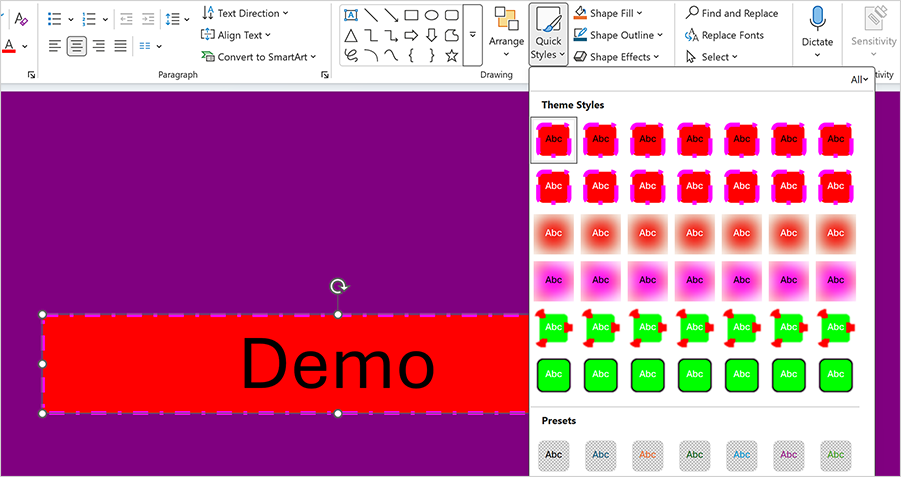
try(Presentation presentation = new Presentation(
        Files.readAllBytes(Path.of("presentation.pptx")))) {

    // Access the theme.
    Theme theme = presentation
            .getSlideMasters()
            .get(0)
            .getTheme();

    // Create background fills.
    List<Fill> backgroundFills = new ArrayList<>();
    backgroundFills.add(new SolidFill(Color.getPurple()));
    backgroundFills.add(new SolidFill(Color.getYellow()));
    backgroundFills.add(new SolidFill(Color.getDarkGoldenrod()));

    theme.getFormatScheme()
            .getBackgroundFills()
            .resetTo(backgroundFills);

    // Create shape fills.
    List<Fill> fills = new ArrayList<>();
    fills.add(new SolidFill(Color.getRed()));
    fills.add(new SolidFill(Color.getMagenta()));
    fills.add(new SolidFill(Color.getLime()));

    theme.getFormatScheme()
            .getFills()
            .resetTo(fills);

    // Create outline styles.
    List<LineStyle> lineStyles = new ArrayList<>();

    LineStyle line1 = new LineStyle();
    line1.setWidth(50f);
    line1.setDashType(LineDashType.DOT);
    line1.setFill(new SolidFill(Color.getRed()));
    lineStyles.add(line1);

    LineStyle line2 = new LineStyle();
    line2.setWidth(20f);
    line2.setDashType(LineDashType.DASH_DOT);
    line2.setFill(new SolidFill(Color.getMagenta()));
    lineStyles.add(line2);

    LineStyle line3 = new LineStyle();
    line3.setWidth(5f);
    line3.setDashType(LineDashType.SOLID);
    line3.setFill(new SolidFill(Color.getLime()));
    lineStyles.add(line3);

    theme.getFormatScheme()
            .getLineStyles()
            .resetTo(lineStyles);

    // Create visual effects.
    List<ShapeEffectProperties> effects = new ArrayList<>();

    ShapeEffectProperties blurEffect = new ShapeEffectProperties();
    blurEffect.setBlur(new BlurEffect(100f, true));
    effects.add(blurEffect);

    ShapeEffectProperties softEdgeEffect = new ShapeEffectProperties();
    softEdgeEffect.setSoftEdge(new SoftEdgeEffect(8f));
    effects.add(softEdgeEffect);

    ShapeEffectProperties glowEffect = new ShapeEffectProperties();
    glowEffect.setGlow(new GlowEffect(15f));
    effects.add(glowEffect);

    theme.getFormatScheme()
            .getEffects()
            .resetTo(effects);

    // Perform additional presentation processing logic.
}
Theme Color References
Theme color references determine how presentation elements obtain colors from the current theme.
The following elements can define or override theme color mappings:
Note
Format objects stored in theme format scheme collections cannot contain references to theme colors. Use RGB colors or SchemeColors values instead.
Color Mapping
The ColorMap class remaps theme color references to different theme color indexes. For example, you can remap Accent1 to Accent3 (all objects that reference Accent1 will use the Accent3 color instead).
- Use the setColorMap(ColorMap value) method to specify mappings for masters.
- Use the setColorMapOverride(ColorMap value) method to override mappings for individual slides.
Remap Theme Colors
The following code snippet remaps theme colors at the master level and overrides them for a slide:

try(Presentation presentation = new Presentation(
        Files.readAllBytes(Path.of("presentation.pptx")))) {
    // Access the slide master.
    SlideMaster slideMaster = presentation.getSlideMasters().get(0);

    // Access the theme.
    Theme theme = slideMaster.getTheme();

    // Modify master color mappings.
    ColorMap masterColorMap = new ColorMap() {{
        setAccent1(ColorSchemeIndexType.ACCENT_3);
        setAccent2(ColorSchemeIndexType.ACCENT_4);
        setText1(ColorSchemeIndexType.DARK_2);
        setBackground1(ColorSchemeIndexType.LIGHT_2);
    }};

    slideMaster.setColorMap(masterColorMap);

    // Override mappings for a slide.
    Slide slide = presentation.getSlides().getFirst();

    ColorMap slideColorMap = new ColorMap() {{
        setAccent1(ColorSchemeIndexType.ACCENT_6);
        setHyperlink(ColorSchemeIndexType.ACCENT_5);
    }};

    slide.setColorMapOverride(slideColorMap);

    // Perform additional presentation processing logic.
}
Create a Custom Theme
You can create a custom theme and assign custom colors, fonts, and formatting effects to match your organization’s branding requirements.
The following code snippet creates a custom theme and applies it to a presentation. The example accesses the theme from the slide master and defines custom color, font, and format schemes. It then assigns these components to the theme and saves the resulting presentation.
Note
For demo purposes, the code omits the implementation details for theme colors, fills, line styles, and effects. In a real-world scenario, you must populate these collections with valid values that meet PowerPoint requirements, including at least three fills, three background fills, three line styles, and three effects in the format scheme.
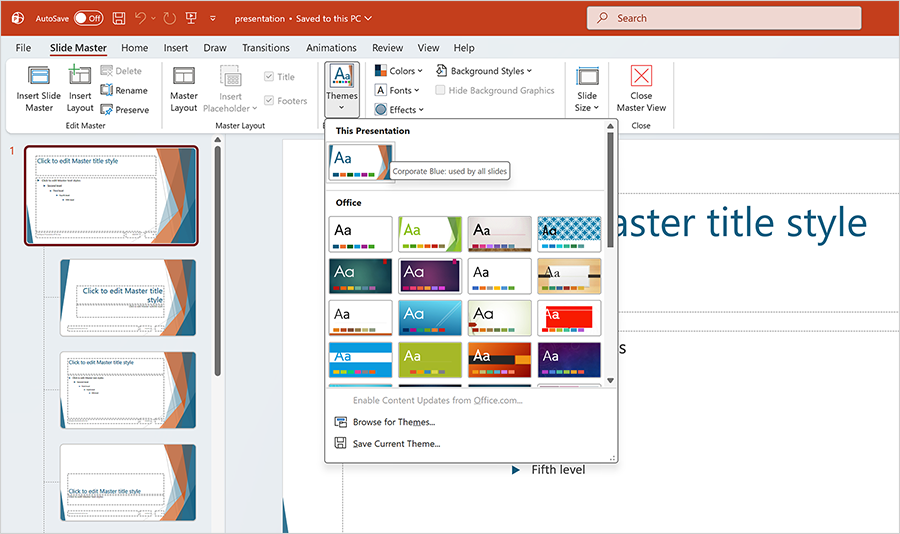
import com.devexpress.docs.office.*;
import com.devexpress.docs.presentation.*;
import com.devexpress.system.drawing.*;

import java.io.FileOutputStream;
import java.nio.file.*;

try(Presentation presentation = new Presentation(
        Files.readAllBytes(Path.of("presentation.pptx")))) {
    // Access the slide master.
    SlideMaster slideMaster = presentation.getSlideMasters().get(0);

    // Create a custom theme.
    Theme theme = new Theme();
    theme.setName("Corporate Blue");

    // Create a custom color scheme.
    ThemeColorScheme customColors = new ThemeColorScheme();
    customColors.setName("Corporate Blue");

    // Configure theme colors.
    // Configure Dark1, Light1, Accent1-Accent6,
    // Hyperlink, and FollowedHyperlink colors.

    // Create a custom font scheme.
    ThemeFontScheme customFonts = new ThemeFontScheme();
    customFonts.setName("Corporate Fonts");
    customFonts.setMajorFont(new ThemeFont("Segoe UI", "Arial", "Arial"));
    customFonts.setMinorFont(new ThemeFont("Calibri", "Times New Roman", "Times New Roman"));

    // Create a custom format scheme.
    ThemeFormatScheme customFormats = new ThemeFormatScheme();

    // PowerPoint requires at least three fills,
    // three background fills, three line styles,
    // and three effects.

    // Add custom fills.
    // Add custom background fills.
    // Add custom line styles.
    // Add custom effects.

    // Assign theme components.
    theme.setColorScheme(customColors);
    theme.setFontScheme(customFonts);
    theme.setFormatScheme(customFormats);

    slideMaster.setTheme(theme);

    // Save the presentation.
    Path outputDir = Path.of("output");
    Files.createDirectories(outputDir);

    try (FileOutputStream fileStream = new FileOutputStream(
            outputDir.resolve("presentation.pptx").toFile())) {
        presentation.saveDocument(fileStream);
    }
}
Export and Import Themes
The DevExpress Presentation API allows you to export (save) a presentation theme to a separate *.thmx file and apply a saved theme to another presentation. This functionality allows you to reuse corporate themes across multiple presentations and maintain a consistent visual identity.
Use the following methods to work with theme files:
| Method | Description |
|---|---|
| Presentation.exportTheme() | Exports the current presentation theme. |
| Presentation.importTheme() | Imports a theme into a presentation. |
Export a Theme
Use the exportTheme(OutputStream stream) or exportTheme(WritableByteChannel channel) method to save the current presentation theme to a stream.
The following code snippet implements the exportMasterTheme() method that exports the presentation theme to a file:
import com.devexpress.docs.presentation.*;

import java.io.*;
import java.nio.file.*;

static void exportMasterTheme(
        Presentation presentation,
        String fileName) throws IOException {

    Path outputDir = Path.of("themes");
    Files.createDirectories(outputDir);

    Path themePath = outputDir.resolve(fileName);

    try (FileOutputStream stream =
                 new FileOutputStream(themePath.toFile())) {

        presentation.exportTheme(stream);
    }
}
Import a Theme
Use the importTheme(InputStream stream) or importTheme(ReadableByteChannel channel) method to load a theme from a stream and apply it to a presentation.
The following code snippet imports a previously saved theme:
import com.devexpress.docs.presentation.*;

import java.io.*;
import java.nio.file.*;

static void importMasterTheme(
        Presentation presentation,
        String fileName) throws IOException {

    Path themePath =
            Path.of("themes").resolve(fileName);

    try (FileInputStream stream =
                 new FileInputStream(themePath.toFile())) {

        presentation.importTheme(stream);
    }
}
Note
The imported theme replaces the presentation’s current master theme (including its color, font, and format schemes). Presentation elements that reference theme values automatically reflect the imported theme. Elements that use explicitly assigned colors, fonts, or formatting remain unchanged.
Reuse a Theme Across Presentations
The following workflow allows you to share a theme between presentations:
- Export the theme from a source presentation with
Presentation.exportTheme(). - Load another presentation.
- Import the saved theme with
Presentation.importTheme(). - Save the updated presentation.