Customize Presentation Views with Presentation API for Java
- 4 minutes to read
Presentation view settings determine how a presentation appears when users open it in a presentation application (for example, PowerPoint). The DevExpress Presentation API allows you to specify the default view, configure grid spacing, customize normal view layout, and manage slide and notes view settings.
Set the Active View
Use the Presentation.getViewProperties().getActiveViewType() method to get the active presentation view type.
The setActiveViewType() method specifies the view that an application displays when a user opens the presentation.
The following code snippet specifies the handout view as the default view:
// Display the presentation in Handout View.
presentation.getViewProperties()
    .setActiveViewType(ViewType.HANDOUT_VIEW);
Presentation Views
Normal View
ViewType.NORMAL_SLIDE_VIEW is the default tri-pane workspace that displays slide thumbnails on the left, the active slide in the center, and speaker notes at the bottom.
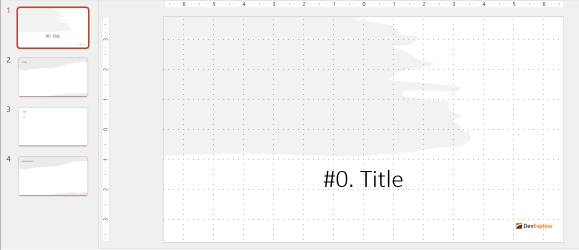
Thumbnail View
ViewType.SLIDE_THUMBNAIL_VIEW displays slide thumbnails and the active slide. Most presentation applications treat this view the same as NORMAL_SLIDE_VIEW.
presentation.getViewProperties()
    .setActiveViewType(ViewType.SLIDE_THUMBNAIL_VIEW);
Slide Sorter View
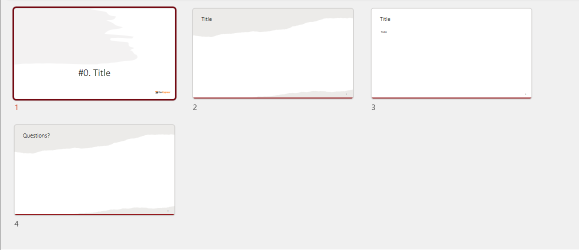
ViewType.SLIDE_SORTER_VIEW displays all slides as thumbnails and allows users to rearrange, delete, or group slides via drag-and-drop.
presentation.getViewProperties()
    .setActiveViewType(ViewType.SLIDE_SORTER_VIEW);
Outline View
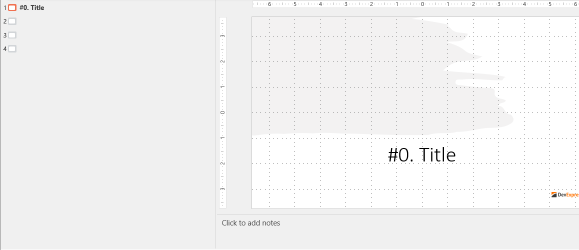
ViewType.OUTLINE_VIEW displays presentation content as an outline (a text-only hierarchy).
presentation.getViewProperties()
    .setActiveViewType(ViewType.OUTLINE_VIEW);
Slide Master Page View
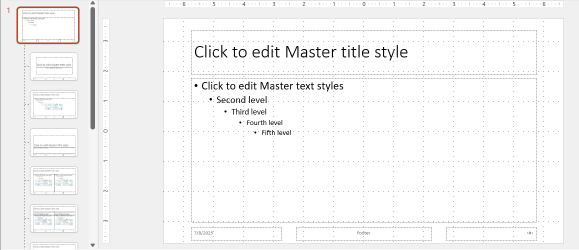
ViewType.SLIDE_MASTER_VIEW displays slide master layouts and theme settings.
presentation.getViewProperties()
    .setActiveViewType(ViewType.SLIDE_MASTER_VIEW);
Notes Page View
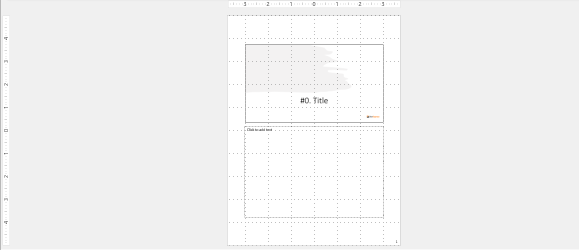
ViewType.NOTES_VIEW displays one slide per page with speaker notes.
presentation.getViewProperties()
    .setActiveViewType(ViewType.NOTES_VIEW);
Notes Master Page View
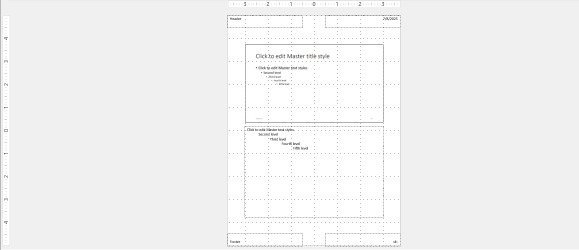
ViewType.NOTES_MASTER_VIEW displays notes master settings.
presentation.getViewProperties()
    .setActiveViewType(ViewType.NOTES_MASTER_VIEW);
Handout View
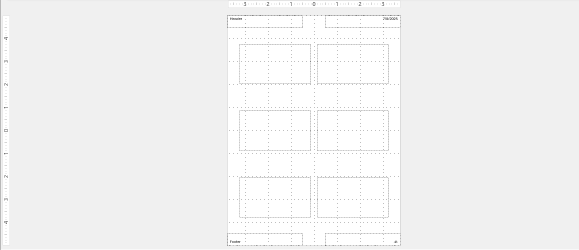
ViewType.HANDOUT_VIEW displays handout pages.
presentation.getViewProperties()
    .setActiveViewType(ViewType.HANDOUT_VIEW);
Adjust Grid Spacing
Use the setGridSpacing(float value) method to specify the distance between grid lines.
Grid spacing settings affect all presentation views except SLIDE_SORTER_VIEW.
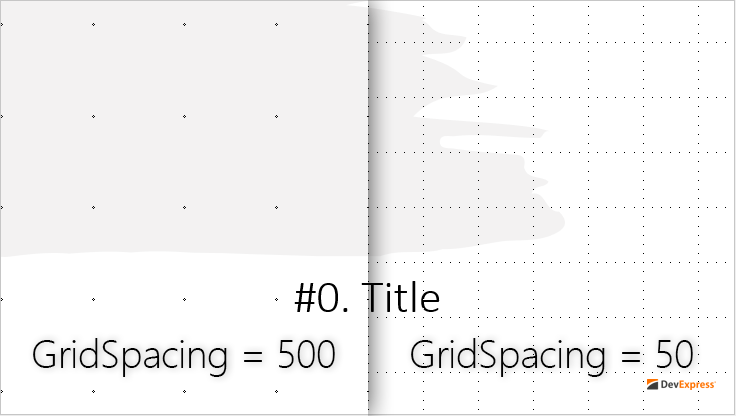
The following code snippet sets grid spacing to 50 Document units:

// Set grid spacing.
presentation.getViewProperties()
        .setGridSpacing(50);
Customize the Normal View
The normal view contains three regions:
- Slide area
- Thumbnails pane
- Notes pane
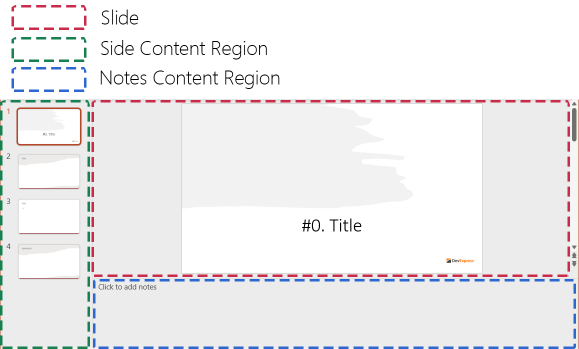
Use the NormalViewProperties class to customize normal view settings.
| Method | Description |
|---|---|
| setRestoredLeft() | Specifies the width of the thumbnails pane when the pane is neither minimized nor maximized. |
| setRestoredTop() | Specifies the height of the slide area when the slide area is neither minimized nor maximized. |
| setShowOutlineIcons() | Specifies whether applications should display icons in outline content. Applications can ignore this setting. |
| setHorizontalBarState() | Specifies the state of the horizontal splitter bar between the slide area and notes pane. |
| setVerticalBarState() | Specifies the state of the vertical splitter bar between the slide area and thumbnails pane. |
| setSnapVerticalSplitter() | Specifies whether the vertical splitter should collapse when the side pane becomes too small. Applications can ignore this setting. |
| setUseSingleView() | Displays only the slide area and hides the thumbnails and notes panes. |
Example: Collapse the Thumbnails Pane
The following code snippet collapses the thumbnails pane and disables automatic size adjustment:
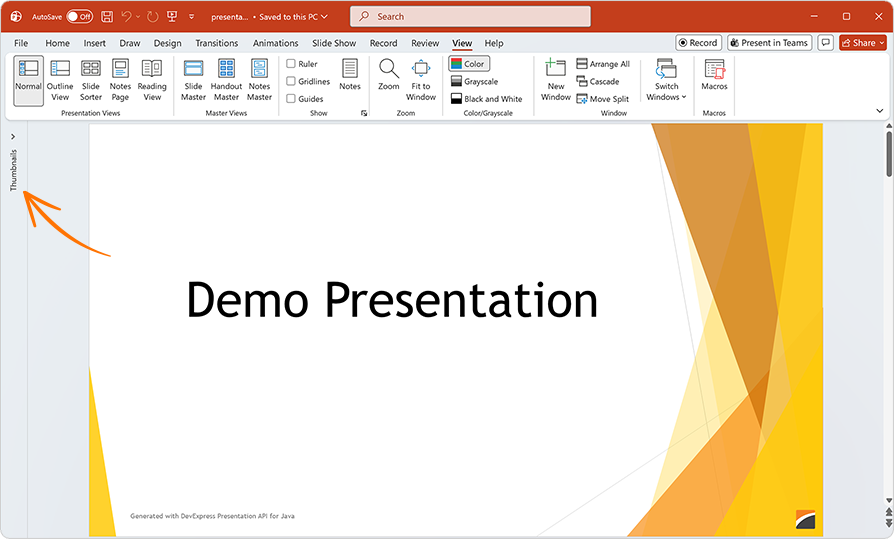
// Specify the thumbnails pane width as a percentage of the application window width.
NormalViewRestoredProperties restoredProperties =
        new NormalViewRestoredProperties(0, false);

// Collapse the thumbnails pane and set its restored width to 10%.
presentation.getViewProperties()
        .getNormalViewProperties()
        .setVerticalBarState(SplitterBarState.MINIMIZED);

presentation.getViewProperties()
        .getNormalViewProperties()
        .setRestoredLeft(restoredProperties);
Example: Display a Single Slide Area
The following code example hides thumbnails and notes panes:
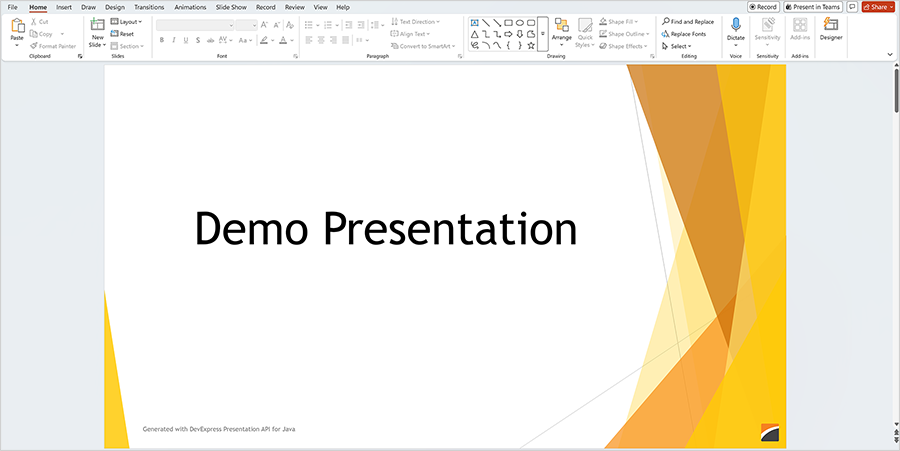
// Display only the slide area.
presentation.getViewProperties()
        .getNormalViewProperties()
        .setUseSingleView(true);
Customize Slide and Notes Regions
Use the CommonSlideViewProperties class to customize slide and notes regions. Changes affect all presentation views that contain these regions.
Available Settings
| Method | Description |
|---|---|
| getDrawingGuides() | Returns the collection of drawing guides. |
| getScale() | Returns the view scale percentage. Applications can ignore this setting. |
| setScale(float value) | Specifies the view scale percentage. Applications can ignore this setting. |
| getVariableScale() | Returns whether content should automatically scale to fit the application window. Applications can ignore this setting. |
| setVariableScale(boolean value) | Specifies whether content should automatically scale to fit the application window. Applications can ignore this setting. |
Add a Drawing Guide
The following code snippet creates a vertical drawing guide and adds it to the slide view:
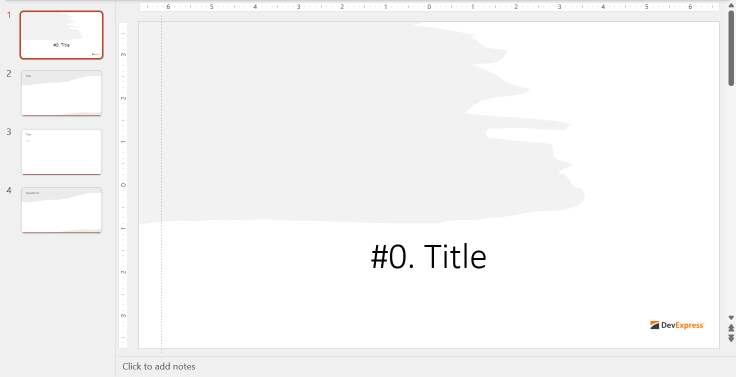
// Create a vertical drawing guide.
DrawingGuide guide = new DrawingGuide(Direction.VERTICAL, 150);

// Add the guide to the slide view.
presentation.getViewProperties()
        .getSlideViewProperties()
        .getDrawingGuides()
        .add(guide);