Customize Slide Footer — Presentation API for Java
- 5 minutes to read
Presentation slides can display footer information (such as footer text, date and time, and slide numbers). The DevExpress Presentation API allows you to configure these footer elements for an entire presentation through slide masters or customize them for individual slides.
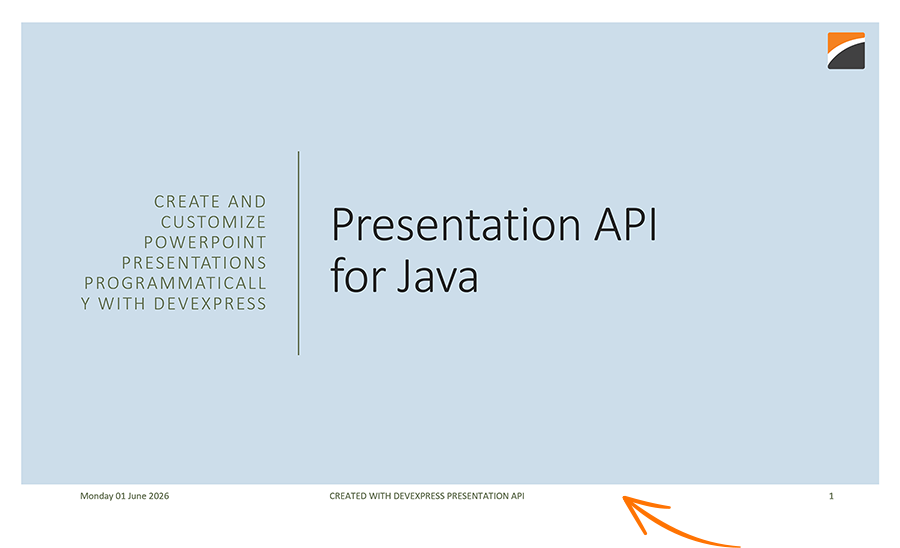
Footer customization options include:
- Specify footer content on a slide master.
- Add footer placeholders to individual slides.
- Modify footer text and appearance.
- Remove footer elements from slides.
Footer Inheritance
Footer placeholders are typically defined on slide masters and inherited by slides based on masters and layouts.
- Slide Master
- Slide Layout
- Slide
Changes made to footer placeholders on a slide master are reflected in all descendant slides unless a slide defines its own footer placeholders.
Configure Footer Content on a Slide Master
Use the SlideMaster class to specify footer content.
The following table lists available placeholder shapes:
| Placeholder Shape | Method |
|---|---|
| Date and Time | getActualDateTimePlaceholder() |
| Footer Text | getActualFooterPlaceholder() |
| Slide Number | getActualSlideNumberPlaceholder() |
| Notes | getActualNotesPlaceholder() |
To specify display text in each placeholder shape, use the setText() method.
The following code snippet configures footer text and date information on the first slide master in getSlideMasters():
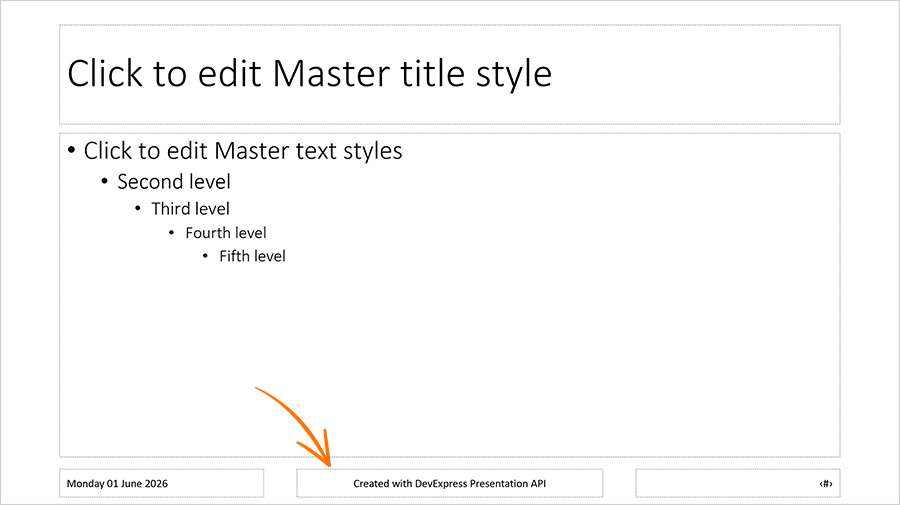
import com.devexpress.docs.presentation.*;
import java.time.LocalDate;
import java.time.format.DateTimeFormatter;

// Create a presentation.
try(Presentation presentation = new Presentation()) {
    // Access the first slide master.
    SlideMaster slideMaster = presentation.getSlideMasters().get(0);

    // Specify footer text.
    slideMaster.getActualFooterPlaceholder()
            .getTextArea()
            .setText("Created with DevExpress Presentation API");

    // Specify date text.
    slideMaster.getActualDateTimePlaceholder()
            .getTextArea()
            .setText(
                    LocalDate.now().format(
                            DateTimeFormatter.ofPattern(
                                    "EEEE dd MMMM yyyy")));

    // Your additional implementation goes here.
}
Add Footer Elements to an Individual Slide
Use the HeaderFooterManager class to add footer placeholders to specific slides.
You can create the following placeholders:
- Footer text placeholders
- Date and time placeholders
- Slide number placeholders
Get a Slide from Presentation.getSlides() and pass it to the corresponding HeaderFooterManager‘s method to add a footer text, date and time, or slide number placeholder.
The following code snippet creates a presentation and adds footer text, date and time, and a slide number to the first slide.
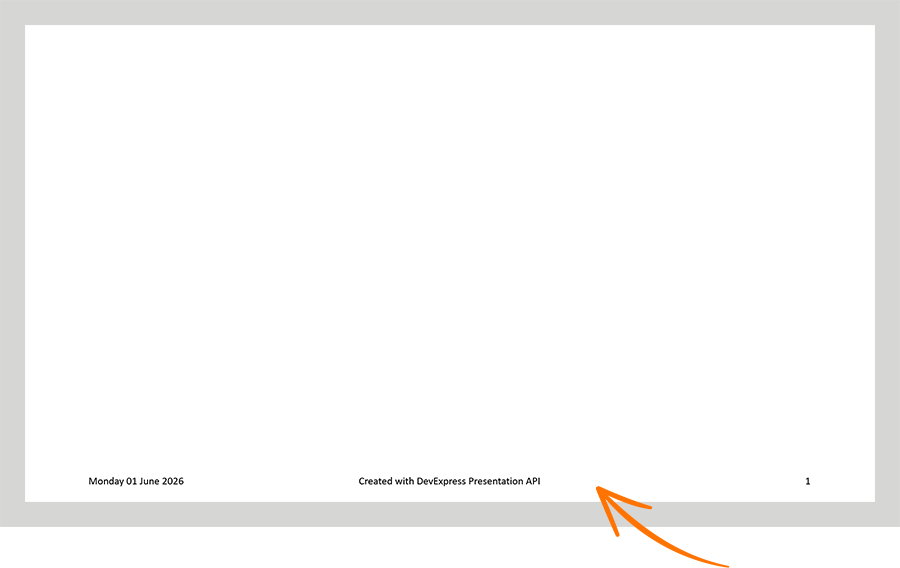
import com.devexpress.docs.presentation.*;

try (Presentation presentation = new Presentation()) {
    // Get the first slide.
    Slide slide1 = presentation.getSlides().getFirst();

    // Add footer placeholders to the slide.
    HeaderFooterManager manager = presentation.getHeaderFooterManager();
    manager.addDateTimePlaceholder(slide1);
    manager.addFooterPlaceholder(slide1);
    manager.addSlideNumberPlaceholder(slide1);

    // Get the footer text placeholder.
    Shape footerPlaceholder = slide1.getActualFooterPlaceholder();

    // Specify footer text.
    footerPlaceholder
            .getTextArea()
            .setText("Created with DevExpress Presentation API");

    // Specify date and time text.
    slide1.getActualDateTimePlaceholder()
            .getTextArea()
            .setText(LocalDate.now().format(
                    DateTimeFormatter.ofPattern(
                            "EEEE dd MMMM yyyy")));

    // Save the presentation.
    Path outputDir = Path.of("output");
    Files.createDirectories(outputDir);

    try (FileOutputStream fileStream = new FileOutputStream(
            outputDir.resolve("presentation.pptx").toFile())) {
        presentation.saveDocument(fileStream);
    }
}
You can also pass a collection of slides to apply footer elements to multiple slides at once.
Modify Footer Content
Use the following methods to get footer placeholders from a slide or slide master:
| Method | Description |
|---|---|
| getActualDateTimePlaceholder() | Returns the date and time placeholder. |
| getActualFooterPlaceholder() | Returns the footer text placeholder. |
| getActualSlideNumberPlaceholder() | Returns the slide number placeholder. |
Use the placeholder’s getTextArea() to modify its content.
The following code snippet implements the modifyFooterTextForSlide method that updates the footer text of the specified slide:
void modifyFooterTextForSlide(Slide slide, String newFooterText) {
    // Obtain the footer text placeholder shape from the slide.
    Shape footerPlaceholder = slide.getActualFooterPlaceholder();

    // Update the footer text content.
    footerPlaceholder
            .getTextArea()
            .setText(newFooterText);
}
Customize Footer Appearance
Footer placeholders are standard shapes and can be formatted in the same way as other text-containing shapes. For example, you can change text formatting or modify fill and outline settings.
The following code snippet extends the example in the previous section. It applies red text formatting to the footer placeholder on the first slide.
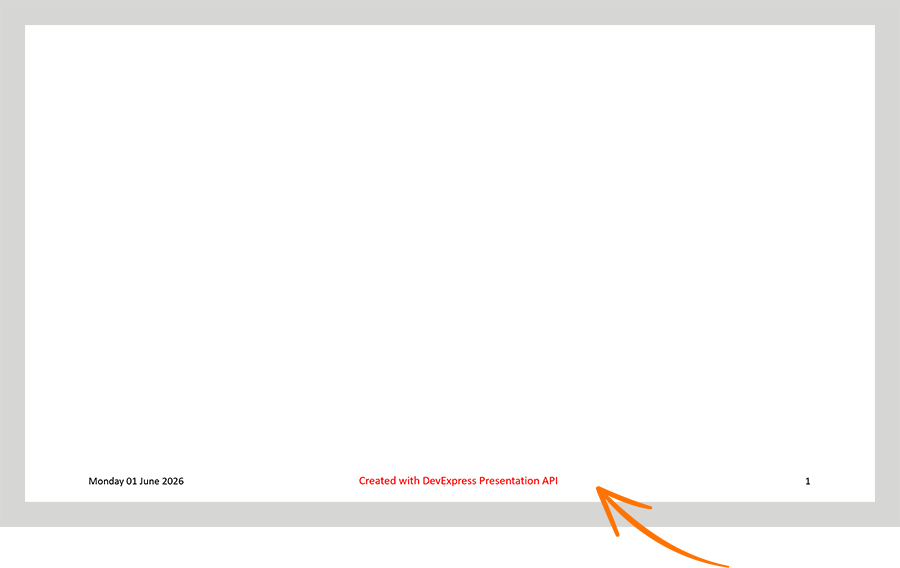
package presentation;

import com.devexpress.docs.office.*;
import com.devexpress.drawing.*;
import com.devexpress.docs.presentation.*;
import com.devexpress.system.drawing.Color;

import java.io.FileOutputStream;
import java.nio.file.*;
import java.time.LocalDate;
import java.time.format.DateTimeFormatter;
import java.util.*;

public class Main {
    public static void main(String[] args) throws Exception {
        try (Presentation presentation = new Presentation()) {
            // Get the first slide.
            Slide slide1 = presentation.getSlides().getFirst();

            // Add footer placeholders to the slide.
            HeaderFooterManager manager = presentation.getHeaderFooterManager();
            manager.addDateTimePlaceholder(slide1);
            manager.addFooterPlaceholder(slide1);
            manager.addSlideNumberPlaceholder(slide1);

            // Get the footer text placeholder.
            Shape footerPlaceholder = slide1.getActualFooterPlaceholder();

            // Specify footer text.
            footerPlaceholder
                    .getTextArea()
                    .setText("Created with DevExpress Presentation API");

            // Create text formatting settings.
            TextProperties textProperties = new TextProperties();

            // Set the footer text color.
            textProperties.setFill(new SolidFill(Color.getRed()));

            // Create paragraph properties based on the text settings.
            TextParagraphProperties paragraphProperties =
                    new TextParagraphProperties(textProperties);

            // Apply formatting to level 1 paragraphs in the footer placeholder.
            slide1.getActualFooterPlaceholder()
                    .getTextArea()
                    .setLevel1ParagraphProperties(paragraphProperties);

            // Specify date and time text.
            slide1.getActualDateTimePlaceholder()
                    .getTextArea()
                    .setText(LocalDate.now().format(
                            DateTimeFormatter.ofPattern(
                                    "EEEE dd MMMM yyyy")));

            // Save the presentation.
            Path outputDir = Path.of("output");
            Files.createDirectories(outputDir);

            try (FileOutputStream fileStream = new FileOutputStream(
                    outputDir.resolve("presentation.pptx").toFile())) {
                presentation.saveDocument(fileStream);
            }
        }
    }
}
Note
A shape’s default character formatting may be interpreted differently by various presentation viewers. To ensure a consistent appearance, explicitly specify font and paragraph formatting settings in code.
Remove Footer Elements
To remove a footer element, remove the corresponding placeholder shape from the slide’s shape collection. Use the IShapeCollection.remove(T) method.
The following code snippet removes the slide number placeholder from the first slide:
import com.devexpress.docs.presentation.*;

// Access the first slide.
Slide slide = presentation.getSlides().getFirst();

// Get the slide number placeholder.
Shape slideNumberPlaceholder = slide.getActualSlideNumberPlaceholder();

// Remove the placeholder if it exists.
if (slideNumberPlaceholder != null) {
    slide.getShapes().remove(slideNumberPlaceholder);
}