Configure Slide Masters and Layouts — Presentation API for Java
- 9 minutes to read
A SlideMaster in the DevExpress Presentation API for Java is a top-level presentation template that defines shared content, formatting, layouts, and placeholders for descendant slides.
A presentation can contain multiple slide masters. You can create groups of slides with different themes, backgrounds, placeholder arrangements, and shared content within the same presentation.
Each slide master contains one or more slide layouts. Layouts define the arrangement of placeholders.
Note
The presentation is valid if it contains at least one slide master with one associated layout element.
Add Slide Masters
Use the getSlideMasters() method to access a collection of slide masters within the presentation.
When you create a Presentation instance, the Presentation API library automatically creates a default slide master and a set of predefined layouts. Use the resetTo(T item) method to replace the default slide master with a custom master.
A slide master exposes the following members:
| Slide Master API | Description |
|---|---|
| getLayouts() | Returns the collection of layouts associated with the slide master. When you create a new slide master, the Presentation API library automatically populates it with a predefined set of layouts. |
| getShapes() | Returns the collection of shapes associated with the slide master. Shapes stored in this collection are displayed on all slides that use layouts associated with the master, unless the slide’s setShowMasterShapes(false) setting is disabled. |
| setBackground() | Specifies the background for descendant slides. |
| setName() | Specifies the slide master name. The name is optional and does not have to be unique. |
The following code snippet creates two slide masters. Since every presentation requires at least one slide master, a newly created presentation initially contains a default slide master. The resetTo(T) method replaces that default master with a new one.
import com.devexpress.docs.presentation.*;

// Create a presentation.
try(Presentation presentation = new Presentation()) {

    // Create a slide master and replace the default master.
    SlideMaster slideMaster1 = new SlideMaster("master");
    presentation.getSlideMasters().resetTo(slideMaster1);

    // Create and add another slide master.
    SlideMaster slideMaster2 = new SlideMaster();
    presentation.getSlideMasters().add(slideMaster2);

    // Your implementation goes here.
}
Use the remove() or removeAt() method to delete a slide master from the collection:
// Remove the specified slide master from the presentation.
presentation.getSlideMasters().remove(slideMaster2);

// Remove the slide master at index 1.
presentation.getSlideMasters().removeAt(1);
Warning
A presentation requires at least one slide master. If you attempt to save a presentation where the slide masters collection is empty, the DevExpress Presentation API throws an exception.
Layout Presets
Slide masters contain the following predefined layouts. Each layout includes a specific set of placeholders available through the layout’s getShapes() method.
- SlideLayoutType.TITLE
Placeholders:
CenteredTitle,Subtitle,DateAndTime,Footer,SlideNumber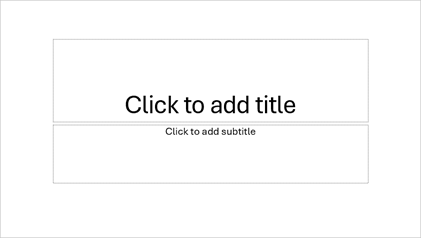
- SlideLayoutType.OBJECT
Placeholders:
Title,Body,DateAndTime,Footer,SlideNumber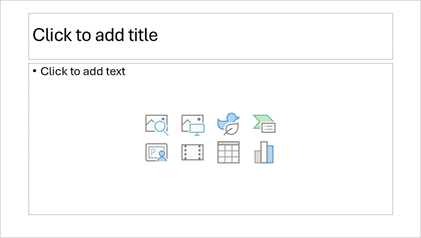
- SlideLayoutType.SECTION_HEADER
Placeholders:
Title,Body,DateAndTime,Footer,SlideNumber
- SlideLayoutType.TWO_OBJECTS
Placeholders:
Title,Body,Body,DateAndTime,Footer,SlideNumber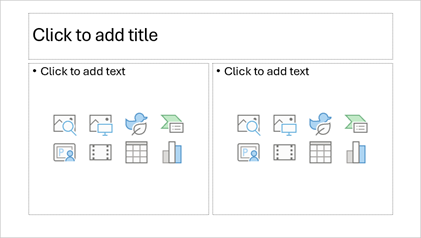
- SlideLayoutType.TWO_TEXTS_AND_TWO_OBJECTS
Placeholders:
Title,Body,Body,Body,Body,DateAndTime,Footer,SlideNumber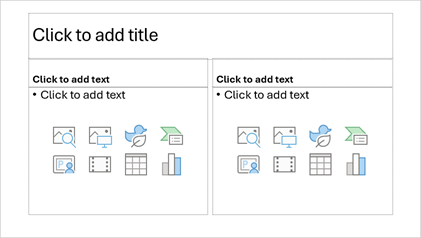
- SlideLayoutType.TITLE_ONLY
Placeholders:
Title,DateAndTime,Footer,SlideNumber
- SlideLayoutType.BLANK
Placeholders:
DateAndTime,Footer,SlideNumber
- SlideLayoutType.TITLE_OBJECT_AND_CAPTION
Placeholders:
Title,Object,Body,DateAndTime,Footer,SlideNumber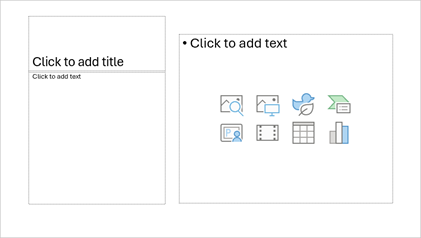
- SlideLayoutType.PICTURE_AND_CAPTION
Placeholders:
Title,Picture,Body,DateAndTime,Footer,SlideNumber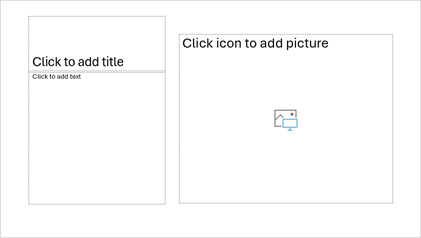
- SlideLayoutType.VERTICAL_TEXT
Placeholders:
Title,Body,DateAndTime,Footer,SlideNumber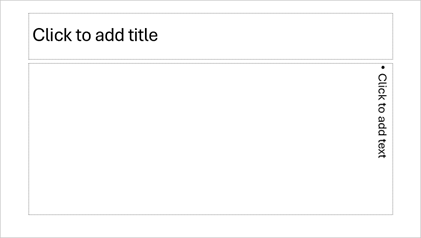
- SlideLayoutType.VERTICAL_TITLE_AND_TEXT
Placeholders:
Title,Body,DateAndTime,Footer,SlideNumber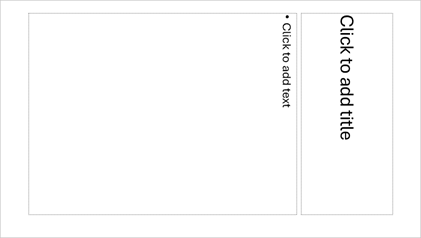
Refer to the following help topic for all layout presets available for PPTX format: SlideLayoutType.
Create a Slide Layout
In addition to predefined layouts, you can create and configure your own layouts.
To create a slide layout, create a SlideLayout object and specify the layout type in the constructor:
SlideLayout layout1 = new SlideLayout(SlideLayoutType.TITLE);
A slide layout belongs to a single slide master. If you create a layout and assign it directly to a slide without adding it to a slide master’s layout collection, the Presentation API automatically associates the layout with the first slide master in the presentation.
To associate a layout with a specific slide master, add the layout to the master’s ISlideLayoutCollection. Use the getLayouts() method to access the collection:
slideMaster.getLayouts().add(layout1);
Each layout exposes the following members:
| Slide Layout API | Description |
|---|---|
| getShapes() | Returns the collection of shapes associated with the layout. Shapes stored in this collection are displayed on all slides unless you disable setShowMasterShapes(false) setting. |
| getLayoutType() | Returns the layout type. The SlideLayoutType enumeration lists available layout types. |
| setBackground() | Specifies the background of slides. |
| setName() | Specifies the layout name. The name is optional and does not have to be unique. |
The following code snippet creates a custom layout and replaces the default layout associated with a slide master:
import com.devexpress.docs.presentation.*;
import com.devexpress.docs.office.SolidFill;
import com.devexpress.system.drawing.Color;

// Create a presentation.
try(Presentation presentation = new Presentation()) {
    // Create a layout.
    SlideLayout customLayout =  new SlideLayout(SlideLayoutType.TITLE);

    // Set the layout background.
    customLayout.setBackground(
            new CustomSlideBackground(new SolidFill(Color.getLightBlue()))
    );

    // Get the slide master.
    SlideMaster slideMaster = presentation.getSlideMasters().get(0);

    // Replace default layouts with the custom layout.
    slideMaster.getLayouts().resetTo(customLayout);

    // Add additional layouts if necessary.
    // slideMaster.getLayouts().add(...);

    // Your additional implementation goes here.
}
The SlideLayout constructor automatically creates placeholder shapes only for predefined layout types.
Refer to the following section for additional information: Access Placeholder Shapes.
Create a Slide Using a Slide Master
Use the getLayouts() method to access the layout collection associated with a slide master.
The layout collection’s getOrCreate(SlideLayoutType type) method creates a layout automatically if the requested layout does not exist.
import com.devexpress.docs.presentation.*;

// Create a presentation.
try(Presentation presentation = new Presentation()) {
    // Obtain a title layout from the first slide master.
    SlideLayout titleLayout =
            presentation.getSlideMasters()
                    .get(0)
                    .getLayouts()
                    .getOrCreate(SlideLayoutType.TITLE);

    // Create a slide based on the layout.
    Slide slide = new Slide(titleLayout);

    // Add the slide to the presentation.
    presentation.getSlides().add(slide);

    // Your additional implementation goes here.
}
Master, Layout, and Slide Inheritance
Content and formatting are inherited in the following order:
- Slide Master
- Slide Layout
- Slide
A slide can override properties inherited from its layout or slide master. For example, a slide-specific background replaces both the layout background and the slide master background for the slide.
Shapes and placeholder content added directly to a slide affect only this slide.
Set Slide Background
A background specified at the slide master or layout level is inherited by descendant slides. A background specified directly on a slide overrides both layout and slide master backgrounds.
slideMaster.setBackground(
    new CustomSlideBackground(
        new SolidFill(Color.getLightPink())
    )
);

layout.setBackground(
    new CustomSlideBackground(
        new SolidFill(Color.getLightBlue())
    )
);
Refer to the following help topic for additional information: Customize Slide Background.
Add Shapes
Shapes added to a slide master or layout are automatically displayed on descendant slides.
- Shapes stored in a slide master appear on all slides that use layouts associated with the slide master.
- Shapes stored in a layout appear only on slides based on this layout.
To hide master-level shapes on a slide, call the slide’s setShowMasterShapes(false) method.
The following code snippet creates shapes and adds them to a slide master and a layout:

// Create a presentation.
try(Presentation presentation = new Presentation()) {
    presentation.getSlides().clear();

    // Create a slide master.
    SlideMaster slideMaster = new SlideMaster("Master");
    presentation.getSlideMasters().resetTo(slideMaster);

    // Create a heart shape and add it to the slide master.
    Shape heartShape = new Shape(ShapeType.getHeart()) {{
            setX(100);
            setY(100);
            setWidth(500);
            setHeight(500);
            setFill(new SolidFill(Color.getRed()));
        }};
    slideMaster.getShapes().add(heartShape);

    // Create a layout.
    SlideLayout layout = new SlideLayout();
    slideMaster.getLayouts().add(layout);

    // Create a diamond shape and add it to the layout.
    Shape diamondShape = new Shape(ShapeType.getDiamond()) {{
            setX(2500);
            setY(1500);
            setWidth(500);
            setHeight(500);
            setFill(new SolidFill(Color.getBlue()));
        }};
    layout.getShapes().add(diamondShape);

    // Create a slide based on the layout.
    Slide slide = new Slide(layout);
    presentation.getSlides().add(slide);

    // Your additional implementation goes here.
}
You can also add shapes directly to a slide. Refer to the following help topic for additional information: Add a Shape
Access Placeholder Shapes
When a slide is created from a layout, the slide inherits placeholder shapes from the layout (except for DateAndTime, Footer, and SlideNumber). Use the slide’s getShapes() method to obtain its placeholder shapes.
Note
Modifying placeholder content on a slide does not affect the layout or other slides that use the same layout.
Use a shape’s getPlaceholderSettings() method to access the following placeholder information:
| Placeholder Information | Description |
|---|---|
| getType() | Returns the placeholder type. The PlaceholderType enumeration lists supported placeholder types. |
| getIndex() | Returns the placeholder’s zero-based index. |
| getOrientation() | Returns the placeholder orientation. |
| getSize() | Returns the placeholder size. |
The following code snippet adds text to a title placeholder:

import com.devexpress.docs.office.*;
import com.devexpress.docs.presentation.*;
import com.devexpress.system.drawing.Color;

// Create a presentation.
try(Presentation presentation = new Presentation()) {
    presentation.getSlides().clear();

    // Create a slide based on the Title layout.
    Slide slide = new Slide(new SlideLayout(SlideLayoutType.TITLE));

    // Populate the title placeholder.
    for (ShapeBase shapeBase : slide.getShapes()) {
        if (!(shapeBase instanceof Shape shape)) {
            continue;
        }

        if (shape.getPlaceholderSettings().getType()
                != PlaceholderType.CENTERED_TITLE) {
            continue;
        }

        TextProperties textProperties = new TextProperties();
        textProperties.setFill(new SolidFill(Color.getRoyalBlue()));

        TextParagraph paragraph = new TextParagraph();
        paragraph.getRuns().add(
                new TextRun("Presentation Title", textProperties)
        );

        TextArea textArea = new TextArea();
        textArea.getParagraphs().add(paragraph);
        shape.setTextArea(textArea);
    }

    presentation.getSlides().add(slide);

    // Your implementation goes here.
}
Use the following methods to access date, footer, and slide number placeholders:
| Slide API | Description |
|---|---|
| getActualSlideNumberPlaceholder() | Returns the first slide number placeholder found on the slide. |
| getActualFooterPlaceholder() | Returns the first footer placeholder found on the slide. |
| getActualDateTimePlaceholder() | Returns the first date and time placeholder found on the slide. |
The following code snippet modifies the date format and appearance of a date and time placeholder:

for(Slide slide : presentation.getSlides()) {
    // Add a date and time placeholder to the slide.
    presentation.getHeaderFooterManager()
            .addDateTimePlaceholder(slide);

    OfficeTextRun run = slide.getActualDateTimePlaceholder()
            .getTextArea()
            .getParagraphs()
            .getFirst()
            .getRuns()
            .getFirst();

    if (!(run instanceof TextField dateField)) {
        continue;
    }

    // Expand the placeholder to its full predefined size.
    slide.getActualDateTimePlaceholder()
            .getPlaceholderSettings()
            .setSize(PlaceholderSize.FULL);

    // Specify the date format.
    dateField.setFieldType(TextFieldType.DATE_TIME_2);

    // Customize text appearance.
    TextProperties properties = new TextProperties();
    properties.setFontSize(12f);
    dateField.setTextProperties(properties);
}
Add Placeholders to a Layout
When you create a custom layout, you can define your own set of placeholders.
To create a placeholder, do the following:
- Create a Shape.
- Customize placeholder settings (such as
Type,Index, andSize). - Add the shape to the layout’s Shapes collection (getShapes()).
The following code snippet creates a custom placeholder shape and adds it to a layout:
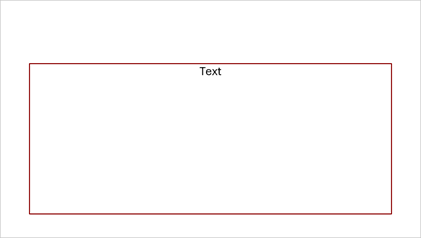
package presentation;

import com.devexpress.docs.office.*;
import com.devexpress.docs.presentation.*;
import com.devexpress.system.drawing.*;

public class App {
    public static void main(String[] args) throws Exception {
        // Create a presentation.
        try(Presentation presentation = new Presentation()) {
            presentation.getSlides().clear();

            // Create a custom slide layout.
            SlideLayout layout = new SlideLayout(SlideLayoutType.CUSTOM, "custom-layout");

            // Add the layout to the default slide master.
            presentation.getSlideMasters()
                    .get(0)
                    .getLayouts()
                    .add(layout);

            LineStyle lineStyle = new LineStyle() {{
                setFill(new SolidFill(Color.getDarkRed()));
                setWidth(10);
            }};

            // Configure placeholder settings.
            PlaceholderSettings placeholderSettings = new PlaceholderSettings() {{
                setSize(PlaceholderSize.FULL);
                setType(PlaceholderType.OBJECT);
                setIndex(0);
            }};

            // Create a placeholder shape.
            Shape placeholder = new Shape(ShapeType.getRectangle()) {{
                    setName("placeholder");
                    setOutline(lineStyle);
                    setFill(new SolidFill(Color.getWhite()));
                    setPlaceholderSettings(placeholderSettings);
                }};
            // Add the placeholder shape to the layout.
            layout.getShapes().add(placeholder);

            // Create a slide based on the layout.
            Slide slide = new Slide(layout);
            presentation.getSlides().add(slide);

            // Specify placeholder text and formatting.
            for (ShapeBase slideBase : slide.getShapes()) {
                if (!(slideBase instanceof Shape shape)) {
                    continue;
                }

                if (shape.getPlaceholderSettings().getType()
                        != PlaceholderType.OBJECT) {
                    continue;
                }

                shape.getTextArea().setText("Text");

                shape.getTextArea()
                        .getLevel1ParagraphProperties()
                        .getTextProperties()
                        .setFill(new SolidFill(Color.getBlack()));

                shape.getTextArea()
                        .getProperties()
                        .setHorizontalAnchorCenter(true);

                shape.getTextArea()
                        .getLevel1ParagraphProperties()
                        .setListBullet(ListBullet.NONE);
            }

            // Your additional implementation goes here.
        }
    }
}