Create Your First Presentation with DevExpress Presentation API Library
- 11 minutes to read
Important
You need a license for the DevExpress Office & PDF File API Subscription or DevExpress Universal Subscription to use this library in production code.
Follow this tutorial to get started with the DevExpress Presentation API for .NET and .NET Framework.
Create a .NET Application
Start Visual Studio and create a new Console Application project.
Install the DevExpress.Docs.Presentation package.
Create a .NET Framework Application
Start Visual Studio and create a new Console Application (.NET Framework) project.
Install the DevExpress.Docs.Presentation package or add references to the following libraries (if you used the DevExpress Unified Component Installer to install our products):
- DevExpress.Docs.Presentation.v26.1.dll
- DevExpress.Data.v26.1.dll
- DevExpress.Drawing.v26.1.dll
- DevExpress.Printing.v26.1.Core.dll
- DevExpress.Office.v26.1.Core.dll
- DevExpress.Docs.Core.v26.1.dll
- DevExpress.Pdf.v26.1.Core.dll
Create a Presentation
Open the Program.cs (Module1.vb) file. Paste the code below in the Main method of the Program class (Main procedure of the Module1 module in Visual Basic) to create an empty presentation. A newly created presentation contains a single title slide:
using DevExpress.Docs.Presentation;
using DevExpress.Docs.Office;

namespace DxPresentationGetStarted;

public class Program {
    public static void Main(string[] _) {
        // Creates a presentation with a single empty slide.
        Presentation presentation = new Presentation();
    }
}
Configure the Slide Master
A new presentation contains a single default slide master - a layout and appearance settings storage that helps you create consistent slides. To access the default slide master, read the first element in the presentation’s SlideMasters collection.
Set the slide master’s Background property to specify the background fill for all descendant slides.
SlideMaster slideMaster = presentation.SlideMasters[0];
slideMaster.Background = new CustomSlideBackground(new SolidFill(Color.FromArgb(194, 228, 249)));
For more information about slide masters, refer to the following help topic: Configure Slide Masters and Layouts.
Add Slides
In this section, you will add three slides to the presentation.
Before you add the first slide, you have to remove the default slide:
For more information about basic operations with slides, refer to the following help topic: Manage Slides.
Add Slide #1
The first slide contains the presentation name.
Use the slide master’s Title Layout to create a new Slide.
You can now access content placeholders - shapes with given coordinates available through the Shapes collection. Specify each placeholder’s content depending on its type.
Add the resulting slide to the presentation’s
Slidescollection.

Slide slide1 = new Slide(slideMaster.Layouts.Get(SlideLayoutType.Title));
foreach (Shape shape in slide1.Shapes) {
    if (shape.PlaceholderSettings.Type is PlaceholderType.CenteredTitle) {
        shape.TextArea = new TextArea("Daily Testing Status Report");
    }
    if (shape.PlaceholderSettings.Type is PlaceholderType.Subtitle) {
        shape.TextArea = new TextArea($"{DateTime.Now: dddd, MMMM d, yyyy}");
    }
}
presentation.Slides.Add(slide1);
Add Slide #2
The second slide displays a caption and a bullet list.
Use the slide master’s Object Layout to create a Slide.
Populate slide placeholders with content as you did in the previous step.
Add the resulting slide to the presentation’s
Slidescollection.

Slide slide2 = new Slide(slideMaster.Layouts.GetOrCreate(SlideLayoutType.Object));
foreach (Shape shape in slide2.Shapes) {
    if (shape.PlaceholderSettings.Type is PlaceholderType.Title) {
        shape.TextArea = new TextArea("Today’s Highlights");
    }
    if (shape.PlaceholderSettings.Type is PlaceholderType.Body) {
        TextArea textArea = new TextArea();
        textArea.Paragraphs.Clear();
        textArea.Paragraphs.Add(new TextParagraph("5 successful builds"));
        textArea.Paragraphs.Add(new TextParagraph("2 failed builds"));
        textArea.Paragraphs.Add(new TextParagraph("12 new bugs reported"));
        textArea.Paragraphs.Add(new TextParagraph("3 deployments"));
        textArea.Paragraphs.Add(new TextParagraph("1 rollback"));
        shape.TextArea = textArea;
    }
}
presentation.Slides.Add(slide2);
Add Slide #3
The third slide displays a caption and a table.
Use the slide master’s Object Layout to create a Slide.
Populate slide placeholders with content as you did in the previous step. To show a table instead of the default Body placeholder, follow these steps:
Call the presentation’s GetActualShapeBounds method to get the Body placeholder’s actual bounds.
Remove the Body placeholder from the slide’s
Shapescollection.Create a new Table object with the same bounds.
Populate the table with data and specify the style.
Add the resulting slide to the presentation’s
Slidescollection.
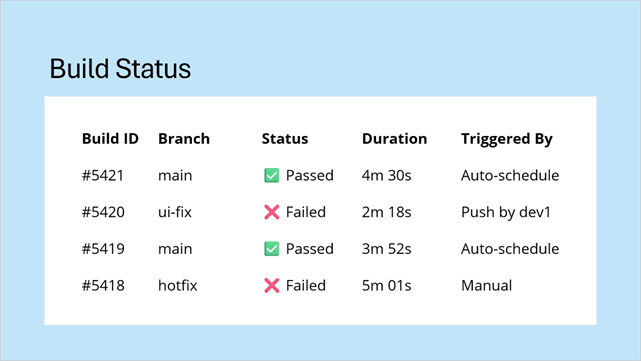
Slide slide3 = new Slide(slideMaster.Layouts.GetOrCreate(SlideLayoutType.Object));
foreach (Shape shape in slide3.Shapes.ToList()) {
    if (shape.PlaceholderSettings.Type is PlaceholderType.Title) {
        shape.TextArea = new TextArea("Build Status");
    }
    if (shape.PlaceholderSettings.Type is PlaceholderType.Body) {

        RectangleF rect = presentation.GetActualShapeBounds(slide3, shape);
        slide3.Shapes.Remove(shape);

        Table table = new Table(5, 5, rect.X, rect.Y, rect.Width, rect.Height);
        slide3.Shapes.Add(table);

        table[0, 0].TextArea.Text = "Build ID";
        table[0, 1].TextArea.Text = "Branch";
        table[0, 2].TextArea.Text = "Status";
        table[0, 3].TextArea.Text = "Duration";
        table[0, 4].TextArea.Text = "Triggered By";

        table[1, 0].TextArea.Text = "#5421";
        table[1, 1].TextArea.Text = "main";
        table[1, 2].TextArea.Text = "✅  Passed";
        table[1, 3].TextArea.Text = "4m 30s";
        table[1, 4].TextArea.Text = "Auto-schedule";

        table[2, 0].TextArea.Text = "#5420";
        table[2, 1].TextArea.Text = "ui-fix";
        table[2, 2].TextArea.Text = "❌  Failed";
        table[2, 3].TextArea.Text = "2m 18s";
        table[2, 4].TextArea.Text = "Push by dev1";

        table[3, 0].TextArea.Text = "#5419";
        table[3, 1].TextArea.Text = "main";
        table[3, 2].TextArea.Text = "✅  Passed";
        table[3, 3].TextArea.Text = "3m 52s";
        table[3, 4].TextArea.Text = "Auto-schedule";

        table[4, 0].TextArea.Text = "#5418";
        table[4, 1].TextArea.Text = "hotfix";
        table[4, 2].TextArea.Text = "❌  Failed";
        table[4, 3].TextArea.Text = "5m 1s";
        table[4, 4].TextArea.Text = "Manual";

        table.Style = new ThemedTableStyle(TableStyleType.LightStyle1);
        table.HasBandedRows = false;
    }
}
presentation.Slides.Add(slide3);
Add Footers
The Presentation API library uses the HeaderFooterManager to manage slide headers and footers.
Access the HeaderFooterManager object and call its AddSlideNumberPlaceholder and AddFooterPlaceholder methods to display slide numbers and the same footer text on all slides.

presentation.HeaderFooterManager.AddSlideNumberPlaceholder(presentation.Slides);
presentation.HeaderFooterManager.AddFooterPlaceholder(presentation.Slides, "ProductXCompany");
Save to PPTX
Call the SaveDocument method to save the resulting presentation to a PPTX file:
FileStream outputStream = new FileStream(@"..\..\..\data\my-presentation.pptx", FileMode.Create);
presentation.SaveDocument(outputStream);
outputStream.Dispose();
Export the Presentation
Call the ExportToPdf method to export the presentation to PDF:
presentation.ExportToPdf(new FileStream(@"..\..\..\data\exported-document.pdf", FileMode.Create));
Results
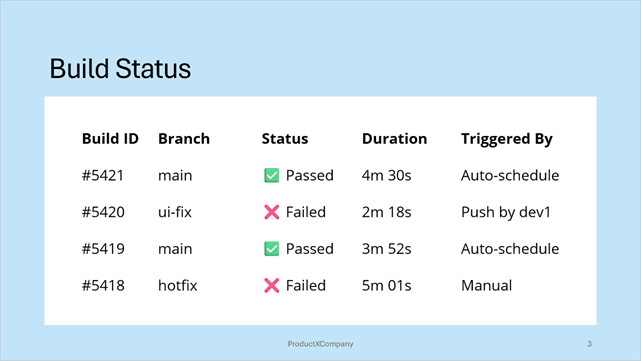
The resulting presentation appears as follows:
- Slide #1
- Slide #2

- Slide #3
The following code snippet contains the complete code sample:
using DevExpress.Docs.Presentation;
using DevExpress.Docs.Office;
using DevExpress.Drawing;
using System.Drawing;

namespace DxPresentationGetStarted;

public class Program {
    public static void Main(string[] _) {

        // Create a new presentation and remove the default empty slide
        Presentation presentation = new Presentation();
        presentation.Slides.Clear();

        // Specify a custom background color for the slide master to share this background across all child slides
        SlideMaster slideMaster = presentation.SlideMasters[0];
        slideMaster.Background = new CustomSlideBackground(new SolidFill(Color.FromArgb(194, 228, 249)));

        // Create a slide with the Title layout
        Slide slide1 = new Slide(slideMaster.Layouts.Get(SlideLayoutType.Title));
        foreach (Shape shape in slide1.Shapes) {
            // Specify the centered title text
            if (shape.PlaceholderSettings.Type is PlaceholderType.CenteredTitle) {
                shape.TextArea = new TextArea("Daily Testing Status Report");
            }
            // Set the subtitle to the current date
            if (shape.PlaceholderSettings.Type is PlaceholderType.Subtitle) {
                shape.TextArea = new TextArea($"{DateTime.Now: dddd, MMMM d, yyyy}");
            }
        }
        presentation.Slides.Add(slide1);

        // Create a slide based on the Object layout
        Slide slide2 = new Slide(slideMaster.Layouts.GetOrCreate(SlideLayoutType.Object));
        foreach (Shape shape in slide2.Shapes) {
            // Specify the slide title
            if (shape.PlaceholderSettings.Type is PlaceholderType.Title) {
                shape.TextArea = new TextArea("Today’s Highlights");
            }
            // Add a list of paragraphs to the slide
            if (shape.PlaceholderSettings.Type is PlaceholderType.Body) {
                TextArea textArea = new TextArea();
                textArea.Paragraphs.Clear();
                textArea.Paragraphs.Add(new TextParagraph("5 successful builds"));
                textArea.Paragraphs.Add(new TextParagraph("2 failed builds"));
                textArea.Paragraphs.Add(new TextParagraph("12 new bugs reported"));
                textArea.Paragraphs.Add(new TextParagraph("3 deployments"));
                textArea.Paragraphs.Add(new TextParagraph("1 rollback"));
                shape.TextArea = textArea;
            }
        }
        presentation.Slides.Add(slide2);

        // Create a slide based on the Object layout
        Slide slide3 = new Slide(slideMaster.Layouts.GetOrCreate(SlideLayoutType.Object));
        foreach (Shape shape in slide3.Shapes.ToList()) {
            // Specify the slide title
            if (shape.PlaceholderSettings.Type is PlaceholderType.Title) {
                shape.TextArea = new TextArea("Build Status");
            }
            // Add a table to a slide placeholder
            if (shape.PlaceholderSettings.Type is PlaceholderType.Body) {
                RectangleF rect = presentation.GetActualShapeBounds(slide3, shape);
                slide3.Shapes.Remove(shape);

                Table table = new Table(5, 5, rect.X, rect.Y, rect.Width, rect.Height);
                slide3.Shapes.Add(table);

                table[0, 0].TextArea.Text = "Build ID";
                table[0, 1].TextArea.Text = "Branch";
                table[0, 2].TextArea.Text = "Status";
                table[0, 3].TextArea.Text = "Duration";
                table[0, 4].TextArea.Text = "Triggered By";

                table[1, 0].TextArea.Text = "#5421";
                table[1, 1].TextArea.Text = "main";
                table[1, 2].TextArea.Text = "✅  Passed";
                table[1, 3].TextArea.Text = "4m 30s";
                table[1, 4].TextArea.Text = "Auto-schedule";

                table[2, 0].TextArea.Text = "#5420";
                table[2, 1].TextArea.Text = "ui-fix";
                table[2, 2].TextArea.Text = "❌  Failed";
                table[2, 3].TextArea.Text = "2m 18s";
                table[2, 4].TextArea.Text = "Push by dev1";

                table[3, 0].TextArea.Text = "#5419";
                table[3, 1].TextArea.Text = "main";
                table[3, 2].TextArea.Text = "✅  Passed";
                table[3, 3].TextArea.Text = "3m 52s";
                table[3, 4].TextArea.Text = "Auto-schedule";

                table[4, 0].TextArea.Text = "#5418";
                table[4, 1].TextArea.Text = "hotfix";
                table[4, 2].TextArea.Text = "❌  Failed";
                table[4, 3].TextArea.Text = "5m 1s";
                table[4, 4].TextArea.Text = "Manual";

                table.Style = new ThemedTableStyle(TableStyleType.LightStyle1);
                table.HasBandedRows = false;
            }
        }
        presentation.Slides.Add(slide3);

        // Add slide numbers and a footer to all slides
        presentation.HeaderFooterManager.AddSlideNumberPlaceholder(presentation.Slides);
        presentation.HeaderFooterManager.AddFooterPlaceholder(presentation.Slides, "ProductXCompany");

        // Save the presentation to a PPTX file
        FileStream outputStream = new FileStream(@"..\..\..\data\my-presentation.pptx", FileMode.Create);
        presentation.SaveDocument(outputStream);
        outputStream.Dispose();

        // Export the presentation to PDF
        presentation.ExportToPdf(new FileStream(@"..\..\..\data\exported-document.pdf", FileMode.Create));
    }
}