Gauge Scale
The Gauge dashboard item automatically determines the range of each gauge scale based on the displayed values.
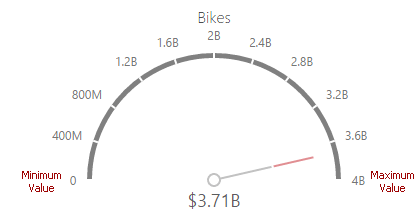
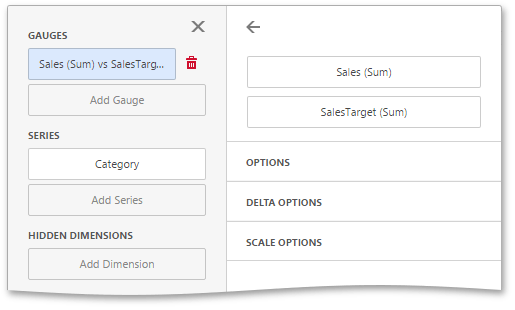
You can override this behavior and specify minimum and maximum scale values. After you add the data item, open the Scale Options section of the data item menu to customize the gauge scale.
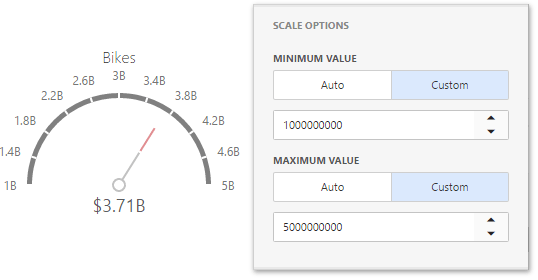
Set the minimum and maximum value modes to Custom, and specify the values in the corresponding fields. The following image shows a gauge with a minimum value of 1B and a maximum value of 5B.
Note
The scale includes the specified minimum and maximum values, but they do not necessarily correspond to the first and last ticks. The Gauge dashboard item calculates tick positions based on the item size, scale type, and other factors. As a result, the scale can start below the minimum value and end above the maximum value. Tick positions can also change when you resize the item.