Create and Register a Custom XAF Module
- 3 minutes to read
XAF allows you to implement custom modules in your application and to reuse these modules in other XAF applications.
Create a Common Cross-Platform XAF Module
An XAF module is a class library that contains a class derived from ModuleBase. You can use the Template Kit to create an XAF project with a cross-platform module and reuse this module in your application.
- Use the DevExpress Template Kit or CLI template to create a new solution. Specify the same initial settings (such as framework version and ORM) as in your existing project.
The new solution includes several modules: platform-specific application projects (NewSolutionName.Blazor.Server or/and NewSolutionName.Win) and a common module (NewSolutionName.Module). - Copy the NewSolutionName\NewSolutionName.Module folder from the new solution to your solution.
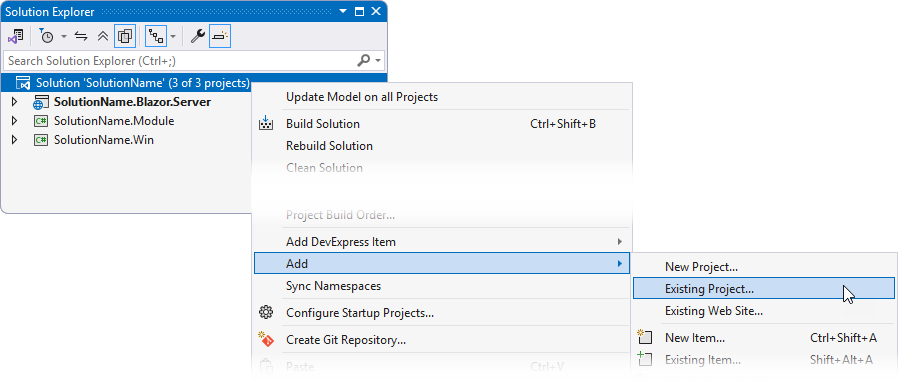
Add the new module project to your solution. Right-click the solution name in the Solution Explorer, select Add | Existing Project…, and choose SolutionName\NewSolutionName.Module\NewSolutionName.Module.csproj.
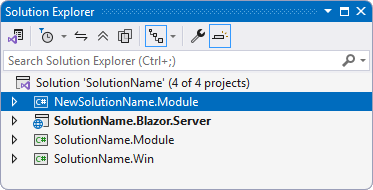
The new module will appear in the Solution Explorer.
Tip
Alternatively, you can define a ModuleBase class descendant to convert an existing Class Library into a module. Take the Module.cs file from an existing module as a prototype. Rename this class and set the correct namespace.
Do not inherit from modules. ModuleBase class descendants should be sealed.
Register a Module in the XAF Application
Add a reference to the new module project.
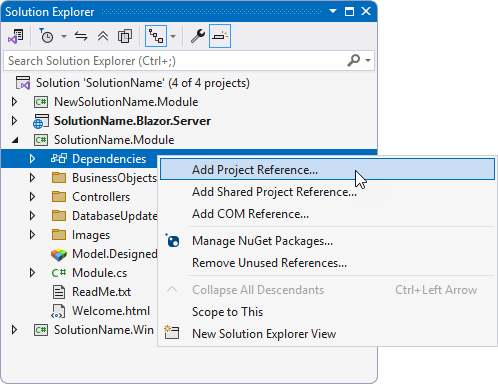
- Right-click on the Dependencies node in the project where you want to add the module (SolutionName.Blazor.Server, SolutionName.Win, SolutionName.Module).
Select Add Project Reference.
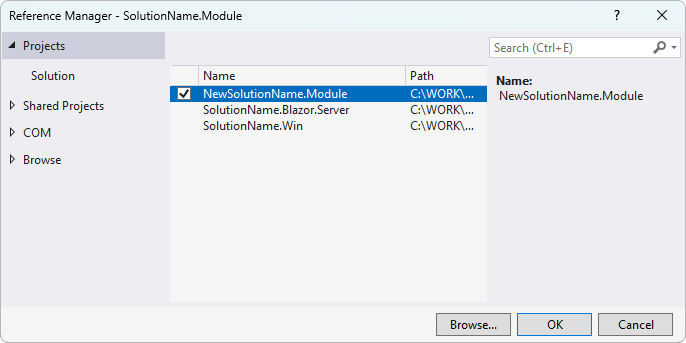
In the opened dialog, select your module project and click OK.
You can register a custom module in the main module project or in platform-specific projects.
- Register a module in the main module project
In the SolutionName.Module\Module.cs file, add the new module to the RequiredModuleTypes list. XAF loads this required module with the main module.
public sealed class SolutionNameModule : ModuleBase {
   public SolutionNameModule() {
      // ...
      RequiredModuleTypes.Add(typeof(NewSolutionName.Module.NewSolutionNameModule));
   }
// ...
}
Use this approach when the main module depends on the added custom module. For instance, if you call the
CustomizeTypesInfomethod or if you use the Model Editor to configure classes from the custom module.- Register a module in platform-specific projects
Navigate to the MyApplication.Blazor.Server\Startup.cs (Blazor) or MyApplication.Win\Startup.cs (WinForms) file and call the Add method to register the module.
public class Startup {
   // ...
   public void ConfigureServices(IServiceCollection services) {
         // ...
         services.AddXaf(Configuration, builder => {
            // ...
            builder.Modules
               .Add<NewSolutionName.Module.NewSolutionNameModule>();
            // ...
         });
         // ...
   }
   // ...
}
Note
This help topic describes how to add a common cross-platform module to your application. If you need to implement platform-specific logic, for instance, implement a property editor based on a custom component (Blazor) or display a custom data-bound control in an XAF View, use platform-specific application projects — SolutionName.Blazor.Server or SolutionName.Win.