How to: Implement Cascading Filtering for Lookup List Views
- 14 minutes to read
Most applications have Detail Views with Lookup Property Editors that need to be filtered. To make the Lookup List View’s data source of these editors dependent on values of other Property Editors located in the same Detail View, you can use DataSourcePropertyAttribute and DataSourceCriteriaAttribute.
This topic demonstrates how to use these attributes in code and in the Application Model.
- Implement Business Classes
- Scenario 1 - Populate the Lookup Property with Objects from the Specified Collection Property
- Scenario 2 - Apply Criteria to the Lookup Property Collection
- Scenario 3 - Use Alternate Criteria if the Specified Data Source Property is Empty
- Scenario 4 - Populate the Lookup Property Manually
- Scenario 5 - Filter the Lookup Property Collection Based on the Current Object’s Properties
Tip
A complete sample project is available in the following DevExpress GitHub Example: XAF - How to Filter Lookup List Views.
Implement Business Classes
In the YourSolutionName\Module\BusinessObjects folder, create the following classes:
Order,Product, andAccessory. Replace the autogenerated code with the following class declarations:YourSolutionName.Module\BusinessObjects\Order.cs
using DevExpress.Persistent.Base; using DevExpress.Persistent.BaseImpl.EF; namespace YourSolutionName.Module.BusinessObjects { [DefaultClassOptions] public class Order : BaseObject { public virtual Product Product { get; set; } public virtual Accessory Accessory { get; set; } } } // Make sure that you use options.UseChangeTrackingProxies() in your DbContext settings.YourSolutionName.Module\BusinessObjects\Product.cs
using DevExpress.Persistent.Base; using DevExpress.Persistent.BaseImpl.EF; using System.Collections.ObjectModel; namespace YourSolutionName.Module.BusinessObjects { [DefaultClassOptions] public class Product : BaseObject { public virtual String ProductName { get; set; } public virtual IList<Accessory> Accessories { get; set; } = new ObservableCollection<Accessory>(); } } // Make sure that you use options.UseChangeTrackingProxies() in your DbContext settings.YourSolutionName.Module\BusinessObjects\Accessory.cs
using DevExpress.Persistent.Base; using DevExpress.Persistent.BaseImpl.EF; namespace YourSolutionName.Module.BusinessObjects { [DefaultClassOptions] public class Accessory : BaseObject { public virtual String AccessoryName { get; set; } public virtual bool IsGlobal { get; set; } public virtual Product Product { get; set; } } } // Make sure that you use options.UseChangeTrackingProxies() in your DbContext settings.Tip
If your application uses Entity Framework Core, register the newly created business classes in the
DbContextand update the database schema. For more information, refer to the following topic: Implement a Data Model: Basics.
Run the application. Create several
Productobjects and link each of them with anAccessoryobject. For someAccessoryobjects, select theIs Globalcheckbox.Open the
OrderDetail View and look at the contents of theProductandAccessoryLookup List Views. Both display the collections of corresponding types:- ASP.NET Core Blazor
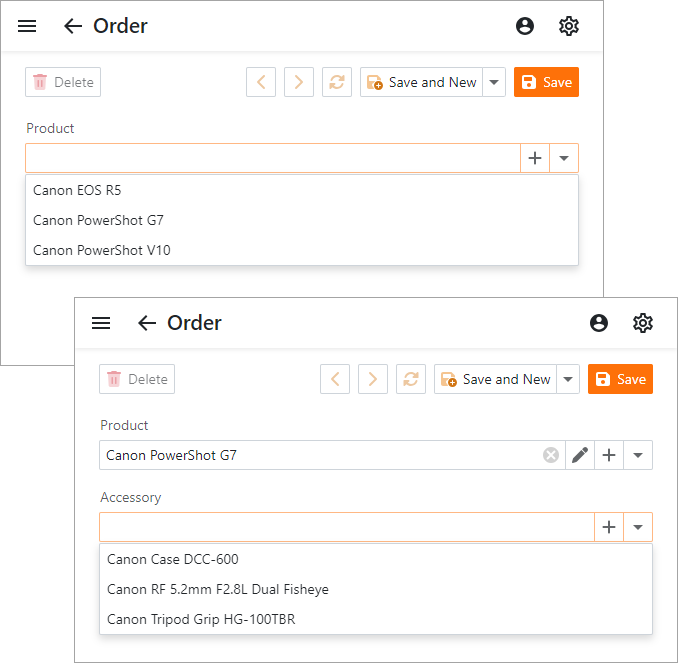
- Windows Forms
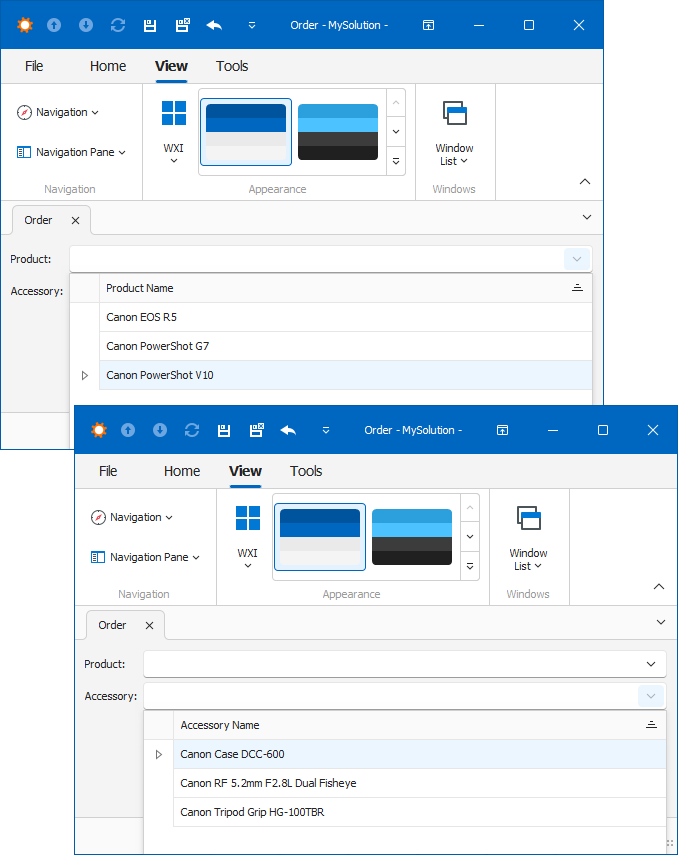
Scenario 1 - Populate the Lookup Property with Objects from the Specified Collection Property
This scenario shows how to make the Accessory Lookup List View in the Order Detail View display only the Accessory objects related to the selected Product.
Navigate to the
Accessoryproperty of theOrderclass and specify DataSourcePropertyAttribute as displayed in the code snippet below:using DevExpress.Persistent.Base; using DevExpress.Persistent.BaseImpl.EF; namespace YourSolutionName.Module.BusinessObjects { [DefaultClassOptions] public class Order : BaseObject { // ... [DataSourceProperty("Product.Accessories")] public virtual Accessory Accessory { get; set; } } } // Make sure that you use options.UseChangeTrackingProxies() in your DbContext settings.DataSourcePropertyAttribute accepts a collection property as parameter. The property’s values become the data source for the corresponding Lookup List View. In this scenario, it is the
Accessoriesproperty of theProductclass instance that lies in the theOrder.Productproperty.Run the application. Open the
OrderDetail View and select aProductobject. Now theAccessoryLookup List View only displays theAccessoryobjects linked to thisProductobject:- ASP.NET Core Blazor
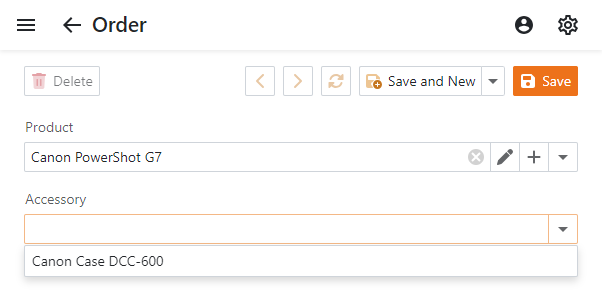
- Windows Forms
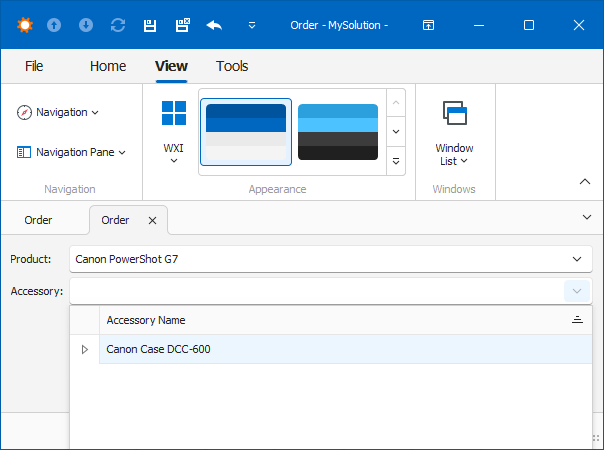
Tip
Alternatively, use DataSourceProperty of the Application Model’s BOModel | Class | Member node.
Note
The Server, ServerView, InstantFeedback, or InstantFeedbackView mode option and the
DataSourcePropertyattribute do not work simultaneously.An independent server-mode collection is created as a data source for a lookup ListView when the IModelListView.DataAccessMode option is set to Server, ServerView, InstantFeedback, or InstantFeedbackView for that ListView model. However, when the DataSourcePropertyAttribute is applied for the lookup property, the property pointed in the attribute is used as a lookup data source, and the standalone independent server-mode collection is not created and is not used at all. The reason is that the data source property getter contains logic calculated on the client side and the data source is populated by the client application at the moment when the lookup editor requests to display objects.
- To apply the technique demonstrated above to Entity Framework Core objects with a Many-to-Many relationship implemented through an intermediate object, use the Map method to specify the join table, its columns names, and to apply additional configuration. For more information, refer to the Entity Framework Core - Relationships topic.
Scenario 2 - Apply Criteria to the Lookup Property Collection
This scenario shows how to make the Accessory Lookup List View in the Order Detail View display only the Accessory objects whose IsGlobal property set to true.
Navigate to the
Accessoryproperty of theOrderclass and specify DataSourceCriteriaAttribute attribute as displayed in the following code snippet:using DevExpress.Persistent.Base; using DevExpress.Persistent.BaseImpl.EF; namespace YourSolutionName.Module.BusinessObjects { [DefaultClassOptions] public class Order : BaseObject { // ... [DataSourceCriteria("IsGlobal = true")] public virtual Accessory Accessory { get; set; } } } // Make sure that you use options.UseChangeTrackingProxies() in your DbContext settings.Run the application. Open the
OrderDetail View and select aProductobject. Now theAccessoryLookup List View displays theAccessoryobjects whoseIsGlobalproperty is set totrue:- ASP.NET Core Blazor
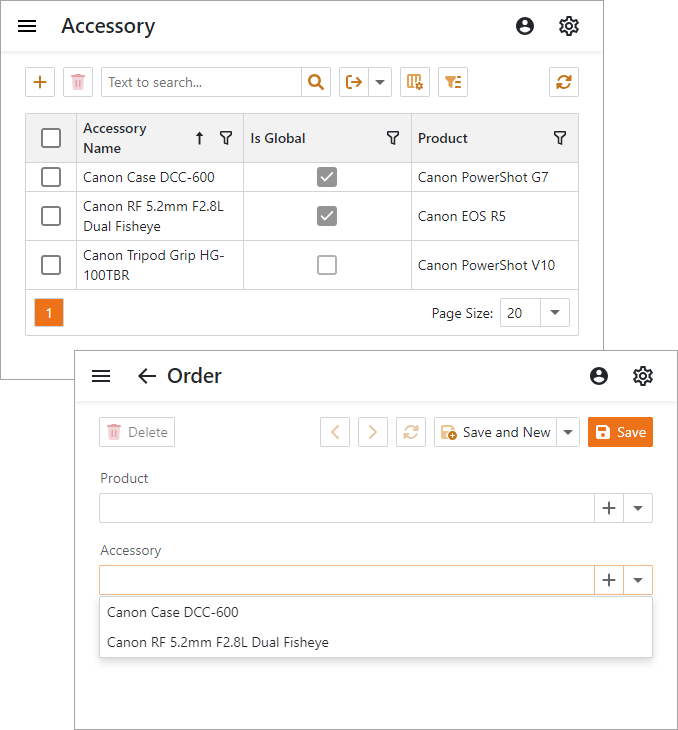
- Windows Forms
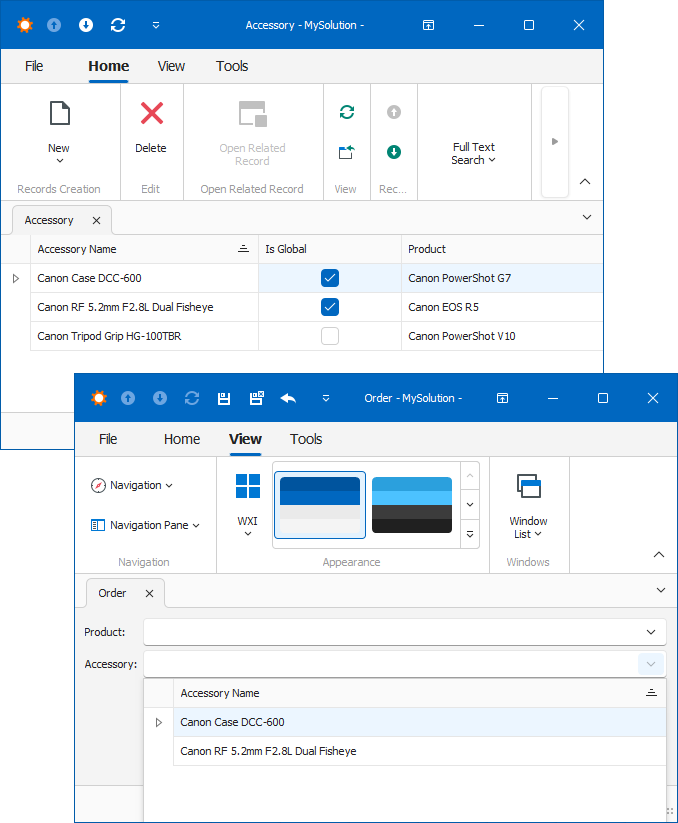
Tip
Alternatively, use the DataSourceCriteria property of the Application Model’s BOModel | Class | Member node.
Scenario 3 - Use Alternate Criteria if the Specified Data Source Property is Empty
The sample code below first attempts to populate the lookup with Accessory objects linked to the selected Product. If no Product is selected, the code loads Accessory objects whose IsGlobal property set to true.
Navigate to the
Accessoryproperty of theOrderclass and specify DataSourcePropertyAttribute as described above. For details, see Scenario 1 - Populate the Lookup Property with Objects from the Specified Collection Property.Display
Accessoryobjects withIsGlobalproperty set totrueif noProductobject is selected. Use theDataSourcePropertyIsNullModeandDataSourcePropertyIsNullCriteriaparameters of DataSourcePropertyAttribute as displayed in the following code snippet:using DevExpress.Persistent.Base; using DevExpress.Persistent.BaseImpl.EF; namespace YourSolutionName.Module.BusinessObjects { [DefaultClassOptions] public class Order : BaseObject { // ... [DataSourceProperty("Product.Accessories", DataSourcePropertyIsNullMode.CustomCriteria, "IsGlobal = true")] public virtual Accessory Accessory { get; set; } } } // Make sure that you use options.UseChangeTrackingProxies() in your DbContext settings.Run the application. Navigate to the
OrderDetail View and see how theAccessoriesLookup List View contents change depending on whether you select aProductobject.- ASP.NET Core Blazor
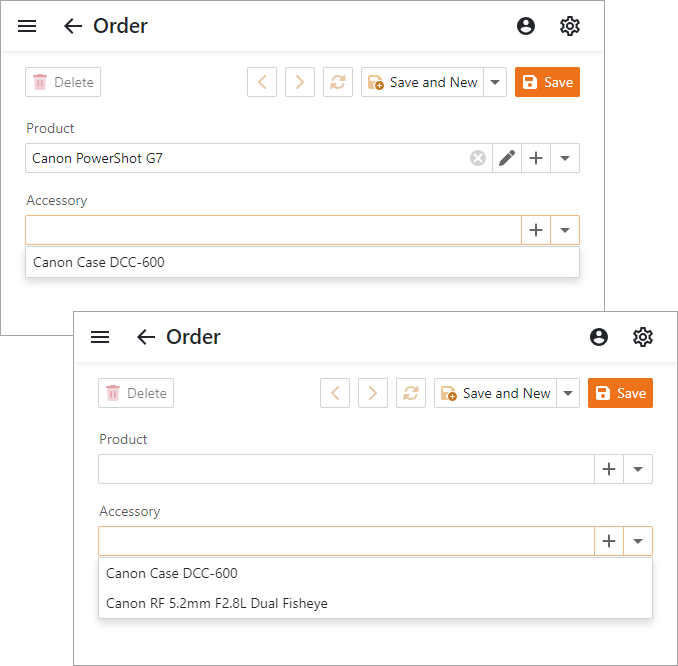
- Windows Forms
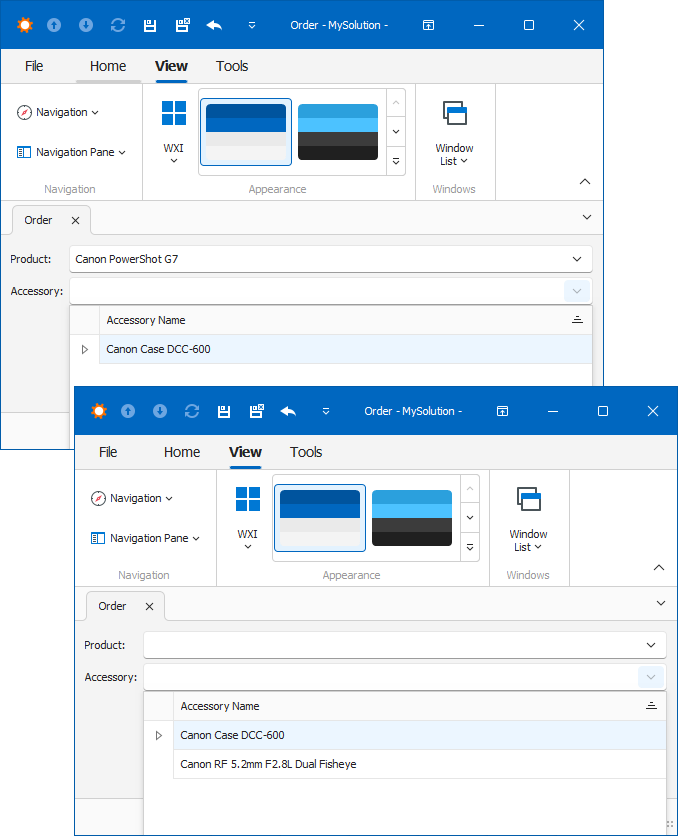
The
DataSourcePropertyIsNullModeparameter ofDataSourcePropertyAttributealso has theSelectAllandSelectNothingvalues. They do not require that you specify theDataSourcePropertyIsNullCriteriaparameter.Tip
Alternatively, you can specify the DataSourceProperty, DataSourcePropertyIsNullMode, and DataSourcePropertyIsNullCriteria properties of the Application Model’s BOModel | Class | Member node.
Scenario 4 - Populate the Lookup Property Manually
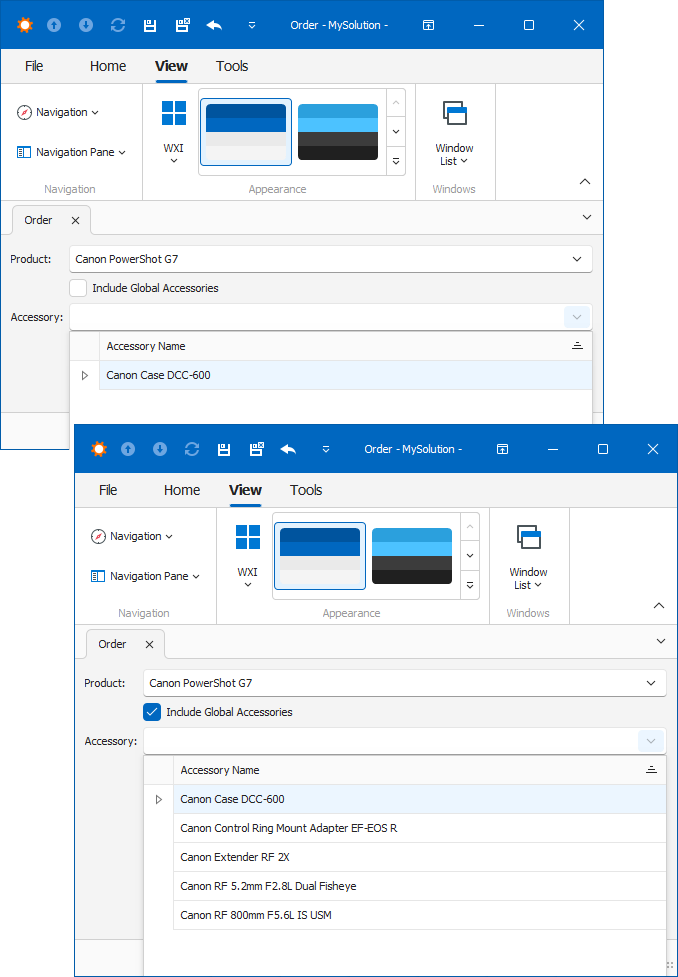
This scenario shows how to populate the Accessory Lookup List View in the following conditions:
- If an
IncludeGlobalAccessoriesproperty is set totrue, theAccessoryLookup List View data source includes theAccessoryobjects linked to the selectedProductand theAccessoryobjects whoseIsGlobalproperty is set totrue. Otherwise, the data source includes onlyAccessoryobjects linked to the selectedProduct.
Navigate to the
Orderclass and replace its declaration with the following code snippet that introduces an additional collection for theAccessoryproperty. This collection is refreshed every time you change theProductorIncludeGlobalAccessoriesproperty’s value.using DevExpress.Persistent.Base; using DevExpress.Persistent.BaseImpl.EF; using System.ComponentModel; using System.ComponentModel.DataAnnotations.Schema; public class Order : BaseObject { public virtual int OrderId { get; set; } public virtual Product Product { get; set; } // Specify that AvailableAccessories must be used as a data source property, // and the Product and IncludeGlobalAccessories properties are used in calculations. [DataSourceProperty(nameof(AvailableAccessories), nameof(Product), nameof(IncludeGlobalAccessories))] public virtual Accessory Accessory { get; set; } [NotMapped, Browsable(false)] // Prohibits showing the AvailableAccessories collection separately public virtual IList<Accessory> AvailableAccessories { get { IQueryable<Accessory> available; if (Product == null) { // Show only Global Accessories when the Product is not specified available = ObjectSpace.GetObjectsQuery<Accessory>().Where(t => t.IsGlobal == true); } else { // Leave only the current Product's Accessories in the availableAccessories collection if (IncludeGlobalAccessories == false) { available = ObjectSpace.GetObjectsQuery<Accessory>().Where(t => t.Product == Product); } else { available = ObjectSpace.GetObjectsQuery<Accessory>().Where(t => t.Product == Product || t.IsGlobal == true); } } return available.ToList(); } } public virtual bool IncludeGlobalAccessories { get; set; } }Note that the above code samples use the DataSourcePropertyAttribute.UsedProperties setting to specify that the
ProductandIncludeGlobalAccessoriesproperties are used in the data source property calculations so that theAccessoryLookup List View items are automatically updated when these properties change their values.Run the application. Navigate to the
OrderDetail View and see how the theAccessoriesLookup List View contents change depending on whether you set theIncludeGlobalAccessoriesproperty totrue.
- ASP.NET Core Blazor

- Windows Forms
Note
This technique is helpful when you cannot write the required criteria as a string to pass it as an attribute’s parameter. In code, you can use any criteria operator and operands (including Function Criteria Operators).
Scenario 5 - Filter the Lookup Property Collection Based on the Current Object Properties
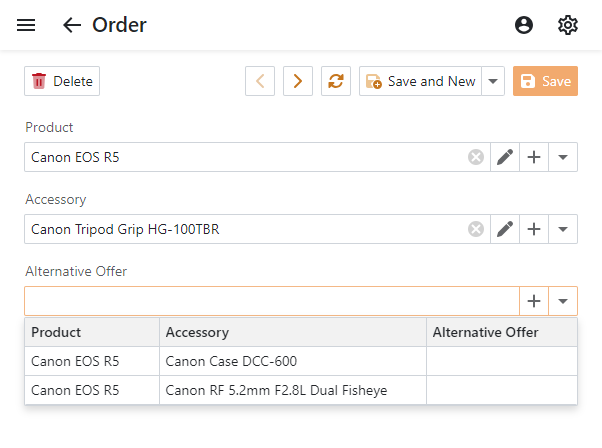
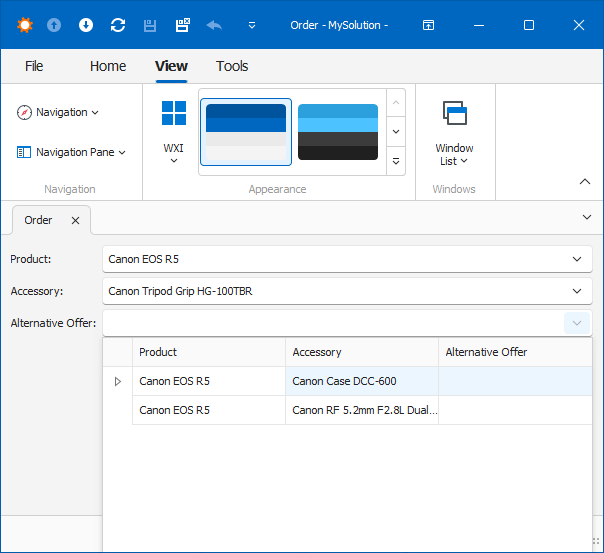
This scenario modifies the Order Detail View to add an Alternative Offer Lookup. This lookup displays all Order objects with the matching Product, except the edited object.
Navigate to the
Orderclass and add a new property to the class declaration as displayed in the following code sample:using DevExpress.Persistent.Base; using DevExpress.Persistent.BaseImpl.EF; namespace YourSolutionName.Module.BusinessObjects { [DefaultClassOptions] public class Order : BaseObject { // ... public virtual Order AlternativeOffer { get; set; } } } // Make sure that you use options.UseChangeTrackingProxies() in your DbContext settings.Navigate to the
Productclass and add theOrderscollection property as displayed in the following code snippet where it establishes a One-to-Many relationship between theOrderandProductclasses:using DevExpress.Persistent.Base; using DevExpress.Persistent.BaseImpl.EF; namespace YourSolutionName.Module.BusinessObjects { [DefaultClassOptions] public class Product : BaseObject { // ... public virtual IList<Order> Orders { get; set; } = new ObservableCollection<Order>(); } } // Make sure that you use options.UseChangeTrackingProxies() in your DbContext settings.Tip
In an XPO-based project, remember to add AssociationAttribute with the same unique association name to the
Productproperty.Navigate to the
Orderclass. To filter the Lookup List View, add DataSourcePropertyAttribute and DataSourceCriteriaAttribute to theAlternativeOfferproperty as displayed in the following code snippet. Use the Current Object Parameter (@This) to access the edited object in the criteria passed to DataSourceCriteriaAttribute.using DevExpress.Persistent.Base; using DevExpress.Persistent.BaseImpl.EF; namespace YourSolutionName.Module.BusinessObjects { [DefaultClassOptions] public class Order : BaseObject { // ... [DataSourceProperty("Product.Orders", DataSourcePropertyIsNullMode.SelectAll)] [DataSourceCriteria("ID != '@This.ID'")] public virtual Order AlternativeOffer { get; set; } } } // Make sure that you use options.UseChangeTrackingProxies() in your DbContext settings.Run the application. Create several
Orderobjects for eachProductobject. Open anOrderDetail View to show the contents of theAlternativeOfferLookup List View:- ASP.NET Core Blazor
- Windows Forms
Note
This code snippet is not included in the linked How to Filter Lookup List Views example. See the following sources for more examples of this technique:
- The_%PUBLIC%\Documents\DevExpress Demos 25.2\Components\XAF\MainDemo.NET.EFCore\CS\MainDemo.Module\BusinessObjects\Contact.cs_ file of the Main Demo solution shipped with XAF.
- The Current Object Parameter topic.