Error List
- 2 minutes to read
The Visual Studio Error List shows errors, warnings, and information messages that describe the issues in an application. If the application includes DevExpress .NET Reports for Web and Desktop, the Error List also shows messages that help users create or enhance a report layout in the Report Designer for Visual Studio.
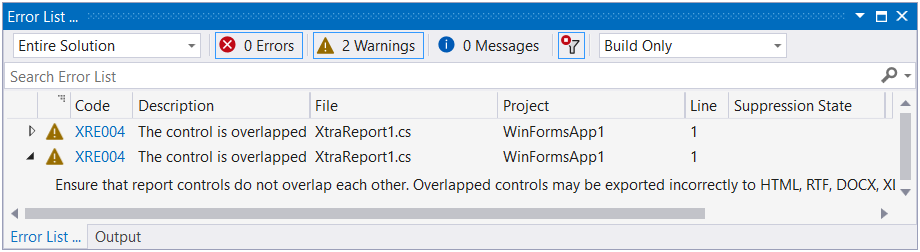
The Error List displays the following messages:
- Layout-related messages (for instance, in cases when report controls overlap each other or extend beyond the report’s printable area).
- Messages about report creation (for instance, notifications about invalid property values or unreachable sources of content).
- Messages that highlight issues in report scripts (for instance, errors in script syntax).
- Messages related to report export (for example, in cases when an error occurs while a report is exported to PDF, XLSX, and other formats).
Invoke the Error List
Do one of the following to invoke the Error List:
Select View | Error List in the Visual Studio menu.

Press the CTRL+W, E keyboard shortcut.
Click the bell icon in the status bar.

Filter Messages
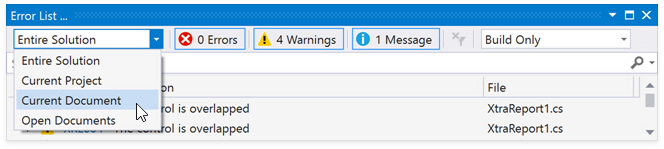
Open a report in the Visual Studio Report Designer and select Current Document from the drop-down box on the left in the Error List to display only messages related to this report.
See the following topic for the list of messages that can appear in the Error List: Errors, Warnings, and Information Messages.
You can also implement and register the IErrorFilteringService to filter messages in code:
class CustomErrorFilter : IErrorFilteringService {
    public IEnumerable<ErrorDataContract> Filter(IEnumerable<ErrorDataContract> errors) {
        return errors.Where(e => e.ErrorSource != DevExpress.XtraReports.Diagnostics.ErrorSource.ReportLayout);
    }
}
Enable Accessibility Validation
In the Report Designer Options dialog, set the Enable Accessibility Validation option to true to include accessibility-related messages within the displayed message categories:

Accessibility messages are added to the appropriate message category depending on their type: Error, Warning, or Information.

You can also use Suppressed Error Codes to exclude some error codes from analysis.