Add Speaker Notes to Slides
- 5 minutes to read
Speaker notes contain supplementary information associated with individual presentation slides. Notes are visible only in Presenter View and are hidden during a slide show.
The DevExpress Presentation API allows you to create, modify, export, and clear speaker notes. You can customize individual notes or configure shared formatting and layout settings for all notes in a presentation through the Notes Master.
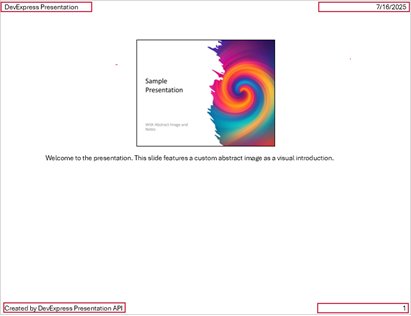
Create Speaker Notes
Create a Notes Master
A presentation contains a NotesMaster object that defines shared formatting and layout settings for all speaker notes in the presentation, including placeholders for headers, footers, date and time, and slide numbers.
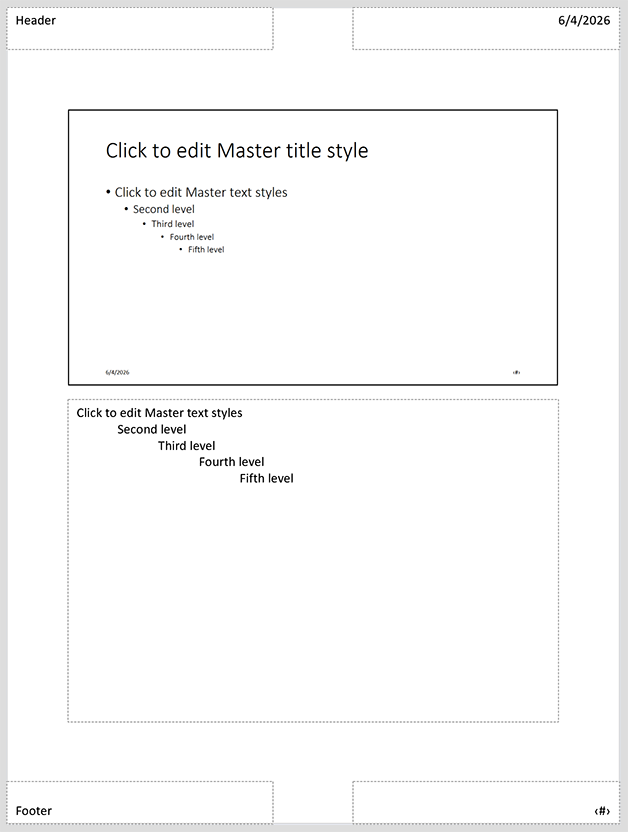
When a new Presentation is created, its NotesMaster is null. You can create it manually before adding notes if you need to configure shared layout settings in advance. Otherwise, the system automatically creates a default NotesMaster when you add the first speaker note to a slide. The note layout includes placeholders for notes and slide numbers.
The Presentation API introduces the following methods to work with the Notes Master:
- getNotesMaster() — returns the current
NotesMasterinstance - setNotesMaster(NotesMaster value) — assigns a custom NotesMaster to the presentation
The following code snippet creates a NotesMaster if it does not already exist:
try (Presentation presentation = new Presentation()) {
    // Ensure NotesMaster exists.
    if (presentation.getNotesMaster() == null) {
        presentation.setNotesMaster(new NotesMaster("notesMasterLayout"));
    }

    // Implement presentation processing logic.
}
Add a Speaker Note to a Slide
Create a new NotesSlide object and pass it to the Slide.setNotes() method. The new NotesSlide inherits formatting and layout settings from the NotesMaster.
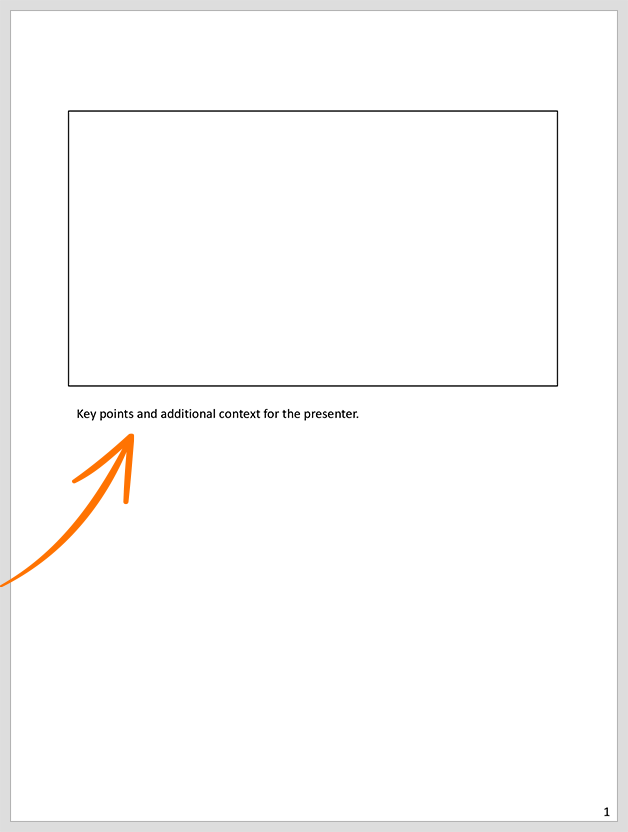
The following code snippet adds a note to the first slide:
// Create a NotesSlide.
NotesSlide notes = new NotesSlide("slide1-notes");

// Specify notes content.
notes.getTextArea().setText("Key points and additional context for the presenter.");

// Get the first slide in the presentation.
Slide slide = presentation.getSlides().getFirst();

// Assign notes to the slide.
slide.setNotes(notes);
Customize Speaker Notes
Note Anatomy
Speaker notes (NotesSlide) consist of the following visual elements:
- Note Content (Body)
- The note content is stored in the TextArea of the
NotesSlide. UseTextAreamethods to modify the text and its formatting. - Note Placeholders
- Placeholders define structured regions on the Notes page. These visual elements (shapes) are controlled by the
NotesMasterand shared across all speaker notes in the presentation.
Edit Notes Master Layout and Formatting
You can modify the NotesMaster to define the shared layout and formatting applied to all notes in the presentation.
Unlike individual NotesSlide objects, the NotesMaster does not contain note content. It controls the overall Notes Page structure, including placeholder content, background, and text formatting.
Use the Presentation.getNotesMaster() method to access the notes layout.
The following table lists methods that return placeholder shapes in the master layout:
| Method | Description |
|---|---|
| getActualNotesPlaceholder() | Returns the note placeholder shape. |
| getActualHeaderPlaceholder() | Returns the header shape. |
| getActualFooterPlaceholder() | Returns the footer shape. |
| getActualDateTimePlaceholder() | Returns the date and time placeholder shape. |
| getActualSlideNumberPlaceholder() | Returns the slide number placeholder shape. |
The following code snippet creates a Notes Master, customizes placeholder content and formatting, and adds notes to a slide:
import com.devexpress.docs.office.*;
import com.devexpress.docs.presentation.*;
import com.devexpress.system.drawing.*;


// Create a presentation.
try(Presentation presentation = new Presentation()) {
    // Create a Notes Master and assign it to the presentation.
    NotesMaster notesMaster = new NotesMaster("notesMaster");
    presentation.setNotesMaster(notesMaster);

    // Specify text for header and footer placeholders.
    notesMaster.getActualHeaderPlaceholder()
            .getTextArea().setText("Generated by DevExpress Presentation API for Java");

    notesMaster.getActualFooterPlaceholder()
            .getTextArea().setText("2026");

    // Create paragraph properties used to format notes content.
    TextParagraphProperties pp = new TextParagraphProperties();
    pp.getTextProperties().setFontSize(12f);
    pp.getTextProperties().setFill(new SolidFill(Color.getLightGray()));

    // Apply formatting to the header placeholder.
    notesMaster.getActualHeaderPlaceholder()
            .getTextArea().setLevel1ParagraphProperties(pp);

    // Apply formatting to the notes placeholder.
    notesMaster.getActualNotesPlaceholder()
            .getTextArea().setParagraphProperties(pp);

    // Create notes.
    NotesSlide notes = new NotesSlide("notes-slide-1");
    notes.getTextArea().setText("Key points and additional context for the presenter.");

    // Add notes to the first slide in the presentation.
    Slide slide1 = presentation.getSlides().getFirst();
    slide1.setNotes(notes);

    // Perform additional presentation processing logic.
}
Use the Notes Master’s setBackground() method to specify the background for speaker notes.
SolidFill fill = new SolidFill(Color.getLightCyan());
notesMaster.setBackground(new CustomSlideBackground(fill));
Note
A shape’s default character formatting may be interpreted differently by various presentation viewers. To ensure a consistent appearance, explicitly specify font and paragraph formatting settings in code.
Edit Speaker Notes
Use the Slide.getNotes() method to obtain speaker notes associated with a slide. Once you obtain a NotesSlide object, you can modify its content and formatting through the TextArea.
You can also use the Slide.setNotes() method to assign a NotesSlide object to the slide.
The following table lists related APIs:
| Method | Description |
|---|---|
| getParagraphProperties() | Gets paragraph formatting settings. |
| setParagraphProperties() | Specifies paragraph formatting. |
| getText() / setText() | Gets or sets the note text. |
| getActualNotesPlaceholder() | Returns the note placeholder shape. |
Changes applied to a NotesSlide affect only the selected slide and do not modify the NotesMaster or other notes in the presentation.
The following code snippet updates the content and formatting of notes for the first slide:
// Get notes associated with the slide.
NotesSlide notes = slide.getNotes();

// Update the note content.
notes.getTextArea().setText("Updated key points and additional context for the presenter.");

// Create text formatting settings.
TextParagraphProperties paragraphProperties = new TextParagraphProperties();
paragraphProperties.getTextProperties().setBold(true);

// Apply formatting to the note content.
notes.getTextArea().setParagraphProperties(paragraphProperties);
notes.getTextArea().setLevel1ParagraphProperties(paragraphProperties);
Clear Speaker Notes
The following code snippet removes speaker notes from all presentation slides:
for (Slide slide : presentation.getSlides()) {
    if (slide.getNotes() != null) {
        slide.setNotes(null);
    }
}