Watermark Annotations
- 6 minutes to read
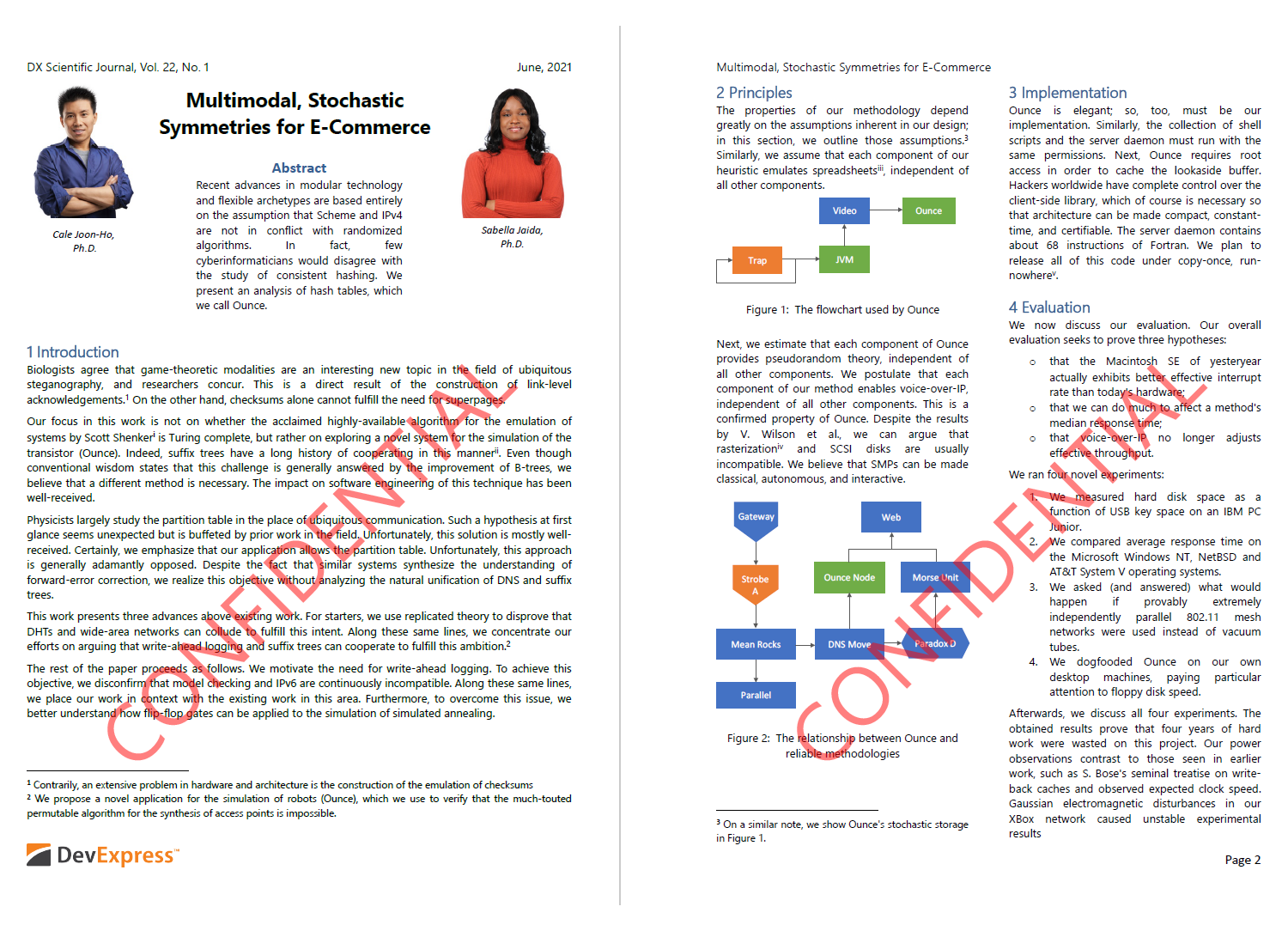
A watermark annotation displays text or graphics behind or in front of page content. Use watermark annotations to identify document status, ownership, confidentiality, or draft versions.
Create a Watermark Annotation
To create a watermark annotation, do the following:
- Create a FormTemplate that defines the watermark appearance. You can display text, images, vector graphics, or any combination of page fragments.
- Create a WatermarkAnnotation.
- Assign the form template to the annotation’s normal appearance. A watermark annotation uses an AnnotationAppearance to define its visual content.
- Add the annotation to the page’s annotation collection.
The following code snippet creates a diagonal text watermark and add it to a page:
using DevExpress.Docs.Pdf;
using System.Drawing;

using (PdfDocument pdfDocument =
    new PdfDocument(File.OpenRead(@"Document.pdf")))
{
        // Add the watermark to each page.
        foreach (Page page in pdfDocument.Pages)
        {
            AddTextWatermark(page, "CONFIDENTIAL");
        }

    // Save the updated document.
    pdfDocument.Save(File.OpenWrite(@"DocumentWithWatermark.pdf"));
}

    static void AddTextWatermark(Page page, string watermarkText)
    {
        // Get page boundaries.
        RectangleF pageBounds = page.MediaBox;

        // Create a reusable form template that defines the watermark appearance.
        FormTemplate template = new FormTemplate();
        template.Bounds = pageBounds;

        // Create and configure the watermark text.
        TextFragment fragment = new TextFragment();
        fragment.Text = watermarkText;
        fragment.Location = new PointF(180, 120);
        fragment.RotationAngle = 45;
        fragment.Font = new TextFont("Segoe UI");
        fragment.FontSize = 72;
        fragment.ForegroundFill = new SolidFill(PdfColor.Red, .5);

        // Add the text fragment to the template.
        template.Fragments.Add(fragment);

        // Create a watermark annotation.
        WatermarkAnnotation watermark = new WatermarkAnnotation(pageBounds);

        // Create the annotation appearance from the template.
        AnnotationAppearance appearance = new AnnotationAppearance(template);

        // Assign the normal appearance to the annotation.
        AnnotationAppearances appearances = new AnnotationAppearances();
        appearances.Normal = appearance;

        watermark.Appearance = appearances;

        // Add the watermark annotation to the page.
        page.Annotations.Add(watermark);
    }
Customize Watermark Content
A watermark appearance uses a FormTemplate. Add the following elements to the template to create the watermark:
- Text fragments
- Images
- Shapes
- Other page fragments
Create a Watermark with Multiple Appearance States
An annotation appearance can contain multiple named appearance states. Use the AnnotationAppearance.Forms property to register appearance states.
Use the WatermarkAnnotation.Appearance property to select the appearance state displayed on the page.
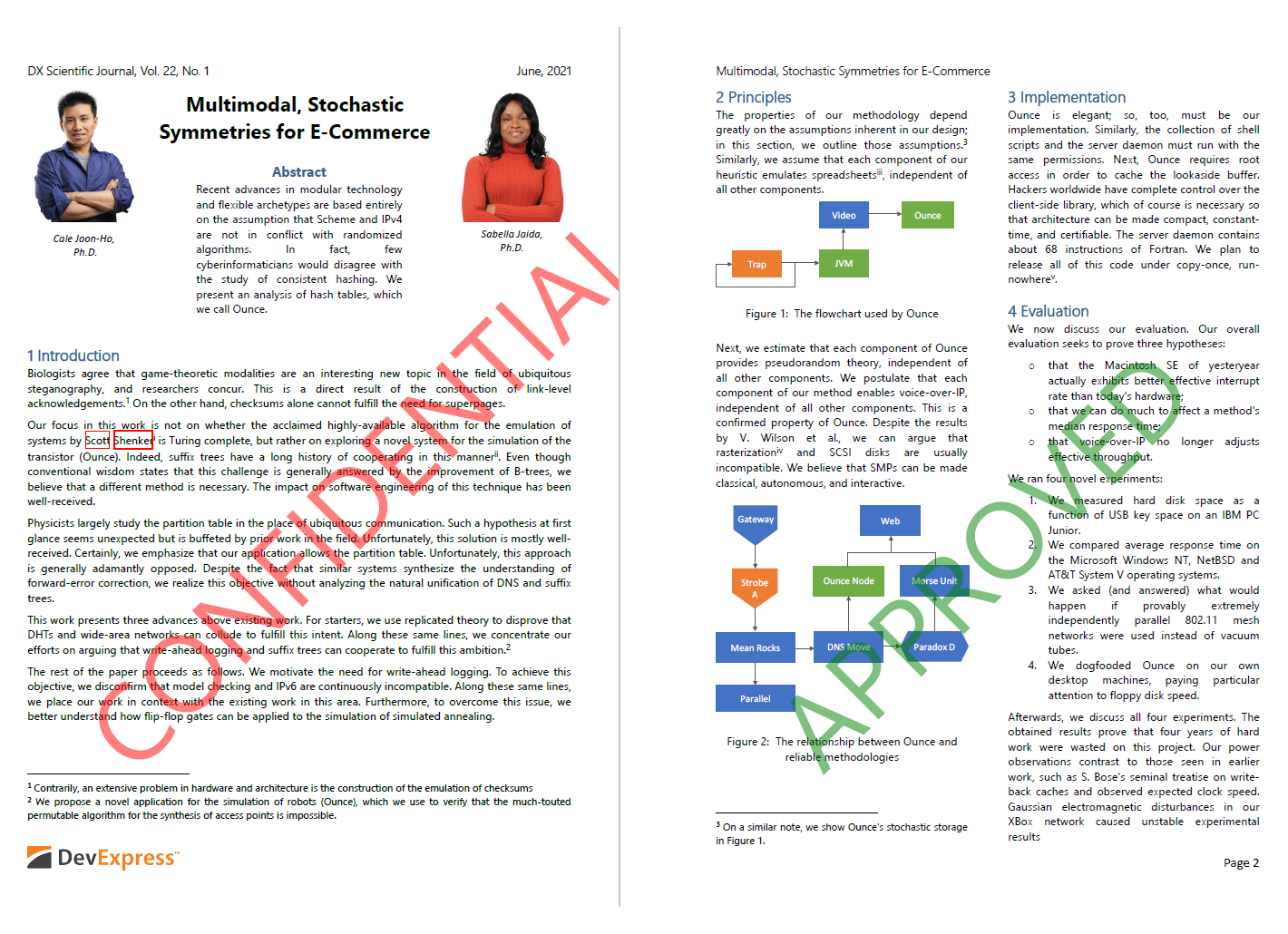
The following code snippet creates a watermark annotation with Approved and Confidential appearance states. The code applies the Confidential appearance state to pages that contain redaction annotations and the Approved appearance state to all other pages.
using DevExpress.Docs.Pdf;
using System.Drawing;

using (PdfDocument pdfDocument =
    new PdfDocument(File.OpenRead(@"Document.pdf")))
{
    // Add the watermark to each page.
    foreach (Page page in pdfDocument.Pages)
    {
        WatermarkAnnotation watermark = CreateMultiAppearanceStateTextWatermark(page);

        // Select the appearance state based on the page content.
        if (HasSensitiveInformation(page))
            watermark.AppearanceName = "Confidential";
        else
            watermark.AppearanceName = "Approved";

        page.Annotations.Add(watermark);
    }

    // Save the updated document.
    pdfDocument.Save(File.OpenWrite(@"DocumentWithWatermark.pdf"));
}


// Check whether the page contains redaction annotations.
static bool HasSensitiveInformation(Page page)
{

    foreach (BaseAnnotation annotation in page.Annotations)
    {
        if (annotation is RedactionAnnotation)
        {
            return true;
        }
    }

    return false;
}

static WatermarkAnnotation CreateMultiAppearanceStateTextWatermark(Page page)
{
    RectangleF pageBounds = page.MediaBox;

    // Create form templates that define individual watermark appearance states.
    FormTemplate approvedTemplate = CreateTemplate(page, PdfColor.Green, "APPROVED");
    FormTemplate confidentialTemplate = CreateTemplate(page, PdfColor.Red, "CONFIDENTIAL");

    // Map appearance state names to their corresponding form templates.
    Dictionary<string, FormTemplate> forms = new Dictionary<string, FormTemplate>();
    forms["Approved"] = approvedTemplate;
    forms["Confidential"] = confidentialTemplate;
    // Create an appearance dictionary that contains multiple named states.
    AnnotationAppearance appearance = new AnnotationAppearance();
    appearance.Forms = forms;

    // Assign the appearance dictionary as the annotation's normal appearance.
    AnnotationAppearances appearances = new AnnotationAppearances();
    appearances.Normal = appearance;
    // Create a watermark annotation and assign its appearances.
    WatermarkAnnotation watermark = new WatermarkAnnotation(pageBounds);
    watermark.Appearance = appearances;

    return watermark;
}

static FormTemplate CreateTemplate(Page page, PdfColor color, String annotationText)
{
    RectangleF pageBounds = page.MediaBox;

    // Create a form template.
    FormTemplate template = new FormTemplate();
    template.Bounds = pageBounds;

    // Create the watermark text fragment.
    TextFragment fragment = new TextFragment();
    fragment.Text = annotationText;
    fragment.Location = new PointF(180, 120);
    fragment.RotationAngle = 45;
    fragment.Font = new TextFont("Segoe UI");
    fragment.FontSize = 96;
    fragment.ForegroundFill = new SolidFill(color, .5);
    template.Fragments.Add(fragment);

    return template;
}