Dockerize an Office & PDF File API Application
- 8 minutes to read
This tutorial describes how to containerize a .NET application that uses the Office & PDF File API library to merge PDF files. The application runs in a Linux-based Docker container that you can run on Windows, Linux, or macOS hosts that support Docker.
Prerequisites
Create an Application
This tutorial creates a minimal Web API application that merges two PDF files. The application reads Document1.pdf and Document2.pdf from the input folder and exposes the merge operation through the /merge endpoint.
The application displays a web page with a Merge PDF button. When a user clicks the button, the application merges the PDF files and downloads the result as Merged-Document.pdf.
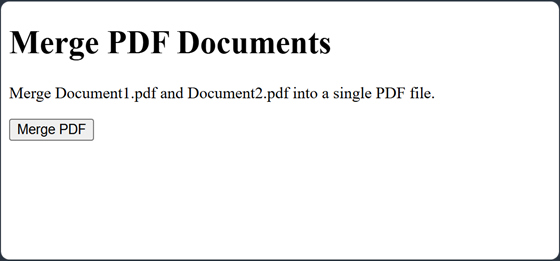
Build and run the application locally first. Then, containerize the application and run it in a Linux-based Docker container.
Use the dotnet new command to create a minimal API project.
dotnet new web -o PdfMergeApi
cd PdfMergeApi
Create an input folder in the project directory and place the PDF files that you want to merge inside it.
Install the DevExpress.Docs.Pdf and DevExpress.Drawing.Skia NuGet packages as described in the following help topic: Use NuGet Packages to Install Office & PDF File API Components.
Important
These packages are available as part of the DevExpress Office & PDF File API Subscription or DevExpress Universal Subscription.
Replace the contents of Program.cs with the code below. The application maps a
/endpoint that displays the Merge PDF button and a/mergeendpoint that merges the source PDF files and returns the result as a downloadable file.using DevExpress.Docs.Pdf; using DevExpress.Drawing; var builder = WebApplication.CreateBuilder(args); var app = builder.Build(); // Use the Skia drawing engine to render documents on Linux. Settings.DrawingEngine = DrawingEngine.Skia; const string IndexHtml = """ <!DOCTYPE html> <html lang="en"> <head> <meta charset="UTF-8"> <title>PDF Merge | DevExpress Office & PDF File API</title> </head> <body> <h1>Merge PDF Documents</h1> <p>Merge Document1.pdf and Document2.pdf into a single PDF file.</p> <form action="/merge" method="get"> <button type="submit">Merge PDF</button> </form> </body> </html> """; app.MapGet("/", () => Results.Content(IndexHtml, "text/html")); app.MapGet("/merge", () => { // Merge the source PDF files. using var document = new PdfDocument(File.OpenRead("input/Document1.pdf")); document.AppendDocument(File.OpenRead("input/Document2.pdf")); // Save the merged PDF to an in-memory stream. var output = new MemoryStream(); document.Save(output); output.Position = 0; return Results.File(output, "application/pdf", "Merged-Document.pdf"); }); app.Run("http://0.0.0.0:8080");Build and run the application:
dotnet build
dotnet run
Open
http://localhost:8080in a browser.The application displays a web page with a Merge PDF button. Click the button to merge the PDF files and download Merged-Document.pdf.
Create a Dockerfile
Create a Dockerfile in the project folder. Use a multi-stage Docker build: the first stage builds the application with the .NET SDK, and the second stage contains the ASP.NET Core runtime, the application, and the Linux libraries that the Office & PDF File API requires.
# Build stage
FROM mcr.microsoft.com/dotnet/sdk:10.0 AS build
WORKDIR /src

# Copy the project file and restore dependencies as a distinct layer.
COPY *.csproj ./
RUN dotnet restore

# Copy application sources and publish a release.
COPY . ./
RUN dotnet publish -c Release -o /app/publish


# Runtime stage
FROM mcr.microsoft.com/dotnet/aspnet:10.0

WORKDIR /app

RUN apt-get update && \
    apt-get install -y --no-install-recommends \
        fontconfig \
        fonts-dejavu-core \
        libgl1 \
        libegl1 \
        libjpeg62-turbo \
        libtiff6 && \
    fc-cache -f && \
    rm -rf /var/lib/apt/lists/*

# Copy the published application.
COPY --from=build /app/publish ./

# Expose the HTTP server port.
EXPOSE 8080

# Start the application.
ENTRYPOINT ["dotnet", "PdfMergeApi.dll"]
Note
The Dockerfile installs Linux libraries that the Office & PDF File API requires for features such as font processing and image operations. Required libraries depend on the API features that your application uses.
Create a .dockerignore File
Add a .dockerignore file to the project folder:
bin/
obj/
Build the Docker Image
- Run Docker.
Open a terminal in the project folder and run:
docker build -t pdfmergeapi .Verify the image:
docker images
Run the Docker Container
The application expects PDF files in the /app/input directory. Mount the local input directory to the container:
docker run --rm -p 8080:8080 -v "${PWD}\input:/app/input" pdfmergeapi
The application listens on port 8080 inside the container.
Test the Application
Open http://localhost:8080 in a browser.
The application displays the Merge PDF button. Click the button to merge Document1.pdf and Document2.pdf.
The application reads PDF files from the mounted /app/input directory, merges them, and downloads the result as Merged-Document.pdf.
Troubleshooting
The Container Fails to Start
Check the container output:
docker run --rm <container_id>
Verify the following:
- The application targets .NET 8.0 or later.
- The Docker image contains all native libraries that the application requires.
- The container architecture matches the application’s native dependencies.
- The container includes all fonts that the application requires.
PDF Operations Fail in the Container
If PDF operations succeed on the host but fail in the container, verify that the image contains all native libraries and fonts that the application requires.
The host operating system can include fonts and native libraries that are not available inside the Docker container.
Run Office File API in Minimal / Chiseled Linux Containers
This section applies to applications deployed in minimal Linux environments such as:
- .NET chiseled images
- Distroless containers
- Images without a package manager
- Environments without
fontconfigor system fonts
Example base images:
mcr.microsoft.com/dotnet/aspnet:10.0-noble-chiseled-composite-extra
mcr.microsoft.com/dotnet/sdk:10.0-noble
Key Differences from Regular Linux Distributions
Minimal/chiseled images:
- Do not include
fontconfig - Do not include
/usr/share/fonts - Do not allow to install native packages with
apt-get - Do not support system font discovery
Due to these limitations, applications must meet the following criteria:
1. Use the Skia Drawing Engine
Set the DrawingEngine property to Skia:
2. Use SkiaSharp Native Assets Without System Dependencies
Install the SkiaSharp.NativeAssets.Linux.NoDependencies NuGet package.
If your dependency graph includes SkiaSharp.NativeAssets.Linux transitively, exclude its runtime assets:
<ItemGroup>
    <PackageReference Include="SkiaSharp.NativeAssets.Linux"
                      Version="3.119.2" ExcludeAssets="runtime"
                      PrivateAssets="all" />
</ItemGroup>
This configuration removes the libfontconfig.so.1 dependency.
3. Include Fonts in the Application
Minimal and chiseled images cannot discover system fonts. You need to include the required TTF files in the application:
<ItemGroup>
    <None Include="*.ttf" CopyToPublishDirectory="Always" />
</ItemGroup>
public static int Main(string[] args) {
    string[] fonts = ["Inter.ttf", "SegoeUI.ttf"];
    string[] fontFiles = [.. fonts.Select(f => Path.Combine(baseDir, f))];
}
4. Register Fonts Explicitly
Register fonts manually before you load documents:
foreach (var fontPath in fontFiles) {
    DXFontRepository.Instance.AddFont(fontPath);
}
// ...
using var richEditDocumentServer = new RichEditDocumentServer();
richEditDocumentServer.LoadDocument(fileName, DocumentFormat.Docx);
Refer to the following help topic for more information: Load and Use Custom Fonts.
Example: Chiseled Container (No System Dependencies)
The following docker file deploys an application to a .NET chiseled image that does not include fontconfig or system fonts:
FROM mcr.microsoft.com/dotnet/sdk:10.0 AS build
WORKDIR /src
COPY . .
RUN dotnet publish -c Release -o /app

FROM mcr.microsoft.com/dotnet/aspnet:10.0-noble-chiseled-composite-extra
WORKDIR /app
COPY --from=build /app .

ENTRYPOINT ["dotnet", "YourApp.dll"]
public static int Main(string[] args) {
    //1. Use the Skia Drawing Engine
    Settings.DrawingEngine = DrawingEngine.Skia;

    string fileName = Path.Combine(AppContext.BaseDirectory, "fontTest.docx");

    // 3. Include Fonts in the Application
    string[] fonts = ["Inter.ttf", "SegoeUI.ttf"];
    string[] fontFiles = [.. fonts.Select(f => Path.Combine(baseDir, f))];

    // 4. Register Fonts Explicitly
    foreach (var fp in fontFiles) {
        DXFontRepository.Instance.AddFont(fp);
    }

    using (var wordProcessor = new RichEditDocumentServer()) {
        Document doc = wordProcessor.Document;
        doc.AppendText("This document is generated by Word Processing Document API: Inter font\r\n");
        CharacterProperties cp =
            doc.BeginUpdateCharacters(doc.Paragraphs[0].Range);
        cp.FontName = "Inter";
        doc.EndUpdateCharacters(cp);
        doc.AppendText("This document is generated by Word Processing Document API: NotoSans font");
        CharacterProperties cp1 =
            doc.BeginUpdateCharacters(doc.Paragraphs[1].Range);
        cp1.FontName = "Noto Sans";
        doc.EndUpdateCharacters(cp1);

        wordProcessor.SaveDocument(fileName, DocumentFormat.Docx);

        using var exportedPdf = new MemoryStream();
        wordProcessor.ExportToPdf(exportedPdf);
        exportedPdf.Position = 0;
        using var ouput = Console.OpenStandardOutput();
        exportedPdf.CopyTo(ouput);
        ouput.Flush();

        Log("Done.");
    }
}