Collaboration
- 2 minutes to read
The Localization Tool allows multiple contributors to work on the same language independently. This tutorial describes how to organize a collaborative workflow with database files.
Prerequisites
This section provides an overview. For complete step-by-step instructions with screenshots, see the following topic: Getting Started.
Install the Localization Tool on each contributor’s machine.
Download DevExpress translation resources for the required culture on each machine.
Create the target culture on each machine.
Familiarize contributors with the translation editing UI.
Locate the Database File
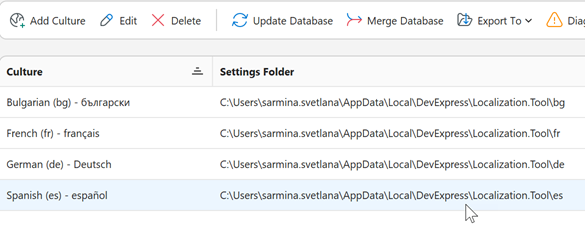
When a contributor finishes editing, they can share the intermediate XML database that contains their changes. This database is stored in the directory specified in the Database Folder column:
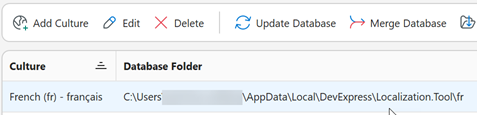
The default path is:
C:\Users\<username>\AppData\Local\DevExpress\Localization.Tool\<culture-name>
Note
This folder is hidden. To open it, users may need to type or paste the path into File Explorer.
The folder contains a LocalizationData_<culture-name>.xml file:
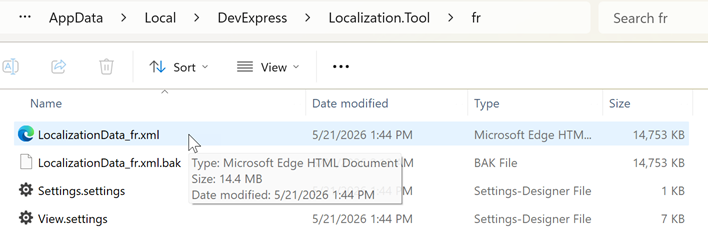
The contributor can copy this file and share it for merge into the master database.
Tip
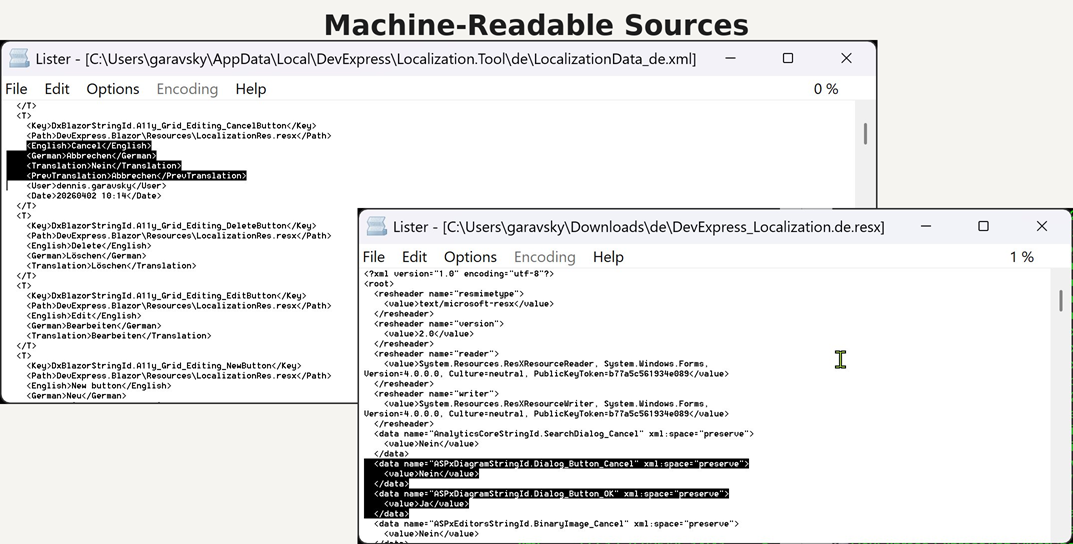
You and other contributors can also use AI-based bulk translation. Source translations are stored on GitHub, and the internal translation database (RESX/XML) is available for custom tools. If necessary, you can take LocalizationData_fr.xml or RESX files and translate them with the AI service of your choice.
Merge Remote Changes
Do the following on the machine with the master database:
Download the XML database file with remote changes.
Select a culture.
Click Merge Database in the main menu or context menu.
In the Merge Database dialog, specify the import path to the XML database with remote changes and click Open. The dialog displays the list of remote changes:
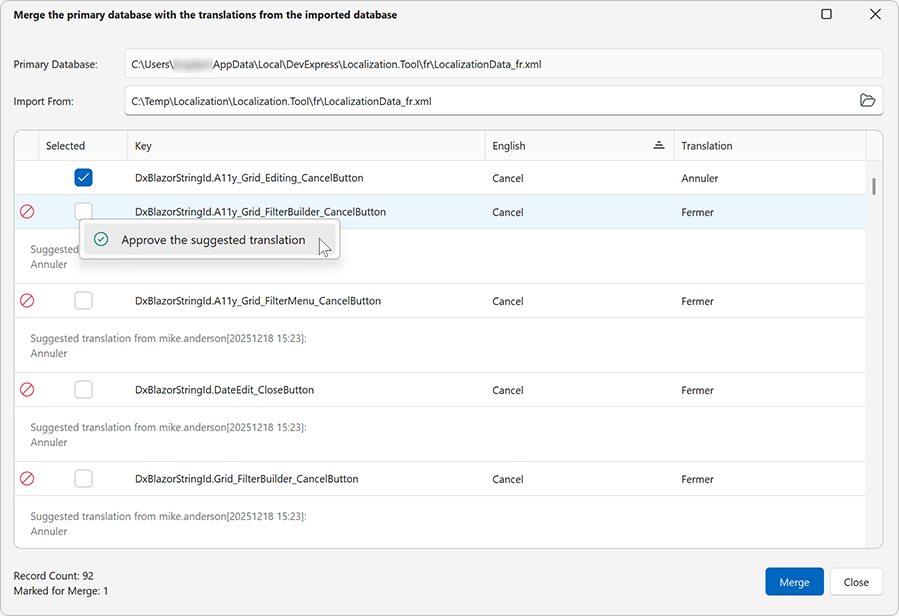
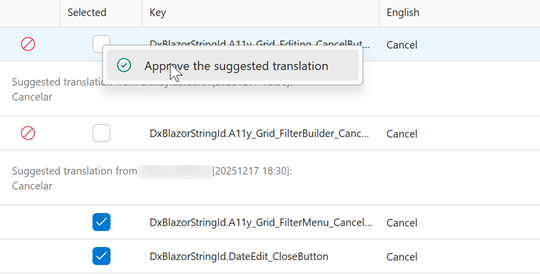
Review the changes and select the remote translations to merge into the master database. If remote changes conflict with changes in the master database, you can approve the remote change or leave it unchecked to reject it.
Click Merge. The master database now contains the selected remote changes.