Designer and Viewer Modes in React
- 3 minutes to read
The Web Dashboard can function as a designer or viewer. The following modes are available:
- Designer
- The Web Dashboard works as a designer and allows users to create, edit, and save dashboards. In this mode, the component loads the extensions required to design dashboards. Users can access the Data Source Wizard and can preview underlying data. A user can switch the component to
Viewermode and can modify dashboards from storage on the client side. Requests from the dashboard backend server can be sent to third-party resources. This is the default mode. - Viewer
- The Web Dashboard works as a viewer and displays dashboards to users. In this mode, the component also loads the extensions required to design dashboards. A user can switch the component to
Designermode. - ViewerOnly
- The Web Dashboard does not load extensions required to design dashboards. Users cannot switch to
DesignerorViewermodes on the client.
Note
The Model API is not effective when the Web Dashboard operates in Viewer or ViewerOnly modes.
Specify Designer or Viewer Mode on the Server
The way you can specify the working mode on the server side depends on the backend type:
- ASP.NET Core Dashboard Control - Designer and Viewer Modes
- ASP.NET MVC Dashboard Extension - Designer and Viewer Modes
Specify Designer or Viewer Mode on the Client
The Dashboard React component can operate in controlled and uncontrolled state management modes.
Controlled Mode
The following code snippet switches between working modes when users click a button. The button text depends on the selected working mode:

import React, { useState } from 'react';
import './App.css';
import DashboardControl from 'devexpress-dashboard-react';

function switchMode(props) {
  return props === 'Viewer' ? "Designer" : "Viewer";
}

function App() {
  const [workingModeVar, setWorkingMode] = useState("Designer");
  return (
    <div style={{ position : 'absolute', top : '0px', left: '0px', right : '0px', bottom: '0px' }}>
      <button onClick={() => { setWorkingMode(switchMode(workingModeVar)) }}>Switch to {switchMode(workingModeVar)}</button>
      <DashboardControl style={{ height: '90%' }}
        endpoint="https://demos.devexpress.com/services/dashboard/api"
        workingMode={workingModeVar}>

      </DashboardControl>
  </div>
  );
}

export default App;
Note
In the controlled mode, you cannot use the Dashboard Panel to switch between working modes. More information: Switch Between Designer or Viewer Modes in the UI.
Uncontrolled Mode
Add the default prefix to the property name. In the example below, the defaultWorkingMode attribute is used to define the workingMode property’s initial value:
<DashboardControl style={{ height: '90%' }}
    defaultWorkingMode="ViewerOnly">
</DashboardControl>
Switch Between Designer or Viewer Modes in the UI
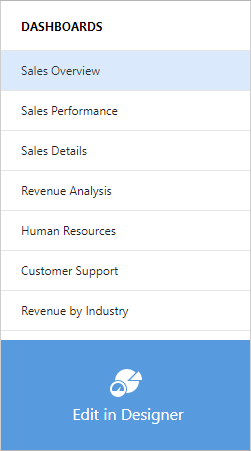
You can enable the Dashboard Panel to allow users to switch between the Designer and Viewer.
Do not use the workingMode property in controlled mode when the Dashboard Panel is enabled. Instead, you can configure your application as follows to change the workingMode property in code:
- Add the
defaultprefix to theworkingModeproperty name to use the property in uncontrolled mode. - Handle the onOptionChanged event and change the
workingModeproperty value.