Tool Calling (AI Chat Control)
- 14 minutes to read
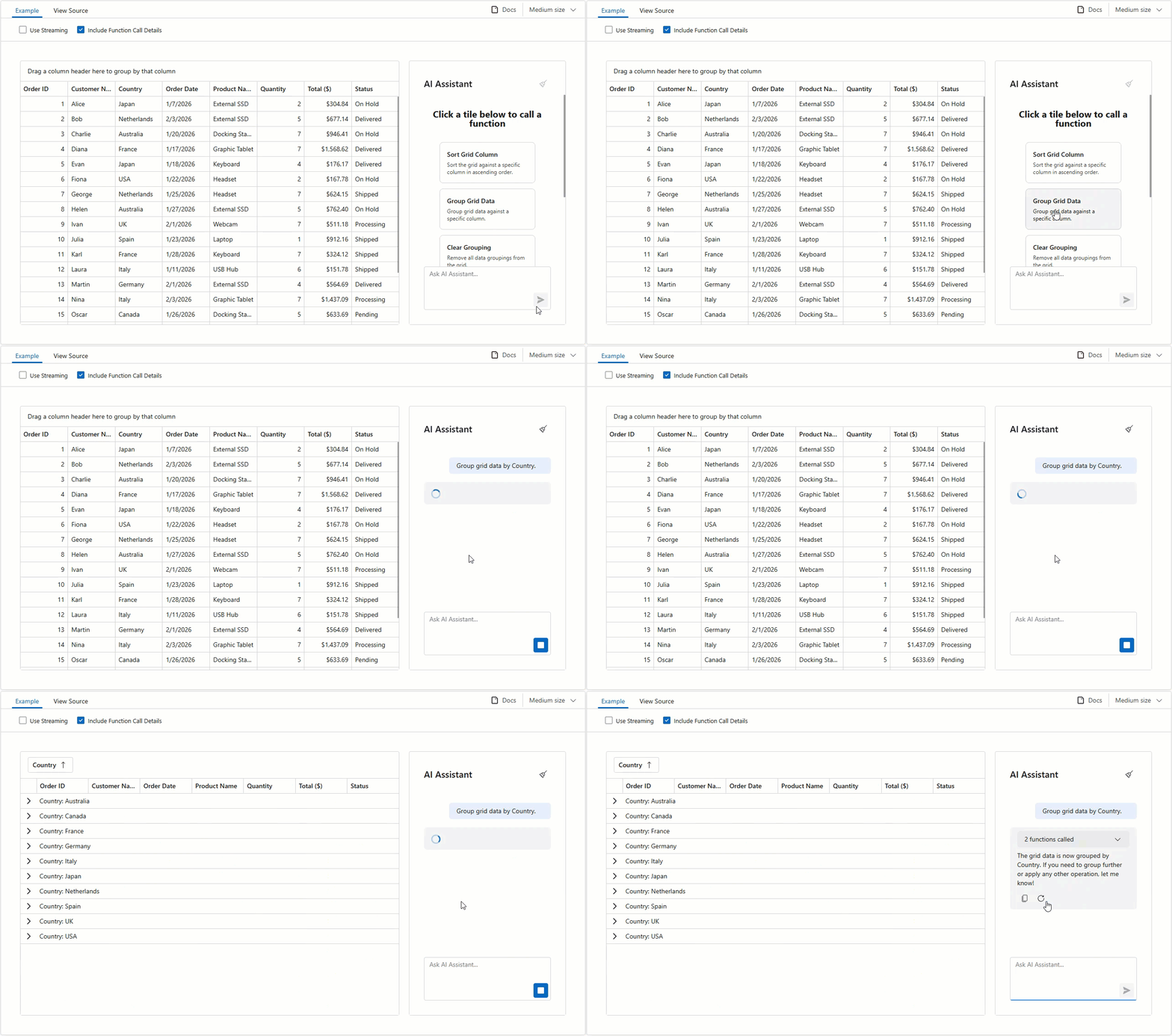
AI Tool Calling integrates application logic with natural language interaction. It allows the DevExpress AI Chat Controls to invoke application methods at runtime in response to user prompts. Developers expose functionality as AI tools by annotating methods with metadata attributes. Each tool describes its purpose, input parameters, and (optionally) the target object on which it operates.
This DevExpress implementation extends the standard tool calling (also known as function calling) model with the following advanced capabilities:
- Target-Aware Tools
- Tools can operate on specific object instances (for example, UI controls, data services, forms, or custom business objects). The AI automatically resolves the correct target at runtime based on context and description.
- Flexible Tool Contexts
- Tools can be grouped into contexts — logical collections that can be added, removed, or temporarily disabled at runtime.
- Seamless Integration with the AI Chat Control
- The DevExpress AI Chat Control automatically discovers and merges tools from all registered contexts. During a conversation, the AI handles tool selection, target resolution, parameter binding, and method invocation.
Supported Platforms and Controls
Quick Start
Enable DevExpress Tool Integration for a Chat Client
Create a chat client that supports function invocation and DevExpress tool integration.
var container = AIExtensionsContainerDesktop.Default;

// Use the ChatClientBuilder to configure the pipeline.
IChatClient chatClient = new ChatClientBuilder(
        new AzureOpenAIClient(AzureOpenAIEndpoint, AzureOpenAIKey)
        .GetChatClient(ModelId).AsIChatClient()
    )
    .UseDXTools()               // Enable DevExpress AI Tool Calling integration. Must be called before 'UseFunctionInvocation'.
    .UseFunctionInvocation()    // Enable standard function invocation (Microsoft.Extensions.AI).
    .Build(container);

// Register the configured chatClient.
container.RegisterChatClient(chatClient);
var builder = WebApplication.CreateBuilder(args);

// Create an Azure OpenAI client with an endpoint and an API key.
var azureClient = new AzureOpenAIClient(
    new Uri(azureOpenAIEndpoint),
    new AzureKeyCredential(azureOpenAIKey));

// Obtain a chat client for the specified deployment and convert it to IChatClient.
IChatClient chatClient = azureClient.GetChatClient(deploymentName).AsIChatClient();

// Register the chat client in the DI container and enable DevExpress AI Tool Calling.
builder.Services.AddScoped((sp) => {
    return chatClient.AsBuilder()
    .UseDXTools()               // Enable DevExpress AI Tool Calling integration.
    .UseFunctionInvocation()    // Enable standard function invocation (Microsoft.Extensions.AI).
    .Build(sp);
});

// Register DevExpress AI services.
builder.Services.AddDevExpressAI();
Important
Always call the UseDXTools method before UseFunctionInvocation to properly initialize DevExpress-specific tool registration and invocation handlers.
Isolate AI Tools from DevExpress AI-powered Extensions
When you register the same IChatClient instance with AITools, all DevExpress AI-powered Extensions automatically use this client to execute tool calls. To avoid unintended coupling between DevExpress AI-powered Extensions and the tool-calling pipeline, use separate IChatClient instances (one for AI-powered Extensions and one for the AI Chat Control with AITools):
var serviceCollection = new ServiceCollection();

// IChatClient for DevExpress AI-powered extensions
IChatClient chatClient = new AzureOpenAIClient(AzureOpenAIEndpoint, AzureOpenAIKey)
        .GetChatClient(ModelId).AsIChatClient();

serviceCollection.AddChatClient(chatClient);

// IChatClient for the AIChatControl with tools
serviceCollection.AddKeyedChatClient("toolChatClient", serviceProvider => {
    return new ChatClientBuilder(chatClient)
        .UseDXTools()
        .UseFunctionInvocation()
        .Build(serviceProvider);
});

// Bind the service collection to 'AIExtensionsContainerDesktop.Default'.
serviceCollection.AddDevExpressAIDesktop();
Specify the AI Chat Control’s ChatClientServiceKey property:
aiChatControl1.ChatClientServiceKey = "azureOpenAIClient";
Define Tools
Create methods and annotate them with the [Description] attribute. Specify a human-readable explanation for the tool or parameter. The method should return a string that describes the result of the operation.
[Description("Enables the dark mode for the application. Example: 'Apply dark mode.' Returns a confirmation message or an actionable error.")]
public static string EnableDarkMode(
    [Description("True to enable dark mode; false for light mode.")]
    bool is_dark_mode
) {
    UserLookAndFeel.Default.SetSkinStyle(is_dark_mode ? SkinSvgPalette.WXI.Darkness : SkinSvgPalette.WXI.Default);
    return $"{(is_dark_mode ? "dark" : "light")} mode applied successfully.";
}
Create Tool Context
Use AIToolsContextBuilder to group related tools.
The following code snippet groups EnableDarkMode, ApplySkin, ToggleCompactMode tools (tool implementations are omitted):
var context = new AIToolsContextBuilder()
    .WithToolMethods(EnableDarkMode, ApplySkin, ToggleCompactMode)
    .Build();
Register Tool Context
Add the context to the container so that the DevExpress AI Chat Control can use tools:
AIExtensionsContainerDesktop.Default.AddAIToolsContext(context);
@inject AIToolsContextContainer container

//...
container.Add(context);
How It Works
At runtime, when a user submits a prompt to the DevExpress Chat Control, the AI processes the request in several stages:
Parse the prompt and select the tool
The AI analyzes the user’s text to determine if it maps to a known/registered tool. It compares the request against tool metadata and chooses the most appropriate tool.
Resolve the target (if required)
If the tool includes a parameter marked with
AIIntegrationToolTarget, the AI looks for a registered object that matches the description in the current context. For example:- A grid control registered as Customer grid
- A service instance registered as Order data service
Prepare parameters
The AI extracts argument values from the user’s text and converts them to parameters defined in the tool method.
Call the tool method and return the result
The AI invokes the tool method and applies it to the Chat Control as part of the conversation.

Tools
A tool is a method annotated with the following attributes (preferably a public static method):
| Attribute | Description |
|---|---|
Description |
Adds a human-readable explanation for a tool or parameter. The AI uses this information to understand when and how to call the tool. |
AIIntegrationTool |
(Optional) Marks a method as a tool and specifies its unique identifier. Required when loading tools in a bulk by referencing types, or entire assemblies. |
AIIntegrationToolTarget |
(Optional) Marks a parameter as a tool target. Describes the target. |
Target-Aware Tools
A tool target identifies a specific object that the tool operates on. A target can be any registered instance (for example, a grid control, a data service, a form, or a custom business object). You must describe and register each target in a tool context.
@code {
    [AIIntegrationTool("DxGrid_ExpandGroups")]
    [Description("Expands all group rows in the grid.")]
    public static string ExpandGroups(
        [AIIntegrationToolTarget("The grid with collapsed group rows. The grid displays weather information.")]
        DxGrid target_grid
    ) {
        if(target_grid.GetGroupCount() == 0)
            return "There are no grouped rows in the grid.";

        target_grid.ExpandAllGroupRows();
        return $"All group rows are expanded.";
    }
}
The following example defines the SortByColumn tool that sorts rows in the WinForms Data Grid. The gridView parameter is marked with the AIIntegrationToolTarget attribute that describes the target. If the form displays multiple grids, the AI automatically chooses the relevant target when calling the SortByColumn tool.
[AIIntegrationTool("GridView_SortByColumn")]
[Description("Sorts the grid by the specified column. Example: 'Sort the grid by Country in ascending order.' Returns a confirmation message or an actionable error.")]
public static string SortByColumn(
    [AIIntegrationToolTarget("The GridView to sort. The GridView displays contacts.")]
    GridView gridView,
    [Description("The name of the column to sort by. Use the visible column caption or field name.")]
    string column_name,
    [Description("A Boolean parameter that specifies whether to sort in ascending (true) or descending (false) order.")]
    bool is_ascending
) {
    var column = FindColumn(gridView, column_name);
        if(column == null) {
            return $"Error: Column '{column_name}' not found. Please check the column name and try again.";
        }
        gridView.SortInfo.Add(
            column,
            is_ascending
                ? DevExpress.Data.ColumnSortOrder.Ascending
                : DevExpress.Data.ColumnSortOrder.Descending
        );

        return $"Sorting applied successfully on column '{column_name}' in {(is_ascending ? "ascending" : "descending")} order.";
}
The following example defines the ExpandGroups tool that expands all groups in the WPF Grid Control.
[AIIntegrationTool("GridControl_ExpandGroups")]
[Description("Expands all group rows in the grid.")]
public static string ExpandGroups(
    [AIIntegrationToolTarget("The grid with collapsed group rows. The grid displays order information.")]
    GridControl target_grid
)
{
    if (target_grid.GroupCount == 0)
        return "There are no grouped rows in the grid.";

    target_grid.ExpandAllGroups();
    return $"All group rows are expanded.";
}
Best Practices for Writing Tools
- Tool Naming and Discoverability
Use clear, distinct, and fully qualified names. Reflect the tool’s purpose and context to avoid ambiguity (for example, use
SortByColumninstead ofSort).You can add specific tools to the context individually or in bulk by referencing types, or entire assemblies. For a tool method to be automatically discovered when loaded from a type or assembly, it must meet the following conditions:
- The tool method must have the
AIIntegrationToolattribute with a unique identifier. - The tool method must be declared as public and static.
- The tool method must have the
- Tool Descriptions and Parameter Naming
Specify explicit and unambiguous descriptions. Describe valid input values, expected formats, and constraints. Include example inputs and outputs.
Use clear and specific parameter names (for example,
column_name). Avoid abbreviations that may confuse the AI or user.[AIIntegrationTool("GridView_SortByColumn")] [Description("Sorts the grid by the specified column. Example: 'Sort the grid by Country in ascending order.' Returns a confirmation message or an actionable error.")] public static string SortByColumn( [AIIntegrationToolTarget("The GridView to sort.")] GridView gridView, [Description("The name of the column to sort by. Use the visible column caption or field name.")] string column_name, [Description("True for ascending order; false for descending.")] bool is_ascending ) { // Implementation omitted... }- Meaningful Responses and Error Messages
Tool responses should be human-readable and meaningful in the context of the operation. Use domain-specific identifiers (field names, captions) over internal or technical identifiers.
Error messages should be clear and actionable. (They should guide the user to correct the issue.)
if(column == null) { return $"Error: Column '{column_name}' not found. Please check the column name and try again."; }- Token Efficiency
For tools that may produce large outputs (such as queries or filters):
- Specify concise and relevant responses.
- Truncate output to control response length.
- Add optional parameters (for example,
maxResultsorresponseFormat) to give users control over the output.
[AIIntegrationTool("GridView_SetFilter")]
[Description("Applies a filter to the grid. Returns a summary of the applied filter.")]
public static string SetFilter(
    [AIIntegrationToolTarget("The GridView (grid) to filter.")]
    GridView gridView,

    [Description("Natural language prompt that defines the filter criteria. " +
                "Example: 'Display customers from Germany with orders over $500.'")]
    string user_prompt,

    [Description("Maximum number of matching records to return (optional). Default is 100.")]
    int max_results = 100,

    [Description("Response format: 'concise' or 'detailed' (optional). " +
                "Default is 'concise'.")]
    string response_format = "concise"
) {
    // Apply filter criteria. Implementation omitted...
    // Restrict the number of results to 'max_results' to optimize performance and token usage.
    // Format the response message according to the 'response_format' option.
    // Return a user-friendly summary.
}
Tip
See the following article for more information: Writing Effective Tools for Agents — With Agents (Engineering at Anthropic).
Create and Register Tool Contexts
A tool context is a logical container that groups related tools and their targets. Group related tools into contexts and expose only the necessary ones to reduce the number of tools and descriptions the AI must process at runtime.
To group tools into a context, do the following:
- Use the
AIToolsContextBuilderto create a context. Add tools to the context. Use the following methods:
WithToolMethods(System.Delegate[] toolMethods): Adds the specified tools to the context.WithToolsFromTypes(System.Type[] types): Adds tools from the specified types/classes.WithToolsFromAssemblies(System.Reflection.Assembly[] assemblies): Adds tools from the specified assemblies.
- Register the context in the default container.
Add Tools Without Targets
Use the WithToolMethods method to add individual tools that do not depend on a specific instance:
// Create a context that contains tools.
var context = new AIToolsContextBuilder()
    .WithToolMethods(RefreshData, ApplyWXISkin, UseDarkMode)
    .Build();

// Register the context in the default container.
AIExtensionsContainerDesktop.Default.AddAIToolsContext(context);
@inject AIToolsContextContainer container
@using DevExpress.AIIntegration.Blazor.Chat
@using DevExpress.AIIntegration.Tools
@using AIIntegration.Services.Chat;
@using System.ComponentModel

<DxAIChat CssClass="my-chat"/>
<DxGrid @ref="grid">
    // Grid configuration...
</DxGrid>

@code {

    DxGrid grid;
    AIToolsContext context;

    protected override void OnAfterRender(bool firstRender) {
        if (firstRender) {
            context = new AIToolsContextBuilder()
                .WithToolMethods(ExpandGroups)
                .Build();

            container.Add(context);
        }
    }

    [Description("Expands all group rows in the grid.")]
    public string ExpandGroups() {
        if(grid.GetGroupCount() == 0)
            return "There are no grouped rows in the grid.";

        grid.ExpandAllGroupRows();
        return $"All group rows are expanded.";
    }
}
Add Target-Aware Tools
Use the WithToolTarget method to associate a tool with a target:
Blazor
@inject AIToolsContextContainer container
@using DevExpress.AIIntegration.Blazor.Chat
@using DevExpress.AIIntegration
@using DevExpress.AIIntegration.Tools
@using AIIntegration.Services.Chat;
@using System.ComponentModel

<DxAIChat CssClass="my-chat"/>
<DxGrid @ref="grid">
    // Grid configuration...
</DxGrid>

@code {

    DxGrid grid;
    AIToolsContext context;

    protected override void OnAfterRender(bool firstRender) {
        if (firstRender) {
            context = new AIToolsContextBuilder()
                .WithToolTarget(grid, "The grid that displays weather information.")
                .WithToolMethods(ExpandGroups)
                .Build();
            container.Add(context);
        }
    }

    [Description("Expands all group rows in the grid.")]
    public string ExpandGroups(
        [AIIntegrationToolTarget("The grid with collapsed group rows. The grid displays weather information.")]
        DxGrid target_grid
    ) {
        if(target_grid.GetGroupCount() == 0)
            return "There are no grouped rows in the grid.";

        target_grid.ExpandAllGroupRows();
        return $"All group rows are expanded.";
    }
}
WinForms and WPF
// Create a context that contains target-aware tools.
var gridContext = new AIToolsContextBuilder()
    .WithToolTarget(gridView1, "The GridView (grid) that displays contacts.")   // Specify the 'gridView1' as a target for tools.
    .WithToolMethods(ToggleGroups, GroupGrid, SortGrid)                         // Add tools mapped to the 'gridView1'.
    .Build();

// Register the context in the default container.
AIExtensionsContainerDesktop.Default.AddAIToolsContext(gridContext);
Add Tools From Types and Assemblies
Use WithToolsFromTypes and WithToolsFromAssemblies methods to load tools from the specified types or assembly.
Note
A tool method must meet the following conditions to be discoverable:
- The method must have the
AIIntegrationToolattribute with a unique identifier. - The method must be public and static.
The following example adds tools defined in the RibbonForm class to the default container in a WinForms application:
public partial class RibbonForm1 : RibbonForm {
    public RibbonForm1() {
        InitializeComponent();
        var formContext = new AIToolsContextBuilder()
            .WithToolsFromTypes(typeof(RibbonForm1))
            .Build();

        AIExtensionsContainerDesktop.Default.AddAIToolsContext(formContext);
    }

    [AIIntegrationTool("Tool_1 identifier...")]
    [Description("Tool_1 description...")]
    public static string Tool_1() {
        // Tool_1 implementation...
    }

    [AIIntegrationTool("Tool_2 identifier...")]
    [Description("Tool_2 description...")]
    public static string Tool_2() {
        // Tool_2 implementation...
    }

    [AIIntegrationTool("Tool_3 identifier...")]
    [Description("Tool_3 description...")]
    public static string Tool_3() {
        // Tool_3 implementation...
    }
}
Tip
In WPF projects, you can attach the AIToolsBehavior to a control to enable AI tools defined in the specified type. The behavior automatically manages the lifecycle of the tool context. It creates and registers the context when the control is initialized and disposes it when the control is unloaded.
<dxg:GridControl x:Name="gridControl">
    <dxmvvm:Interaction.Behaviors>
        <dxai:AIToolsBehavior
            ToolType="{x:Type local:GridTools}"
            TargetDescription="The grid control that displays contact information." />
    </dxmvvm:Interaction.Behaviors>
</dxg:GridControl>
Manage Tool Contexts
Manage tool contexts to simplify the decision-making process for the model and avoid errors.
At runtime, you can add, remove, enable, or disable tool contexts based on the current application state or user workflow. For example:
- Expose reporting tools only after a report is loaded.
- Disable data manipulation tools when the application is in read-only mode.
- Remove contexts that are irrelevant for the current UI to simplify the model’s decision-making process.
// Disable the context.
context.IsEnabled = false;

// Enable the context.
context.IsEnabled = true;

// Remove the context when it is no longer needed.
context.Dispose();
Context Lifecycle
Tool contexts are not disposed automatically. Each context instance must be explicitly disposed when it is no longer required. For example, dispose contexts when:
- A WinForms form or user control that created the context is closed.
- A Blazor page that owns the context is closed or navigated away from.
Example: Dispose Contexts in WinForms
In WinForms, dispose the context after the form (or user control) is closed:
public partial class RibbonForm1 : RibbonForm {
    AIToolsContext context;

    public RibbonForm1() {
        InitializeComponent();

        context = new AIToolsContextBuilder()
            .WithToolTarget(gridView1, "The grid that displays contacts.")
            .WithToolsFromTypes(typeof(GridTools))
            .Build();

        this.FormClosed += Form1_FormClosed;
    }

    void Form1_FormClosed(object sender, System.Windows.Forms.FormClosedEventArgs e) {
        context?.Dispose();
    }
}
Example: Dispose Contexts in Blazor
In Blazor, you should dispose the tool context when the component that created it is disposed. Implement the IDisposable interface and call Dispose() on the context in your component’s Dispose method.
@page "/"
@implements IDisposable
@using DevExpress.AIIntegration
@using DevExpress.AIIntegration.Tools
@using System.ComponentModel
@inject AIToolsContextContainer container

@code {
    AIToolsContext context;

    protected override void OnAfterRender(bool firstRender) {
        if (firstRender) {
            context = new AIToolsContextBuilder()
                .WithToolTarget(grid, "The grid that displays weather information.")
                .WithToolMethods(ExpandGroups)
                .Build();
            container.Add(context);
        }
    }

    public void Dispose() {
        // Dispose the context when the component is destroyed.
        context?.Dispose();
    }
}
Include Tool Info in Chat Response
Enable the AI Chat Control’s IncludeFunctionCallInfo option to include metadata about invoked tools/functions (function names and arguments) in response messages.

The AI Chat Control fires the MessageReceived event when it receives a response from the AI service. Handle this event to inspect or modify metadata about invoked tools/functions before they are displayed in the chat UI.
The following code snippet removes internal function calls and arguments that are not intended for user display in the WinForms application:
void AiChatControl1_MessageReceived(object sender, AIChatControlMessageReceivedEventArgs e) {
    if (e.Message.FunctionCalls.Count > 0) {
        // Remove the information about the GetToolTargets function used internally by the LLM to select a tool target.
        if (e.Message.FunctionCalls.RemoveAll(fcall => fcall.Request.Name == "GetToolTargets") > 0) {
            e.Message.FunctionCalls.ForEach(fcall => {
                foreach (var argument in fcall.Request.Arguments.Keys.ToList())
                    // Remove internal '*_identifier' arguments from function calls.
                    // These arguments specify target selection information and are not intended for user display.
                    if (argument.EndsWith("_identifier"))
                        fcall.Request.Arguments.Remove(argument);
            });
        }
    }
}
Tip
GetToolTargets is an internal helper function that is automatically added to the list of tools sent to the LLM when at least one active context contains tools with target arguments (marked by the AIIntegrationToolTarget attribute).
The function returns a list of available target objects registered in active contexts (including their identifiers and descriptions). The LLM uses these identifiers to invoke a target-based tool. At runtime, the system resolves the identifier to the corresponding target instance and passes it to the tool method.
To reduce token usage, avoid creating tools with target arguments unless target selection is strictly required.
DevExpress Demos
WinForms Demo
WPF Demo

Blazor Demo