Range Report Parameters
- 2 minutes to read
This topic describes how to create date and time range parameters and filter report data by specified dates.
| Date Range Parameter Editor | Time Range Parameter Editor |
|---|---|
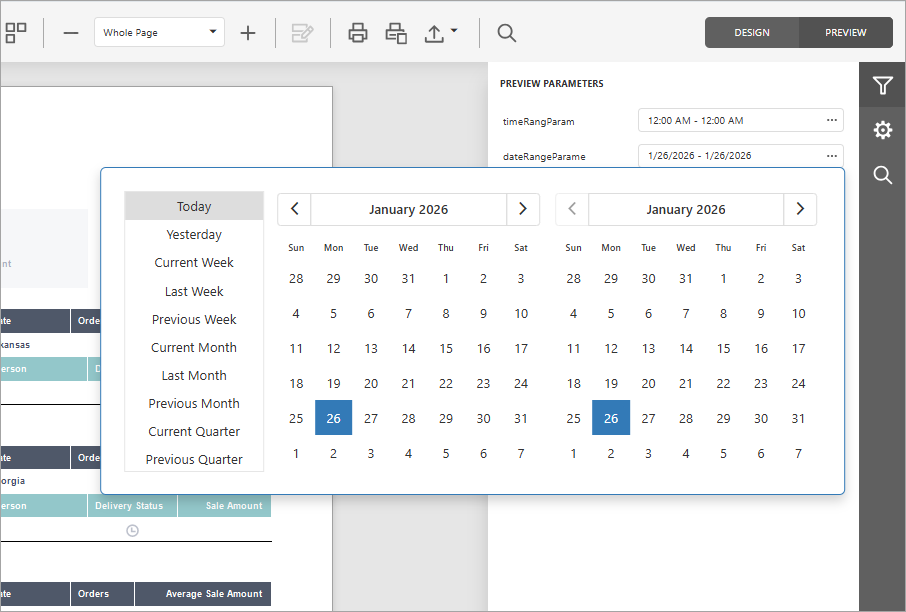 |
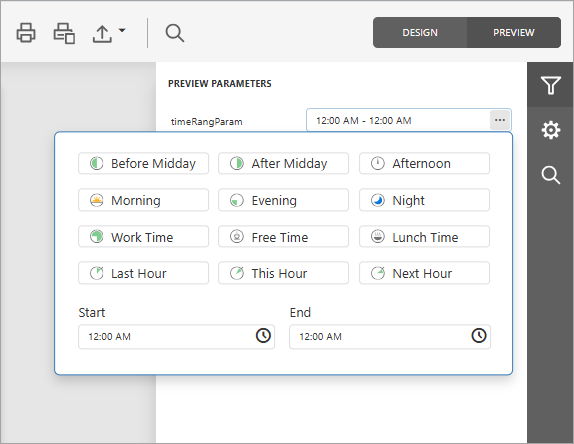 |
Create a Range Parameter in the Report Designer
Follow the steps below to add a range parameter to a report in the Report Designer:
Create a report parameter. In the Add Parameter dialog, specify parameter options:
- Parameter type: Date and Time, Date, or Time
- Value Source: Range Parameters
The Start Parameter and End Parameter sections allow you to configure options for a date or time range:
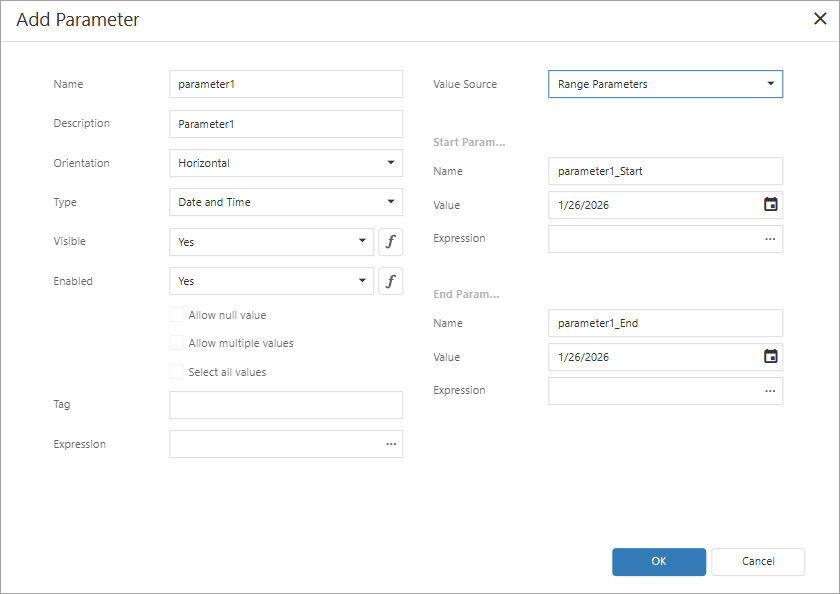
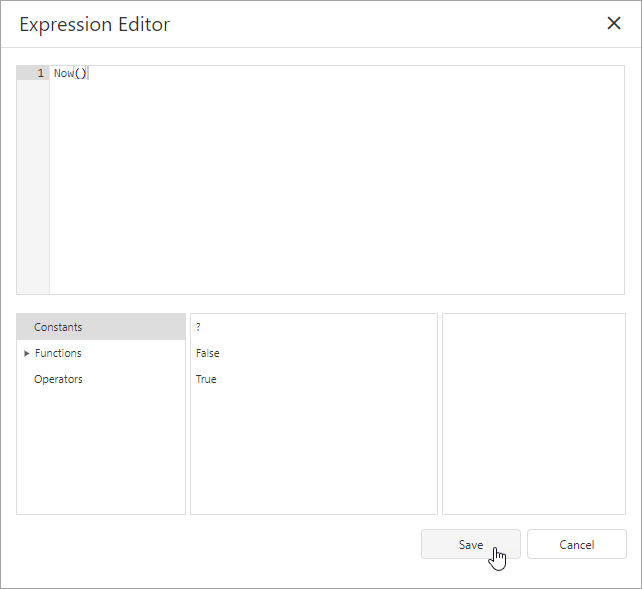
You can change the Name and initial static Value for the Start Parameter and End Parameter. To specify an expression instead of a static value, click the Expression option’s ellipsis button and use the Expression Editor dialog.
Reference the created range parameter. You can reference this parameter in the report’s filter string to filter report data by the created date or time range. Select the report, click the FilterString‘s ellipsis button in the Properties window, and construct a filter condition in the invoked FilterString Editor.
We recommend that you use the following functions with range parameters in expressions and filter strings:
InDateRange(Date, FromDate, ToDate)- equivalent to theFromDate <= Date && Value < Dateexpression.InTimeRange(Time, FromTime, ToTime)- equivalent to theFromTime <= Time && Time < ToTimeexpression (including cases where the range spans midnight, such as 23:00-01:00).OutOfTimeRange(Time, FromTime, ToTime)- equivalent to theFromTime > Time || Time => ToTimeexpression (including cases where the range spans midnight, such as 23:00-01:00).
The example below filters report data by the following filter string:
InDateRange([ShippedDate], ?paramDateRange_Start, ?paramDateRange_End)
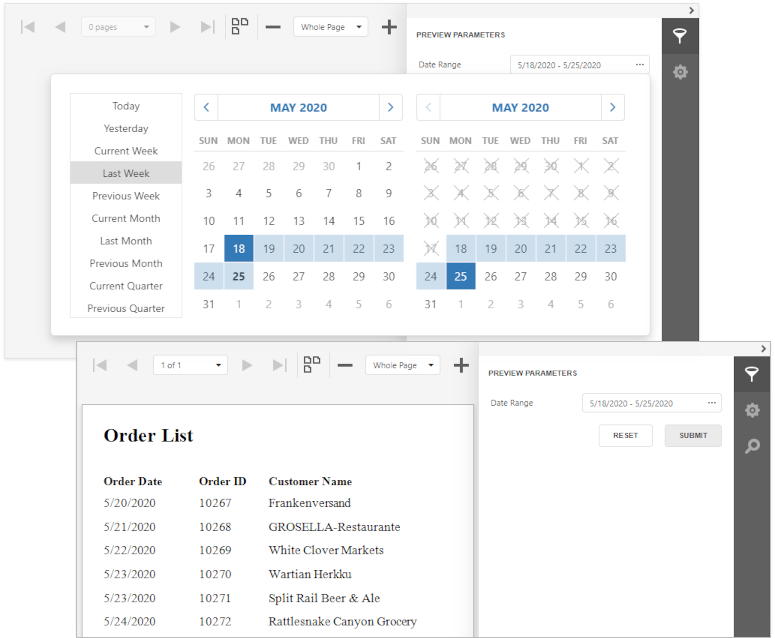
When you switch to the report’s Print Preview tab, the Parameters panel displays the range parameter. After you submit start and end values, the report document shows filtered data.
Start and end parameter values store the selected day’s midnight time. For instance, if you choose 10/15/2019, the DateTime value is 10/15/2019 12:00:00 AM. If your date fields include non-midnight times, records for the end date 10/15/2019 are excluded from the report. To include data for the 10/15/2019 date, use the GetDate() function in the FilterString Editor.
