Specify Data Source Settings (MongoDB)
This page appears when you select MongoDB on the start page.
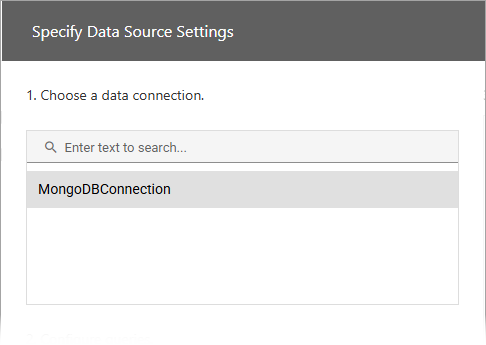
Choose a Data Connection
Select a connection from the list:
Configure Queries
In the next section, configure queries. Click the plus sign to add a new query. Specify the database, collection, and alias.
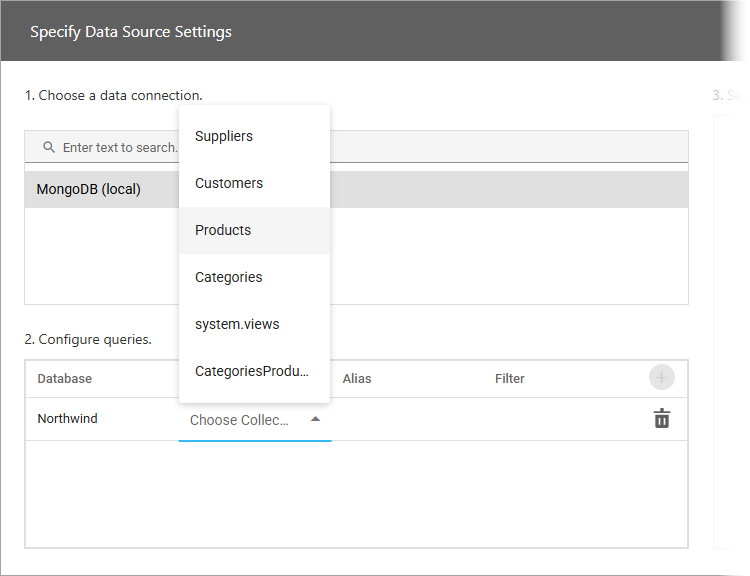
To add a filter condition to a query, click the ellipsis in the Filter column. Specify the condition in the Filter Editor dialog.
To delete a query, click the Delete button.
Select Data Fields
Use check boxes to select required data fields:
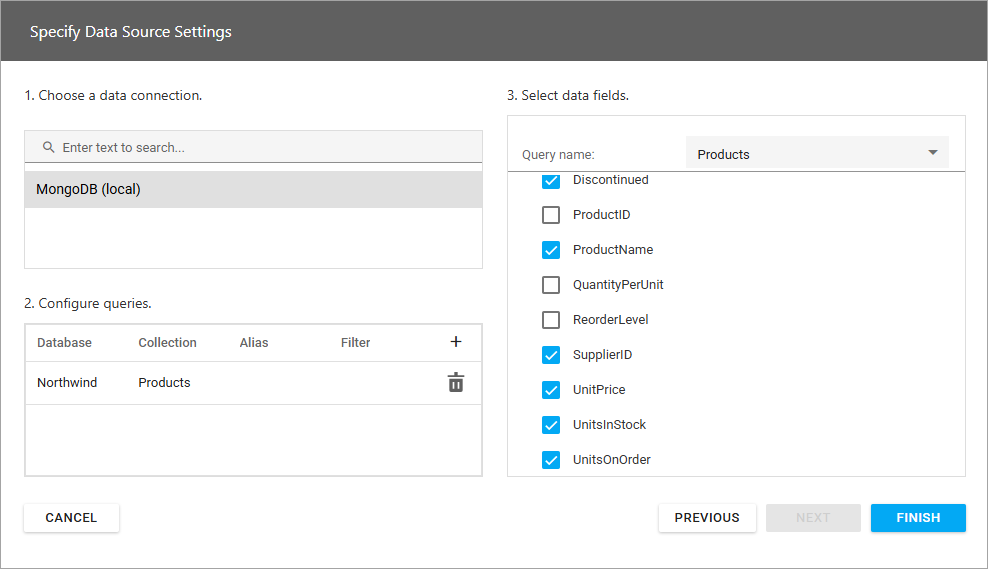
Click Finish to add the data source.