Access and Customize PDF Viewer Controls
- 2 minutes to read
The PDF Viewer Property Editor uses the following components internally: DxPdfViewer (Blazor) or PdfViewer (WinForms). This topic describes how to access and customize these components in XAF applications.
This approach follows the standard method for accessing and customizing a property editor with the CustomizeViewItemControl event, as described in the following guide: Access the Settings of a Property Editor in a Detail View.
- Create a custom ViewController in the Controllers folder of the SolutionName.Blazor.Server / SolutionName.Win project.
- Call the CustomizeViewItemControl method to access the
PdfViewerPropertyEditorin theOnActivatedmethod handler. - Use the editor’s
ComponentModel(Blazor) orControl(WinForms) property to access the underlying component settings. - Modify component settings. The following code samples specify zoom level and hide the toolbar:
using DevExpress.Blazor.Reporting.Models;
using DevExpress.ExpressApp;
using DevExpress.ExpressApp.Office.Blazor.Editors;
using Microsoft.AspNetCore.Components;

public class BlazorPdfViewerController : ViewController<DetailView> {
    protected override void OnActivated() {
        base.OnActivated();
        View.CustomizeViewItemControl<PdfViewerPropertyEditor>(this, editor => {
            editor.ComponentModel.ZoomLevel = 0.7;
            editor.ComponentModel.CustomizeToolbar =
                EventCallback.Factory.Create<ToolbarModel>(this, toolbar => toolbar.AllItems.Clear());
        });
    }
}
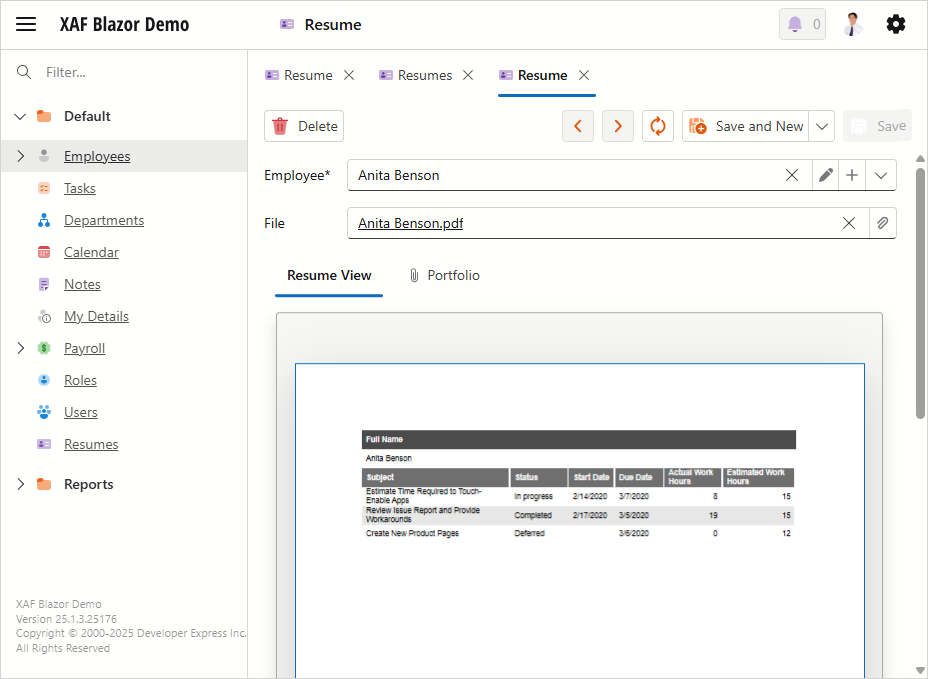
PDF Viewer in an XAF Blazor app

PDF Viewer in an XAF WinForms app
Specify PDF Viewer Menu Type: Ribbon, Toolbar, or No Menu (WinForms)
The WinForms PDF Viewer can display its menu as a Ribbon or Toolbar. Use the MenuManagerType property to specify the menu type or hide the menu.
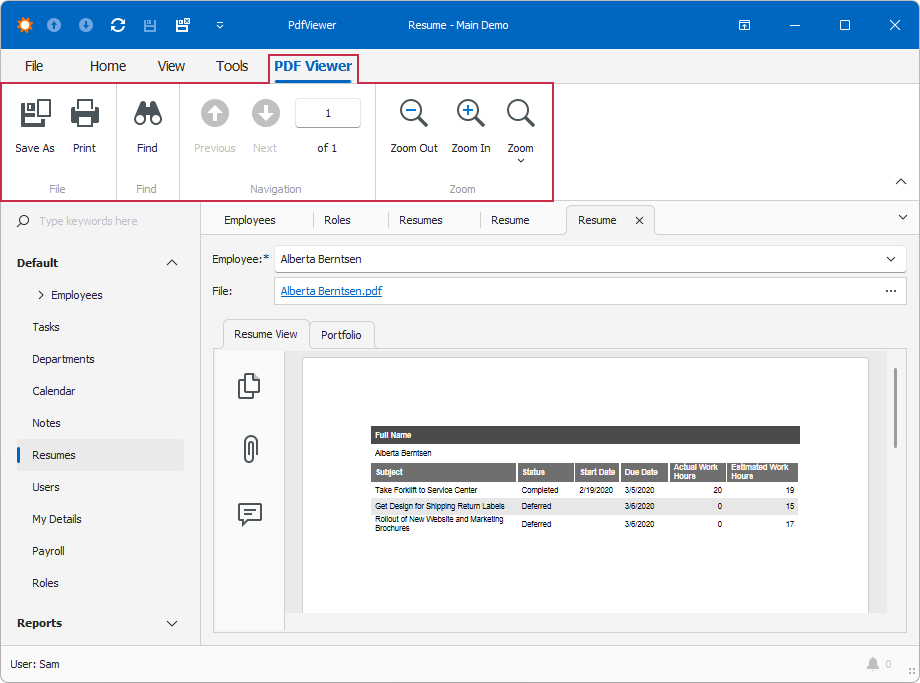
PDF Viewer ribbon menu merged into the main form’s ribbon (MenuManagerType = Default and FormStyle = Ribbon)
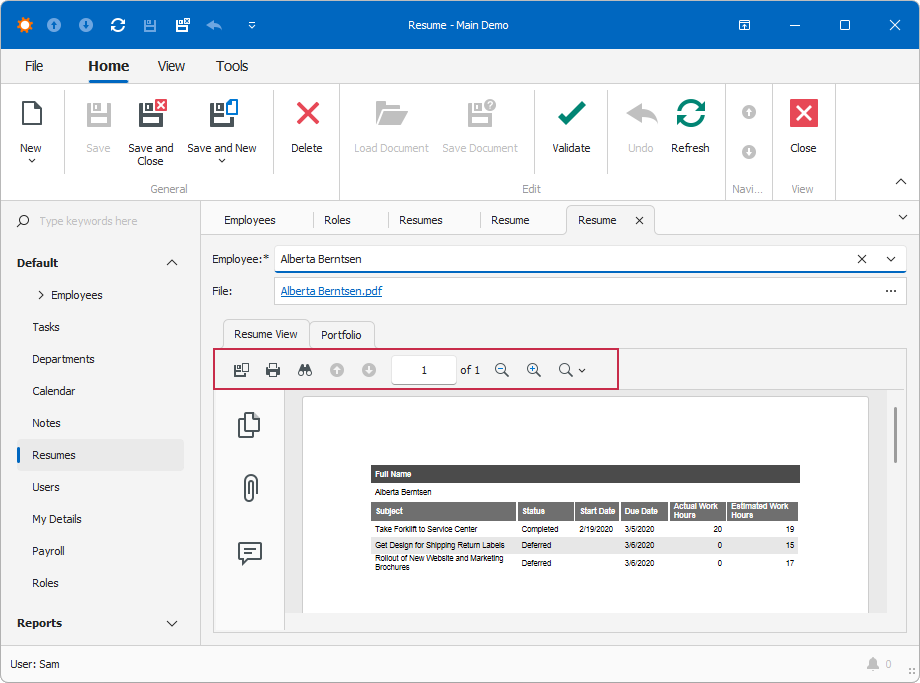
Separate toolbar menu in PDF Viewer (MenuManagerType = Bars)
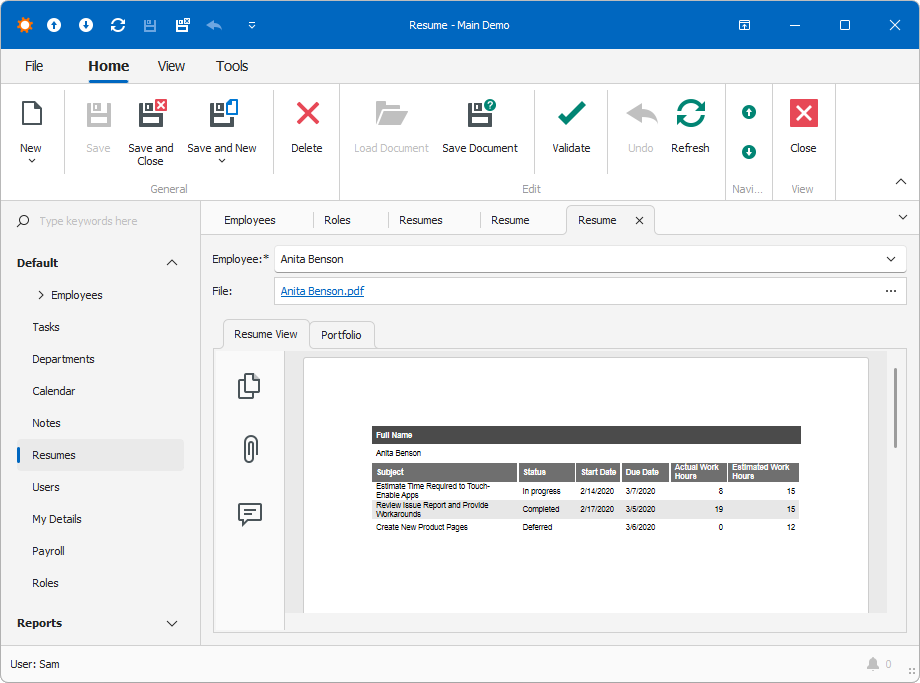
No menu in PDF Viewer (MenuManagerType = None)
Hide PDF Viewer Toolbar Groups/Ribbon Tabs (WinForms)
The WinForms PDF Viewer menu can display the following toolbar groups/ribbon tabs, listed in the PdfViewerToolbarKind enumeration:
- Main
- Interactive Form (available when a document contains interactive form fields)
- Comment (not available when a document is read-only)
You can use the static PdfViewerPropertyEditor.DefaultPdfViewerToolbarKind property to list toolbars/tabs for display. The default property value is All, and the PDF Viewer displays every available toolbar.
using DevExpress.ExpressApp.Office.Win;
// ...
public class Program {
    public static void Main(string[] arguments) {
        PdfViewerPropertyEditor.DefaultPdfViewerToolbarKind = PdfViewerToolbarKind.Comment;
        // Use the vertical bar (|) to list several toolbars/tabs
        // PdfViewerPropertyEditor.DefaultPdfViewerToolbarKind = PdfViewerToolbarKind.Comment | PdfViewerToolbarKind.Main;
        // ...
    }
    // ...
}
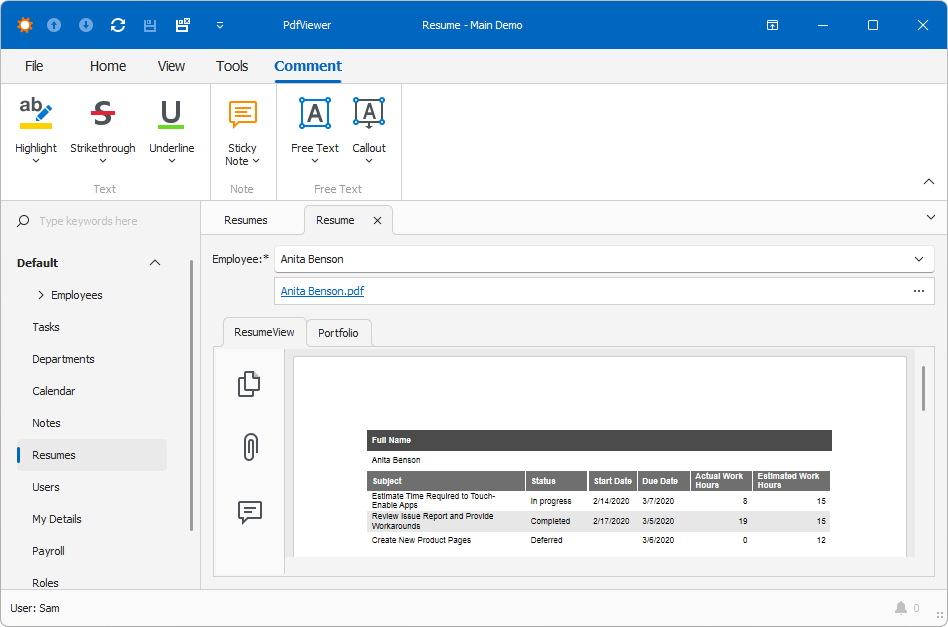
You can also use the Toolbar Customization menu at runtime. The result is saved to the user’s model differences.