Passwords in the Security System
- 9 minutes to read
This topic describes built-in XAF tools for generating and changing user passwords when using Standard Authentication.
Password Encryption
The ApplicationUser class generated by the Template Kit stores passwords as hash codes created using the Rfc2898DeriveBytes class with the SHA512 password hashing algorithm and 600,000 operation iterations.
Changes in Password Encryption in v26.1
If your application was created before v26.1, it most likely uses an SHA1 password hashing algorithm with 20,000 iterations. In v26.1 the DevExpress.Persistent.Base.PasswordCryptographer class introduced two static properties to toggle between SHA1 and SHA512. If the DefaultSettingsCompatibilityMode property in your application is set to 26_1 or Latest, XAF sets these flags to the following values:
UseSHA1_20K=false- disables old behavior (SHA1 algorithm with 20,000 iterations).UseSHA512_600K=true- enables new behavior (SHA512 algorithm with 600,000 iterations).
In this case, passwords created before this change no longer work. You can either update all passwords or enable both algorithms. Do one of the following to fix this issue:
- Update SHA1-hashed passwords to SHA512-hashed passwords.
If you do not wish to migrate passwords yet, set both toggles in the
Mainmethod in your project’s Program.cs file totrue. Newly created passwords will be hashed using the more secure SHA-512 algorithm, while existing SHA1-hashed passwords will continue to function.Note that the properties should be specified after the DefaultSettingsCompatibilityMode property.
using DevExpress.ExpressApp;
// ...
public static int Main(string[] args) {
    FrameworkSettings.DefaultSettingsCompatibilityMode = FrameworkSettingsCompatibilityMode.Latest;
    PasswordCryptographer.UseSHA1_20K = true;
    PasswordCryptographer.UseSHA512_600K = true;
// ...
}
Changes in Password Encryption in v25.2
If your application uses a legacy user password hashing algorithm (the default hashing algorithm in apps created before v17.1), update old passwords to the more secure RFC 2898 algorithm. You cannot upgrade to v25.2+ without this update. For details, refer to the following help topic: Update Legacy User Passwords.
Require Users to Update Passwords on Next Login
User objects that implement the IAuthenticationStandardUser interface have the ChangePasswordOnFirstLogon property. Set this property to true, to display the following dialog after the user is logged in:
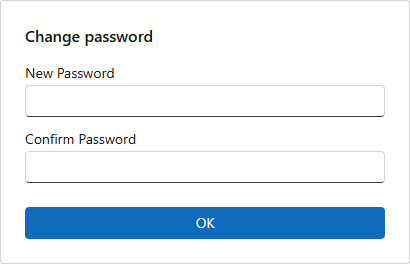
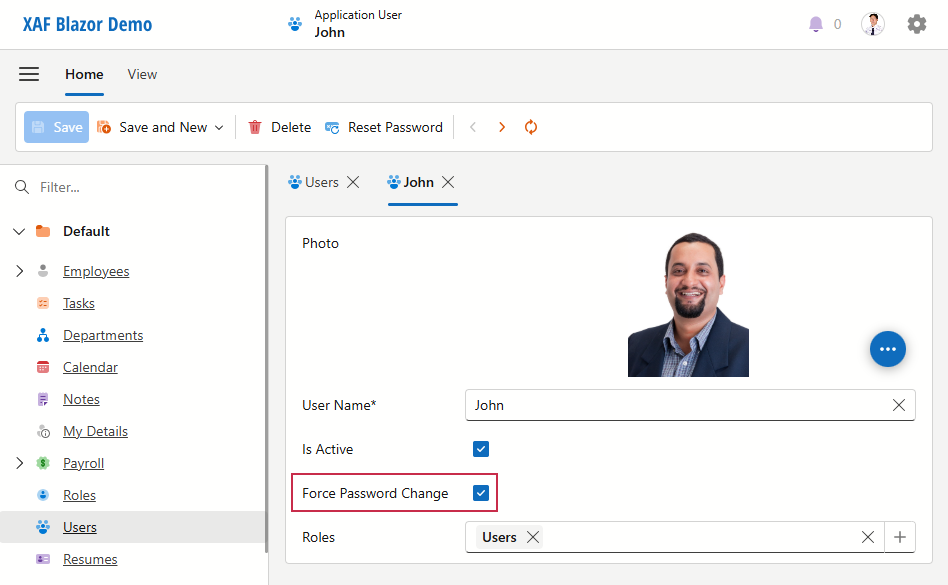
You can specify the ChangePasswordOnFirstLogon property in the UI, in code, or run a SQL query directly on your database.
In the UI
In Code
Add the following code to the UpdateDatabaseAfterUpdateSchema() method in SolutionName.Module\DatabaseUpdate\Updater.cs to execute it during the database update, or to the controller action’s Execute event handler to let the administrator execute it later:
var users = ObjectSpace.GetObjectsQuery<ApplicationUser>();
foreach (var user in users) {
    if (/*your conditions*/) {
        user.ChangePasswordOnFirstLogon = true;
    }
}
ObjectSpace.CommitChanges();
Use a SQL Query
You can run a similar SQL query directly on your database.
update [PermissionPolicyUser]
set ChangePasswordOnFirstLogon = 1
where --your conditions
Update User Passwords to Administrator-Generated Passwords
Administrators can update user passwords to new administrator-generated passwords in the UI or you can update passwords in code.
In the UI
Administrators can use the ResetPassword Action to generate a password for a particular user. This Action is activated if a user type implements the IAuthenticationStandardUser interface, and Standard Authentication is applied. The Action invokes the following dialog:
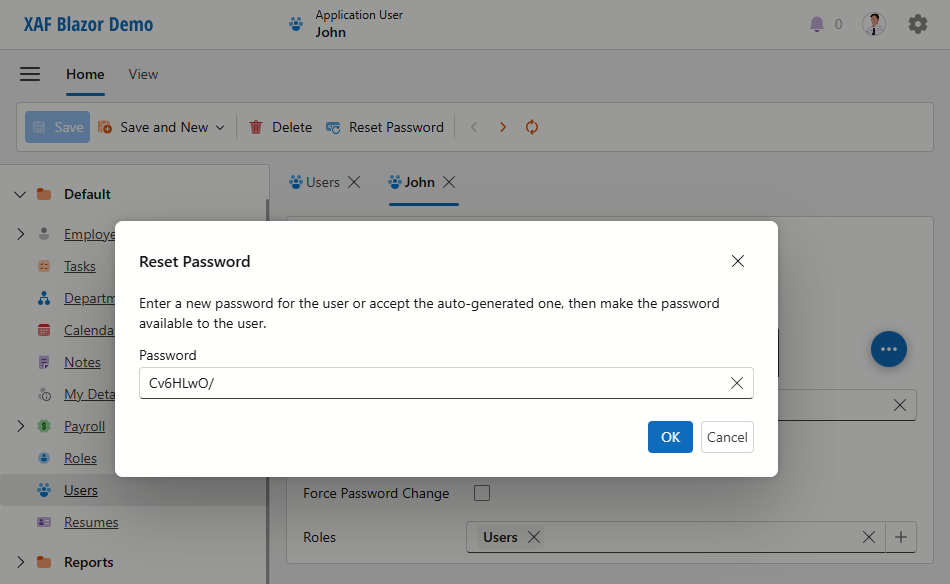
The ResetPassword Action enables the ChangePasswordOnFirstLogon option so that the user must change the auto-generated password at their next login.
Note
Changes you made in the Detail View are lost after the ResetPassword Action execution. To save changes when this Action is executed, set the SaveUserObjectOnPasswordChanging property to true.
In Code
Add the following code to the UpdateDatabaseAfterUpdateSchema() method in SolutionName.Module\DatabaseUpdate\Updater.cs to execute it during the database update, or to the controller action’s Execute event handler to let the administrator execute it later.
The following code saves the list of users and their new passwords in a text file. The administrator must inform users about their new passwords. Users must change the auto-generated password at their next login.
void SetRandomRfcPasswords() {
    var data = new List<string>();
    var users = ObjectSpace.GetObjectsQuery<ApplicationUser>();
    foreach (var user in users) {
        if (/*your conditions*/) {
            byte[] bytes = RandomNumberGenerator.GetBytes(6);
            string newPassword = Convert.ToBase64String(bytes);
            user.SetPassword(newPassword);
            user.ChangePasswordOnFirstLogon = true;
            data.Add($"Login: {user.UserName} Password: {newPassword}");
        }
    }
    ObjectSpace.CommitChanges();
    File.WriteAllLines("NewPasswords.txt", data, Encoding.UTF8);
}
User Update of Password
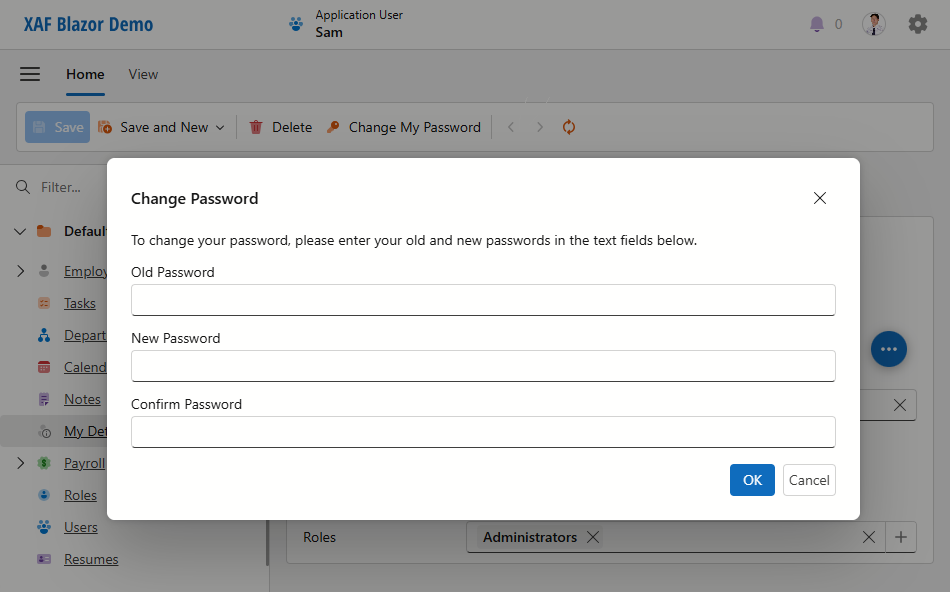
Users that have access to the My Details Detail View can use the ChangeMyPassword Action to change their passwords. This Action displays the following dialog:
Note
- You can force users to create complex passwords using the approach described in the Validate Password Complexity topic.
- Changes you made in the Detail View are lost after the ChangeMyPassword Action execution. To save changes when this Action is executed, set the SaveUserObjectOnPasswordChanging property to
true.
Set and Verify Passwords in Code
If you use custom logic to work with passwords, use one of the following techniques to verify or encrypt passwords:
Customize static
PasswordCryptographer.VerifyHashedPasswordDelegateandPasswordCryptographer.HashPasswordDelegatemethods.The following code snippet demonstrates how to customize the behavior of these methods:
using DevExpress.Persistent.Base;
// ...
PasswordCryptographer.VerifyHashedPasswordDelegate = VerifyHashedPassword;
PasswordCryptographer.HashPasswordDelegate = HashPassword;
// ...
static bool VerifyHashedPassword(string saltedPassword, string password) {
    bool result;
    // Validate password here. You can use our internal class.
    // result = Rfc2898PasswordCryptographer.VerifyHashedPassword(saltedPassword, password, HashAlgorithmName.SHA256, 40_000);
    return result;
}
static string HashPassword(string password) {
    string hash;
    // Create hash here. You can use our internal class.
    // hash = Rfc2898PasswordCryptographer.HashPassword(password, HashAlgorithmName.SHA256, 40_000);.
    return hash;
}
Use the following code to compare a plain password with a hashed password in a non-XAF .NET application with XPO:
using DevExpress.Persistent.Base;
using DevExpress.Persistent.BaseImpl.PermissionPolicy;
using DevExpress.Xpo;
using DevExpress.Xpo.DB;
using DevExpress.Xpo.Metadata;
using System.Linq;

namespace ConsoleApp1 {
    class Program {
        static void Main(string[] args) {
            var dictionary = new ReflectionDictionary();
            dictionary.GetDataStoreSchema(typeof(ApplicationUser));
            var cs = @"integrated security=SSPI;pooling=false;data source=(localdb)\mssqllocaldb;initial catalog=MainDemo_v20.1";
            XpoDefault.DataLayer= XpoDefault.GetDataLayer(cs, AutoCreateOption.None);
            XpoDefault.Session = null;
            var session = new UnitOfWork();
            var user = session.Query<ApplicationUser>().FirstOrDefault(u => u.UserName == "John");
            var saltedPassword = (string)user?.GetMemberValue("StoredPassword");
            var areEqual = PasswordCryptographer.VerifyHashedPasswordDelegate(saltedPassword, "test");
        }
    }
}
Use ComparePassword(String) and SetPassword(String) methods.
To use these methods, obtain an instance of the target user class that implements the IAuthenticationStandardUser interface. See the example in the following help topic: How to: Implement a Custom Security System User Based on an Existing Business Class.
Validate Password Complexity
Refer to the following topic for details: Validate Password Complexity.
Lockout (Prevent Brute Force Attack)
The lockout feature locks users after multiple incorrect password attempts, enhancing security and protecting against brute force attacks. The LockoutOptions type contains properties that allow you to enable lockout in your application and customize its settings.
| Property | Default Value | Description |
|---|---|---|
| Enabled | false |
Specifies whether user lockout is enabled. |
| MaxFailedAccessAttempts | 5 | Specifies the maximum number of failed login attempts before XAF locks out the user. |
| DefaultLockoutTimeSpan | 5 minutes | Specifies the user lockout duration. |
You can specify lockout options, for instance, as follows:
Files: SolutionName.Blazor.Server\Startup.cs, SolutionName.Win\Startup.cs
builder.Security
    .UseIntegratedMode(options => {
        options.Lockout.Enabled = true;
        options.Lockout.MaxFailedAccessAttempts = 3;
        options.Lockout.DefaultLockoutTimeSpan = TimeSpan.FromMinutes(3);
        // ...
Update SHA1-Hashed Passwords to SHA512-Hashed Passwords
In v26.1, we changed the default password hashing algorithm from SHA1 (20,000 Iterations) to the more secure SHA512 (600,000 Iterations). Passwords that were hashed with the SHA1 algorithm no longer work. You can update outdated passwords in the following ways:
- Require users with outdated passwords to change their passwords when they log in.
- Update outdated passwords to administrator-generated passwords.
Require Users to Update Outdated Passwords at Next Login
These steps force users with outdated passwords to change their passwords when they log in.
Add the following code to the
Mainmethod in your project’s Program.cs file to enable both password hashing algorithms:public static int Main(string[] args) { PasswordCryptographer.UseSHA1_20K = true; PasswordCryptographer.UseSHA512_600K = true; // ... }Ensure that the DefaultSettingsCompatibilityMode property is set to
26_1orLatest.Add the following code to the UpdateDatabaseAfterUpdateSchema() method in SolutionName.Module\DatabaseUpdate\Updater.cs to execute it during the database update, or to the controller action’s
Executeevent handler to let the administrator execute it later:void ExpireSha1Passwords() { var users = ObjectSpace.GetObjectsQuery<ApplicationUser>(); foreach(var user in users) { if(IsOldSha1Hash(user.StoredPassword)) { user.ChangePasswordOnFirstLogon = true; } } ObjectSpace.CommitChanges(); } private bool IsOldSha1Hash(string passwordHash) { var passwordBytes = Convert.FromBase64String(passwordHash); return passwordHash != null && passwordBytes.Length == 49 && passwordBytes[0] == 0; }You can run a similar SQL query directly on your database. For example, the following code activates the ChangePasswordOnFirstLogon property for users with SHA1 passwords in a Microsoft SQL Server table:
update [PermissionPolicyUser]
set ChangePasswordOnFirstLogon = 1
where DATALENGTH(CAST(N'' AS XML).value('xs:base64Binary(sql:column("StoredPassword"))', 'VARBINARY(MAX)')) = 49
and SUBSTRING(CAST(N'' AS XML).value('xs:base64Binary(sql:column("StoredPassword"))', 'VARBINARY(MAX)'), 1, 1) = 0x00
Run your application in debug mode and ensure that the added code is executed.
- Wait until all users with old passwords update their passwords.
- Remove the code you added to the application in the previous steps.
Update Outdated Passwords to Administrator-Generated Passwords
These steps set new administrator-generated passwords for users with SHA1-hashed passwords. The application saves the list of users and their new passwords in a text file. The administrator must inform users about their new passwords. Users must change the auto-generated password on their next login.
Add the following code to the
Mainmethod in your project’s Program.cs file to enable both password hashing algorithms:public static int Main(string[] args) { PasswordCryptographer.UseSHA1_20K = true; PasswordCryptographer.UseSHA512_600K = true; // ... }Ensure that the DefaultSettingsCompatibilityMode property is set to
26_1orLatest.Add the following code to the UpdateDatabaseAfterUpdateSchema() method in SolutionName.Module\DatabaseUpdate\Updater.cs to execute it during the database update, or to the controller action’s
Executeevent handler to let the administrator execute it later:void SetRandomSHA512Passwords() { var data = new List<string>(); var users = ObjectSpace.GetObjectsQuery<ApplicationUser>(); foreach (var user in users) { if (IsOldSha1Hash(user.StoredPassword)) { byte[] bytes = RandomNumberGenerator.GetBytes(6); string newPassword = Convert.ToBase64String(bytes); user.SetPassword(newPassword); user.ChangePasswordOnFirstLogon = true; data.Add($"Login: {user.UserName} Password: {newPassword}"); } } ObjectSpace.CommitChanges(); File.WriteAllLines("NewPasswords.txt", data, Encoding.UTF8); } bool IsOldSha1Hash(string passwordHash) { var passwordBytes = Convert.FromBase64String(passwordHash); return passwordHash != null && passwordBytes.Length == 49 && passwordBytes[0] == 0; }- Run your application in debug mode and ensure that the added code is executed.
- Inform users about their new passwords. Users are required to change their passwords when they log in.
- Remove the code you added to the application in the previous steps.
You can also use the Reset Password action to change a password for individual users.