Report Wizard
- 2 minutes to read
You can use the Report Wizard to create the following report types:
- Blank
- Creates a new blank report that is not bound to a data source.
- Table Report
- Creates a table report and binds it to data.
- Vertical Report
- Creates a vertical report and binds it to data.
- Cross-Tab Report
- Creates a cross-tab report and binds it to data.
- Template
- Creates a new report based on available predefined templates.
- Labels
- Creates badges, business cards, price tags, and other label types.
- Inherited Report
- Creates a new report based on another report.
- AI Prompt-to-Report
- Leverages AI to generate reports based on natural language prompts.

Open Report Wizard
Use one of the following ways to open the Report Wizard.
Use Item Templates
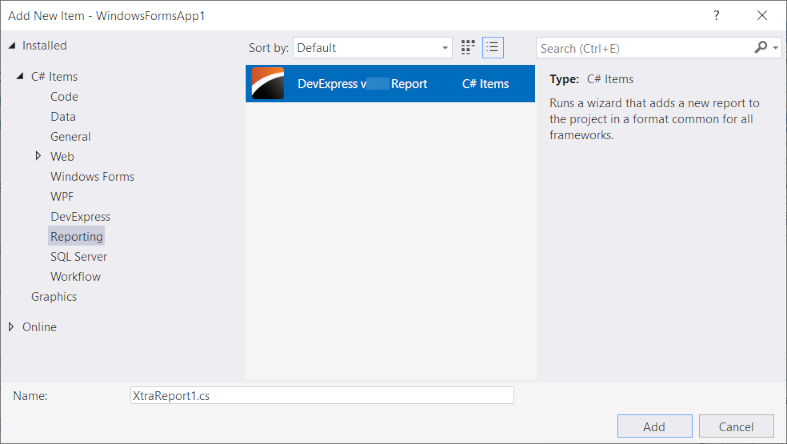
To run the Report Wizard in Visual Studio, press CTRL+SHIFT+A or select PROJECT | Add New Item… in the main menu.

In the Add New Item dialog, select the DevExpress v.26.1 Report item template.
Use the DevExpress Gallery (.NET Framework)
To run the Report Wizard in Visual Studio with the DevExpress Template Gallery, open the Solution Explorer (for example, by pressing CTRL+ALT+N) and right-click the application item.
In the pop-up menu, select Add DevExpress Item… | New Item (.NET Framework)

In the DevExpress Template Gallery, select Report, specify the new report name, and click Add Item.

Use the Template Kit (.NET/.NET Core)
Open the Solution Explorer (for example, by pressing CTRL+ALT+N) and right-click the application item.
In the pop-up menu, select Add DevExpress Item… | New Item (.NET/.NET Core)
In the DevExpress Template Gallery, select Report, specify the new report name, and click Add Item.

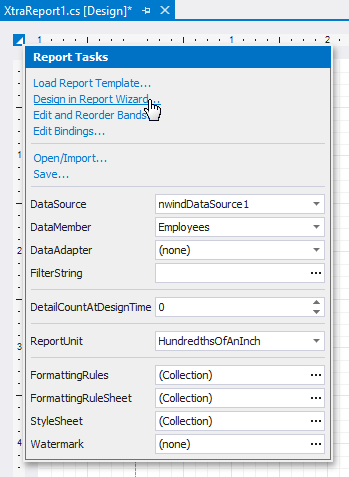
To invoke the Report Wizard, click the report’s smart tag, select Design in Report Wizard…:
Report Wizard in the End-User Report Designer
Tutorials that explain how to use the Report Wizard in EUD Report Designers for WinForms and Web are included in the End-User Documentation online help section: