v25.2 Release Notes
- 2 minutes to read
Tip
Visit our website to explore new features/capabilities available across the entire DevExpress product line: What’s New in our Latest Update.
.NET 10 & Visual Studio 2026 Support
DevExpress BI Dashboard now supports .NET 10 and Visual Studio 2026.
Template Kit — New Project and Item Templates
DevExpress Template Kit v25.2 includes new BI Dashboard-related templates for WinForms, WPF, and ASP.NET Core Blazor projects.
- BI Dashboard Viewer Application
CLI Command:
dx.win.dashboardCreates a WinForms application and includes the DevExpress BI Dashboard Viewer to display key metrics from a sample data source.
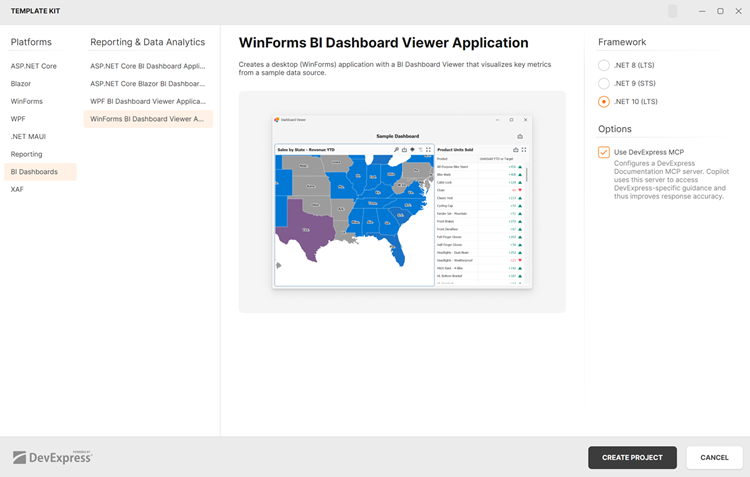
[!tutorial[Create a Dashboard Viewer Application](xref:400400)]- ASP.NET Core Blazor BI Dashboard Application
CLI Template:
dx.blazor.dashboardCreates a web application (Blazor Server or Blazor WebAssembly Hosted) and includes the DevExpress BI Dashboard Control.
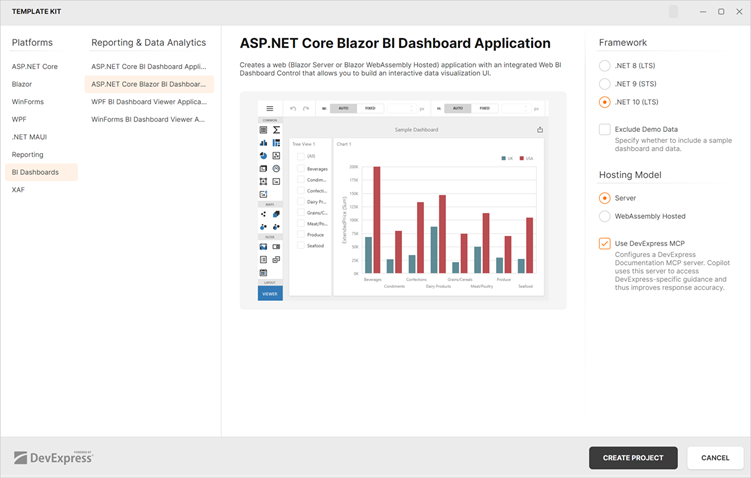
- Dashboard
CLI Template:
dx.win.dashboarditem|dx.wpf.item.dashboardAdds an empty DevExpress BI Dashboard to a WinForms/WPF project.
To add a Dashboard item to the WinForms project, you must:
- Right-click on a project in the Solution Explorer.
- Select Add → New Item.
- In the Add New Item dialog, find and run the DevExpress v25.2 Template Kit.
- Select the WinForms platform and add a Dashboard item.
WinForms Dashboard Designer
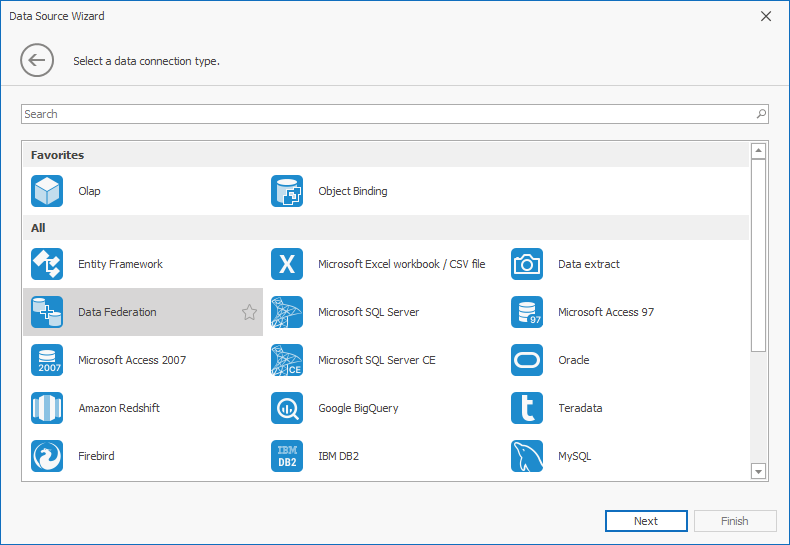
Data Source Wizard — Favorite Data Sources
The WinForms Data Source Wizard allows users to mark frequently used data providers as favorites. Favorite data providers appear at the top of the Select a Data Connection Type page (improves access to preferred providers).
Web Dashboard Designer
MongoDB Data Source Wizard
The Web Dashboard Data Source Wizard allows users to create data sources based on MongoDB connections and schemas defined by application developers.

To display the MongoDB option in the Data Source Wizard, you must:
- Install the MongoDB.Driver NuGet package.
- Register the MongoDB connection.
- Open the Data Source Wizard and select MongoDB as the data source type.
- Specify the connection, choose the collection, and define queries and filters.
Angular 21 Support
SQL Data Source
Connection Provider Enhancements
Our SqlDataSource now supports the most recent versions of the following database engines:
- PostgreSQL 18.0
- Microsoft SQL Server 2025
Database Systems Supported by XPO
Download 30-Day Trial
With numerous new products and dozens of high-impact features, DevExpress UI components allow you to build your best, without limits or compromise. Download our fully-functional 30-day trial today and experience the DevExpress difference today.