Zoom Print Preview In or Out
The Zoom page group allows you to control page scale and how pages are displayed in the Print Preview.
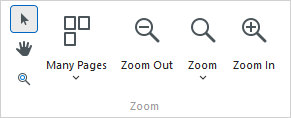
Zoom In and Out of a Document
- To zoom in a document, click the Zoom In
 button on the toolbar, or press CTRL+PLUS SIGN.
 - To zoom out of a document, click the Zoom Out
 button on the toolbar, or press CTRL+MINUS SIGN.
To zoom in or out of a document, you can also hold down CTRL and rotate the mouse wheel.
Use the Magnifier Tool
Use the Magnifier Tool  to switch between 100% and “fit whole page” views. Simply click anywhere in the document, to toggle views.