Change Watermark and Background Settings in Print Preview
- 3 minutes to read
Invoke the Watermark Dialog
To add a watermark to a document, click the Watermark button on the toolbar:

The Watermark dialog will be invoked.
Add a Text Watermark
To add a text watermark, open the Text Watermark tab.
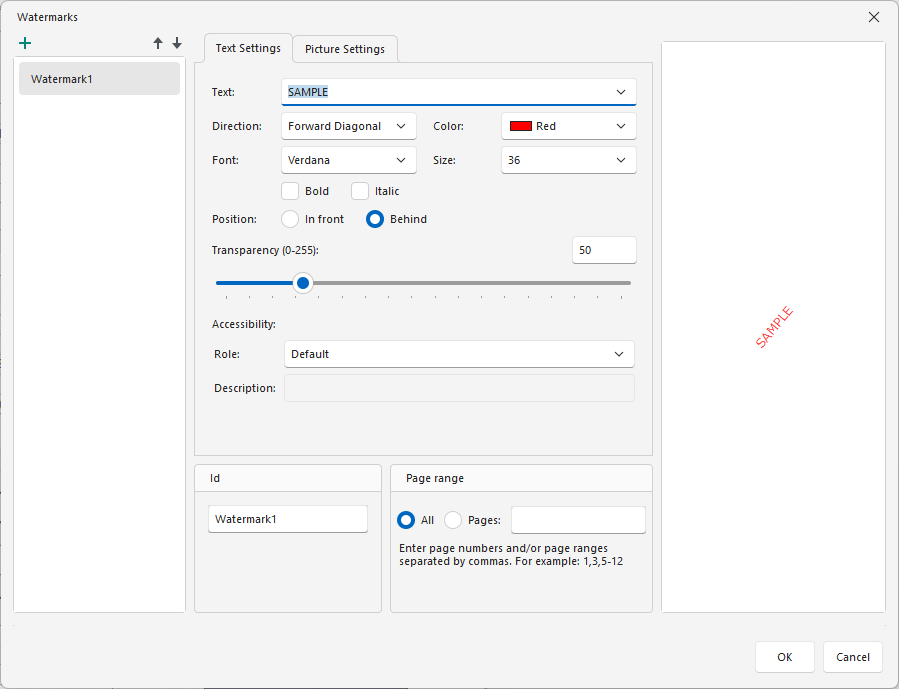
Specify the following settings:
Text
The watermark’s text.
Direction
The incline of the watermark’s text.
Font
The font of the watermark’s text.
Color
The foreground color of the watermark’s text.
Size
The size of the watermark’s text.
Bold
Formats the watermark’s text as bold.
Italic
Formats the watermark’s text as italic.
Position
Specifies whether a watermark should be printed behind or in front of page content.
Transparency
The transparency of the watermark’s text.
Id
The unique identifier of a watermark used to specify the watermark in the WatermarkId property (See the Manage Watermark Collection section for details).
Page Range
The range of pages which contain a watermark.
Role
Specifies the role of a text watermark in the exported PDF document. This value is used by assistive technologies.
Description
Specifies the description of a text watermark used by assistive technologies.
Add an Image Watermark
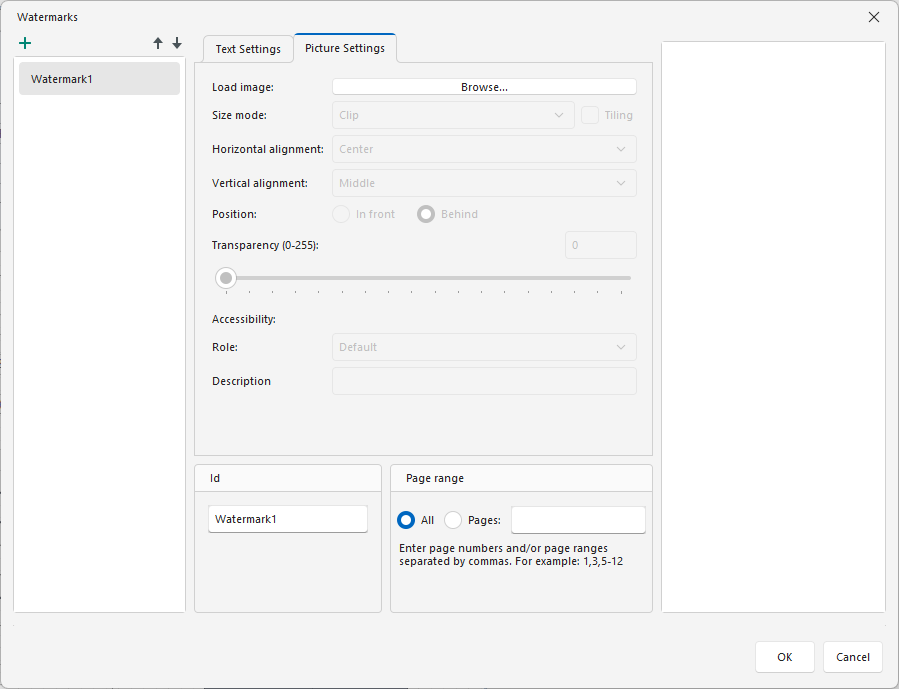
Specify an image. Click the Load image option’s Browse button.
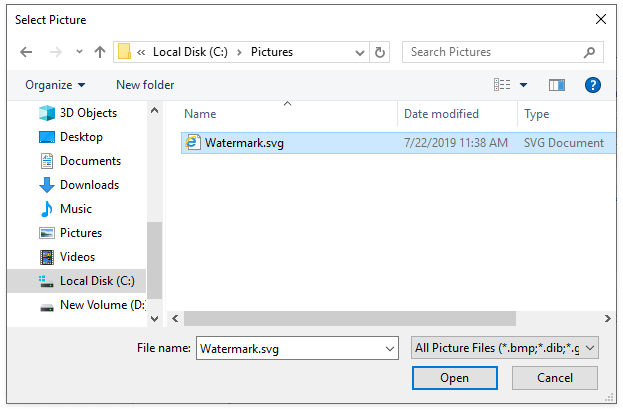
In the invoked Select Picture dialog, select the file containing the image that you wish to use as a watermark and click Open.
Specify the following picture options:
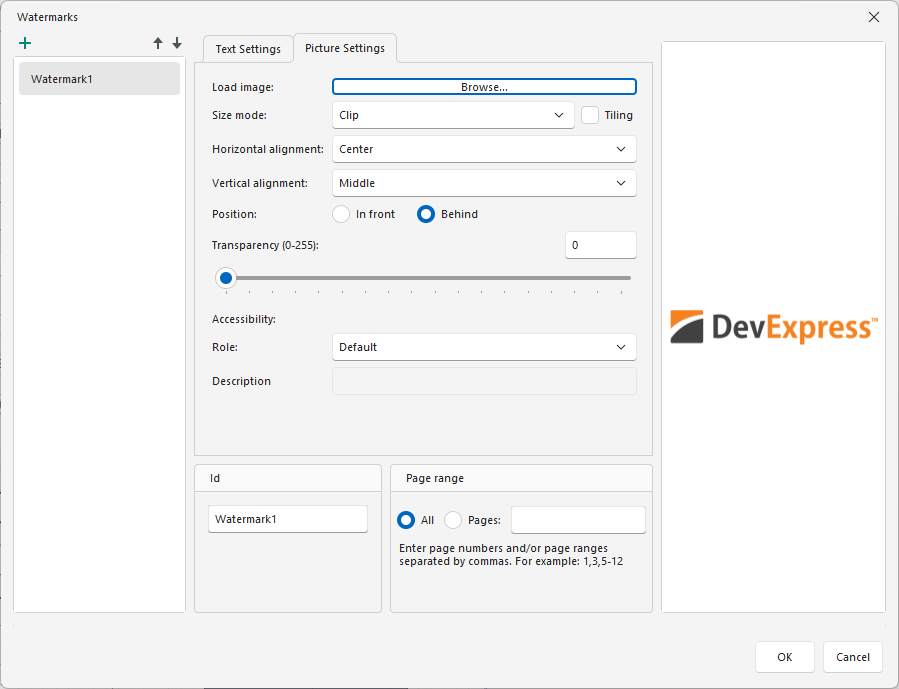
Size Mode
The mode in which a picture watermark is displayed.
Tiling
Specifies whether a picture watermark should be tiled.
Horizontal Alignment
Specifies the horizontal alignment of the watermark.
Vertical Alignment
Specifies the vertical alignment of the watermark.
Position
Specifies whether a watermark should be printed behind or in front of page content.
Transparency
The transparency of the watermark’s image. The Transparency property is unavailable when you specify an SVG image.
Id
The unique identifier of a watermark used to specify the watermark in the WatermarkId property (See the Manage Watermark Collection section for details).
Page Range
The range of pages which contain a watermark.
Role
Specifies the role of an image watermark in the exported PDF document. This value is used by assistive technologies.
Description
Specifies the description of an image watermark used by assistive technologies.
Note
A report can display only one watermark on a report page.
Specify the Pages Where you will Display Your Watermark
Specify the required pages to apply a watermark in the Page Range section of the dialog.
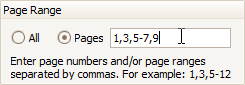
Separate page numbers with commas, or specify page ranges using a dash.
Add a Background Color to a Document
To add a background color to a document, click the Page Color button on the toolbar. The Page Color dialog will be invoked.
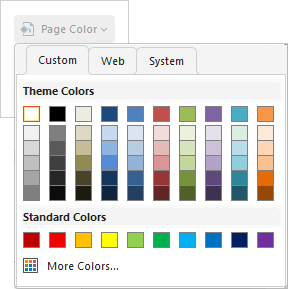
Then, choose a color from the Custom, Web, or System palettes.