How to: Use Notifications with the Scheduler Event
- 4 minutes to read
This topic demonstrates how to use the Notifications and Scheduler Modules together with the Event class from the business class library. You can use the same technique with a custom Event descendant.
Note
If you prefer to watch a video rather than walk through these step-by-step instructions, visit the corresponding tutorial on the DevExpress YouTube Channel: DevExpress XAF: Notifications.
Although the video demonstrates an older XAF version, the scenario remains the same.
To enable notifications, add the Notifications module to your application as described in the following topic: How to Add the Notifications Module.
The Event business class has the Reminder property. It is hidden to preserve the Event Detail View layouts in existing applications. Adjust the Event_DetailView layout to make this property visible. For more information, refer to the following topic: View Items Layout Customization.
If you use a custom Event descendant, you should make the Reminder property visible in the descendant’s Detail View too.
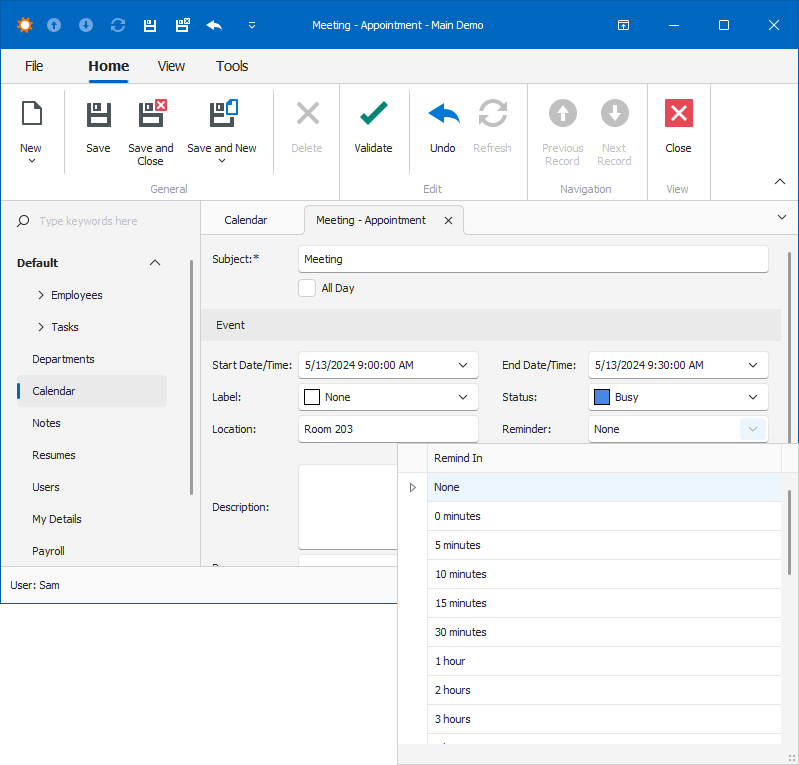
With notifications enabled, users can set reminders for each Event so that XAF displays a pop-up window before an event starts. You can specify the time between the reminder and the event’s Start Date/Time in the Reminder property of the Event class.
- ASP.NET Core Blazor

- Windows Forms
Tip
If the Reminder property is set to “0 minutes”, the Notifications window appears at the event’s start time.
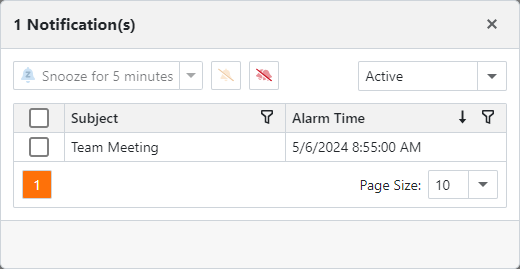
Run the application and create a new Event in the past (the Start Date/Time should be earlier than the current time). Select “5 minutes” in the Reminder drop-down. Save the event and the Reminder window will be shown in less than 10 seconds.
- ASP.NET Core Blazor
- Windows Forms

Customize Reminder Intervals
The Reminder editor displays the following intervals:
- EF Core — up to 24 hours.
- XPO — up to 2 weeks.
To add custom reminder intervals, implement an Object View Controller for the Event class, handle the Event.CustomizeReminderTimeLookup event, and extend the list of available values.
The following code sample calls the built-in PostponeTime.CreateWeeklyPostponeTimesList method to add the following intervals: 2 days, 3 days, 4 days, 1 week, 2 weeks.
using DevExpress.ExpressApp;
using DevExpress.ExpressApp.SystemModule.Notifications;
using DevExpress.Persistent.BaseImpl.EF;

public class ExtendPostponeTimeListController : ObjectViewController<DetailView, Event> {
    protected override void OnActivated() {
        base.OnActivated();
        if(View.CurrentObject is Event eventObj) {
            eventObj.CustomizeReminderTimeLookup += (s, e) => {
                e.PostponeTimesList.AddRange(PostponeTime.CreateWeeklyPostponeTimesList());
                e.PostponeTimesList.Add(new PostponeTime("qwerty", TimeSpan.FromMinutes(45),"45 minutes"));
            };
        }
    }
}
For another example that uses the CustomizeReminderTimeLookup event, refer to the following GitHub repository: Create Custom Event and Resource Classes for XAF Scheduler
EF Core: Store Reminder Intervals Longer Than 24 Hours
In EF Core, the RemindIn property uses the TimeSpan type and maps to a database time column. Because the time type stores only time-of-day values, reminder intervals are limited to 24 hours.
To store reminder intervals longer than 24 hours, change the RemindIn column type to BIGINT and store TimeSpan.Ticks values instead.
Step 1. Configure the Property Conversion
Add the following code to the OnModelCreating method in the module project’s DbContext file:
public class SolutionNameDbContext : DbContext {
    protected override void OnModelCreating(ModelBuilder modelBuilder) {
        base.OnModelCreating(modelBuilder);
        // ...
        modelBuilder.Entity<Event>()
            .Property(e => e.RemindIn)
            .HasConversion(new TimeSpanToTicksConverter());
        // ...
Step 2. Migrate Existing Data
Before you run the application, migrate the existing RemindIn data from the TIME column to a BIGINT column.
The following example demonstrates how to perform this migration in Microsoft SQL Server:
/* Rename the existing RemindIn column */
EXEC sp_rename '[SolutionName].[dbo].[Events].[RemindIn]', 'RemindIn_Time', 'COLUMN'
GO

/* Create a new BIGINT RemindIn column */
ALTER TABLE [SolutionName].[dbo].[Events]
ADD [RemindIn] BIGINT NULL
GO

/* Convert and copy existing values */
UPDATE [SolutionName].[dbo].[Events]
SET [RemindIn] = DATEDIFF_BIG(NANOSECOND, CAST('00:00:00' as TIME), [RemindIn_Time]) / 100
WHERE [RemindIn_Time] IS NOT NULL
GO

/* Optional: remove the old column */
/* ALTER TABLE [SolutionName].[dbo].[Events]
DROP COLUMN [RemindIn_Time]
GO */