List View Data Access Modes
- 4 minutes to read
XAF uses the following default data access modes:
- Client: all XAF List Views, with the exception below.
- Queryable: ASP.NET Core Blazor Tree List Views and Lookup List Views.
You can activate other modes to optimize how a List View loads and processes data:
- Server, InstantFeedback: a List View is bound to a large dataset.
- DataView: objects that appear in a List View have a complicated structure (for example, include multiple reference properties).
- ServerView, InstantFeedbackView: large dataset and complicated object structure (both conditions above).
The following table explains these different modes:
| Client | Queryable | Server | ServerView | DataView | InstantFeedback | InstantFeedbackView | |
|---|---|---|---|---|---|---|---|
| Platform | |||||||
| Blazor | ✅ | ✅ | ✅ | ✅ | ✅ | ✅ | ✅ |
| WinForms | ✅ | ✅ | ✅ | ✅ | ✅ | ✅ | |
| ORM | |||||||
| EF Core | ✅ | ✅ | ✅ | ✅ | ✅ | ✅ | ✅ |
| XPO | ✅ | ✅ | ✅ | ✅ | ✅ | ✅ | ✅ |
| Supported ListEditors | |||||||
| Blazor Grid | ✅ | ✅ | ✅ | ✅ | ✅ | ✅ | ✅ |
| Blazor Lookup | ✅ | ✅ | |||||
| Blazor Tree List | ✅ | ✅ | |||||
| Blazor Chart | ✅ | ✅ | |||||
| Blazor Scheduler | ✅ | ||||||
| Blazor Pivot Grid (CTP) | ✅ | ✅ | ✅ | ||||
| WinForms Grid | ✅ | ✅ | ✅ | ✅ | ✅ | ✅ | |
| WinForms Tree List | ✅ | ✅ | |||||
| WinForms Scheduler | ✅ | ✅ | |||||
| WinForms Pivot Grid | ✅ | ✅ | |||||
| Processed Object | |||||||
| Original Object | ✅ | ✅ | ✅ | ||||
| ObjectRecord | ✅ | ✅ | ✅ | ||||
| XafDataViewRecord | ✅ | ||||||
| Columns Available for Processing | |||||||
| Displayed Columns | ✅ | ✅ | ✅ | ✅ | ✅ | ✅ | ✅ |
| Column from the Model | ✅ | ✅ | |||||
| Displayable Collection Properties | ✅ | ✅ | ✅ | ||||
| Initially Loaded Objects | |||||||
| All | ✅ | ✅ | |||||
| Displayed | ✅ | ✅ | ✅ | ✅ | ✅ | ||
| Non-persistent Properties | |||||||
| Fully Supported | ✅ | ||||||
| Supported with Limitations | ✅ | ✅ | ✅ | ✅ | ✅ | ✅ | |
| Additional Capabilities | |||||||
| Async Loading | ✅ | ✅ | |||||
| In-place Editing | ✅ | ✅ | ✅ (XPO only) |
For additional information about a specific data access mode, navigate to the corresponding help article.
The following video explains the best ways to access and manipulate data in XAF, and how to build high-performance apps.
Non-Persistent Properties: Support Limitations
Non-persistent properties return a value calculated at runtime or store a temporary value in memory. The following list describes their limitations in various data access modes:
- ServerView, DataView, InstantFeedbackView: List Editors do not display non-persistent property values.
- Server, InstantFeedback, Queryable: List Editors display non-persistent properties but do not allow you to filter, sort, or group them.
To use non-persistent properties in these modes, decorate them with the DevExpress.Xpo.PersistentAliasAttribute (XPO) or DevExpress.ExpressApp.DC.PersistentAliasAttribute (EF Core). For more information, refer to the following KB article: Is it possible to avoid the “Cannot query a data store using criterion (…)” error and be able to filter, sort and group by non-persistent fields in server mode?.
Specify Data Access Mode
To specify a List View’s data access mode, invoke the Model Editor, navigate to the Views | <ListView> node, and set the IModelListView.DataAccessMode property to the required CollectionSourceDataAccessMode value.
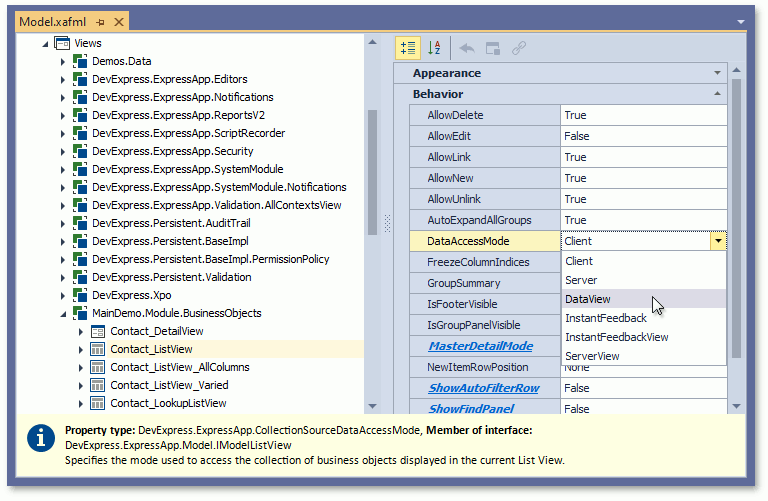
DataAccessMode‘s combo box displays only modes that are compatible with the selected List Editor (a node’s EditorType property). If you use a custom List Editor, specify its supported modes in the static DataAccessModeHelper.RegisterEditorSupportedModes method. Call this method from code executed at design time before the Model Editor is loaded (for example, from a Module’s constructor). Pass the List Editor’s type and a list of supported modes to this method. Otherwise, the Model Editor shows all modes for this List Editor.
using System.Collections.Generic;
using DevExpress.ExpressApp;
using DevExpress.ExpressApp.Utils;
// ...
public sealed class MySolutionWinModule : ModuleBase {
    public MySolutionWinModule() {
        // ...
        DataAccessModeHelper.RegisterEditorSupportedModes(typeof(CustomListEditor),
        new List<CollectionSourceDataAccessMode> { CollectionSourceDataAccessMode.Client, CollectionSourceDataAccessMode.Server });
    }
    // ...
}
To change the data access mode for all List Views in an application (except for autogenerated nested List Views), invoke the Model Editor, navigate to the Options node, and specify its DataAccessMode property. To specify the data access mode for nested List Views, set the IModelListView.DataAccessMode property for each nested List View node as described above.
Note
- You can use CollectionSource constructors with the dataAccessMode parameter when you create a List View’s collection source in code.
We do not recommend using SQLite with XAF in production scenarios with large amounts of data. SQLite is a file-based database that, due to its design, is inferior in performance and other features to powerful distributed server-based RDBMSs such as SQL Server, Oracle, MySQL, or PostgreSQL (used by the majority of our customers). If you experience performance issues with SQLite and other file-based databases (even with our Server Mode data sources), we cannot offer any suitable solutions other than switching to another RDBMS.