Specify EF Core Database Provider in XAF Application
- 6 minutes to read
The DevExpress Template Kit allows you to specify a database provider for a new application. Select the required provider in the Database section:
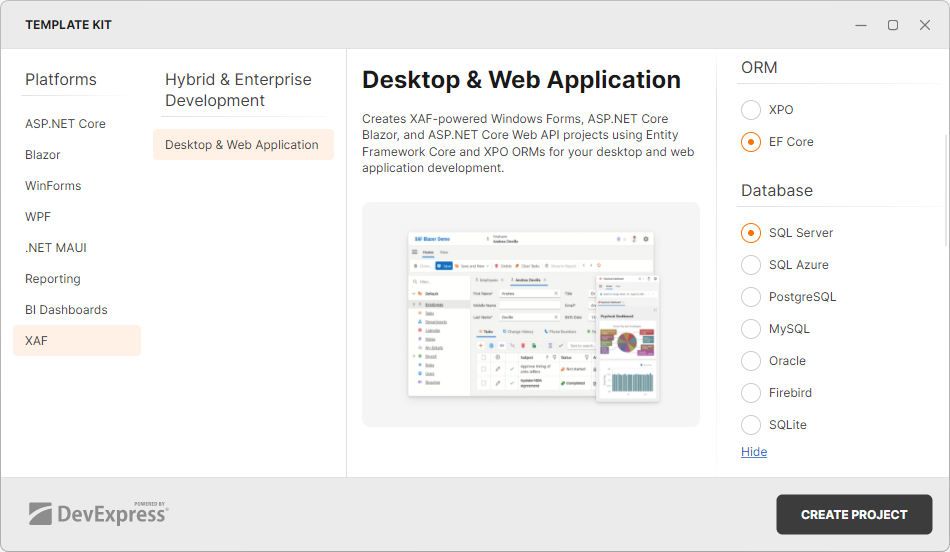
The Template Kit specifies the connection string in the connectionStrings section, for example:
"ConnectionStrings": {
    "ConnectionString": "Data Source=(localdb)\\mssqllocaldb;Integrated Security=SSPI;
        MultipleActiveResultSets=True;Initial Catalog=SolutionName",
    // ...
If your application includes a Middle Tier Server, the Template Kit specifies the connection string in the SolutionName.MiddleTier\appsettings.json file instead of the client application.
"ConnectionStrings": {
 "ConnectionString": "Data Source=(localdb)\\mssqllocaldb;Integrated Security=SSPI;
    MultipleActiveResultSets=True;Initial Catalog=SolutionName",
Important
XAF requires Multiple Active Result Sets (MARS) for EF Core applications connected to Microsoft SQL Server. Do not remove MultipleActiveResultSets=true; and do not set it to false in the connection string. For databases that do not support MARS, XAF has an internal mechanism to function without MARS. To enable it, include Persist Security Info=True in the connection string.
Change Database Provider in an Existing EF Core Application
XAF applications support the following EF Core providers:
| Database | Provider NuGet package | EFCoreProvider property value |
|---|---|---|
| Microsoft SQL Server | Microsoft.EntityFrameworkCore.SqlServer | SqlServer |
| Microsoft SQL Azure | Microsoft.EntityFrameworkCore.SqlServer | SqlServer |
| MySQL | Pomelo.EntityFrameworkCore.MySql | MySQL |
| PostgreSQL | Npgsql.EntityFrameworkCore.PostgreSQL | PostgreSQL |
| Oracle | Oracle.EntityFrameworkCore | Oracle |
| Firebird | FirebirdSql.EntityFrameworkCore.Firebird | Firebird |
| SQLite | Microsoft.EntityFrameworkCore.Sqlite | SQLite |
Important
Pomelo.EntityFrameworkCore.MySql does not support .NET 10 and Entity Framework Core 10.
To switch to a different supported database provider, follow these steps:
Install the provider NuGet package. The referenced Microsoft.EntityFrameworkCore package version must match the Entity Framework version used in your solution.
Use the
EFCoreProviderparameter in the connection string to specify the database provider type used in your application."ConnectionStrings": { "ConnectionString": "EFCoreProvider=Postgres;Host=localhost;Username=user; Password=qwerty;Persist Security Info=True;Database=my_db", // ...If you use migrations, change the
SolutionNameDesignTimeDbContextFactory.ConnectionStringproperty as follows:public class SolutionNameDesignTimeDbContextFactory : DesignTimeDbContextFactory<SolutionNameEFCoreDbContext> { protected override string ConnectionString => "EFCoreProvider=Postgres;Host=localhost;Database=my_db;Username=user;Password=qwerty"; }
In-Memory Database
You can use an in-memory database that works best during the development/debugging stage. To enable this option, open the SolutionName.Blazor.Server\Startup.cs file, comment the UseConnectionString option, and uncomment the UseInMemoryDatabase option as shown in the following code snippet. Do the same in the SolutionName.Win\Startup.cs file.
Note that this database is recreated each time the server starts. Do not use this code in a production environment to avoid data loss. Refer to the following help topic before you use an in-memory database: Testing EF Core Applications.
//..
namespace SolutionName.Blazor.Server;

public class Startup {
    public void ConfigureServices(IServiceCollection services) {
        services.AddXaf(Configuration, builder => {
            builder.ObjectSpaceProviders
                .AddEFCore(options => {
                    options.PreFetchReferenceProperties();
                })
                .WithDbContext<WithMigrations.Module.BusinessObjects.WithMigrationsEFCoreDbContext>((serviceProvider, options) => {
                    // Uncomment this code to use an in-memory database. This database is recreated each time the server starts. With the in-memory database, you don't need to apply a migration when the data model is changed.
                    // Do not use this code in a production environment to avoid data loss.
                    // We recommend that you refer to the following help topic before you use an in-memory database: https://docs.microsoft.com/en-us/ef/core/testing/in-memory
                    options.UseInMemoryDatabase();
                    // ...
                    //options.UseConnectionString(connectionString);
                    // ...
Configure an Application with Other Providers
This section describes how to use an XAF Application with a database provider that is not listed in the table of supported providers above.
- Install the relevant EFCore provider for your database. Refer to the following topic for a list of available EF Core providers: Database Providers.
Change your application’s connection string. Do not specify the
EFCoreProviderparameter."ConnectionStrings": { "ConnectionString": "<write your connection string here>",If you use migrations, change the
SolutionNameDesignTimeDbContextFactory.CreateDbContextmethod to use your database provider and the updated connection string. Call the appropriate extension method to set up the provider and connection string:options.UseYourConnectionProvider(connectionString). This method and its parameters can be found in the official documentation for the EFCore provider being used.public class SolutionNameDesignTimeDbContextFactory : DesignTimeDbContextFactory<SolutionNameDbContext> { public SolutionNameDbContext CreateDbContext(string[] args) { var optionsBuilder = new DbContextOptionsBuilder<SolutionNameDbContext>(); optionsBuilder.UseYourConnectionProvider(connectionString); optionsBuilder.UseChangeTrackingProxies(); optionsBuilder.UseObjectSpaceLinkProxies(); return new SolutionNameDbContext(optionsBuilder.Options); }Change the following files to use your database provider:
public class Startup {
    public void ConfigureServices(IServiceCollection services) {
        //...
        builder.ObjectSpaceProviders
            .AddSecuredEFCore().WithDbContext<SolutionName.Module.BusinessObjects.SolutionNameDbContext>((serviceProvider, options) => {
                options.UseYourConnectionProvider(connectionString);
                options.UseChangeTrackingProxies();
                options.UseObjectSpaceLinkProxies();
            })
Database Connection Lifetime
Frequent use of a Blazor app or many simultaneous users can create numerous long-lived database connections. To reduce database server load, optimize connection parameters as follows:
- Reduce the wait time before closing idle connections in the pool. For example, add the following parameters to your connection string:
Connection Idle Lifetime=10; Connection Lifetime=1;. - Limit the number of connections. For example, add the following parameter to your connection string:
Maximum Pool Size=10.
Refer to your ADO.NET provider’s documentation for information about supported connection parameters:
SQLite and Other File-Based Databases
We do not recommend using SQLite with XAF in production scenarios with large amounts of data. SQLite is a file-based database that, due to its design, is inferior in performance and other features to powerful distributed server-based RDBMSs such as SQL Server, Oracle, MySQL, or PostgreSQL (used by the majority of our customers). If you experience performance issues with SQLite and other file-based databases (even with our Server Mode data sources), we cannot offer any suitable solutions other than switching to another RDBMS.
We can only recommend that our customers use SQLite for demo/testing purposes or simple applications that do not have many records. NOTE: As a developer or tester, you can also use the databases that can be installed with Visual Studio: Microsoft SQL Server Express or LocalDB databases (a free edition of SQL Server, ideal for development and production for desktop, web, and small server applications).
For XPO-based applications, refer to the following topic to learn how to connect these applications to different database providers: Database Systems Supported by XPO.