Change List View Filters
- 3 minutes to read
This lesson describes three techniques you can use to filter the objects in a List View.
In your application, the Employee List View shows all employees at once. The instructions below show how to apply one of the following filters to this List View:
- Display only employees from the Development department
- Display only developers
- Display all employees
Note
Before you proceed, take a moment to review the previous lessons:
Add Multiple Predefined Filters
This technique allows end users to apply predefined filters to a List View.
In the MySolution.Module project, open the Model.DesignedDiffs.xafml file in the Model Editor. Navigate to the Views | MySolution.Module.BusinessObjects | Employee | Employee_ListView node. Right-click the Filters child node and select Add | ListViewFilterItem from the context menu.
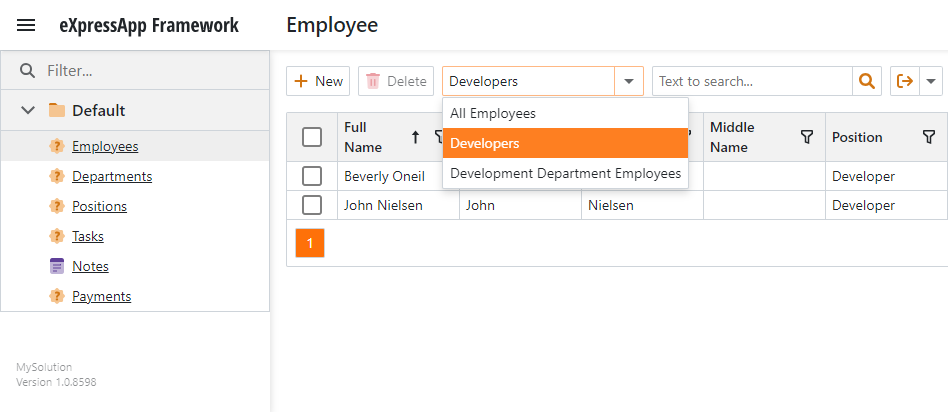
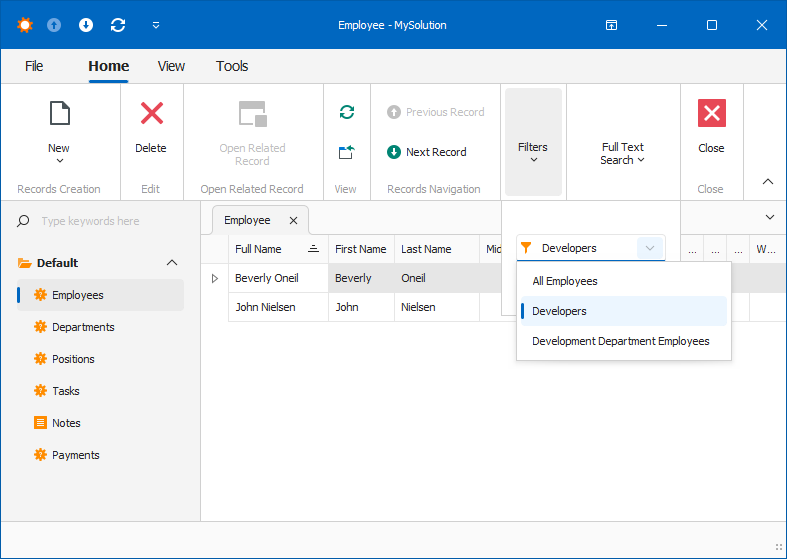
When you add items to the Filters node, the built-in SetFilter Action becomes available in the UI.
Specify the following properties for the new node:
- Set the Id property to
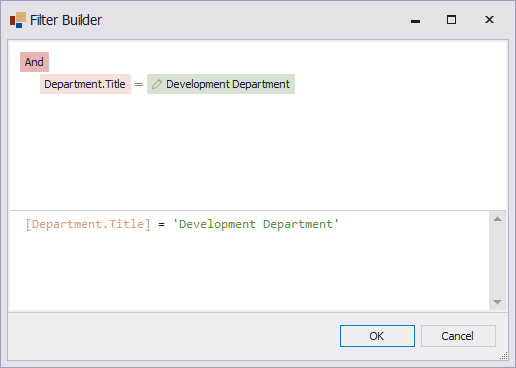
Development Department Employees. - Set the Criteria property to
[Department.Title] = 'Development Department'.

Criteria properties use Criteria Language Syntax.
You can also construct a filter criteria in the Filter Builder dialog. To open this dialog, click the ellipsis button to the right of the Criteria value.
- Set the Id property to
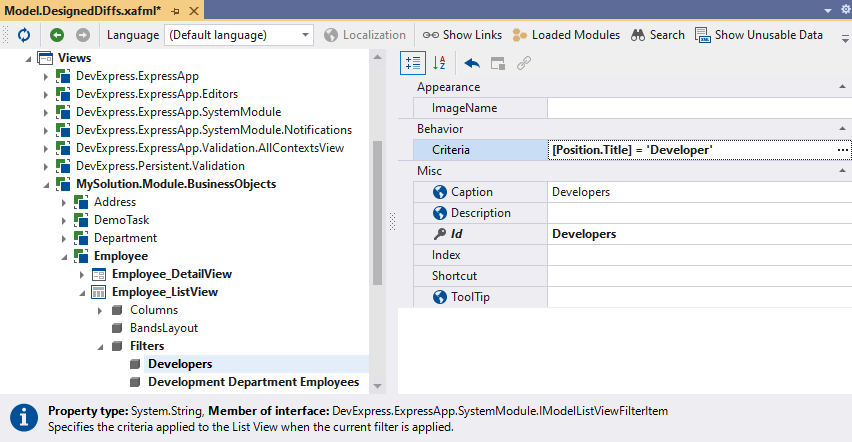
Add another child node to the Filters node and specify the following properties:
- Set the Id property to
Developers. - Set the Criteria property to
[Position.Title] = 'Developer'.
- Set the Id property to
Add one more child node to the Filters node and set the Id property to
All Employees. Leave the Criteria property empty. This item will display allEmployeeobjects in the List View.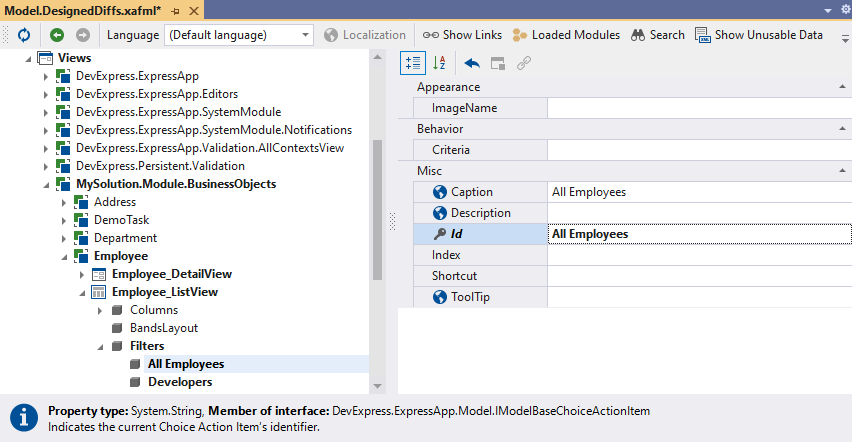
For the Filters node, set the CurrentFilter property to
Developers. This way the Employee List View initially displays only those objects whosePositionproperty is set toDeveloper.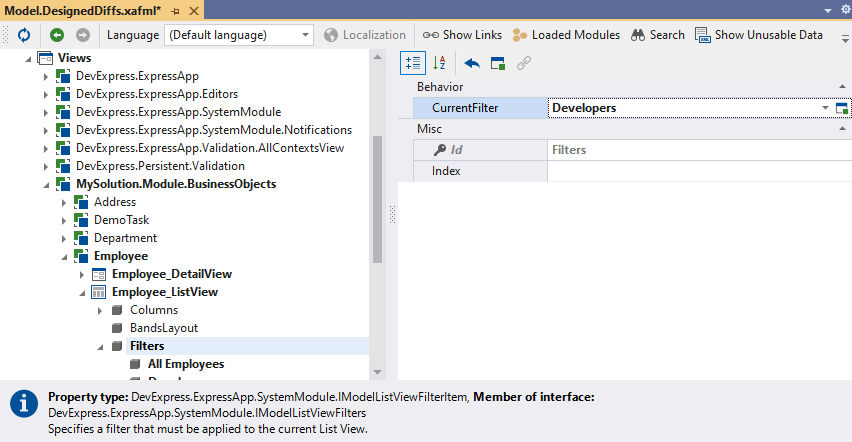
Run the application and check that the SetFilter Action is available:
- ASP.NET Core Blazor
- Windows Forms
Set a Static Filter in the Model Editor
The Model Editor allows you to apply a static filter to List View records. This way, the List View initially displays only those records that fit a specified criteria and the application’s UI doesn’t have a filter Action.
In the MySolution.Module project, open the Model.DesignedDiffs.xafml file in the Model Editor. Navigate to the Views | MySolution.Module.BusinessObjects | Employee | Employee_ListView node. Set its Criteria property to
Position.Title = 'Developer'.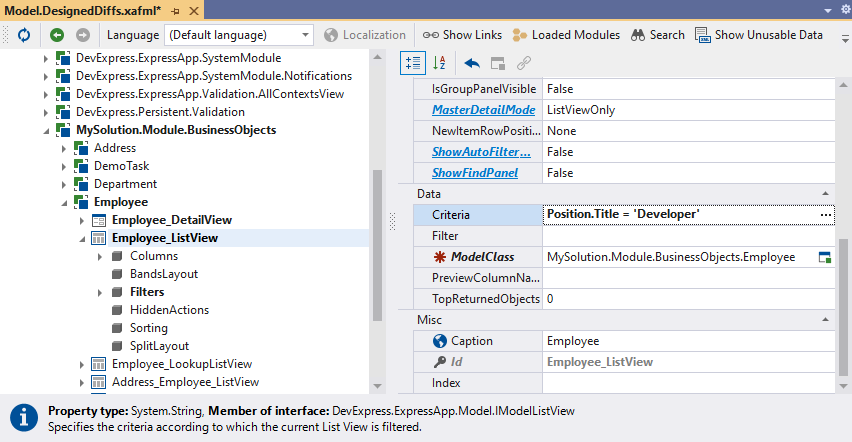
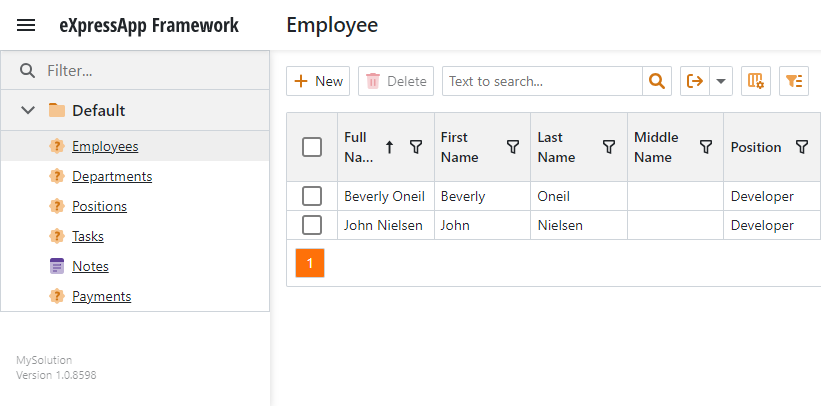
Run the application and check that the Employee List View displays only developers:
- ASP.NET Core Blazor
- Windows Forms
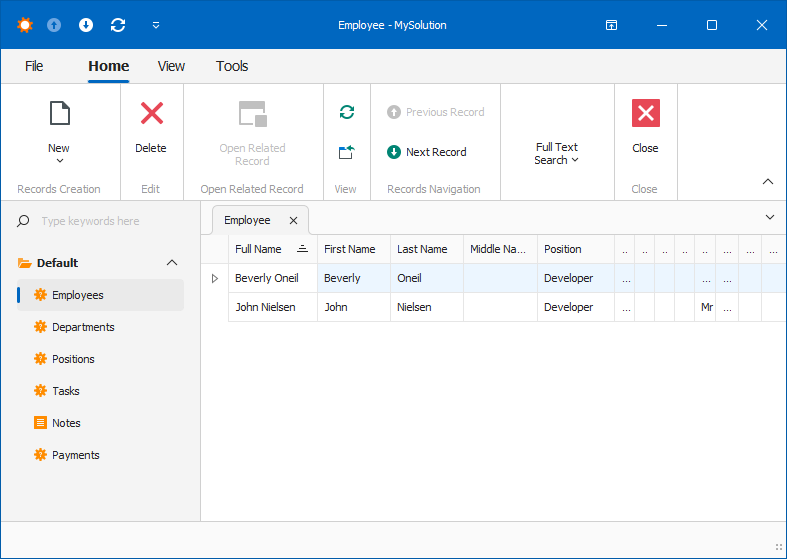
Set a Filter in Code
You can create filters that cannot be disabled in the application UI nor in the Model Editor.
In the Solution Explorer, right-click the Controllers folder in the MySolution.Module project, and choose Add | New Item…. In the opened dialog, select DevExpress 25.2 Template Kit, specify FilterListViewController as the new item’s name, and click Add to invoke the Template Kit.
Select the XAF Controllers | View Controller Visual Studio template and click ADD ITEM.
In the autogenerated FilterListViewController.cs file, inherit the controller from the ObjectViewController<ViewType, ObjectType>:
using DevExpress.Data.Filtering;
using DevExpress.ExpressApp;
using MySolution.Module.BusinessObjects;
// ...

public partial class FilterListViewController : ObjectViewController<ListView, Employee> {
    public FilterListViewController() {
        InitializeComponent();
    }
    // ...
}
Override the
OnActivatedmethod:public partial class FilterListViewController : ObjectViewController<ListView, Employee> { // ... protected override void OnActivated() { base.OnActivated(); //Specify a filter criteria. View.CollectionSource.Criteria["Developers"] = CriteriaOperator.FromLambda<Employee>(c => c.Position.Title == "Developer"); } // ... }Run the application and check the filter in the Employee List View.