Dockerize an Office & PDF File API Application for Java
- 6 minutes to read
This guide describes how to containerize a Java application that uses the DevExpress Office & PDF File API to merge PDF files. The application runs in a Linux-based Docker container. You can run the container on Windows, Linux, or macOS hosts that support Docker.
Prerequisites
- JDK 21 or later
- Gradle 8.14 or later
- Java IDE (for example, JetBrains IntelliJ IDEA or Visual Studio Code)
- Docker
Create an Application
This tutorial creates a lightweight Java HTTP server that merges two PDF files. The application reads Document1.pdf and Document2.pdf from the input folder and exposes the merge operation through the /merge endpoint.
The application displays a web page with the Merge PDF button. When a user clicks the button, the application merges PDF files and downloads the result as Merged-Document.pdf.
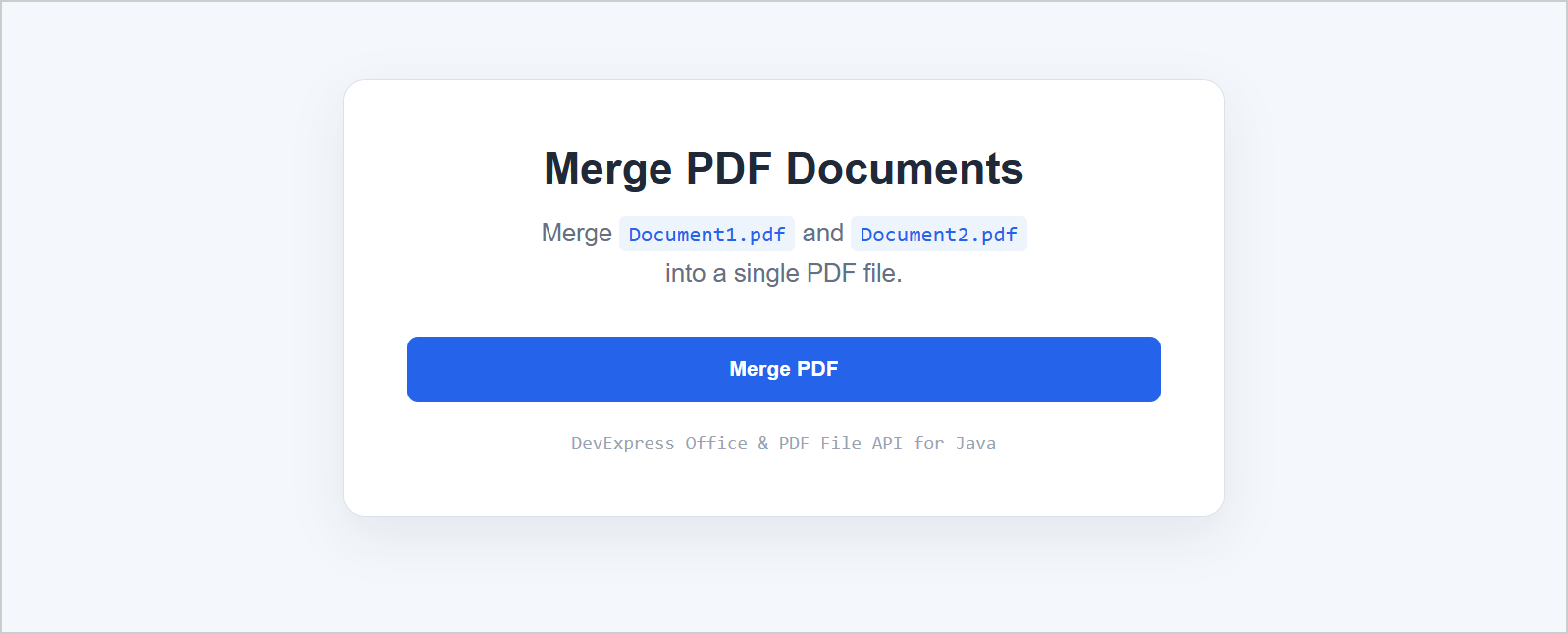
Build and run the application on Windows. Then, containerize the application and run it in a Linux-based Docker container.
Create a Gradle Java project with the following structure:
PdfMergeApi/ ├── input/ │ ├── Document1.pdf │ └── Document2.pdf ├── src/ │ └── main/ │ └── java/ │ └── com/ │ └── devexpress/ │ └── demo/ │ └── Application.java ├── build.gradle └── settings.gradle- Place PDF files that you want to merge in the input folder.
Add the following dependencies to the build.gradle file:
dependencies {
    implementation("com.devexpress:devexpress-docs-pdf:26.2.1")

    runtimeOnly 'io.github.humbleui:skija-windows-x64:0.119.6'
    runtimeOnly 'org.lwjgl:lwjgl:3.4.2:natives-windows'
    runtimeOnly 'org.lwjgl:lwjgl-harfbuzz:3.4.2:natives-windows'

    runtimeOnly 'io.github.humbleui:skija-linux-x64:0.119.6'
    runtimeOnly 'org.lwjgl:lwjgl:3.4.2:natives-linux'
    runtimeOnly 'org.lwjgl:lwjgl-harfbuzz:3.4.2:natives-linux'

    runtimeOnly 'io.github.humbleui:skija-macos-arm64:0.119.6'
    runtimeOnly 'org.lwjgl:lwjgl:3.4.2:natives-macos-arm64'
    runtimeOnly 'org.lwjgl:lwjgl-harfbuzz:3.4.2:natives-macos-arm64'
}
Add the following code to Application.java:
package com.devexpress.demo;

import com.devexpress.docs.pdf.PdfDocument;
import com.sun.net.httpserver.HttpExchange;
import com.sun.net.httpserver.HttpServer;

import java.io.ByteArrayOutputStream;
import java.io.IOException;
import java.io.InputStream;
import java.net.InetSocketAddress;
import java.nio.charset.StandardCharsets;
import java.nio.file.Files;
import java.nio.file.Path;

public class Application {

    private static final int PORT = 8080;

    public static void main(String[] args) throws IOException {
        HttpServer server = HttpServer.create(
                new InetSocketAddress(PORT),
                0
        );

        server.createContext("/", Application::index);
        server.createContext("/merge", Application::mergePdf);

        server.start();

        System.out.println("Server started at http://localhost:" + PORT);
    }

    private static void mergePdf(HttpExchange exchange) throws IOException {
        // Create a PDF document and append the source PDF files.
        try (InputStream firstDocument =
                    Files.newInputStream(Path.of("input/Document1.pdf"));
            InputStream secondDocument =
                    Files.newInputStream(Path.of("input/Document2.pdf"));
            PdfDocument document = new PdfDocument();
            ByteArrayOutputStream output = new ByteArrayOutputStream()) {

            document.appendDocument(firstDocument);
            document.appendDocument(secondDocument);

            // Save the merged PDF to an in-memory stream.
            document.save(output);

            byte[] pdfData = output.toByteArray();

            // Return the merged PDF as a downloadable file.
            exchange.getResponseHeaders().set(
                    "Content-Type",
                    "application/pdf"
            );
            exchange.getResponseHeaders().set(
                    "Content-Disposition",
                    "attachment; filename=\"Merged-Document.pdf\""
            );

            exchange.sendResponseHeaders(200, pdfData.length);

            try (var responseBody = exchange.getResponseBody()) {
                responseBody.write(pdfData);
            }
        }
    }

    private static void index(HttpExchange exchange) throws IOException {
        String html = """
        <!DOCTYPE html>
        <html lang="en">
        <head>
            <meta charset="UTF-8">
            <meta name="viewport" content="width=device-width, initial-scale=1.0">
            <title>PDF Merge | DevExpress Office & PDF File API</title>
            <style>
                body {
                    margin: 0;
                    min-height: 100vh;
                    display: grid;
                    place-items: center;
                    background: #f4f7fb;
                    color: #1f2937;
                    font: 16px Arial, sans-serif;
                }

                .card {
                    width: min(480px, 90%);
                    padding: 40px;
                    text-align: center;
                    background: #fff;
                    border: 1px solid #d9e1ea;
                    border-radius: 14px;
                    box-shadow: 0 12px 32px #1f293714;
                }

                h1 {
                    margin: 0 0 12px;
                    font-size: 28px;
                }

                p {
                    margin: 0 0 28px;
                    color: #667085;
                    line-height: 1.6;
                }

                code {
                    padding: 3px 6px;
                    background: #eef4fb;
                    border-radius: 4px;
                    color: #2563eb;
                    font: 14px Consolas, monospace;
                }

                button {
                    width: 100%;
                    padding: 13px;
                    border: 0;
                    border-radius: 7px;
                    background: #2563eb;
                    color: #fff;
                    font-weight: 600;
                    cursor: pointer;
                }

                button:hover {
                    background: #1d4ed8;
                }

                .files {
                    margin-top: 18px;
                    color: #98a2b3;
                    font: 12px Consolas, monospace;
                }
            </style>
        </head>
        <body>
            <main class="card">
                <h1>Merge PDF Documents</h1>
                <p>
                    Merge <code>Document1.pdf</code> and <code>Document2.pdf</code><br>
                    into a single PDF file.
                </p>
                <form action="/merge" method="get">
                    <button type="submit">Merge PDF</button>
                </form>
                <div class="files">DevExpress Office & PDF File API for Java</div>
            </main>
        </body>
        </html>
        """;

        byte[] response = html.getBytes(StandardCharsets.UTF_8);

        exchange.getResponseHeaders().set(
                "Content-Type",
                "text/html; charset=UTF-8"
        );
        exchange.sendResponseHeaders(200, response.length);

        try (var output = exchange.getResponseBody()) {
            output.write(response);
        }
    }
}
Build and run the application:
.\gradlew.bat build
.\gradlew.bat run
Open
http://localhost:8080in a browser.The application displays a web page with a Merge PDF button. Click the button to merge PDF files and download Merged-Document.pdf.
Create a Dockerfile
Create a Dockerfile in the project folder.
Use a multi-stage Docker build. The first stage builds the application with JDK 21. The second stage contains the Java runtime, the application, and Linux libraries required by the Office & PDF File API.
# Build stage
FROM gradle:9.3-jdk21 AS build

WORKDIR /app

# Copy Gradle configuration and wrapper.
COPY build.gradle settings.gradle gradlew ./
COPY gradle ./gradle

# Copy application sources.
COPY src ./src

# Build the runnable distribution: the application JAR plus every dependency.
RUN sed -i 's/\r$//' gradlew && chmod +x gradlew && ./gradlew --no-daemon installDist


# Runtime stage
FROM eclipse-temurin:21-jdk-noble

WORKDIR /app

ENV DEBIAN_FRONTEND=noninteractive
ENV LIBGL_ALWAYS_SOFTWARE=1

RUN apt-get update && \
    apt-get install -y --no-install-recommends \
        fontconfig \
        fonts-dejavu-core \
        libgl1 \
        libegl1 \
        libjpeg-turbo8 \
        libtiff6 && \
    fc-cache -f && \
    rm -rf /var/lib/apt/lists/*

# Copy the distribution and input files.
COPY --from=build /app/build/install/devexpress-merge-pdf ./
COPY input ./input

# Expose the HTTP server port.
EXPOSE 8080

# Start the application.
ENTRYPOINT ["/app/bin/devexpress-merge-pdf"]
Note
The Dockerfile installs Linux libraries that are required by Office & PDF File API features (such as font processing and image operations). Required libraries depend on API features that your application uses.
Create a .dockerignore File
Add a .dockerignore file to the project folder:
.gradle/
build/
.idea/
.git/
.gitignore
Build the Docker Image
- Run the Docker.
Open a terminal in the project folder and run:
docker build -t <project_name> .Verify the image:
docker images
Run the Docker Container
The application expects PDF files in the /app/input directory. Mount the local input directory in the container:
docker run --rm -p 8080:8080 -v "${PWD}\input:/app/input" <image_name>
The application listens on port 8080 inside the container.
Test the Application
Open http://localhost:8080 in a browser.
The application displays the Merge PDF button. Click the button to merge Document1.pdf and Document2.pdf.
The application reads PDF files from the mounted /app/input directory, merges them, and downloads the result as Merged-Document.pdf.
Troubleshooting
The Container Fails to Start
Check the container output:
docker run --rm <container_id>
Verify the following:
- The application uses Java 21 or later.
- The Docker image contains all native libraries that the application requires.
- The container architecture matches the application’s native dependencies.
- The container includes all fonts that the application requires.
PDF Operations Fail in the Container
If PDF operations succeed on the host but fail in the container, verify that the image contains all native libraries and fonts that the application requires.
The host operating system can include fonts and native libraries that are not available inside the Docker container.