Report Design Analyzer
- 2 minutes to read
The Report Design Analyzer shows errors, warnings, and information messages that help users create or enhance a report layout in the End-User Report Designer.
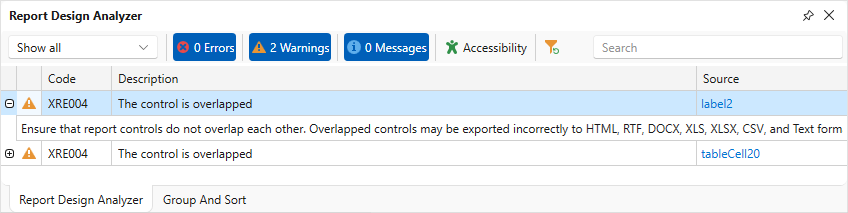
Invoke the Report Design Analyzer
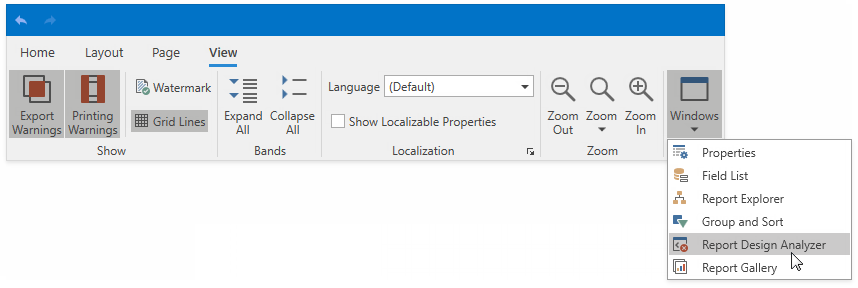
Do one of the following to invoke the Report Design Analyzer:
Select Report Design Analyzer from the Windows drop-down menu in the View toolbar tab.
Click the bell icon in the status bar.

Filter Messages
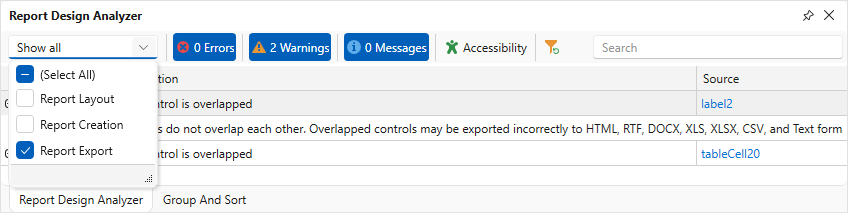
Based on their source, report errors are divided into four groups:
- Report layout errors – occur, for example, when report controls overlap each other or extend beyond the report’s printable area.
- Report creation errors – occur while the report document is created. For instance, it might include notifications about invalid property values or unreachable sources of content.
- Report export errors – happen while the report document is exported to PDF, XLSX, and other formats.
- Report script errors – for example, errors in script syntax.
When you invoke a WPF Reporting application, the Report Design Analyzer displays messages from all sources except messages that belong to the Report script errors source.
You can disable messages that belong to a particular source:
Fix Issues
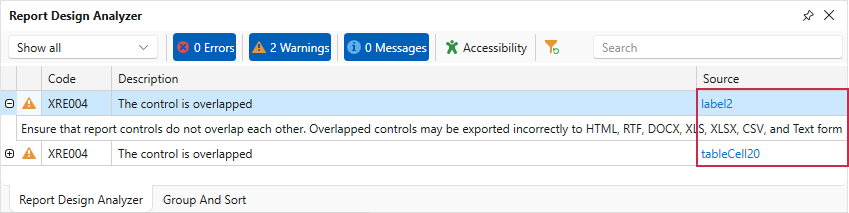
Each message contains a recommendation on how to correct an issue. Click the Plus icon in front of the message to expand the recommendation.
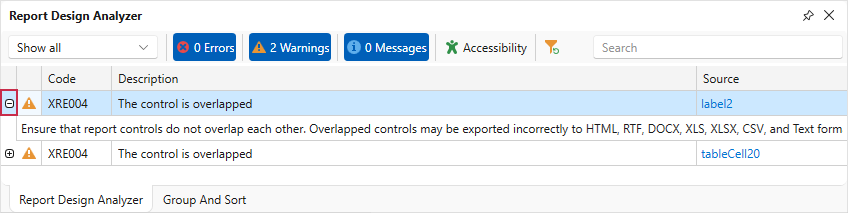
The message’s Source column contains a reference to the control or script that caused the issue. Click the reference to navigate to this control or script.
Enable Accessibility Validation
Click the Accessibility bar item in the UI panel to display accessibility-related issues in the Report Design Analyzer.
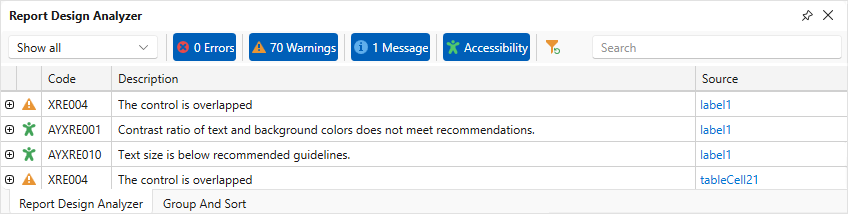
Use filters by type and source to navigate long issue lists:
- Like other report design issues, accessibility issues are divided into errors, warnings, and messages. If you deselect the Warnings button, all accessibility warnings will be hidden.
- The source filter allows you to select report controls where issues originate.