Generate Expressions from Prompts in Visual Studio Designer
- 3 minutes to read
Prompt to Expression converts natural language into valid expressions. With the DevExpress AI-powered Assistant, you can connect to Azure OpenAI or OpenAI services and describe the desired logic in plain text.
The system sends the prompt to the configured AI service, which generates a valid expression. The Expression Editor or Filter Editor displays the result immediately. If Prompt to Expression fails to create a valid expression, it displays a message that informs the user that a valid expression was not generated.
DevExpress AI Assistant for Visual Studio
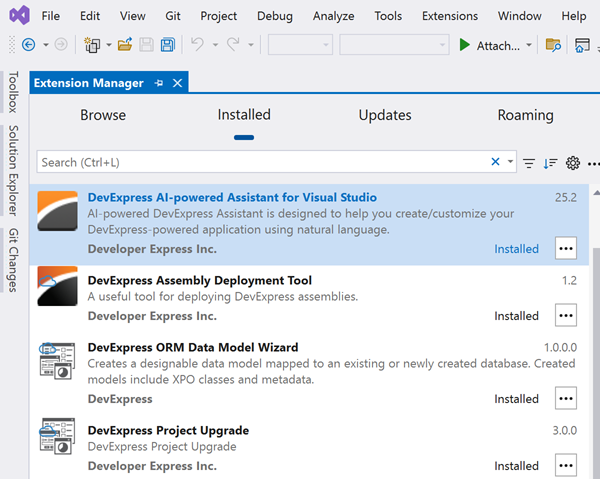
The DevExpress Unified Component Installer installs the AI-powered Assistant for Visual Studio extension.
Configure AI Services
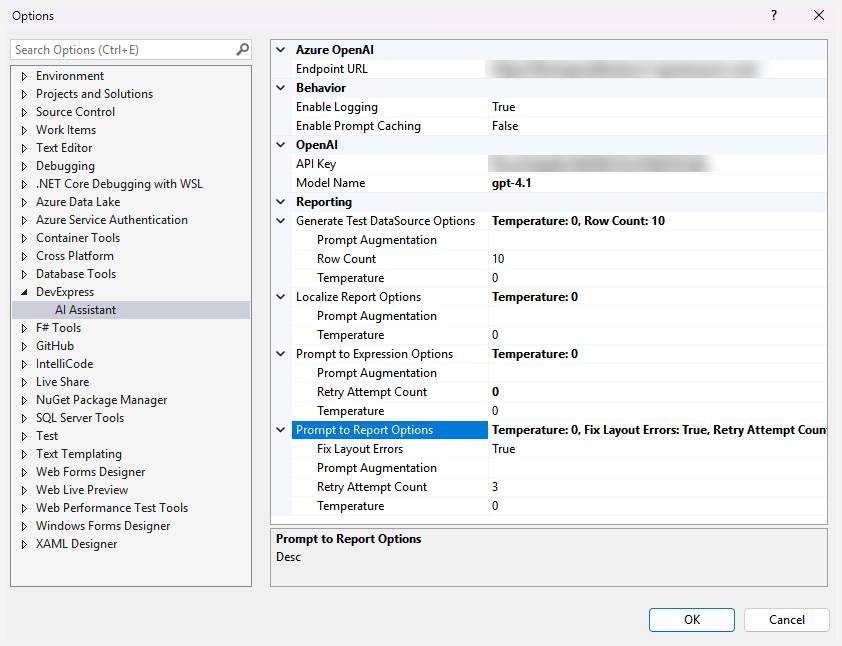
Go to Tools → Options → DevExpress → AI Assistant to open AI Assistant options.
| Option | Description |
|---|---|
Endpoint URL |
The service endpoint used to connect to Azure OpenAI. For OpenAI connections, this option must be empty. |
API Key |
A personal access key required to authenticate requests to the AI service. |
Model Name |
The identifier of the AI model (for example, gpt-4o-mini). |
Enable Logging |
If enabled, the extension records request and response details for diagnostic purposes. Logs are stored in the following folder: C:\Documents and Settings<UserName>\AppData\Local\DevExpress\AI_Assistant_VSIX |
Enable Prompt Caching |
If enabled, previously used prompts and responses are cached to improve performance and reduce repeated requests. |
Warning
Some OpenAI models (for example, GPT-5, o1, and o3 series) do not support the Temperature parameter. To avoid runtime exceptions when targeting these models, set the Temperature to 1. The value is ignored by the service, but this setting prevents validation/compatibility errors.
Configure Prompt to Expression Options
| Option | Description |
|---|---|
Retry Attempt Count |
Specifies the number of additional attempts the AI makes to regenerate an expression if the previous result is invalid. |
Prompt Augmentation |
Appends additional instructions to each user prompt. |
Temperature |
Specifies creativity in AI responses. Set 1 for models (for example, GPT-5, o1, and o3 series) that ignore this parameter to avoid compatibility errors. |
Generate Expressions from Prompts
Expression Editor
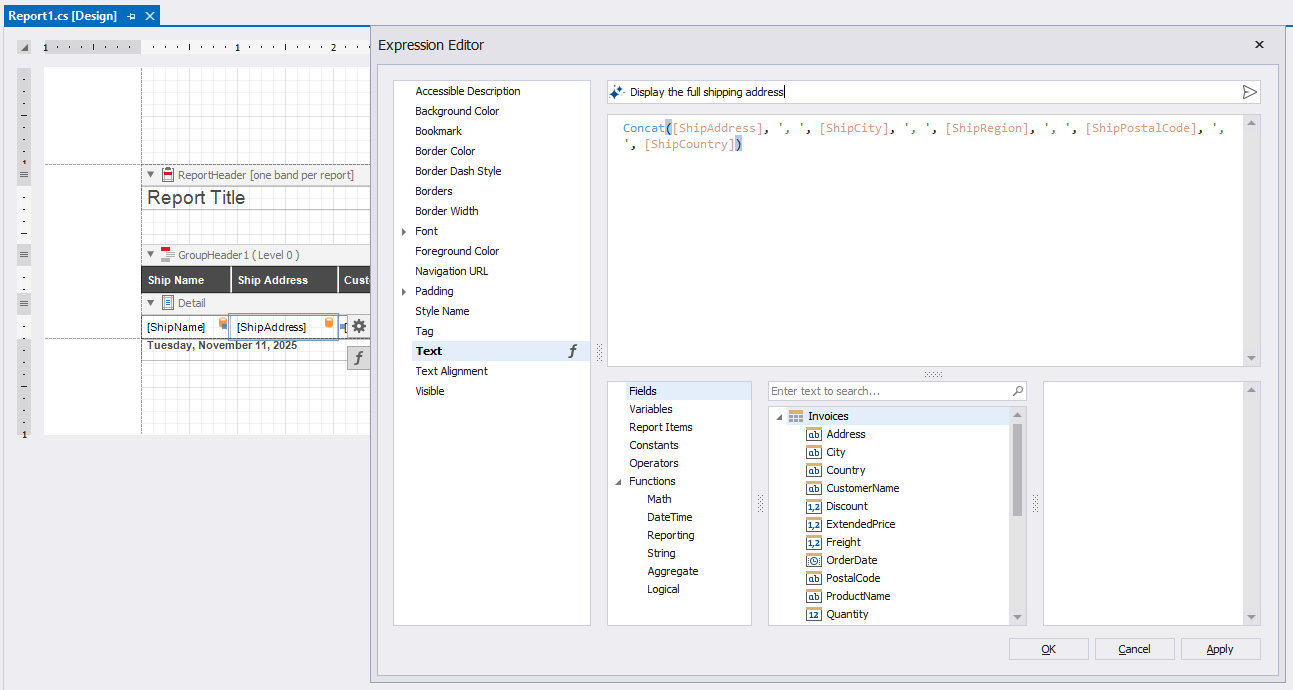
Open the Expression Editor, enter a prompt in the Prompt to Expression field, and click Send.
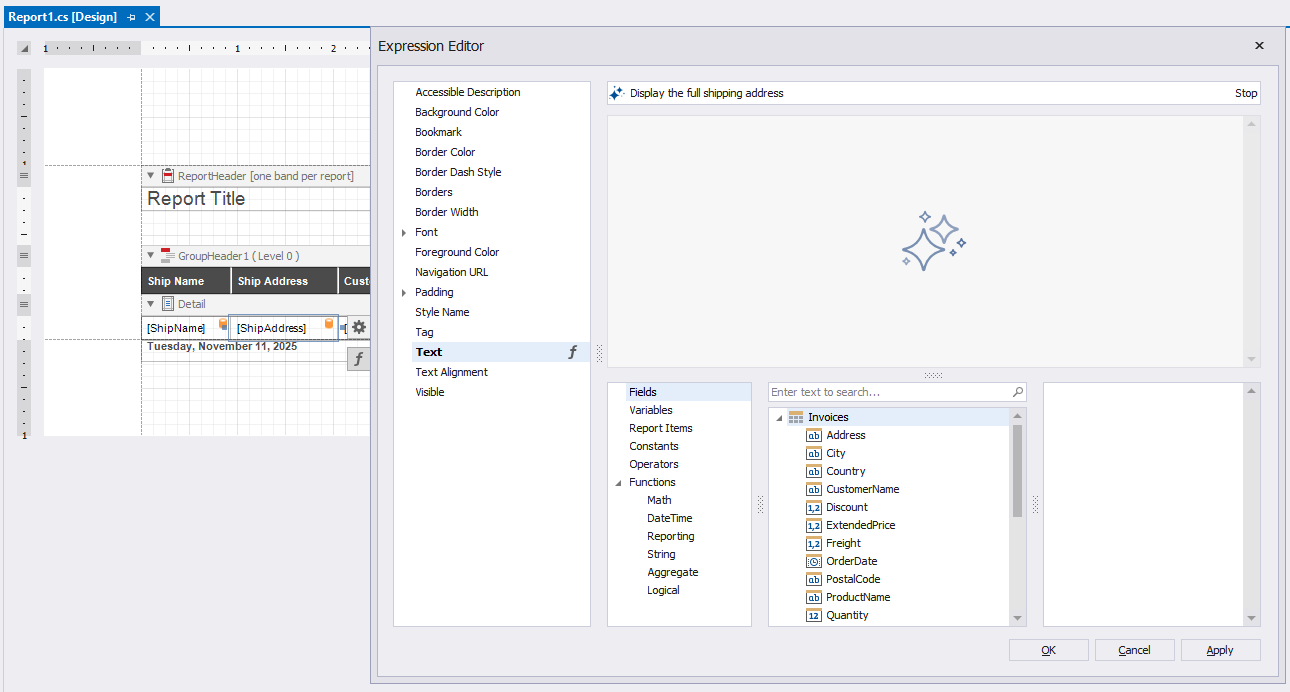
AI generates the expression and the Expression Editor displays the result.
Filter Editor
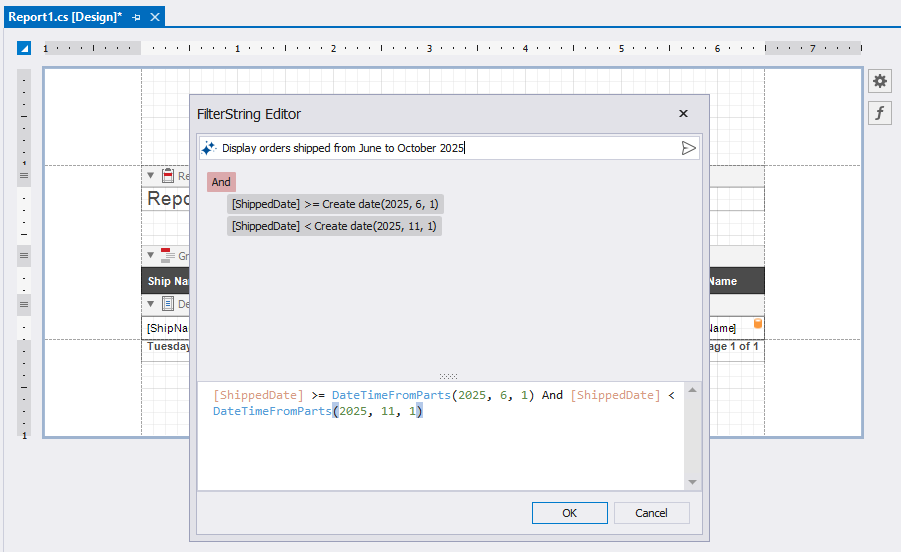
Open the Filter Editor, enter a prompt in the Prompt to Expression field, and click Send.
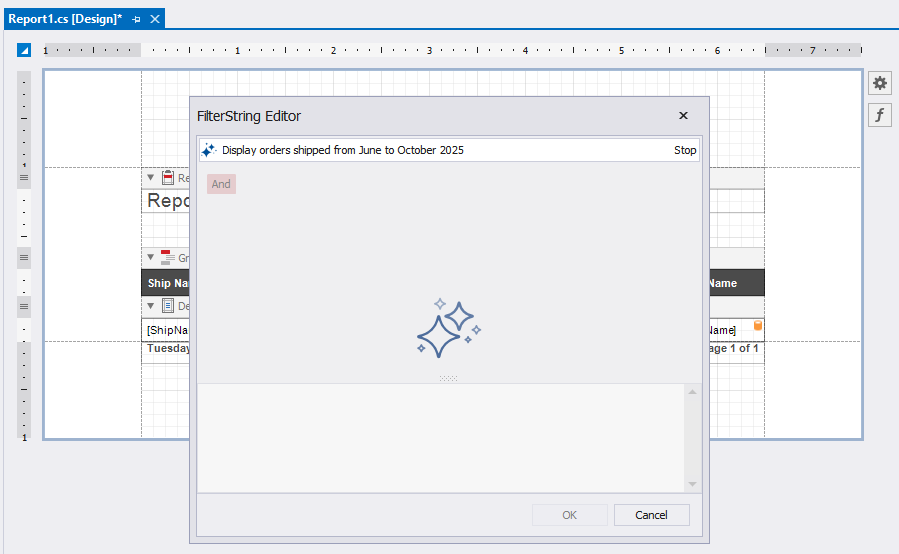
AI generates a filter expression and the Filter Editor displays the result.
Troubleshooting
Prompt to Expression Input Is Not Displayed in Filter/Expression Editor
- Possible Cause
- The DevExpress AI-powered Assistant for Visual Studio extension is disabled.
- Solution
- Open the Extension Manager in Visual Studio (Extensions → Manage Extensions…). Switch to the Installed tab and enable the DevExpress AI-powered Assistant for Visual Studio extension. Restart Visual Studio.
HTTP 400 (Unsupported Value)
- Possible Cause
- Some OpenAI models (for example, GPT-5, o1, and o3 series) do not support the
Temperatureparameter. - Solution
- Open AI Assistant Options and check
Model NameandTemperaturesettings. If the selected model does not accept theTemperature, set theTemperatureto 1 to avoid errors, or switch to a supported model (for example, gpt-4o-mini).
HTTP 404 (Deployment Not Found)
- Possible Cause
- The specified model deployment does not exist. This may happen if the deployment name is incorrect, if the deployment was recently created and is not yet active, or if it was deleted.
- Solution
- Open AI Assistant Options and check the
Model Namesetting.