Translate Reports Inline in the WPF Document Preview
- 3 minutes to read
This help topic describes how to integrate the AI-powered Translate Inline command into the WPF Document Preview.
Unlike the Translate command, Translate Inline translates text directly on the document preview without additional dialogs. You can export or print the translated document.
Activate an AI Assistant
Install NuGet Packages
Install the following NuGet packages:
- Microsoft.Extensions.AI.OpenAI (Version=”9.7.1-preview.1.25365.4”)
- Azure.AI.OpenAI (Version=”2.2.0-beta.4”)
DevExpress.AIIntegration.WpfDevExpress.Reporting.Core(if you useXtraReportas a document source)
The following tutorial uses Azure OpenAI. Refer to the requirements section for information about NuGet packages required for other supported AI services.
Register an AI Client
The following code snippet registers an Azure OpenAI client at application startup:
using Azure.AI.OpenAI;
using DevExpress.AIIntegration;
using Microsoft.Extensions.AI;
using System.ClientModel;
// ...
public partial class App : Application {
    static string AzureOpenAIEndpoint { get { return "AZURE_OPENAI_ENDPOINT"; } }
    static string AzureOpenAIKey { get { return "AZURE_OPENAI_APIKEY"; } }
    static string DeploymentName { get { return "gpt-4o-mini"; } }

    public App() {
        IChatClient chatClient = new AzureOpenAIClient(
           new Uri(AzureOpenAIEndpoint),
           new ApiKeyCredential(AzureOpenAIKey))
               .GetChatClient(DeploymentName).AsIChatClient();
        AIExtensionsContainerDesktop.Default.RegisterChatClient(chatClient);
    }
}
Note
Review the following help topic for information on how to register other supported AI services: Register AI Clients.
Create and Configure AI Assistant Behaviors
Register DocumentTranslateInlineBehavior, specify its settings, and assign the behavior to the Document Preview control.
The following settings are available:
- Languages
- Specifies a collection of target languages for text translation.
- Temperature
- Specifies the balance between creativity and consistency in AI responses.
- PromptAugmentation
- Specifies additional instructions that modify the prompt before processing.
Markup:
xmlns:dxp="http://schemas.devexpress.com/winfx/2008/xaml/printing"
xmlns:dxai="http://schemas.devexpress.com/winfx/2008/xaml/ai"
xmlns:dxmvvm="http://schemas.devexpress.com/winfx/2008/xaml/mvvm"
...
<dxp:DocumentPreviewControl Name="preview">
    <dxmvvm:Interaction.Behaviors>
        <dxai:DocumentTranslateInlineBehavior>
            <dxai:LanguageInfo Culture="de-DE"/>
        </dxai:DocumentTranslateInlineBehavior>
    </dxmvvm:Interaction.Behaviors>
</dxp:DocumentPreviewControl>
Code-Behind:
using System.Collections.Generic;
using System.Globalization;
using DevExpress.AIIntegration;
using DevExpress.AIIntegration.Wpf;
using DevExpress.Mvvm.UI.Interactivity;
// ...
public partial class MainWindow : Window {
    public MainWindow() {
        InitializeComponent();
        AddAIBehaviors();
    }
    void AddAIBehavior() {
        var translateBehavior = new DocumentTranslateInlineBehavior() {
            Languages = new List<LanguageInfo>() {
                new LanguageInfo() { Culture = new CultureInfo("de-DE") }
            }
        };
        var behavior = Interaction.GetBehaviors(preview);
        behavior.Add(translateBehavior);
    }
}
Translate a Report Document
You can access the Translate Inline command in the AI context menu of WPF Document Preview.
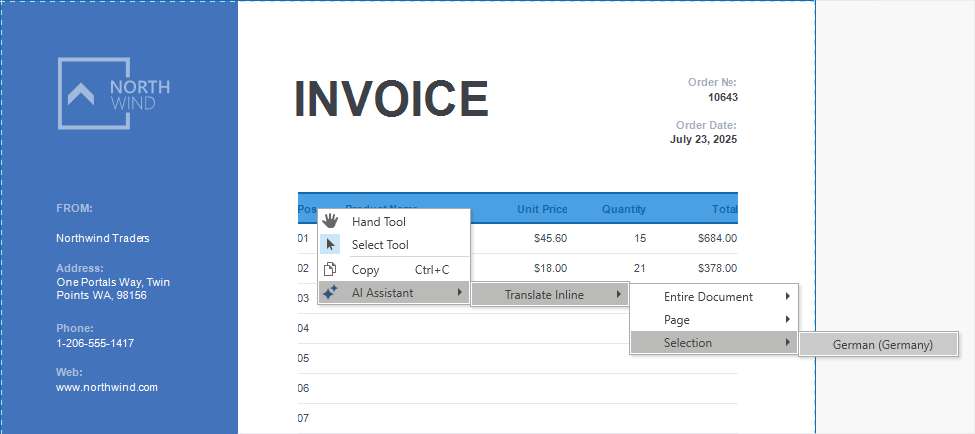
Right-click on an opened report or selected report content. Select Translate Inline from the AI Assistant submenu. Select input text range (selected content, document page, or entire document) and the target language.
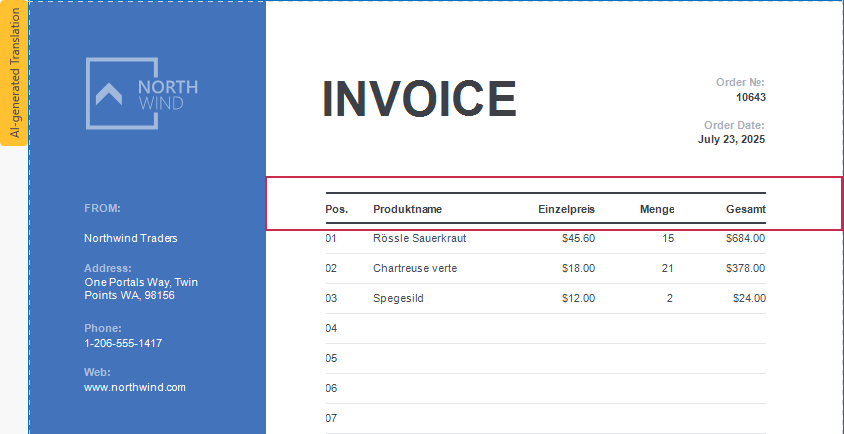
The “AI-Generated Translation” label appears next to the report’s top-left corner once the translation is completed:
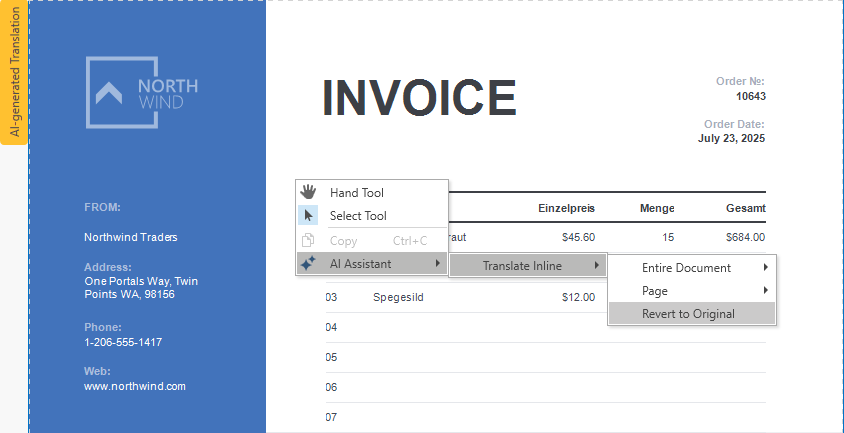
Click Revert to Original in the AI Assistant submenu to cancel translation:
The following message appears when you export a document with an AI-generated translation:
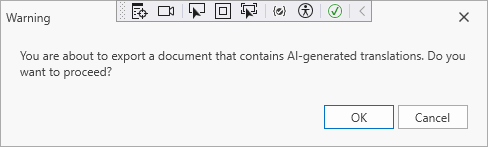
“You are about to export a document that contains AI-generated translations. Do you want to proceed?”