Preview Reports with AI-generated Test Data (WPF Report Designer)
- 3 minutes to read
Users can generate AI-powered test data to preview reports without connecting to a live data source directly within the WPF Report Designer. Follow the instructions in this help topic to activate AI-generated Test Data in the Report Designer.
How It Works
Once AI-generated Test Data is activated, the Report Designer displays the Test Data tab. Click it to preview the report with AI-generated test data. The Report Designer requests data from an LLM and populates the report with meaningful values for preview.
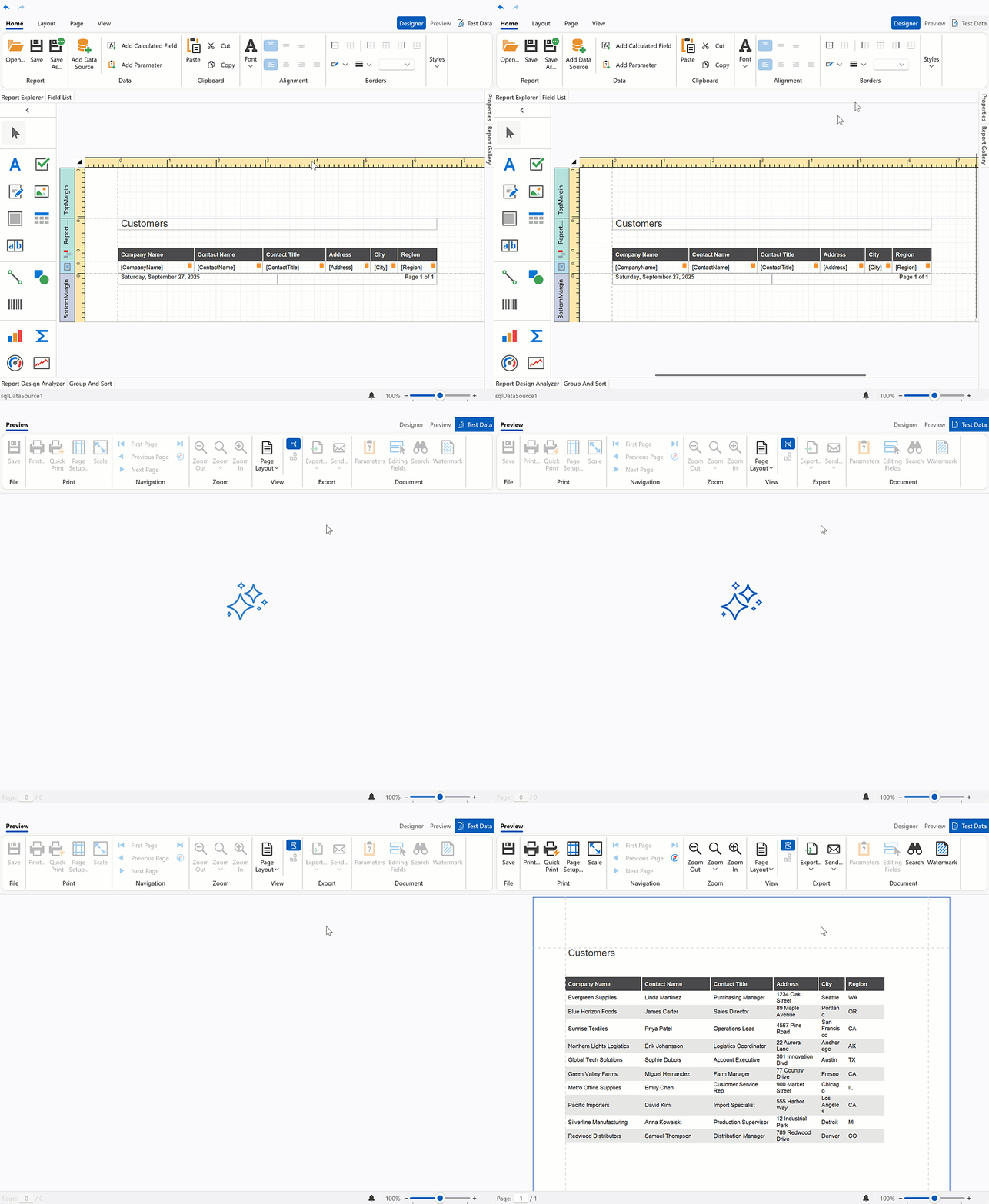
Activate AI-powered Extension
Prerequisites
.NET8+ or .NET Framework v4.7.2+
Install NuGet Packages
Install the following NuGet packages:
DevExpress.AIIntegration.Wpf.Reporting- Microsoft.Extensions.AI.OpenAI (Version=”9.7.1-preview.1.25365.4”)
- Azure.AI.OpenAI (Version=”2.2.0-beta.5”)
See the following help topics for information on how to obtain the DevExpress NuGet Feed and install DevExpress NuGet packages:
- Choose Between Offline and Online DevExpress NuGet Feeds
- Install NuGet Packages in Visual Studio, VS Code, and Rider
Register AI Client
The following code snippet registers an Azure OpenAI client at application startup:
using Azure.AI.OpenAI;
using DevExpress.AIIntegration;
using DevExpress.Xpf.Core;
using Microsoft.Extensions.AI;
using System;
using System.ClientModel;
using System.Windows;

namespace WPFReportApp {
    public partial class App : Application {
        static string AzureOpenAIEndpoint { get { return "YOUR_AUZURE_OPENAI_ENDPOINT"; } }
        static string AzureOpenAIKey { get { return "YOUR_AUZURE_OPENAI_API_KEY"; } }
        static string DeploymentName { get { return "MODEL_NAME"; } } // For example, gpt-4.1.

        static App() {
            CompatibilitySettings.UseLightweightThemes = true;
            IChatClient client = new AzureOpenAIClient(
                new Uri(AzureOpenAIEndpoint),
                new ApiKeyCredential(AzureOpenAIKey))
                    .GetChatClient(DeploymentName).AsIChatClient();
            AIExtensionsContainerDesktop.Default.RegisterChatClient(client);
        }
    }
}
Create and Configure Behavior Object
The following code snippet creates a ReportTestDataSourceBehavior and configures its RowCount and TemperatureProperty settings.
<dx:ThemedWindow
    xmlns="http://schemas.microsoft.com/winfx/2006/xaml/presentation"
    xmlns:x="http://schemas.microsoft.com/winfx/2006/xaml"
    xmlns:dx="http://schemas.devexpress.com/winfx/2008/xaml/core"
    xmlns:dxrud="http://schemas.devexpress.com/winfx/2008/xaml/reports/userdesigner"
    xmlns:dxmvvm="http://schemas.devexpress.com/winfx/2008/xaml/mvvm"
    xmlns:dxai="http://schemas.devexpress.com/winfx/2008/xaml/ai"
    x:Class="DXWPFReportApp.MainWindow"
    Title="Report Designer" Height="800" Width="1000">
    <Grid>
        <dxrud:ReportDesigner x:Name="reportDesigner" Height="NaN" Width="NaN">
            <dxmvvm:Interaction.Behaviors>
                <dxai:ReportTestDataSourceBehavior x:Name="testDataSourceBehavior" RowCount="10" Temperature="0"/>
            </dxmvvm:Interaction.Behaviors>
        </dxrud:ReportDesigner>
    </Grid>
</dx:ThemedWindow>
Create and Configure Behavior Object in Code
The following code snippet registers a ReportTestDataSourceBehavior and attaches it to the WPF Report Designer (reportDesigner):
using DevExpress.Xpf.Core;
using DevExpress.Mvvm.UI.Interactivity;
using DevExpress.AIIntegration.Wpf.Reporting;

namespace WPFReportApp {
    public partial class MainWindow : ThemedWindow {
        public MainWindow() {
            InitializeComponent();

            var testDataSourceBehavior = new ReportTestDataSourceBehavior() {
                RowCount = 10,
                Temperature = 0
            };

            var behaviors = Interaction.GetBehaviors(reportDesigner);
            behaviors.Add(testDataSourceBehavior);

            reportDesigner.OpenDocument(new Report1());
        }
    }
}