Preview Reports with AI-generated Test Data (WinForms Report Designer)
- 4 minutes to read
Users can generate AI-powered test data to preview reports without connecting to a live data source directly within the WinForms Report Designer. Follow the instructions in this help topic to activate AI-generated Test Data in the Report Designer.
How It Works
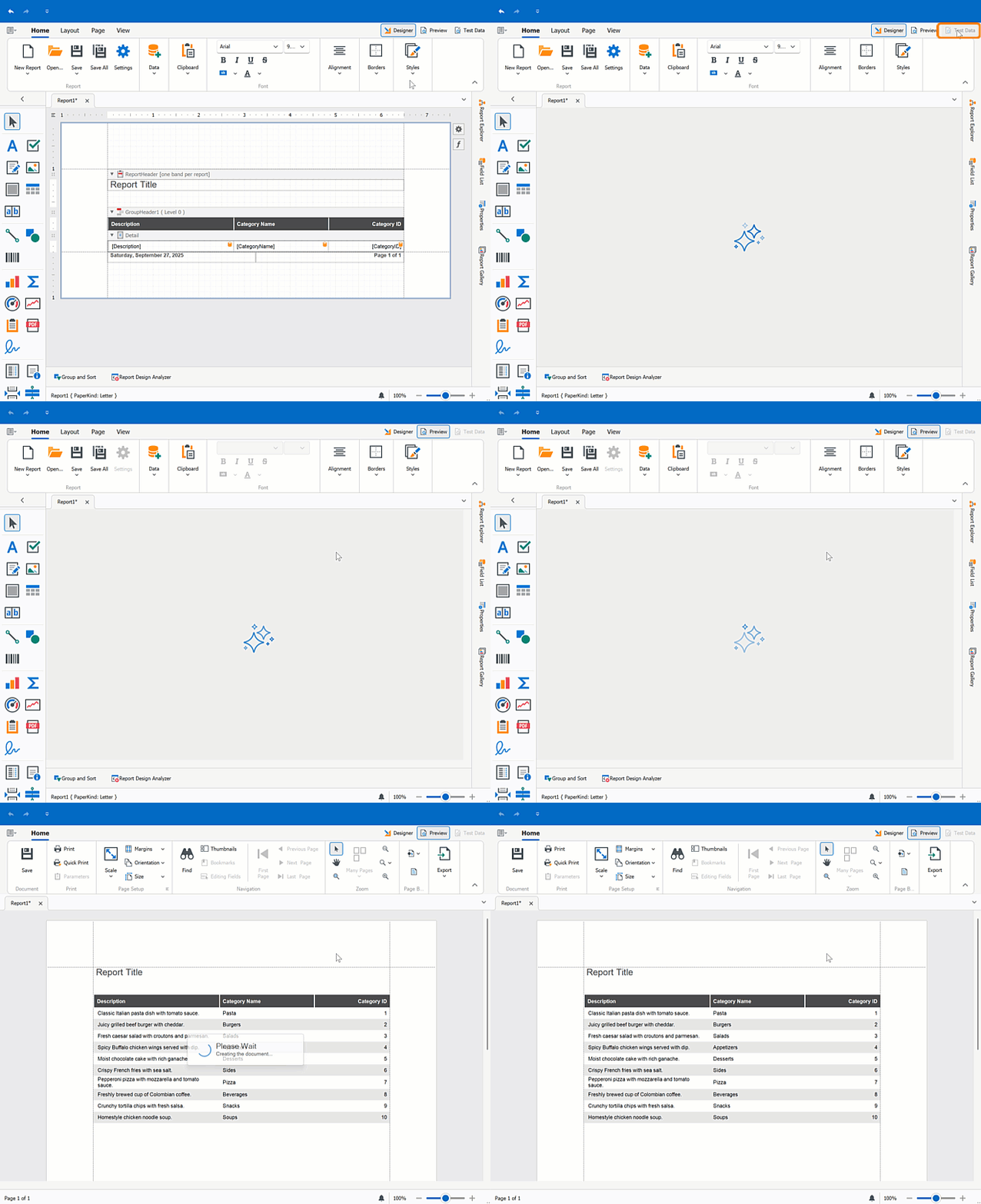
Once AI-generated Test Data is activated, the Report Designer displays the Test Data tab. Click it to preview the report with AI-generated test data. The Report Designer requests data from an LLM and populates the report with meaningful values for preview.
Activate AI-powered Extension
Prerequisites
.NET8+ or NET Framework v4.7.2+
Install NuGet Packages
Install the following NuGet packages:
DevExpress.AIIntegration.WinForms.ReportingDevExpress.Win.Design(activates design-time features for DevExpress WinForms UI controls in .NET projects)- Microsoft.Extensions.AI.OpenAI (Version=”9.7.1-preview.1.25365.4”)
Azure.AI.OpenAI (Version=”2.2.0-beta.5”)
This help topic uses Azure OpenAI. See the following help topic for information about supported AI services and required NuGet packages: AI-powered Extensions.
See the following help topics for information on how to obtain the DevExpress NuGet Feed and install DevExpress NuGet packages:
- Choose Between Offline and Online DevExpress NuGet Feeds
- Install NuGet Packages in Visual Studio, VS Code, and Rider
Register AI Client
The following code snippet registers an Azure OpenAI client at application startup:
using Azure.AI.OpenAI;
using DevExpress.AIIntegration;
using Microsoft.Extensions.AI;
using System.ClientModel;

internal static class Program {
    static string AzureOpenAIEndpoint { get { return "AZURE_OPENAI_ENDPOINT"; } }
    static string AzureOpenAIKey { get { return "AZURE_OPENAI_APIKEY"; } }
    static string DeploymentName { get { return "MODEL_NAME"; } } // For example, gpt-4.1.
    [STAThread]
    static void Main(){
        IChatClient client = new AzureOpenAIClient(
            new Uri(AzureOpenAIEndpoint),
            new ApiKeyCredential(AzureOpenAIKey))
                .GetChatClient(DeploymentName).AsIChatClient();
        AIExtensionsContainerDesktop.Default.RegisterChatClient(client);
        ApplicationConfiguration.Initialize();
        Application.Run(new Form1());
    }
}
Create and Configure Behavior Object
Follow the steps below to attach a Report Test Data Source Behavior to the WinForms Report Designer at design time:
- Drop the BehaviorManager component from the Toolbox onto a Form that contains the WinForms Report Designer.
Invoke the
BehaviorManager‘s smart tag menu and click Edit Behaviors to open the Behavior Collection Editor.Note
In .NET Framework projects, click Register AI-powered Behaviors in the
BehaviorManager‘s smart tag menu to add DevExpress AI-powered behaviors to theBehaviorManager.Add a Report Test Data Source Behavior and specify its
RowCountandTemperaturesettings.Setting Description RowCountSpecifies the number of rows/records the AI service generates for the test data source. TemperatureControls randomness in AI output and produces more deterministic results. Higher values increase variation. The default value is 0.
Create and Configure Behavior Object in Code
Drop the BehaviorManager component from the Toolbox onto a Form that contains the WinForms Report Designer control. Use the following code to register a ReportTestDataSourceBehavior and attach it to the WinForms Report Designer (reportDesigner1):
using DevExpress.AIIntegration.WinForms.Reporting;

namespace DXAppReportsTestData {
    public partial class XtraForm1 : DevExpress.XtraBars.Ribbon.RibbonForm {
        public XtraForm2() {
            InitializeComponent();

            behaviorManager1.Attach<ReportTestDataSourceBehavior>(reportDesigner1, behavior => {
                behavior.Properties.Temperature = 0.3f;
                behavior.Properties.RowCount = 10;
            });

            reportDesigner1.OpenReport(new Report1());
        }
    }
}
Note
Call the BehaviorInitializer.Initialize() method at application startup if your project targets the .NET Framework and you create AI-powered behaviors in code. Otherwise, an exception is thrown.
internal static class Program {
    [STAThread]
    static void Main() {
        //...
        // The Initialize() method forcibly initializes the behavior manager in .NET Framework apps.
        DevExpress.AIIntegration.WinForms.Reporting.BehaviorInitializer.Initialize();
        Application.Run(new Form1());
    }
}