Multi Cell Edit Behavior
Use a MultiCellEditBehavior object to allow a user to edit multiple selected cells simultaneously.
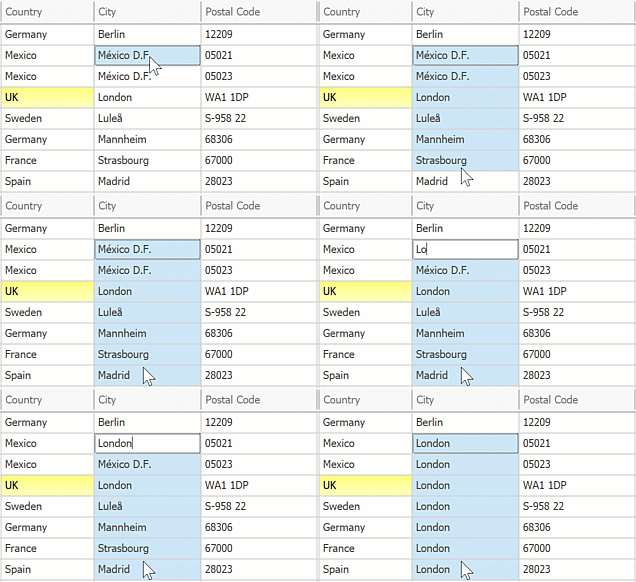
Supported Controls
Activate Multi-Cell Editing
Activate the control’s
OptionsSelection.MultiSelectproperty.Drop the BehaviorManager component onto the form.
Select Edit Behaviors in the BehaviorManager’s smart tag menu and add a Multi Cell Edit Behavior in the Behavior Editor.
Code Example
The following code snippet activates multi-cell editing in a GridView:
using DevExpress.XtraEditors;
public class Form1 : XtraForm {
    BehaviorManager bm;

    public Form1() {
        InitializeComponent();
        // Activate multi-cell selection
        gridView1.OptionsSelection.MultiSelect = true;
        // Attach a Multi Cell Edit Behavior
        bm = new BehaviorManager(this.components);
        bm.Attach<MultiCellEditBehavior>(gridView1);
    }
}
Notes
- New values are only applied to cells with compatible value types.
- If the control’s
OptionsSelection.MultiSelectModeis set toRowSelect, new values are only applied to the focused column.