Prompt to Expression
- 4 minutes to read
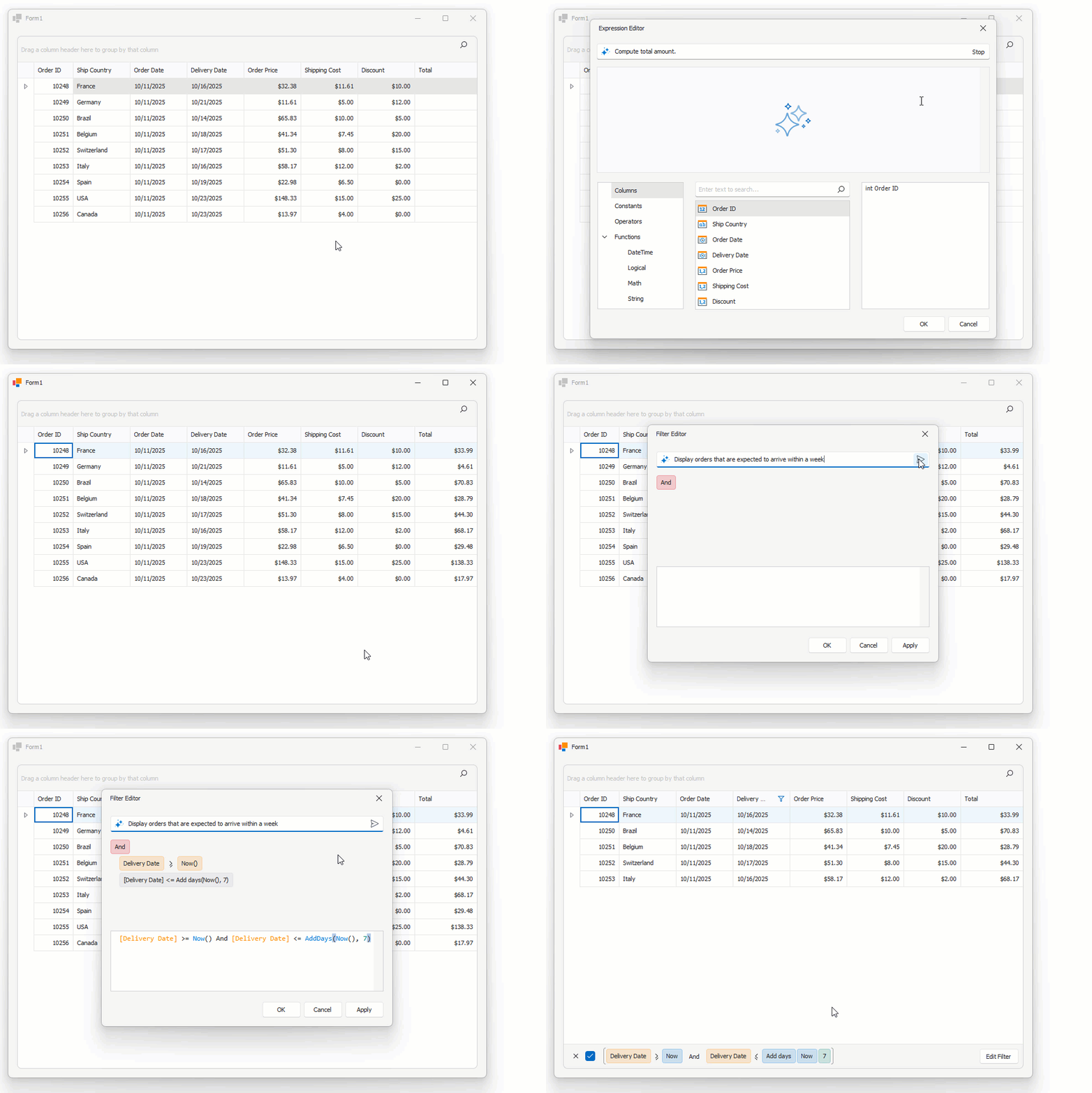
Prompt to Expression converts natural language into valid filter and unbound column expressions for data-aware WinForms controls. Instead of writing complex expressions, users describe the desired logic in plain text:
- Sample Filter Expression
- Display orders expected to arrive within 7 days.
- Sample Unbound Column Expression
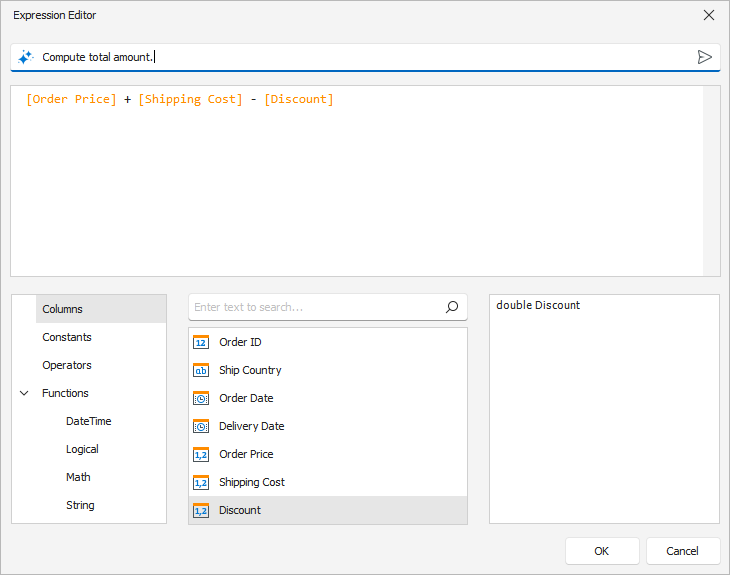
- Compute total amount.
The system sends the prompt to the configured AI service, which generates a valid expression for the control. The Expression Editor or Filter Editor displays and validates the result immediately.
Supported Controls
| Control | Editor | Supported |
|---|---|---|
| GridControl | Expression Editor / Filter Editor | Yes |
| TreeList | Expression Editor / Filter Editor | Yes |
| VGridControl | Expression Editor / Filter Editor | Yes |
Note
- Prompt to Expression works at runtime only.
- Legacy Expression and Filter Editors are not supported.
How It Works
Filter Editor
The user opens the Filter Editor.
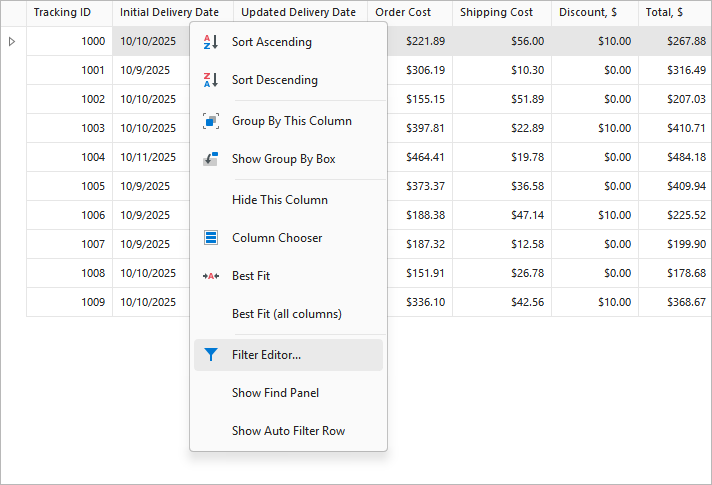
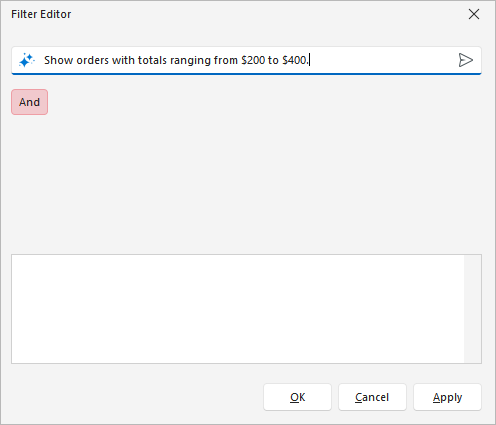
The user enters an intent in the Prompt to Expression field and clicks Send.
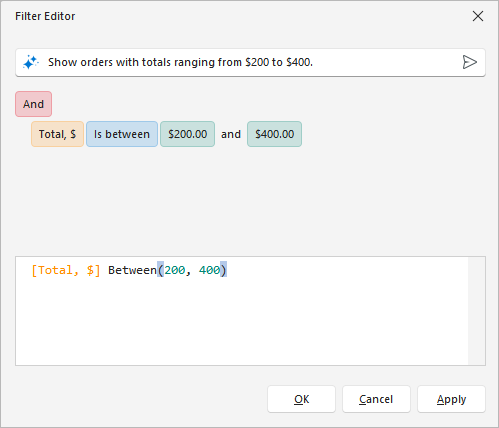
AI generates a filter expression. The Filter Editor displays the result.
Expression Editor
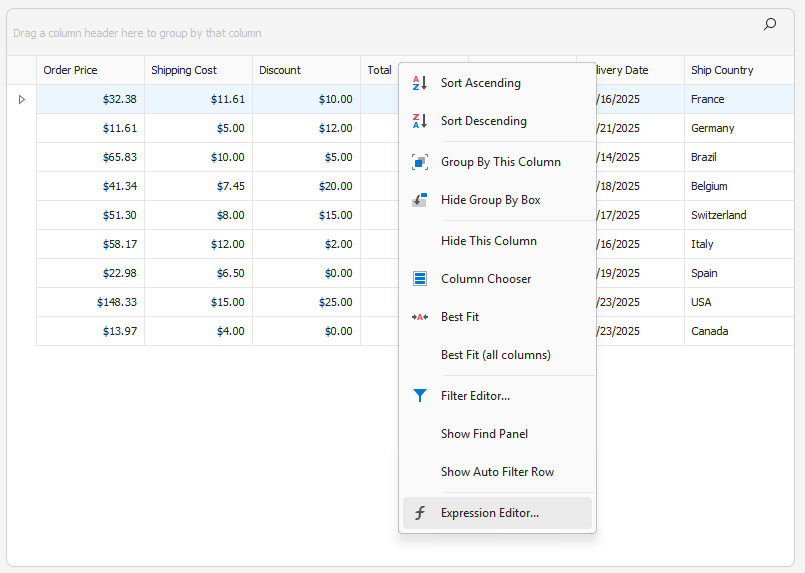
The user opens the Expression Editor for an unbound column.
Tip
Enable the unbound column’s ShowUnboundExpressionMenu option to display the Expression Editor menu item.
The user enters an intent in the Prompt to Expression field and clicks Send.
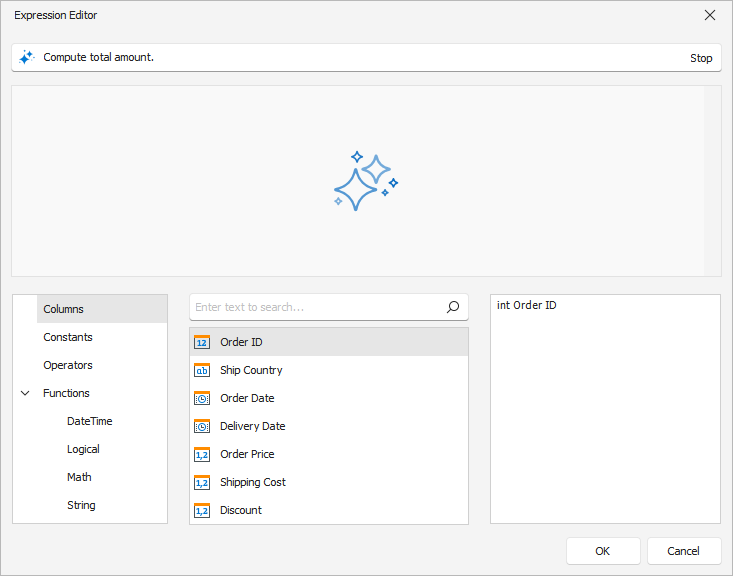
AI generates the expression. The Expression Editor displays the result.
Activate Prompt to Expression
Prerequisites
.NET 8 SDK / .NET Framework v4.7.2
Install DevExpress NuGet Packages
DevExpress.AIIntegration.WinFormsDevExpress.Win.Design(design-time infrastructure)
See the following help topics for information on how to obtain the DevExpress NuGet Feed and install DevExpress NuGet packages:
- Choose Between Offline and Online DevExpress NuGet Feeds
- Install NuGet Packages in Visual Studio, VS Code, and Rider
Register AI Client
See the following help topic for information on required NuGet packages and system requirements: Register an AI Client.
The following code snippet registers the Azure OpenAI client:
using Microsoft.Extensions.AI;
using DevExpress.AIIntegration;

internal static class Program {
    [STAThread]
    static void Main() {
        Application.EnableVisualStyles();
        Application.SetCompatibleTextRenderingDefault(false);
        IChatClient azureChatClient = new Azure.AI.OpenAI.AzureOpenAIClient(new Uri(AzureOpenAIEndpoint),
            new System.ClientModel.ApiKeyCredential(AzureOpenAIKey))
            .GetChatClient(ModelId).AsIChatClient();
        AIExtensionsContainerDesktop.Default.RegisterChatClient(azureChatClient);
        // Uncomment the following line if your project targets the .NET Framework and
        // you create AI-powered behaviors in code.
        // DevExpress.AIIntegration.WinForms.BehaviorInitializer.Initialize();
        Application.Run(new Form1());
    }
    static string AzureOpenAIEndpoint { get { return Environment.GetEnvironmentVariable("AZURE_OPENAI_ENDPOINT"); } }
    static string AzureOpenAIKey { get { return Environment.GetEnvironmentVariable("AZURE_OPENAI_APIKEY"); } }
    static string ModelId { get { return "MODEL_NAME"; } }
}
Attach Prompt to Expression Behavior
- Drop the BehaviorManager component from the Toolbox onto a Form.
Add a PromptToExpressionBehavior, configure its settings, and attach the behavior to a DevExpress UI control (
GridControl,VGridControl, orTreeList). You can do this at design time or in code: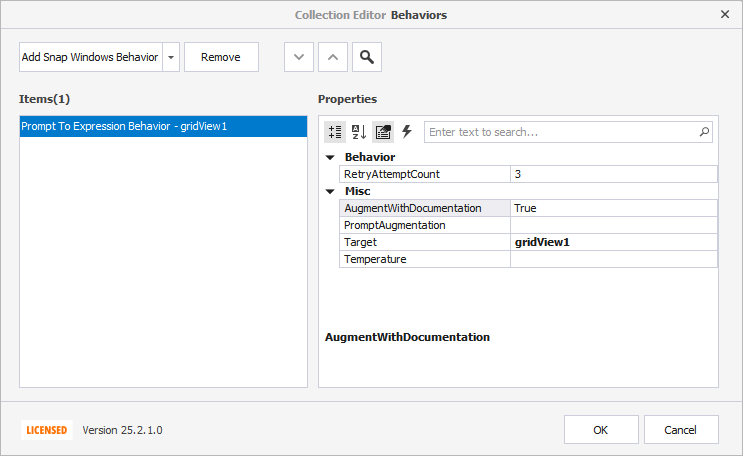
using DevExpress.AIIntegration.WinForms;

public Form1() {
    InitializeComponent();

    behaviorManager1.Attach<PromptToExpressionBehavior>(gridView1, behavior =>
    {
        behavior.Properties.RetryAttemptCount = 3;
        behavior.Properties.Temperature = 0.3;
    });
}
Behavior Properties
| Property | Description |
|---|---|
Target |
Specifies the attached control (GridControl, VGridControl, or TreeList). |
| RetryAttemptCount | Specifies the number of additional attempts the AI makes to regenerate an expression if the previous result is invalid. |
| Temperature | Specifies creativity in AI responses. Set 1 for models (for example, GPT-5, o1, and o3 series) that ignore this parameter to avoid compatibility errors. |
| PromptAugmentation | Appends additional instructions to each user prompt. |
| AugmentWithFunctionInfo | Injects supported functions and operators into each user prompt. Increases accuracy. Adds about 4,000 tokens per request (adds cost). Default: true. |
Specific Notes
- Runtime Scope
- Design-time Filter and Expression Editors are not supported.
- Legacy Editors
- Legacy Expression and Filter Editors do not integrate AI.
- Retry Policy
- Use the RetryAttemptCount property to specify how many times the system retries expression generation.
- Error Handling
- Expression and Filter Editors validate the generated expression and display an error message if all attempts produce invalid exceptions.