Customize Themes with the DevExpress Presentation API Library
- 15 minutes to read
Themes define slide appearance—colors, fonts, and formatting effects. The DevExpress Presentation API allows you to access and modify themes that apply to entire presentations, slide masters, individual slides, and layouts.
This topic describes the theme hierarchy, demonstrates common theme tasks, and explains the theme structure in detail.
Theme Hierarchy
Presentations use a hierarchical theme system:
- Master Theme - Defines colors, fonts, and effects for the entire presentation.
- Theme Override - Overrides the master theme for specific slides or layouts.
- Shape Style - Individual shapes can reference theme elements to maintain consistency.
Master Theme
The Theme class is the master theme for the entire presentation. Master elements (slide masters and notes masters) inherit this theme through MasterElement.Theme property.
Access the Master Theme
The following code snippet retrieves the master theme from the second slide:
using DevExpress.Docs.Presentation;

// Load a presentation
using (FileStream fs = File.OpenRead("sample.pptx")) {
    Presentation presentation = new Presentation(fs);
    Slide slide = presentation.Slides[1];

    // Access the master
    var mySlideMaster = presentation.SlideMasters.Where(sm =>
        sm.Layouts.Contains(slide.Layout)).FirstOrDefault();

    // Access the master theme
    var myTheme = mySlideMaster?.Theme;
}
Theme Overrides
Specify the SlideElement.ThemeOverride property to override the master theme colors, fonts, or effects. You can override the theme for individual slides, slide layouts, and notes slides.
Override a Slide Theme
The following code sample overrides the master theme for the first slide:
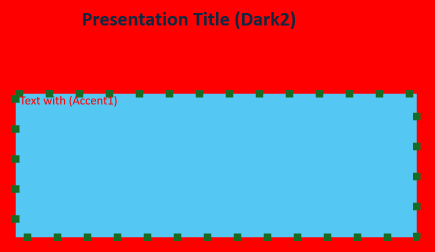
using DevExpress.Docs.Presentation;

using (FileStream fs = File.OpenRead("sample.pptx")) {
    Presentation presentation = new Presentation(fs);
    // Access a slide
    Slide slide = presentation.Slides[0];

    // Create a theme override
    ThemeOverride themeOverride = new ThemeOverride();

    // Modify the color scheme for this slide only
    ThemeColorScheme overrideColors = new ThemeColorScheme();
    overrideColors.Accent1 = new OfficeColor(Color.Red);
    overrideColors.Accent2 = new OfficeColor(Color.Red);
    themeOverride.ColorScheme = overrideColors;

    // Create and assign format scheme (required to avoid null reference)
    ThemeFormatScheme formatScheme = new ThemeFormatScheme();
    themeOverride.FormatScheme = formatScheme;

    // Add required minimum fills (PowerPoint standard requires at least 3 elements)
    themeOverride.FormatScheme.Fills.ResetTo(new List<Fill> {
        new SolidFill(Color.Red),
        new SolidFill(Color.Magenta),
        new SolidFill(Color.Lime)
    });

    // Apply the override
    slide.ThemeOverride = themeOverride;
}
Shape Style
Individual shapes can reference theme format scheme elements through the ShapeStyle class. Shapes automatically update their appearance when the theme changes. This helps you maintain visual consistency across the presentation.
Customize Shape Appearance in a Style
The following code snippet modifies shape style to customize appearance:
using DevExpress.Docs.Presentation;

using (FileStream fs = File.OpenRead("sample.pptx"))
{
    Presentation presentation = new Presentation(fs);
    // Access a slide
    Slide slide = presentation.Slides[0];

    myTheme.FormatScheme.Fills.ResetTo(new List<Fill> {
        new GradientFill(GradientType.Linear,
            new List<GradientStop> {
                new GradientStop(SchemeColors.Style, 0) {
                    Color = {
                        Transforms = {
                            new LuminanceModulationColorTransform(110),
                            new SaturationModulationColorTransform(105),
                            new TintColorTransform(67)
                        }
                    }
                },
                new GradientStop(SchemeColors.Dark1, 0.5) {
                    Color = {
                        Transforms = {
                            new LuminanceModulationColorTransform(105),
                            new SaturationModulationColorTransform(103),
                            new TintColorTransform(73)
                        }
                    }
                },
                new GradientStop(SchemeColors.Style, 1) {
                    Color = {
                        Transforms = {
                            new LuminanceModulationColorTransform(100),
                            new SaturationModulationColorTransform(110),
                            new TintColorTransform(81)
                        }
                    }
                }
            }),
        new SolidFill(Color.Magenta),
        new SolidFill(Color.Lime)
    });
    var shape = (Shape)slide.Shapes[1];
    shape.Fill = null;
    shape.Style.FillThemeIndex = 1;
    shape.Style.FillColor = new OfficeColor(SchemeColors.Accent6);
}
Theme Components
A theme consists of three main components:
Color Scheme
ThemeColorScheme defines twelve colors based on the Office Open XML standard:
- Dark Colors: Dark1 and Dark2 for text and foreground elements
- Light Colors: Light1 and Light2 for backgrounds
- Accent Colors: Accent1 through Accent6 for emphasis and highlights
- Link Colors: Hyperlink and FollowedHyperlink for hyperlinks
You can use the ColorScheme property to access the color scheme.
Customize the Color Scheme
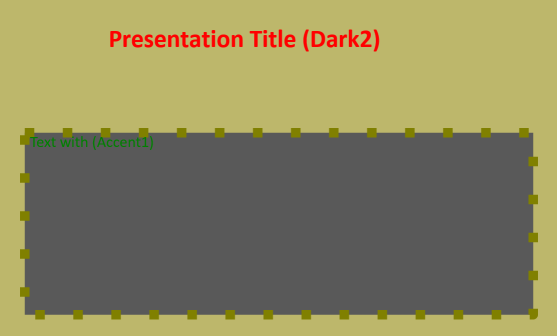
The following code snippet modifies the color scheme:
using DevExpress.Docs.Presentation;

// Load a presentation
using (FileStream fs = File.OpenRead("sample.pptx")) {
    Presentation presentation = new Presentation(fs);
    Slide slide = presentation.Slides[1];

    // Access the master
    var mySlideMaster = presentation.SlideMasters.Where(sm =>
        sm.Layouts.Contains(slide.Layout)).FirstOrDefault();

    var myTheme = mySlideMaster?.Theme;
    myTheme.ColorScheme.Accent1 = new OfficeColor(Color.Green);
    myTheme.ColorScheme.Accent2 = new OfficeColor(Color.DarkKhaki);
    myTheme.ColorScheme.Accent3 = new OfficeColor(Color.Olive);
    myTheme.ColorScheme.Dark2 = new OfficeColor(Color.Red);
}
Font Scheme
The ThemeFontScheme defines font styles for different element types:
Each font is a ThemeFont object that specifies fonts for Latin (LatinFont), East Asian (EastAsianFont), and complex script text (ComplexScriptFont).
Use the FontScheme property to access the font scheme.
Customize the Font Scheme
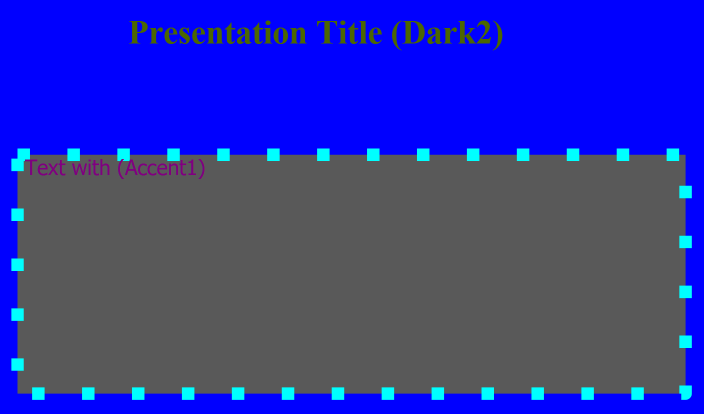
The following code snippet customizes the font scheme for the entire presentation:
using DevExpress.Docs.Presentation;

// Load a presentation
using (FileStream fs = File.OpenRead("sample.pptx")) {
    Presentation presentation = new Presentation(fs);
    Slide slide = presentation.Slides[0];

    // Access the master
    var mySlideMaster = presentation.SlideMasters.Where(sm => sm.Layouts.Contains(slide.Layout)).FirstOrDefault();

    // Access the master theme
    var myTheme = mySlideMaster?.Theme;

    // Customize Minor and Major Fonts
    myTheme.FontScheme.MinorFont = new ThemeFont("Calibri", "Calibri Light");
    myTheme.FontScheme.MajorFont = new ThemeFont("Tahoma");
}
Format Scheme
The ThemeFormatScheme defines visual formatting properties for presentation objects:
- Fills (Fills): Fill styles for shapes and text boxes
- Background Fills (BackgroundFills): Fill styles for slide backgrounds
- Line Styles (LineStyles): Styles for shape outlines and connectors
- Effects (Effects): Shadow, reflection, and other visual effects
Note
Each collection listed above must contain at least three elements according to PowerPoint standards.
Use the FormatScheme property to access the format scheme.
Customize Format Scheme
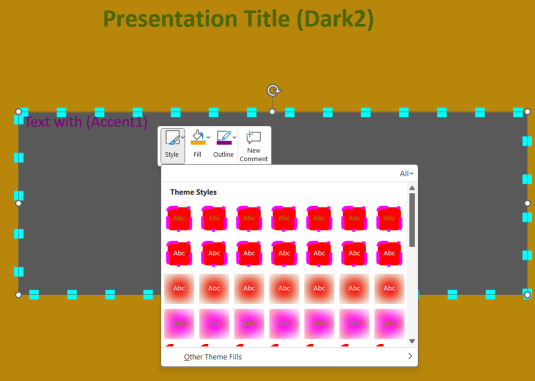
The following code snippet replaces theme format scheme collections with custom values. The code sets three solid fills (Fills) and three (BackgroundFills) with different colors, three line styles with varying widths and dash types (LineStyles), and three visual effects (Effects) (blur, inner shadow, and glow):
using DevExpress.Docs.Presentation;

// Load a presentation
using (FileStream fs = File.OpenRead("sample.pptx")) {
    Presentation presentation = new Presentation(fs);
    Slide slide = presentation.Slides[0];

    // Access the master
    var mySlideMaster = presentation.SlideMasters.Where(sm =>
        sm.Layouts.Contains(slide.Layout)).FirstOrDefault();

    // Access the master theme
    var myTheme = mySlideMaster?.Theme;

    myTheme.FormatScheme.BackgroundFills.ResetTo(new List<Fill> {
        new SolidFill(Color.Purple),
        new SolidFill(Color.Yellow),
        new SolidFill(Color.DarkGoldenrod)
    });
    myTheme.FormatScheme.Fills.ResetTo(new List<Fill> {
        new SolidFill(Color.Red),
        new SolidFill(Color.Magenta),
        new SolidFill(Color.Lime)
    });
    myTheme.FormatScheme.LineStyles.ResetTo(new List<LineStyle> {
        new LineStyle() {
            Width = 50,
            DashType = LineDashType.Dot,
            Fill = new SolidFill(Color.Red)
        },
        new LineStyle() {
            Width = 20,
            DashType = LineDashType.DashDot,
            Fill = new SolidFill(Color.Magenta)
        },
        new LineStyle() {
            Width = 5,
            DashType = LineDashType.Solid,
            Fill = new SolidFill(Color.Lime)
        }
    });
    myTheme.FormatScheme.Effects.ResetTo(new List<ShapeEffectProperties> {
        new ShapeEffectProperties() { Blur = new BlurEffect(100, true) },
        new ShapeEffectProperties() { InnerShadow = new InnerShadowEffect() },
        new ShapeEffectProperties() { Glow = new GlowEffect(15) }
    });
}
Theme Color References
Theme color references determine how elements obtain color values from the current theme. The following elements can access or redefine these references:
Master Elements: Slide masters (SlideMaster) and notes masters (NotesMaster) inherit the presentation’s master theme and can define color mappings.
Slide Elements: Individual slides (Slide), slide layouts (SlideLayout), and notes slides (NotesSlide) can override the master theme while maintaining the presentation’s overall structure.
Note
Format objects in theme collections cannot contain references to theme colors. Use RGB colors or SchemeColors values instead.
Color Mapping
The ColorMap allows you to remap theme colors to different color scheme indexes. Color mappings allow you to maintain consistency when applying themes across different presentation elements.
For example, you can map the Accent1 property to a different SchemeColors value, replacing the first accent color throughout the presentation with another color from the scheme.
Master elements define color mappings through the ColorMap property. You can also use the ColorMapOverride property to override mappings for individual slides.
Remap Theme Colors
The following code snippet remaps theme colors at the master level and overrides them for a specific slide:
using DevExpress.Docs.Presentation;

// Load a presentation
using (FileStream fs = File.OpenRead("sample.pptx")) {
    Presentation presentation = new Presentation(fs);

    // Access the slide master
    SlideMaster slideMaster = presentation.SlideMasters[0];

    // Remap colors at the master level (affects all slides using this master)
    ColorMap masterColorMap = slideMaster.ColorMap;
    masterColorMap.Accent1 = ColorSchemeIndexType.Accent3;  // Use Accent3 instead of Accent1
    masterColorMap.Accent2 = ColorSchemeIndexType.Accent4;  // Use Accent4 instead of Accent2
    masterColorMap.Dark1 = ColorSchemeIndexType.Dark2;      // Swap dark colors
    masterColorMap.Light1 = ColorSchemeIndexType.Light2;    // Swap light colors

    // You can also remap colors for a specific slide
    Slide slide = presentation.Slides[0];
    ColorMap slideColorMap = new ColorMap();
    slideColorMap.Accent1 = ColorSchemeIndexType.Accent6;   // Override master mapping for this slide
    slideColorMap.Hyperlink = ColorSchemeIndexType.Accent5; // Use accent color for hyperlinks
    slide.ColorMapOverride = slideColorMap;

    // Save the presentation with remapped colors
    using (FileStream outputStream = new FileStream("RemappedColorsPresentation.pptx", FileMode.Create)) {
        presentation.SaveDocument(outputStream);
    }
}
Create a Custom Theme
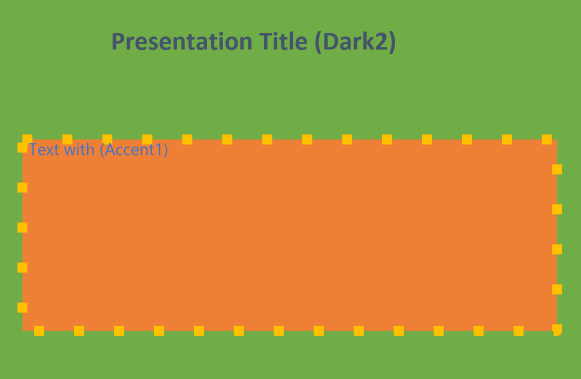
You can create a theme with custom colors, fonts, and formatting effects to apply to your entire presentation. The following code snippet creates a custom theme and assigns it to a presentation:
using DevExpress.Docs.Presentation;
using System.Drawing;

using (FileStream fs = File.OpenRead("sample.pptx")) {
    Presentation presentation = new Presentation(fs);
    Slide slide = presentation.Slides[0];

    var mySlideMaster = presentation.SlideMasters.Where(sm =>
        sm.Layouts.Contains(slide.Layout)).FirstOrDefault();
    var myTheme = mySlideMaster?.Theme;

    // Create a custom color scheme
    ThemeColorScheme customColors = new ThemeColorScheme();
    customColors.Name = "Corporate Blue";
    // Dark blue for text
    customColors.Dark1 = new OfficeColor(Color.FromArgb(31, 56, 100));
    // White for backgrounds
    customColors.Light1 = new OfficeColor(Color.White);
    // Medium blue
    customColors.Dark2 = new OfficeColor(Color.FromArgb(68, 84, 106));
    // Light blue
    customColors.Light2 = new OfficeColor(Color.FromArgb(242, 246, 252));
    // Primary blue
    customColors.Accent1 = new OfficeColor(Color.FromArgb(68, 114, 196));
    // Green
    customColors.Accent2 = new OfficeColor(Color.FromArgb(112, 173, 71));
    // Orange
    customColors.Accent3 = new OfficeColor(Color.FromArgb(255, 192, 0));
    // Brown
    customColors.Accent4 = new OfficeColor(Color.FromArgb(158, 72, 14));
    // Gray
    customColors.Accent5 = new OfficeColor(Color.FromArgb(99, 99, 99));
    // Dark blue
    customColors.Accent6 = new OfficeColor(Color.FromArgb(37, 94, 145));
    // Link blue
    customColors.Hyperlink = new OfficeColor(Color.FromArgb(5, 99, 193));
    // Visited link
    customColors.FollowedHyperlink = new OfficeColor(Color.FromArgb(149, 79, 114));

    // Create a custom font scheme
    ThemeFontScheme customFonts = new ThemeFontScheme();
    customFonts.Name = "Corporate Fonts";
    // Headings
    customFonts.MajorFont = new ThemeFont("Segoe UI", "Arial", "Arial");
    // Body text
    customFonts.MinorFont = new ThemeFont("Calibri", "Times New Roman", "Times New Roman");

    // Create format scheme with required minimum elements
    ThemeFormatScheme customFormats = new ThemeFormatScheme();

    // Add fills (minimum 3 required)
    customFormats.Fills.Add(new SolidFill(new OfficeColor(Color.FromArgb(68, 114, 196))));
    customFormats.Fills.Add(new GradientFill(
        GradientType.Linear,
        new[] {
            new GradientStop(new OfficeColor(Color.White), 0.0),
            new GradientStop(new OfficeColor(Color.FromArgb(68, 114, 196)), 1.0)
        }
    ));
    customFormats.Fills.Add(new SolidFill(new OfficeColor(Color.FromArgb(112, 173, 71))));

    // Add background fills (minimum 3 required)
    customFormats.BackgroundFills.Add(new SolidFill(new OfficeColor(Color.White)));
    customFormats.BackgroundFills.Add(new SolidFill(new OfficeColor(Color.FromArgb(242, 246, 252))));
    customFormats.BackgroundFills.Add(new GradientFill(
        GradientType.Linear,
        new[] {
            new GradientStop(new OfficeColor(Color.White), 0.0),
            new GradientStop(new OfficeColor(Color.FromArgb(242, 246, 252)), 1.0)
        }
    ));

    // Add line styles (minimum 3 required)
    customFormats.LineStyles.Add(new LineStyle() { Width = 1, Fill = new SolidFill(
        new OfficeColor(Color.FromArgb(68, 114, 196))) });
    customFormats.LineStyles.Add(new LineStyle() { Width = 2, Fill = new SolidFill(
        new OfficeColor(Color.FromArgb(112, 173, 71))) });
    customFormats.LineStyles.Add(new LineStyle() { Width = 3, Fill = new SolidFill(
        new OfficeColor(Color.FromArgb(255, 192, 0))) });

    // Add effects (minimum 3 required)
    customFormats.Effects.Add(new ShapeEffectProperties() { Blur = new BlurEffect(4,true) });
    customFormats.Effects.Add(new ShapeEffectProperties() { InnerShadow = new InnerShadowEffect()});
    customFormats.Effects.Add(new ShapeEffectProperties() { Glow = new GlowEffect(5) });

    // Apply the custom theme to the presentation
    myTheme.ColorScheme = customColors;
    myTheme.FontScheme = customFonts;
    myTheme.FormatScheme = customFormats;
}