DevExpress Presentation API Library: Work with Tables
- 12 minutes to read
Tables are shapes that organize text in a tabular format. The Presentation API library supports the following table-related operations:
- Create and add a table to a slide.
- Specify table style.
- Format table cells.
- Merge and split table cells.
- Extract data from table cells.
Create and Add a Table to a Slide
Follow the steps below to create a table and add it to a slide:
- Create a Table object and specify the number of rows and columns in the
Tableconstructor. - Use the table’s X, Y, Width, and Height properties to set the table’s position and size on the slide. All these properties are measured in Document units (1/300 of an inch). You can also set these properties in a
Tableconstructor. - Add the table to the slide’s Shapes collection.
- Use the table’s indexer to access individual cells.
- Use the cell’s TextArea property to add text to the cell. Note that cells support only text content.
The following code snippet creates a 3x3 table, adds it to a slide, and populates the cells with text:
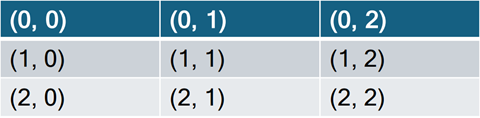
using DevExpress.Docs.Presentation;

namespace PresentationApiSample;

public class Program {
    public static void Main(string[] _) {

        // Create an in-memory Presentation document
        Presentation presentation = new Presentation();
        presentation.Slides.Clear();

        // Create a blank slide and add it to the presentation
        Slide slide = new Slide(SlideLayoutType.Blank);
        presentation.Slides.Add(slide);

        // Create a 3x3 table (rows x columns), specify its position and size, and add the table as a shape to the slide
        Table table = new Table(3, 3);
        table.X = 10;
        table.Y = 10;
        table.Width = 2500;
        table.Height = 2000;
        slide.Shapes.Add(table);

        // Populate table cell text (row, column)
        for (int row = 0; row < 3; row++) {
            for (int column = 0; column < 3; column++) {
                table[row, column].TextArea.Text = $"({row}, {column})";
            }
        }

        // Export the presentation to PDF
        presentation.ExportToPdf(new FileStream(@"D:\\exported-document.pdf", FileMode.Create));

        // Save the presentation as a PPTX file
        FileStream outputStream = new FileStream(@"D:\\presentation.pptx", FileMode.Create);
        presentation.SaveDocument(outputStream, DocumentFormat.Pptx);
        outputStream.Dispose();
    }
}
Note: You get a System.ArgumentOutOfRangeException if you try to access a table cell using a row or column index that is out of range.
Insert Rows and Columns
Call the Insert method of the Table.Columns or Table.Rows collection to add new columns or rows to the table.
The following code snippet adds a new column at the beginning of the table and populates its cells with text. Then, a new row is added at the top of the table and its cells are populated with text:
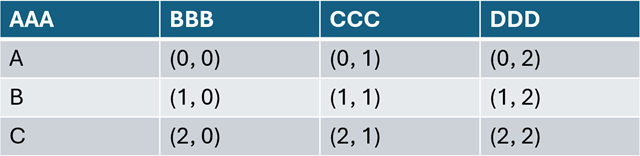
using DevExpress.Docs.Presentation;

namespace PresentationApiSample;

public class Program {
    public static void Main(string[] _) {
        // ...
        // Insert a new column at the beginning of the table
        table.Columns.Insert(0, new TableColumn(width: 500));
        table[0, 0].TextArea.Text = "A";
        table[1, 0].TextArea.Text = "B";
        table[2, 0].TextArea.Text = "C";

        // Insert a new row at the top of the table
        table.Rows.Insert(0, new TableRow());
        table[0, 0].TextArea.Text = "AAA";
        table[0, 1].TextArea.Text = "BBB";
        table[0, 2].TextArea.Text = "CCC";
        table[0, 3].TextArea.Text = "DDD";

    }
}
Extract Data from Table Cells
The following code snippet extracts text from all cells in a table to a StringBuilder object and formats it as tab-delimited text:
public string ExtractTextFromTable(Table table){
    var sb = new StringBuilder();
    for (int r = 0; r < table.Rows.Count; r++) {
        for (int c = 0; c < table.Columns.Count; c++) {
            TableCell cell = table[r, c];
            string cellText = cell.TextArea?.Text ?? string.Empty;
            sb.Append(cellText);
            if (c != table.Columns.Count - 1)
                sb.Append('\t');
        }
        sb.AppendLine();
    }
    return sb.ToString();
}
Merge Table Cells
Call the Table.MergeCells method to merge a rectangular range of table cells. The first cell in the method parameters specifies the start of the range, and the second specifies the end of the range. After the cells are merged, the Presentation API performs the following steps:
- The first cell’s ColumnSpan or RowSpan property is increased by the corresponding number of columns or rows.
- Text paragraphs of merged cells are appended to the first cell
Paragraphscollection. - The
TextAreaproperty of merged cells is set tonull. - The merged cells’ TableCell.IsMergedVertically or TableCell.IsMergedHorizontally property is set to
truedepending on the position of merged cells.
The following code snippet merges two cells in a table:

using DevExpress.Docs.Presentation;

namespace PresentationApiSample;

public class Program {
    public static void Main(string[] _) {
        //...

        // Create a 3x3 table (rows x columns) and add it as a shape to the slide
        Table table = new Table(3, 3);
        slide.Shapes.Add(table);

        for (int row = 0; row < 3; row++) {
            for (int column = 0; column < 3; column++) {
                table[row, column].TextArea.Text = $"({row}, {column})";
            }
        }

        table.MergeCells(table[0, 0], table[0, 1]);

    }
}
Split Table Cells
Call the TableCell.Split method to split a table cell into individual cells.
The following code snippet splits a merged cell from the previous section into two columns:

using DevExpress.Docs.Presentation;

namespace PresentationApiSample;

public class Program {
    public static void Main(string[] _) {

        // ...
        table[0, 0].Split(rowCount: 1, columnCount: 2);
        table[0, 1].TextArea.Text = table[0, 0].TextArea.Paragraphs[1].Text;
        table[0, 0].TextArea.Paragraphs.RemoveAt(1);
    }
}
Obtain All Table Cells
If you merge two cells, both of those cells remain in the internal table structure. One becomes the resulting cell (takes the space of two and displays data). Another disappears from the table (the object remains in case you split the merged cell back into two).
To obtain all cells that display data, call Table.GetActiveCells. This method skips cells that only exist in the internal structure and do not display data. If you traverse cells manually, you can identify these inactive cells by checking if IsMergedVertically or IsMergedHorizontally is true.
The following code snippet iterates through all active cells in a table and obtains a list of 8 cells:
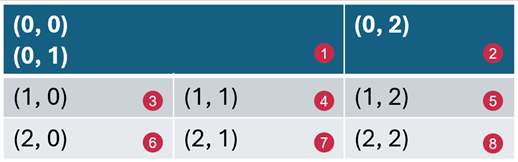
using DevExpress.Docs.Presentation;

    IEnumerable<TableCell> tableCells = table.GetActiveCells(TableTraversalOrder.RowThenColumn);
Find Text in Table Cells
You can search for the specified text on the table cell’s TextArea level, slide level, or presentation level. For more information, refer to the following section:
- Work with Shape Text - Find Text
- Search, Replace, Remove, and Highlight Text in a Slide or Presentation - Find Text
Replace Text in Table Cells
You can replace text on the table cell’s TextArea level, slide level, or presentation level. For more information, refer to the following section:
- Work with Shape Text - Replace Text
- Search, Replace, Remove, and Highlight Text in a Slide or Presentation - Replace Text
Remove Text in Table Cells
You can remove text on the table cell’s TextArea level, slide level, or presentation level. For more information, refer to the following section:
- Work with Shape Text - Remove Text
- Search, Replace, Remove, and Highlight Text in a Slide or Presentation - Remove Text
Specify a Table Style
Initialize the Table.Style property with a ThemedTableStyle instance to apply a theme-based style to a table. The TableStyleType enumeration lists predefined styles. The predefined styles obtain colors from the presentation theme.
The following code snippet applies the LightStyle1Accent4 style to a table:
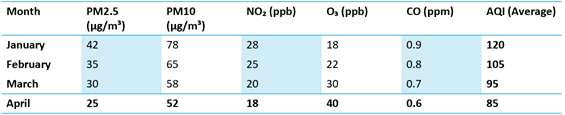
using DevExpress.Docs.Presentation;

namespace PresentationApiSample;

public class Program {
    public static void Main(string[] _) {
        //...
        table.Style = new ThemedTableStyle(TableStyleType.LightStyle1Accent4);
    }
}
Note: The current version of the DevExpress Presentation API library does not support custom styles.
Highlight Rows and Columns
Use the following properties to highlight specific rows and columns in a table. The highlight appearance and colors depend on the table style:
- HasBandedColumns
Specifies whether to highlight alternating columns.

- HasBandedRows
Specifies whether to highlight alternating rows.

- HasFirstColumn
Specifies whether to highlight the first column.

- HasLastColumn
Specifies whether to highlight the last column.

- HasHeaderRow
Specifies whether to highlight the first row.

- HasTotalRow
Specifies whether to highlight the last row.

using DevExpress.Docs.Presentation;

namespace PresentationApiSample;

public class Program {
    public static void Main(string[] _) {
        //...
        table.HasBandedColumns = true;
        table.HasBandedRows = true;
        table.HasFirstColumn = true;
        table.HasLastColumn = true;
        table.HasTotalRow = true;
        table.HasHeaderRow = true;
    }
}
Customize Individual Table Cells
The following code snippet configures a cell’s text settings and fill:
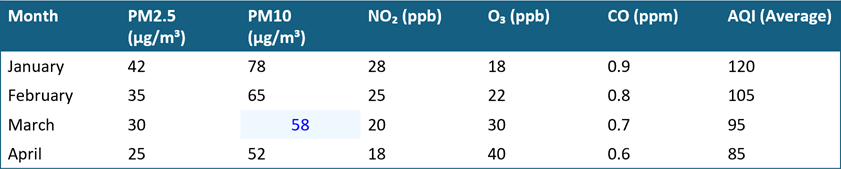
using DevExpress.Docs.Presentation;

namespace PresentationApiSample;

public class Program {
    public static void Main(string[] _) {
        //...
        TableCell cell = table2[3, 2];
        cell.Fill = new SolidFill(Color.AliceBlue);
        cell.TextArea.Level1ParagraphProperties.TextProperties.Fill = new SolidFill(Color.Blue);
        cell.TextArea.Level1ParagraphProperties.Alignment = TextParagraphAlignment.Center;
    }
}
Customize Cell Borders
Use the following properties to customize table cell borders:
- TableCell.TopBorder
- TableCell.BottomBorder
- TableCell.LeftBorder
- TableCell.RightBorder
- TableCell.DiagonalUpBorder
- TableCell.DiagonalDownBorder
Note: Border visibility depends on the presentation viewer app and the table style applied to the table.
using DevExpress.Docs.Presentation;

namespace PresentationApiSample;

public class Program {
    public static void Main(string[] _) {
        //...
        TableCell cell = table[1, 1];

        cell.LeftBorder = new LineStyle { Width = 4, Fill = new SolidFill(Color.Red) };
        cell.TopBorder = new LineStyle { Width = 4, Fill = new SolidFill(Color.Blue) };
        cell.RightBorder = new LineStyle { Width = 4, Fill = new SolidFill(Color.Green) };
        cell.BottomBorder = new LineStyle { Width = 4, Fill = new SolidFill(Color.Orange) };
        cell.DiagonalDownBorder = new LineStyle { Width = 4, Fill = new SolidFill(Color.Magenta) };
        cell.DiagonalUpBorder = new LineStyle { Width = 4, Fill = new SolidFill(Color.Lime) };
    }
}
Remove Rows and Columns
Call the RemoveAt or Remove method of the Table.Columns or Table.Rows collection to delete columns or rows from a table.
using DevExpress.Docs.Presentation;

namespace PresentationApiSample;

public class Program {
    public static void Main(string[] _) {
        //...
        table.Columns.RemoveAt(0);
        table.Columns.Remove(table.Columns[1]);

        table.Rows.RemoveAt(0);
        table.Rows.Remove(table.Rows[1]);
    }
}
Delete a Table
Call the Shapes.Remove or Shapes.RemoveAt method to delete a table from a slide.
using DevExpress.Docs.Presentation;

namespace PresentationApiSample;

public class Program {
    public static void Main(string[] _) {
        //...
        slide.Shapes.Remove(table);
        slide.Shapes.RemoveAt(0); // assuming the table is the first shape on the slide
    }
}
Clone a Table
Call a table’s Clone method to create this table’s copy. Then you can use this copy as a base for another table: