DevExpress Presentation API Library: Work with Shape Text
- 10 minutes to read
The Presentation API library allows you to manage text content inside shapes. This help topic explains how you can add and access shape text, format paragraphs, and change font settings.
Add and Format Shape Text
Use the shape’s Shape.TextArea property to specify the shape text and configure text settings.
To specify the text area content, add TextParagraph objects to the TextArea.Paragraphs collection. To split a paragraph into runs (spans of text that share the same formatting), add TextRun objects to the TextParagraph.Runs collection.
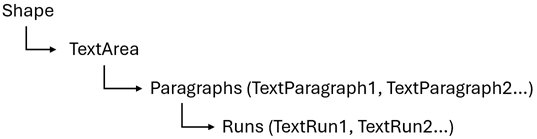
A new shape’s text area initially contains one default empty paragraph to keep the presentation document valid. This paragraph goes first in the TextArea.Paragraphs collection.
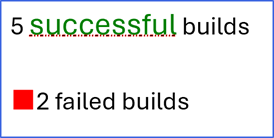
The following example adds a shape with two paragraphs and configures text settings:
using DevExpress.Docs.Presentation;

namespace PresentationApiSample;

public class Program {
    public static void Main(string[] _) {
        //...

        Shape shape = new Shape(ShapeType.Rectangle);
        shape.Outline = new OutlineStyle { Fill = new SolidFill(Color.RoyalBlue), Width = 4 };

        TextArea textArea = new TextArea();
        textArea.Paragraphs.Clear(); // Removes the default paragraph.
        TextParagraph paragraph1 = new TextParagraph();
        paragraph1.Runs.Add(new TextRun ("5 "));
        paragraph1.Runs.Add(new TextRun {
            Text = "successful",
            TextProperties = new TextProperties {
                Fill = new SolidFill(Color.Green),
                FontSize = 22,
                UnderlineFill = new SolidFill(Color.Black),
                UnderlineType = TextUnderlineType.HeavyDotDotDash,
                UnderlineStyle = new UnderlineStyle(new OutlineStyle { Fill = new SolidFill(Color.Red), Width = 2 }),

            }
        });
        paragraph1.Runs.Add(new TextRun (" builds"));
        textArea.Paragraphs.Add(paragraph1);

        TextParagraph paragraph2 = new TextParagraph();
        paragraph2.Runs.Add(new TextRun ("2 failed builds"));
        paragraph2.Properties = new ParagraphProperties() {
            SpacingBefore = new TextSpacing(TextSpacingType.Point, 30),
            ListBulletColor = new TextBulletColor(new OfficeColor(Color.Red)),
            ListBullet = new CharListBullet('■'),
            ListBulletSize = new TextBulletSize(TextBulletSizeType.Point, 30)
        };
        textArea.Paragraphs.Add(paragraph2);
        shape.TextArea = textArea;

        shape.X = 30;
        shape.Y = 30;
        shape.Width = 800;
        shape.Height = 400;

        slide.Shapes.Add(shape);
    }
}
You can also use TextArea.Text, TextParagraph.Text, and TextRun.Text properties to specify text content. Use the “\r\n” character sequence to split the string value into paragraphs or runs.
You can specify paragraph layout settings such as paragraph indents. Use TextArea.ParagraphProperties to share settings across all shape paragraphs or TextParagraph.Properties to configure settings at the paragraph level.
Configure Numbering
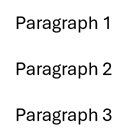
Use the shape.TextArea.ParagraphProperties.ListBullet property to add a bullet symbol to a paragraph and display the paragraph as a bulleted list item. The following bullet types are available:
- CharListBullet
- Uses a UTF-16 character as a bullet. For example: • (U+2022), ▪ (U+25AA) or ➤ (U+27A4). You can pass a bullet symbol in the
CharListBulletconstructor. - ImageListBullet
- Uses an image as a bullet. Specify the ImageListBullet.Image property to set a bullet image.
- NumberingListBullet
- Allows you to create an autonumbering list. Use the NumberingListBullet.StartNumber property to specify from which number or symbol the numbering starts. To format bullets, use the NumberingListBullet.Format property.
All bullet types have the following customization options in common:
- ParagraphProperties.ListBulletColor
- ParagraphProperties.ListBulletFont
- ParagraphProperties.ListBulletSize
using DevExpress.Docs;
using DevExpress.Docs.Presentation;
using DevExpress.Drawing;
using System.Drawing;

namespace PresentationApiSample;

public class Program {
    public static void Main(string[] _) {
        Presentation presentation = new Presentation();
        presentation.Slides.Clear();

        Slide slide = new Slide(SlideLayoutType.Blank);
        presentation.Slides.Add(slide);

        Shape shape = new Shape(ShapeType.Rectangle, 30, 30, 2000, 1000);
        slide.Shapes.Add(shape);

        // Use a numbering bullet for a text paragraph
        NumberingListBullet n_bullet = new NumberingListBullet(NumberingListBulletFormat.WideBlackCircledNumber, 1);
        TextParagraph paragraph1 = new TextParagraph();
        paragraph1.Properties.ListBullet = n_bullet;
        paragraph1.Text = "Paragraph 1";
        shape.TextArea.Paragraphs.Add(paragraph1);

        // Use an image bullet for a text paragraph
        Stream stream = new FileStream(@"..\..\..\data\image.png", FileMode.Open, FileAccess.Read);
        ImageListBullet i_bullet = new ImageListBullet { Image = new OfficeImage(DXImage.FromStream(stream)) };
        TextParagraph paragraph2 = new TextParagraph();
        paragraph2.Properties.ListBullet = i_bullet;
        paragraph2.Text = "Paragraph 2";
        shape.TextArea.Paragraphs.Add(paragraph2);

        // Use a char bullet for a text paragraph
        CharListBullet c_bullet = new CharListBullet('•');
        TextParagraph paragraph3 = new TextParagraph();
        paragraph3.Properties.ListBullet = c_bullet;
        paragraph3.Properties.ListBulletColor = new TextBulletColor(new OfficeColor(Color.Red));
        paragraph3.Text = "Paragraph 3";
        shape.TextArea.Paragraphs.Add(paragraph3);
    }
}
Specify Paragraph Indent Level
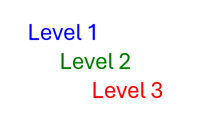
Use the textParagraph.Properties.ListIndentLevel property to set the paragraph’s nesting level in a hierarchical list. Valid values range from 0 to 8. To configure settings for specific levels, use the following properties:
- TextArea.ParagraphProperties
- Properties that are applied to all paragraphs until level-specific properties are not set.
- TextArea.Level1ParagraphProperties
- Properties for paragraphs of Level 1.
- TextArea.Level2ParagraphProperties
- Properties for paragraphs of Level 2.
- TextArea.Level3ParagraphProperties
- Properties for paragraphs of Level 3.
- TextArea.Level4ParagraphProperties
- Properties for paragraphs of Level 4.
- TextArea.Level5ParagraphProperties
- Properties for paragraphs of Level 5.
- TextArea.Level6ParagraphProperties
- Properties for paragraphs of Level 6.
- TextArea.Level7ParagraphProperties
- Properties for paragraphs of Level 7.
- TextArea.Level8ParagraphProperties
- Properties for paragraphs of Level 8.
- TextArea.Level9ParagraphProperties
- Properties for paragraphs of Level 9.
The following example creates a hierarchical list with three levels and applies different settings to each level:
using DevExpress.Docs.Presentation;
using System.Drawing;

namespace PresentationApiSample;

public class Program {
    public static void Main(string[] _) {

        Presentation presentation = new Presentation();

        presentation.Slides.Clear();

        Slide slide = new Slide(SlideLayoutType.Blank);
        presentation.Slides.Add(slide);

        Shape shape1 = new Shape(ShapeType.Rectangle);
        shape1.Outline = new OutlineStyle { Fill = new SolidFill(Color.White), Width = 8 };
        shape1.Fill = new SolidFill(Color.White);
        shape1.X = 1100;
        shape1.Y = 1100;
        shape1.Width = 3000;
        shape1.Height = 3000;

        shape1.TextArea.Paragraphs.Clear();

        shape1.TextArea.Paragraphs.Add(new TextParagraph { Text = "Level 1", Properties = new ParagraphProperties { ListIndentLevel = 0 } });
        shape1.TextArea.Level1ParagraphProperties = new ParagraphProperties { TextProperties = new TextProperties { Fill = new SolidFill(Color.Blue) } };

        shape1.TextArea.Paragraphs.Add(new TextParagraph { Text = "Level 2", Properties = new ParagraphProperties { ListIndentLevel = 1 } });
        shape1.TextArea.Level2ParagraphProperties = new ParagraphProperties { LeftIndent = 100, TextProperties = new TextProperties { Fill = new SolidFill(Color.Green) } };

        shape1.TextArea.Paragraphs.Add(new TextParagraph { Text = "Level 3", Properties = new ParagraphProperties { ListIndentLevel = 2 } });
        shape1.TextArea.Level3ParagraphProperties = new ParagraphProperties { LeftIndent = 200, TextProperties = new TextProperties { Fill = new SolidFill(Color.Red) } };

        slide.Shapes.Add(shape1);
    }
}
Replace Text
Call the TextArea.ReplaceText method to replace text within the TextArea:
using DevExpress.Docs.Presentation;

namespace PresentationApiSample;

public class Program {
    public static void Main(string[] _) {
        //...
        shape.TextArea.ReplaceText("dx-sample.com", "dx-test.org");
        shape.TextArea.ReplaceText(shape.TextArea.FindText("com"), "org");
        shape.TextArea.ReplaceText(new TextRange(10,3), "org");
        shape.TextArea.ReplaceText("dx-sample.com", "dx-test.org", new TextSearchOptions { MatchCase = true, WholeWordOnly = true });
    }
}
Find Text
Call the TextArea.FindText method to obtain all text ranges that contain the specified text:
using DevExpress.Docs.Presentation;

namespace PresentationApiSample;

public class Program {
    public static void Main(string[] _) {
        //...
        IList<TextRange> textRanges = shape.TextArea.FindText("com");
        IList<TextRange> textRanges = shape.TextArea.FindText("com", new TextSearchOptions { MatchCase = true, WholeWordOnly = true });
    }
}
Remove Text
Call the TextArea.RemoveText method to remove the specified text from the TextArea:
using DevExpress.Docs.Presentation;

namespace PresentationApiSample;

public class Program {
    public static void Main(string[] _) {
        //...
        shape.TextArea.RemoveText(shape.TextArea.FindText("com"));
    }
}
Apply Custom Formatting to a Specified Text Range
Call the TextArea.ModifyTextProperties method to apply text properties to a specified text range. For example, you can highlight text (change its background color).
The following code snippet finds all occurrences of the “com” substring in a shape’s text area and changes their font color to red:
using DevExpress.Docs.Presentation;
using System.Drawing;

namespace PresentationApiSample;

public class Program {
    public static void Main(string[] _) {

        Presentation presentation = new Presentation(File.ReadAllBytes(@"..\..\..\data\Presentation.pptx"));

        Shape shape = presentation.Slides[0].Shapes[0] as Shape;

        IList<TextRange> textRanges = shape.TextArea.FindText("com", new TextSearchOptions { MatchCase = true, WholeWordOnly = true });
        foreach (var item in textRanges) {
            shape.TextArea.ModifyTextProperties(item, new TextProperties { Fill = new SolidFill(Color.Red) });
        }
    }
}
Extract Text
For more information on how to extract text from shapes, refer to the following help topic: Extract Presentation Content.