Data Source Wizard
- 2 minutes to read
The Data Source Wizard allows you to configure a data source for a Report.
Use the Data Source Wizard
You can invoke the Data Source Wizard in the following ways:
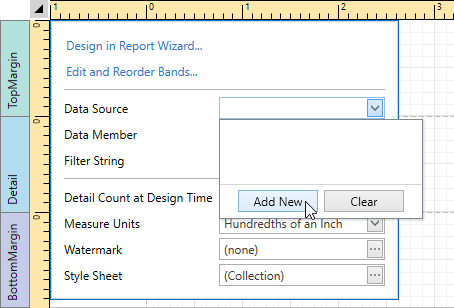
Click the report’s smart tag, expand the XtraReportBase.DataSource property drop-down menu and click Add New to bind an existing report or its Detail Report band to data.
Alternatively, click the Add Data Source button in the toolbar.
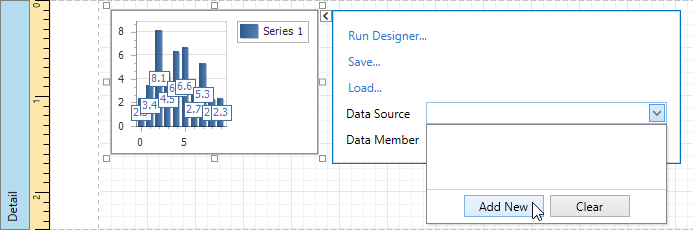
Click a control’s smart tag, expand the XtraReportBase.DataSource property drop-down menu, and click Add New to connect the Chart, Pivot Grid, and Sparkline report controls to individual data sources.
You can also invoke the Report Wizard to add a new data-bound report to your application. The Report Wizard contains Data Source Wizard pages.
Start Pages
The following pages appear when you invoke the Data Source Wizard:
-
Specify whether to use an existing data connection or create a new data connection.
-
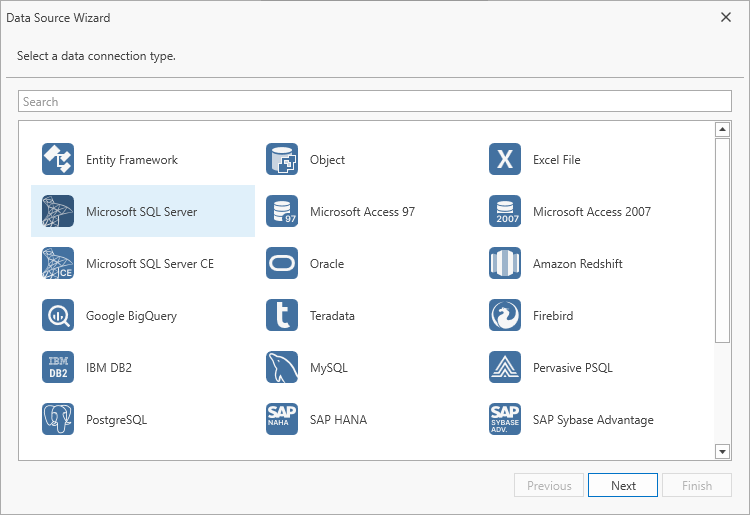
Choose the required data connection type.
Supported Data Source Types
The wizard supports the following data source types:
-
Obtains data from all major data providers (Microsoft SQL Server, XML data, Microsoft Access, Oracle, etc.).
A list of supported SQL data sources is available in the following help topic: Supported Databases.
-
Binds to a Microsoft ADO.NET Entity Framework data source.
-
Connects to any data object that implements the IList, IList<T>, or IEnumerable<T> interface.
-
Obtains data from Microsoft Excel workbooks (XLS, XLSX or XLSM files) or CSV files.
-
Connects to JSON-formatted data. The WPF Data Source Wizard displays this option if the application references the System.Text.Json library.
-
Connects to a MongoDB instance. The WPF Data Source Wizard displays this option if the MongoDB.Driver package is installed in your project.
-
Binds to XPO data. This option is initially hidden in the WPF Data Source Wizard.
-
Retrieves data from multiple data sources.
-
A custom connection string allows you to pass additional connection parameters and establish a connection to any SQL database.
To customize the list of displayed data connection types, use the DataSourceWizardSettings.AvailableDataSourceTypes property. You can also limit the number of SQL data providers displayed on the Select a Data Connection Type page. Use the SqlWizardSettings.AvailableDataProviders property.