AI Chat Control
- 12 minutes to read
Note
The DevExpress AI Chat Control (AIChatControl) can only be used in Windows Forms applications that target the .NET 8+ framework.
The AI Chat Control (AIChatControl) allows you to incorporate an interactive, Copilot-inspired chat-based UI within your WinForms application. This control leverages BlazorWebView to reuse the DevExpress Blazor AI Chat component (DxAIChat).

Tip
The following example extends the DevExpress WinForms Chat Client App demo. It creates a Copilot-inspired, AI-powered chat interface without using BlazorWebView. The example uses ‘native’ DevExpress UI controls (such as the GridControl, MemoEdit, and HtmlContentControl). The app targets .NET Framework 4.6.2 or later and integrates with the Azure OpenAI service to support conversational engagement, Markdown rendering, and structured message display within a fully native WinForms environment.
Getting Started
Install DevExpress NuGet Packages
DevExpress.AIIntegration.WinForms.ChatDevExpress.Win.Design(enables design-time features for DevExpress UI controls)
Change Project SDK
Update the project SDK to Microsoft.NET.Sdk.Razor:
<Project Sdk="Microsoft.NET.Sdk.Razor">
Register AI Client
See the following help topic for information on required NuGet packages and system requirements: Register an AI Client.
The following code snippet registers the Azure OpenAI client:
using Microsoft.Extensions.AI;
using DevExpress.AIIntegration;

internal static class Program {
    [STAThread]
    static void Main() {
        Application.EnableVisualStyles();
        Application.SetCompatibleTextRenderingDefault(false);
        IChatClient azureChatClient = new Azure.AI.OpenAI.AzureOpenAIClient(new Uri(AzureOpenAIEndpoint),
            new System.ClientModel.ApiKeyCredential(AzureOpenAIKey))
            .GetChatClient(ModelId).AsIChatClient();
        AIExtensionsContainerDesktop.Default.RegisterChatClient(azureChatClient);
        Application.Run(new Form1());
    }
    static string AzureOpenAIEndpoint { get { return Environment.GetEnvironmentVariable("AZURE_OPENAI_ENDPOINT"); } }
    static string AzureOpenAIKey { get { return Environment.GetEnvironmentVariable("AZURE_OPENAI_APIKEY"); } }
    static string ModelId { get { return "gpt-4o-mini"; } }
}
Create AI Chat Control
Drop the AIChatControl from the toolbox onto a Form.
Note
The AI Chat Control does not support design-time rendering.
The following code snippet creates the AIChatControl with default settings:
using DevExpress.AIIntegration.WinForms.Chat;

public partial class Chat : XtraForm {
    public Chat() {
        InitializeComponent();

        AIChatControl chat = new AIChatControl(){
            Name = "aiChatControl1",
            Dock = DockStyle.Fill
        };
        this.Controls.Add(chat);
    }
}
AI Chat Project Templates
Use the following AI Chat project templates to create a chat application that integrates the AI Chat Control:
- AI Chat Application
- Creates a WinForms chat app that integrates the AI Chat Control.
- AI Chat (RAG) Application
- Creates a desktop WinForms application with the AI Chat Control and built-in Retrieval-Augmented Generation (RAG) for document-grounded conversations.
Both templates support .NET 9 / .NET 10 and integrate the DevExpress MCP Server for DevExpress-specific guidance.
Refer to the following help topic for additional information: AI Chat Project Templates.
Streaming
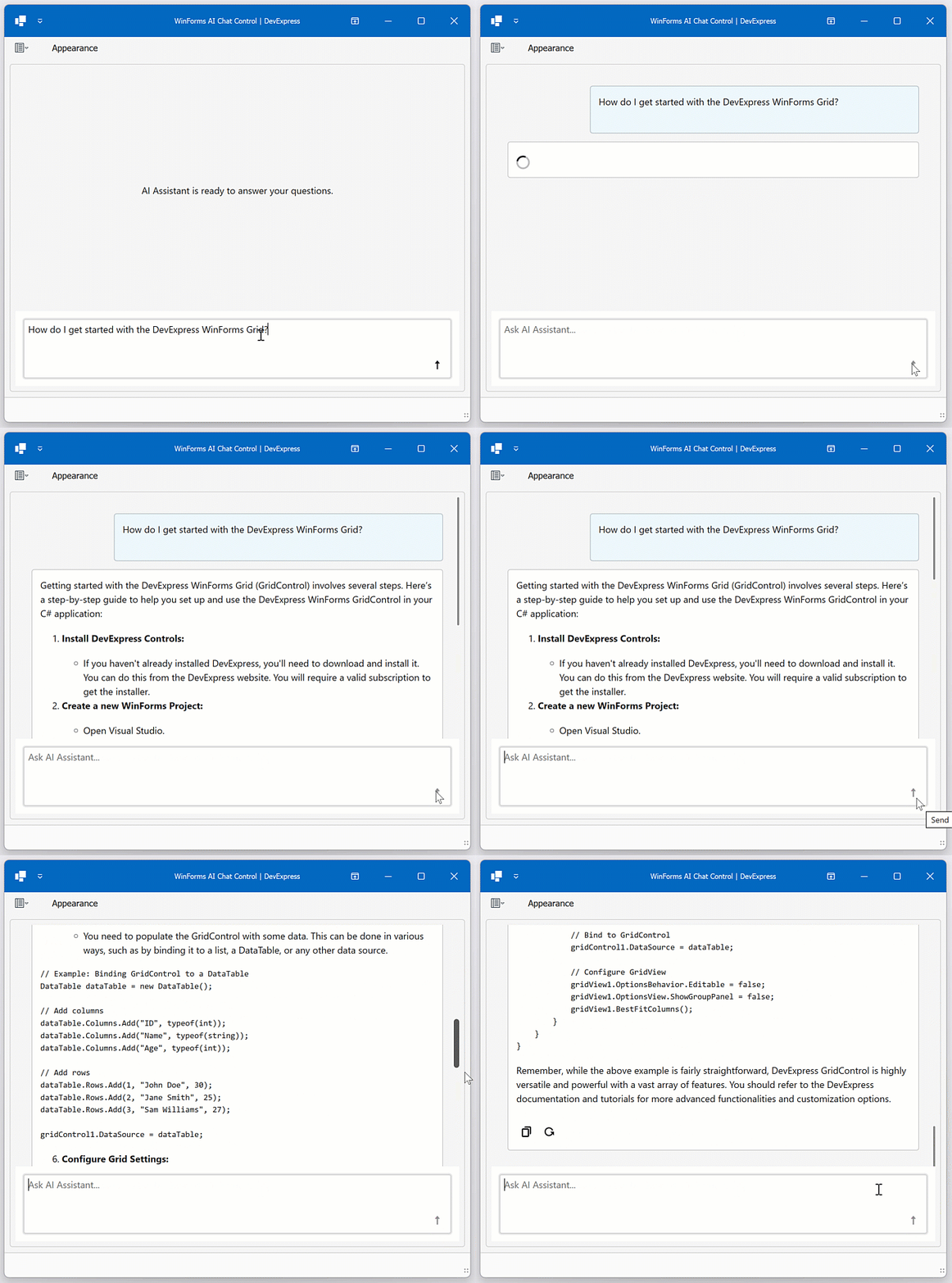
The AI Chat Control can display responses from the AI assistant as they are generated in a natural, conversational flow (rather than waiting for the entire message to complete before showing it to the user). Enable the UseStreaming setting to activate streaming:
Play the following animation to see the result:
Markdown Message Rendering
- Set the
ContentFormatproperty to Markdown to receive responses as Markdown. - Handle the
MarkdownConvertevent to convert Markdown text into HTML and make responses more readable, structured, and visually appealing.
Warning
Always sanitize AI-generated content before rendering it in the UI.
The following example enables Markdown message rendering. The example uses the Markdig Markdown processing library to convert Markdown text into HTML.
using DevExpress.AIIntegration.Blazor.Chat;
using DevExpress.AIIntegration.Blazor.Chat.WebView;
using Ganss.Xss;
using Markdig;

var sanitizer;

public Chat() {
    InitializeComponent();
    sanitizer = new HtmlSanitizer();
    aiChatControl1.ContentFormat = ResponseContentFormat.Markdown
    aiChatControl1.MarkdownConvert += AiChatControl1_MarkdownConvert
}

void AiChatControl1_MarkdownConvert(object sender, AIChatControlMarkdownConvertEventArgs e) {
    // Convert Markdown to HTML.
    string html = Markdown.ToHtml(e.MarkdownText);

    // WARNING: The AI agent's content may be untrusted.
    // Developers must sanitize all HTML before rendering to prevent XSS attacks.
    string safeHtml = sanitizer.Sanitize(html);

    // Assign sanitized HTML for rendering.
    e.HtmlText = (MarkupString)safeHtml;
}
The following screenshot shows the result:

File Attachments
Users can now attach files directly to their chat messages. The AI analyzes document content (such as text files, PDFs, images) and delivers more context-aware responses.

To activate file upload:
Enable the
FileUploadEnabledproperty to allow users to attach files.aiChatControl1.FileUploadEnabled = DevExpress.Utils.DefaultBoolean.True;Configure additional settings based on your project requirements (the maximum file size, allowed file types/extensions, the maximum number of files that users can attach to a message):
chat.OptionsFileUpload.FileTypeFilter.AddRange(new List<string> { "text/plain", "application/pdf", "image/png" }); // Allowed MIME types.
chat.OptionsFileUpload.AllowedFileExtensions.AddRange(new List<string> { ".txt", ".pdf", ".png" });
chat.OptionsFileUpload.MaxFileCount = 5;
chat.OptionsFileUpload.MaxFileSize = 5 * 1024 * 1024; // 5 MB
Tip
See the following article for more information on MIME types (FileTypeFilter): Common Media Types.
Prompt Suggestions
To help users get started or explore new possibilities, the DevExpress AI Chat Control can display prompt suggestions.
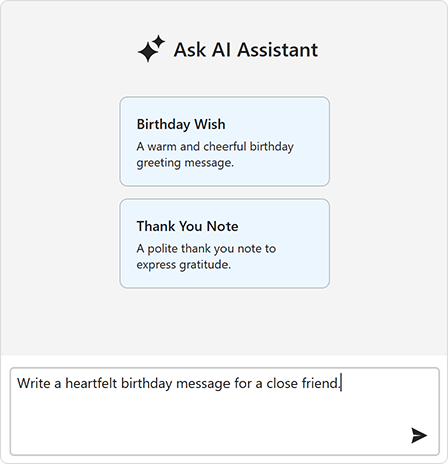
Use the SetPromptSuggestions method to supply relevant prompts:
using DevExpress.AIIntegration.Blazor.Chat.WebView;

aiChatControl1.SetPromptSuggestions(new List<PromptSuggestion>(){
    new PromptSuggestion(
        title: "Birthday Wish",
        text: "A warm and cheerful birthday greeting message.",
        prompt: "Write a heartfelt birthday message for a close friend."),

    new PromptSuggestion(
        "Thank You Note",
        "A polite thank you note to express gratitude.",
        "Compose a short thank you note to a colleague who helped with a project.")
});
The AI Chat Control automatically inserts a selected prompt suggestion into the chat prompt box so users can edit it before sending. Activate the PromptSuggestion.SendOnClick option to send a prompt suggestion to the AI service immediately after it is clicked.
Customize Empty Text
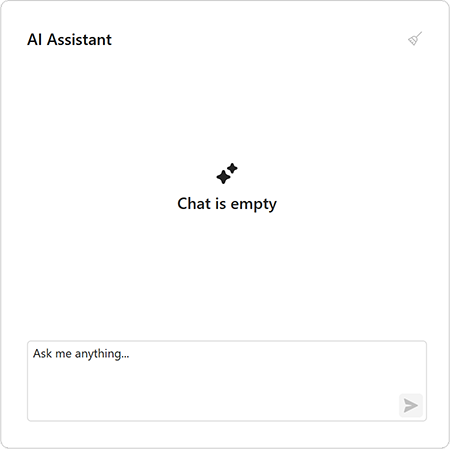
Use the EmptyStateText property to specify the message displayed when a chat has yet to start:
The following screenshot demonstrates the result:

Use the InputBoxNullText property to specify the prompt text displayed in the AI Chat input box when it is empty.
Tip
Use the SetEmptyMessageAreaTemplate method to customize the UI when the chat has no message history.
Customize Chat UI and Appearance
The AIChatControl supports appearance customization through Razor-based templates. You can customize chat messages, prompt suggestions, and the text displayed when the chat has no message history.
Message Templates
Use the following methods to customize chat message container (including paddings and inner content alignment) and content:
SetMessageTemplate(RenderFragment<BlazorChatMessage> template)SetMessageContentTemplate(RenderFragment<BlazorChatMessage> template)
Note
- The Message Template property takes priority over the Message Content Template if both templates are specified.
- The
SetMessageContentTemplatemethod does not support messages whenContentFormatis set toMarkdown. When usingMessageContentTemplate, implement markdown rendering logic within your custom template.
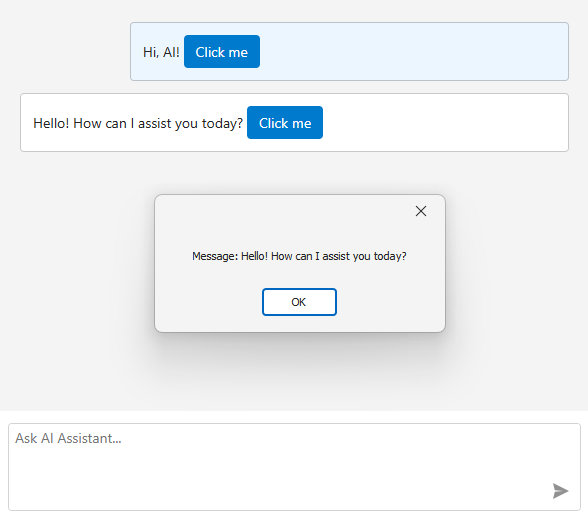
The following example displays a custom button within chat messages. When a user clicks the button, a message box appears.
using DevExpress.XtraEditors;
using Microsoft.AspNetCore.Components;
using using DevExpress.AIIntegration.Blazor.Chat;

public Form1() {
    InitializeComponent();

    aiChatControl1.SetMessageContentTemplate(message => builder => {
        builder.OpenComponent<Message>(0);
        builder.AddAttribute(1, "message", message);
        builder.AddAttribute(2, "OnButtonClick", EventCallback.Factory.Create<BlazorChatMessage>(this, CustomButtonClick));
        builder.CloseComponent();
    });
}

void CustomButtonClick(BlazorChatMessage message) {
    XtraMessageBox.Show($"Message: {message.Text}");
}
The Message.razor file:
@using DevExpress.AIIntegration.Blazor.Chat
@using DevExpress.Blazor
@using DevExpress.Images.Blazor

<style>
    .example-message-buttons-container {
        margin-top: 5px;
    }
</style>

@Message.Text

@if (Message.Role == ChatMessageRole.User) {
    <div class="example-message-buttons-container">
        <DxButton Click="OnDeleteClick" IconUrl="@Icon.Delete" RenderStyleMode="ButtonRenderStyleMode.Text" />
    </div>
}

@code {
    [Parameter]
    public BlazorChatMessage Message { get; set; } = default!;

    [Parameter]
    public EventCallback<string> OnDeleteButtonClick { get; set; }

    Task OnDeleteClick() => OnDeleteButtonClick.InvokeAsync(Message.Text);
}
Prompt Suggestion Template
Use the SetPromptSuggestionContentTemplate(RenderFragment<IPromptSuggestion> template) method to customize prompt suggestions.
Empty Message Area Template
Use the SetEmptyMessageAreaTemplate(RenderFragment template) method to customize the UI when the chat has no message history.
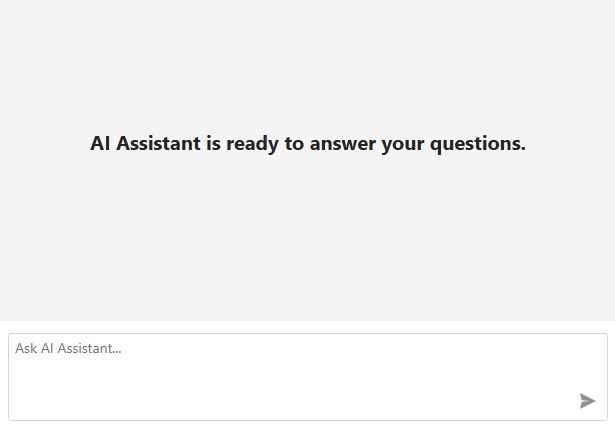
aiChatControl1.SetEmptyMessageAreaTemplate(builder => {
    builder.OpenComponent<EmptyArea>(0);
    builder.CloseComponent();
});
The EmptyArea.razor file:
<style>
    .demo-chat-ui-description {
        font-weight: bold;
        font-size: 20px;
        text-align: center;
    }
</style>

<div class="demo-chat-ui-description">
    AI Assistant is ready to answer your questions.
</div>
Title and Clear Chat Button
The AIChatControl can display the header. The header contains a customizable chat title and a Clear Chat button (removes all messages from the conversation history except system messages).

Use the AIChatControl.ShowHeader option to display the chat header. The AIChatControl.HeaderText property specifies the chat title.
aiChatControl1.ShowHeader = DevExpress.Utils.DefaultBoolean.True;
aiChatControl1.HeaderText = "AI Assistant";
Resize Input Area
Enable the AIChatControl.AllowResizeInput option to allow users resize the input area. Users can drag the top edge up to enlarge the input area or down to display a more detailed chat history.
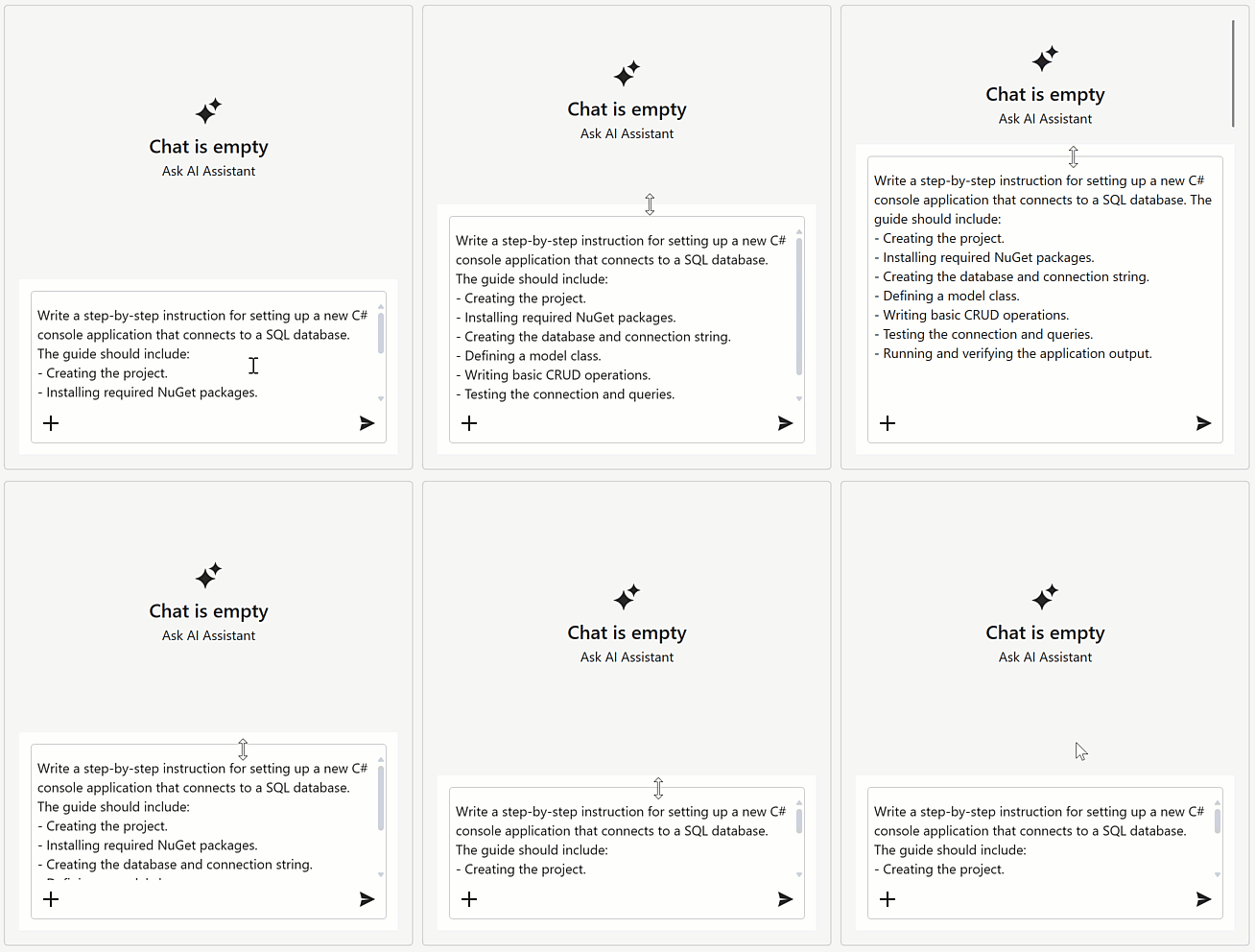
aiChatControl1.AllowInputResize = DevExpress.Utils.DefaultBoolean.True;
Handle Chat Messages
Handle the MessageSending event to process a user message before it is added to chat history and sent to the AI service. For example, you can log a message to a database, remove personally identifiable information (PII) from the message text, add system instructions, or apply custom logic.
Set the e.Cancel event parameter to true to block automatic message delivery.
The following code snippet adds a system instruction before the user message is sent:
using DevExpress.AIIntegration.Blazor.Chat.WebView;
using Microsoft.Extensions.AI;

public Chat() {
    InitializeComponent();
    aiChatControl1.MessageSending += AiChatControl1_MessageSending;
}

async void AiChatControl1_MessageSending(object sender, AIChatControlMessageSendingEventArgs e) {
    await e.Chat.AppendMessageAsync("Translate text to Spanish", ChatRole.System);
}
Conversation History
Stateless and Stateful Chat Services
The AI Chat Control supports both stateless and stateful AI services. This distinction affects how conversation history is managed and how the control behaves when users clear chat content.
- Stateless Services
Stateless services do not retain conversation context between requests. To preserve context, the AI Chat Control sends the full message history with each user request. In this mode:
- The service does not store conversation state.
- The AI Chat Control maintains conversation history.
- Clearing chat content removes all context.
- Stateful Services
Stateful services maintain conversation history on the server. These services return a
ConversationIdvalue that identifies the current conversation session. When the AI Chat Control detectsConversationId, it automatically switches to stateful mode behavior:- The AI Chat Control stores the conversation identifier.
- Subsequent requests send only new messages instead of the entire chat history.
- The AI service reconstructs the conversation context automatically.
Clear Chat Behavior for Stateful Services
For stateful services, clearing messages in the user interface does not automatically remove server-side conversation state. To ensure that the Clear button starts a completely new conversation, the AI Chat Control reinitializes IChatResponseProvider.
Register IChatResponseProvider as a transient dependency. This ensures that the AI Chat Control creates a new provider instance when chat content is cleared.
serviceCollection.AddTransient<IChatResponseProvider>(
    new AzureOpenAIClient("endpoint", "apiKey")
    .GetResponsesClient()
    .AsIChatClient("modelId")
    .AsIChatResponseProvider());
Save and Load Chat History
Use the following methods to manage chat history:
SaveMessages– Returns anIEnumerable<ChatMessage>collection of messages.LoadMessages– Loads messages from the specifiedIEnumerable<ChatMessage>collection to the AI Chat Control and refreshes the control.
The following example saves/loads chat history when the user clicks the Save/Load button:
public partial class Chat : XtraForm {
    List<BlazorChatMessage> chatHistory;
    public Chat() {
        InitializeComponent();
        buttonSave.Click += ButtonSave_Click;
        buttonLoad.Click += ButtonLoad_Click;
    }

    void ButtonSave_Click(object sender, EventArgs e) {
        chatHistory = (List<BlazorChatMessage>)aiChatControl1.SaveMessages();
    }

    void ButtonLoad_Click(object sender, EventArgs e) {
        if(chatHistory != null)
            aiChatControl1.LoadMessages(chatHistory);
    }
}
Resources
The AIChatControl can access external or dynamically generated data through resources. A resource is an instance of the AIChatResource class that supplies text or binary content to the AI model at request time.
Resources extend the chat context with additional input (for example, local documents, logs, or images). The AI model uses this data to generate more accurate and context-aware responses.
After you assign resources, the AIChatControl displays the “Attach Context” (+) button. Users can select one or more resources to include in the chat request.

See the following help topic for more information: Resources.
Create an Assistant That Chats Using Your Own Data
When integrating the AI Chat Control with an AI Assistant API (for example, the OpenAI Responses API or Azure AI Projects), you can configure the control to work with external data sources (for example, text files or PDF documents).
Refer to the following help topic for additional information: Chat with Your Own Data.
Manage Multiple Chat Client Services
The WinForms AIChatControl supports multiple AI services in a single application, which enables you to:
- Run several independent chat UIs side by side powered by different AI services.
- Use one chat UI and dynamically switch between AI services or AI agents.
See the following help topic for more information: Manage Multiple Chat Clients.
Troubleshooting
Deploy to Windows Server
When deploying WinForms applications with the AI Chat Control to Windows Server or earlier versions of Windows, you may encounter the following error:
Warning
Microsoft.Web.WebView2.Core.WebView2RuntimeNotFoundException: ‘Could not find a compatible WebView2 Runtime installation to host WebViews.’
The WinForms AI Chat Control leverages BlazorWebView to reuse the DevExpress Blazor DxAIChat component. This integration requires the WebView2 runtime to be installed on the target machine.
Windows 11 includes WebView2. However, earlier versions of Windows and Windows Server may not have it pre-installed. To ensure compatibility, refer to the following help topic for information on distributing the WebView2 runtime with your WinForms application to operating systems other than Windows 11: Distribute your app and the WebView2 Runtime.