# Conditional Formatting | WinForms Controls | DevExpress Documentation
The Pivot Grid control includes a Microsoft Excel-inspired conditional formatting feature that allows you to change the appearance of individual cells based on specific conditions. This feature helps to highlight important information, identify trends and exceptions, and compare data using the collection of format rules.
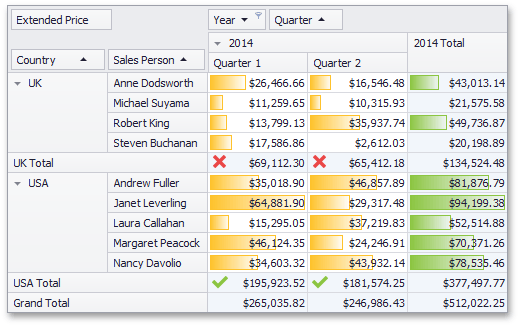
You can add, remove or edit format rules in different ways: using the PivotGrid Designer at design time, using API or at runtime. You can easily [export](/WindowsForms/1800/controls-and-libraries/pivot-grid/printing-and-exporting/exporting) the result of conditional formatting to a file in various formats (HTML, MHT, PDF, RTF, TXT, CSV, XLS or XLSX).
Tip
**Demo**: [Format Rules module in the XtraPivotGrid MainDemo](dxdemo://Win/XtraPivotGrid/MainDemo/FormatRules)
*Requires installation of WinForms Subscription*. [Download](https://www.devexpress.com/products/try/).
## Create Format Rules
To create a new formatting rule at design time, invoke the [PivotGrid Designer](/WindowsForms/1825/controls-and-libraries/pivot-grid/design-time-features/pivotgrid-designer) and go to the [Format Rules](/WindowsForms/1830/controls-and-libraries/pivot-grid/design-time-features/pivotgrid-designer/format-rules-page) page in the **Appearances** section.
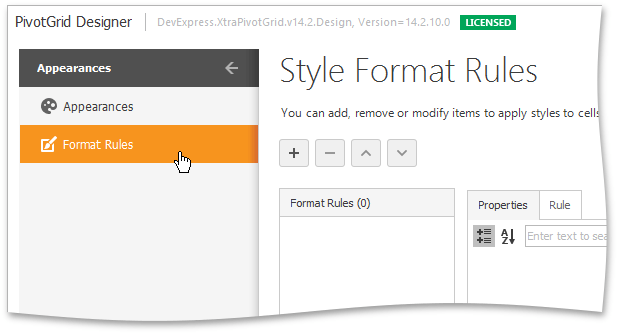
1. Use the  button to add a new rule to the collection. To delete the rule, select it and click the  button.
2. Set the [PivotGridFormatRule.Measure](/WindowsForms/DevExpress.XtraPivotGrid.PivotGridFormatRule.Measure) property that defines the data field to whose values the format rule is applied.
3. Select one of the [PivotGridFormatRule.Settings](/WindowsForms/DevExpress.XtraPivotGrid.PivotGridFormatRule.Settings) property values that specify which data cell/field intersections are involved in conditional formatting. You can select an intersection of row and column fields or specify the type of cells.
4. Select the [FormatRuleBase.Rule](/WindowsForms/DevExpress.XtraEditors.FormatRuleBase.Rule) property value that specifies the type of a format rule and defines condition and appearance settings applied to data cells.
You can select one of the following rules.
| **Format rule** | **Condition Class** | **Short Description** | Fields Intersection Support | Data Cells Specifying Support |
| --- | --- | --- | --- | --- |
| Format based on value | [FormatConditionRuleValue](/WindowsForms/DevExpress.XtraEditors.FormatConditionRuleValue) | Applies a format if a column’s value meets a specified condition (Equal, Less, Between, etc.). |  |  |
| Format based user defined expression | [FormatConditionRuleExpression](/WindowsForms/DevExpress.XtraEditors.FormatConditionRuleExpression) | Applies a format if a cell value(s) meets a specific expression. |  |  |
| Format only values that contain | [FormatConditionRuleContains](/WindowsForms/DevExpress.XtraEditors.FormatConditionRuleContains) | Applies a format if a value(s) matches one of the constants. |  |  |
| Format only values that are above or below average | [FormatConditionRuleAboveBelowAverage](/WindowsForms/DevExpress.XtraEditors.FormatConditionRuleAboveBelowAverage) | Applies a format if a cell value(s) is above or below the fields intersection data average. |  | – |
| Format using two-color scales | [FormatConditionRule2ColorScale](/WindowsForms/DevExpress.XtraEditors.FormatConditionRule2ColorScale) | Applies a format using a two-color scale to display data distribution and variation using a gradation of two colors. |  | – |
| Format using three-color scales | [FormatConditionRule3ColorScale](/WindowsForms/DevExpress.XtraEditors.FormatConditionRule3ColorScale) | Applies a format using a three-color scale to display data distribution and variation using a gradation of three colors. |  | – |
| Format only top or bottom rank values | [FormatConditionRuleTopBottom](/WindowsForms/DevExpress.XtraEditors.FormatConditionRuleTopBottom) | Applies a format if a value is in the range of the highest or lowest field intersection data values. |  | – |
| Format using Data bar | [FormatConditionRuleDataBar](/WindowsForms/DevExpress.XtraEditors.FormatConditionRuleDataBar) | Applies a format using a data bar. The bar length changes proportionally to cell value. A longer bar corresponds to a higher value, and a shorter bar corresponds to a lower value. |  | – |
| Format using icons | [FormatConditionRuleIconSet](/WindowsForms/DevExpress.XtraEditors.FormatConditionRuleIconSet) | Applies a format using an icon set. An icon set format allows you to classify column values into several ranges separated by threshold values, and display a specific icon in a column cell according to the range to which this cell value belongs. |  | – |
5. Set the appearance of formatted cells. You can do this in two ways.
- Use the rule’s **PredefinedName** property that sets the name of the predefined style pattern for the current conditional formatting rule.
- Use the rule’s **Appearance** property that provides access to appearance settings.
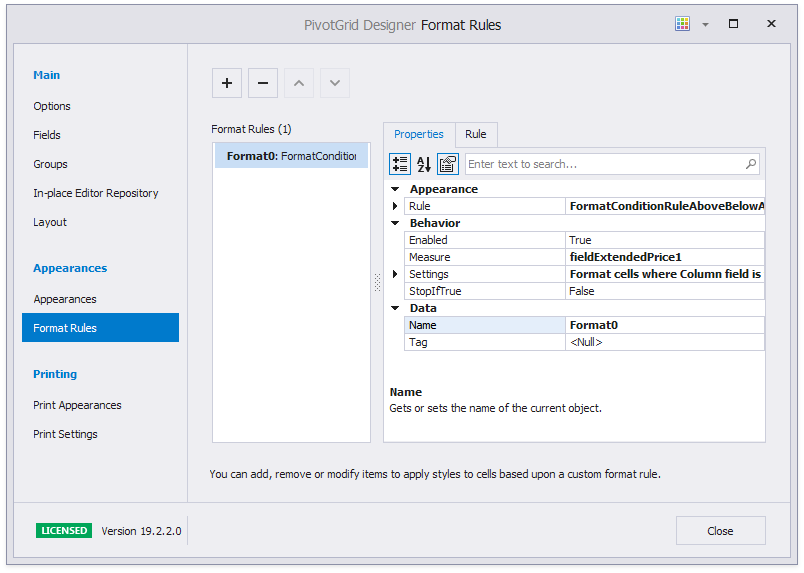
The image below demonstrates a configured rule.
To check whether the format rule is correct, use the [PivotGridFormatRule.IsValid](/WindowsForms/DevExpress.XtraPivotGrid.PivotGridFormatRule.IsValid) property. If this property returns **true**, the format rule is applied to Pivot Grid [data cells](/WindowsForms/1693/controls-and-libraries/pivot-grid/ui-elements/data-area).
To disable the format rule, set the [FormatRuleBase.Enabled](/WindowsForms/DevExpress.XtraEditors.FormatRuleBase.Enabled) property to **false**.
You can use the [FormatRuleBase.Description](/WindowsForms/DevExpress.XtraEditors.FormatRuleBase.Description) property to specify a text description for the created format rule.
## Edit Format Rules
There are two general ways of applying formatting rules to the Pivot Grid control at runtime: using the **Format Rules Menu** or the **Conditional Formatting Manager**.
**Format Rules context menu**
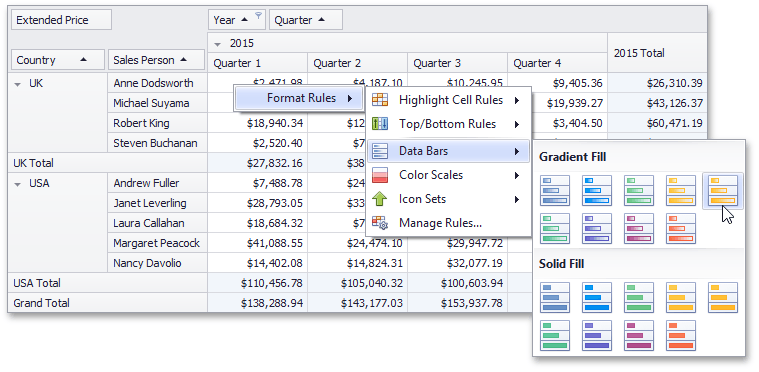
If the [PivotGridOptionsMenu.EnableFormatRulesMenu](/WindowsForms/DevExpress.XtraPivotGrid.PivotGridOptionsMenu.EnableFormatRulesMenu) property value is set to **true**, end-users can invoke the Format Rules context menu and select a required rule and predefined style from the list.
Important
To enable the multi-column item layout at the third menu level shown in the image above, add the [BarManager](/WindowsForms/DevExpress.XtraBars.BarManager) component to the form. Otherwise, menu elements at the third menu level will be arranged in a linear list; specific menu items will be displayed without glyphs.
**Conditional Formatting Rules Manager**
End-users can create, sort and modify the created rules using the **Conditional Formatting Rules Manager**. To allow end-users to use the Conditional Formatting Rules Manager, ensure that the control’s [PivotGridOptionsMenu.EnableFormatRulesMenu](/WindowsForms/DevExpress.XtraPivotGrid.PivotGridOptionsMenu.EnableFormatRulesMenu) property is set to **true**.
To invoke this manager at runtime, select the **Manage Rules…** item from the Format Rules context menu.
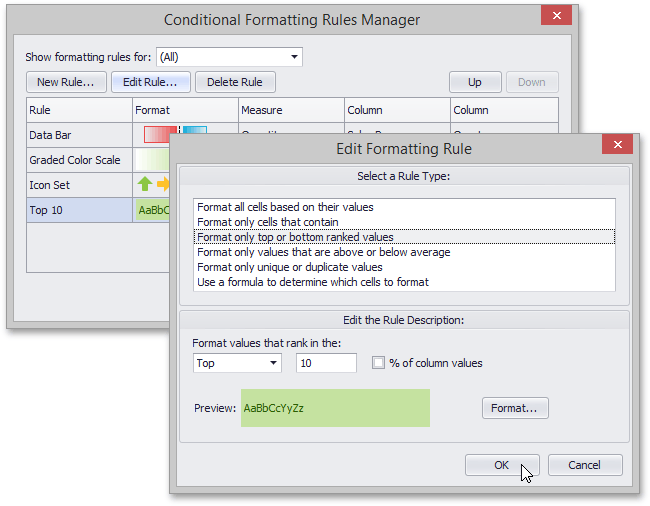
- To **create** a new rule, click the **New Rule…** button, select a rule type and specify its parameters. Depending on rule type, you can set maximum and minimum values, specify format, colors or icon style, etc.
- To **edit** the existing rule, click the **Edit Rule…** button and change the rule parameters. Besides that, you can see the rule’s format preview and specify the row, measure and column in the list of rules in the main window.
- To **delete** the rule, select the rule and click the **Delete Rule** button.
- To **reorder** rules, select the rule and click **Up** or **Down** button.
## Create Format Rules in Code
The Pivot Grid control allows you to apply conditional formatting to data cells or field value cells. By default, an empty collection of style format rules is created with a new instance of the [PivotGridControl](/WindowsForms/DevExpress.XtraPivotGrid.PivotGridControl). The [PivotGridControl.FormatRules](/WindowsForms/DevExpress.XtraPivotGrid.PivotGridControl.FormatRules) property provides access to a collection of [PivotGridFormatRule](/WindowsForms/DevExpress.XtraPivotGrid.PivotGridFormatRule) objects that are used to define formatting settings.
To add a new format rule, create the [PivotGridFormatRule](/WindowsForms/DevExpress.XtraPivotGrid.PivotGridFormatRule) object and specify the following settings.
- Create a required rule (the [FormatConditionRuleBase](/WindowsForms/DevExpress.XtraEditors.FormatConditionRuleBase) descendant), specify its settings and assign the resulting object to the [FormatRuleBase.Rule](/WindowsForms/DevExpress.XtraEditors.FormatRuleBase.Rule) property.
- Set a data field whose values are checked using the specified rule by specifying the [PivotGridFormatRule.Measure](/WindowsForms/DevExpress.XtraPivotGrid.PivotGridFormatRule.Measure) property.
- Specify the intersection level or data cells type (the [FormatRuleSettings](/WindowsForms/DevExpress.XtraPivotGrid.FormatRuleSettings) descendant) used to apply formatting using the [PivotGridFormatRule.Settings](/WindowsForms/DevExpress.XtraPivotGrid.PivotGridFormatRule.Settings) property.
Finally, add the created format rule to the [PivotGridControl.FormatRules](/WindowsForms/DevExpress.XtraPivotGrid.PivotGridControl.FormatRules) collection.
## Conditional Formatting Limitations
See the list below for information on conditional formatting limitations.
- The [FormatConditionRule2ColorScale](/WindowsForms/DevExpress.XtraEditors.FormatConditionRule2ColorScale), [FormatConditionRule3ColorScale](/WindowsForms/DevExpress.XtraEditors.FormatConditionRule3ColorScale) and [FormatConditionRuleIconSet](/WindowsForms/DevExpress.XtraEditors.FormatConditionRuleIconSet) format rules are not rendered in the Print Preview and exported documents.
- The [data-aware export mode](/WindowsForms/1800/controls-and-libraries/pivot-grid/printing-and-exporting/exporting) does not support the Conditional Formatting feature. To export PivotGrid data with applied format rules to the XLS and XLSX formats, change the export type to [WYSIWYG](/WindowsForms/1800/controls-and-libraries/pivot-grid/printing-and-exporting/exporting).
- When [printing](/WindowsForms/1801/controls-and-libraries/pivot-grid/printing-and-exporting/printing) the Pivot Grid control and exporting it to the PDF, HTML, MHT, RTF and XLS(X) formats in **WYSIWYG** export mode, conditional formatting rules that use icons and data bars are not printed/exported.
## Example: How To Apply Format Rules
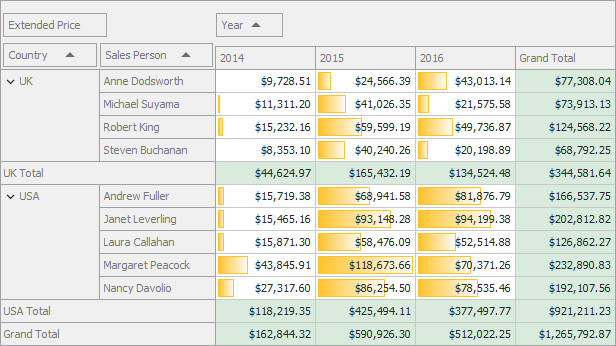
The following example shows how to apply a data bar format condition (the [FormatConditionRuleDataBar](/WindowsForms/DevExpress.XtraEditors.FormatConditionRuleDataBar) class) to the Pivot Grid data cells. The Pivot Grid paints cells placed at the intersection of the `Year` column and the `Sales Person` row with the yellow gradient. A longer bar corresponds to a higher value, and a shorter bar corresponds to a lower value.
The image below shows the resulting UI.
[View Example](https://github.com/DevExpress-Examples/winforms-pivot-grid-apply-format-rules-to-data-cells)
- Form1.cs
- Form1.vb
See Also
[Format Rules Page](/WindowsForms/1830/controls-and-libraries/pivot-grid/design-time-features/pivotgrid-designer/format-rules-page)