# Grouping | WinForms Controls | DevExpress Documentation
This topic describes how to group values of column and row Pivot Grid fields bound to data source columns. These techniques are applicable in [In-Memory](/CoreLibraries/401530/devexpress-pivot-grid-core-library/pivot-grid-modes/in-memory-mode/in-memory-mode) and [Server](/CoreLibraries/403803/devexpress-pivot-grid-core-library/pivot-grid-modes/server-mode) data processing modes. Grouping is not supported in [OLAP](/CoreLibraries/403809/devexpress-pivot-grid-core-library/pivot-grid-modes/olap-mode) mode.
## Grouping Overview
Pivot Grid allows you to group field values into bigger categories (ranges). For example, values of a column/row field that displays date/time data can be grouped by years, months, quarters, and so on. Numeric values can be grouped into numeric ranges. String values can be grouped by the initial characters of the values.
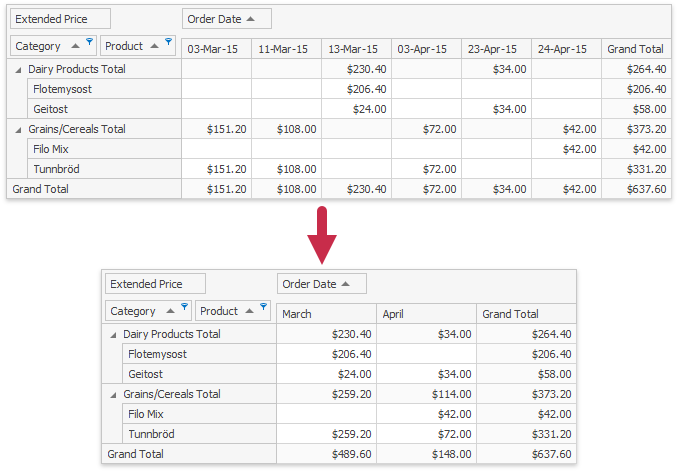
The following image demonstrates how the Pivot Grid groups values of the *Order Date* column field by month:
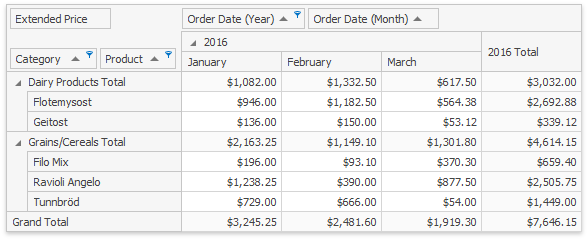
You can bind multiple Pivot Grid fields to the same data source field, and group values of these Pivot Grid fields independently of each other. The image below shows two column fields that are bound to the *Order Date* data source field, and grouped by years and months, respectively.
Refer to the following article for information on how to use group intervals to create hierarchies and display data of the same source field at different detail levels: [Hierarchical Value Presentation](/WindowsForms/1796/controls-and-libraries/pivot-grid/fundamentals/hierarchical-value-presentation).
## Predefined Group Intervals
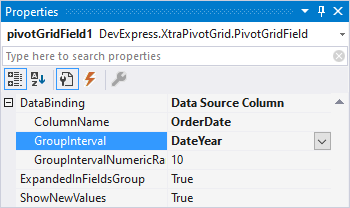
To group values of column or row fields, set the field’s *group interval*. For example, you can set this option in the Properties grid:
Use the following properties to set the field’s group interval in code:
[DataSourceColumnBindingBase.GroupInterval](/CoreLibraries/DevExpress.PivotGrid.DataBinding.DataSourceColumnBindingBase.GroupInterval) - is used when the Pivot Grid operates in Server or In-Memory mode with the Optimized calculation engine ([DataProcessingEngine](/CoreLibraries/DevExpress.XtraPivotGrid.PivotGridOptionsData.DataProcessingEngine) is set to `Optimized`).
[PivotGridFieldBase.GroupInterval](/CoreLibraries/DevExpress.XtraPivotGrid.PivotGridFieldBase.GroupInterval) - is used when the Pivot Grid operates in In-Memory mode with the Legacy or LegacyOptimized data processing engines ([DataProcessingEngine](/CoreLibraries/DevExpress.XtraPivotGrid.PivotGridOptionsData.DataProcessingEngine) is set to `Legacy`, `LegacyOptimized`, or `Default`).
The Pivot Grid allows you to group date/time, numeric, and string field values.
### Group Date-Time Values
When you group date-time field values, you can set the `GroupInterval` property to one of the following options:
- Date
- DateDay
- DateDayOfWeek
- DateDayOfYear
- DateWeekOfMonth
- DateWeekOfYear
- DateMonth
- DateQuarter
- DateYear
- YearAge
- MonthAge
- WeekAge
- DayAge
- Hour
- Minute
- Second
- DateMonthYear
- DateQuarterYear
- DateHour
- DateHourMinute
- DateHourMinuteSecond
- DateWeekYear
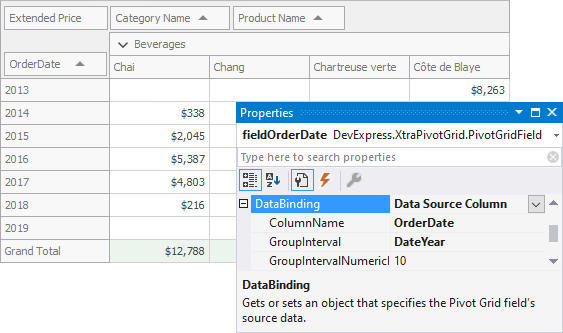
The following Pivot Grid control groups data in the *OrderDate* column by year:
You can use the [DataSourceColumnBindingBase.GroupIntervalNumericRange](/CoreLibraries/DevExpress.PivotGrid.DataBinding.DataSourceColumnBindingBase.GroupIntervalNumericRange)([PivotGridFieldBase.GroupIntervalNumericRange](/CoreLibraries/DevExpress.XtraPivotGrid.PivotGridFieldBase.GroupIntervalNumericRange) for Legacy and LegacyOptimized) property to specify the length of the following intervals:
- YearAge
- MonthAge
- WeekAge
- DayAge
### Group Numeric Values
Set the `GroupInterval` property to **Numeric** to group numeric values.
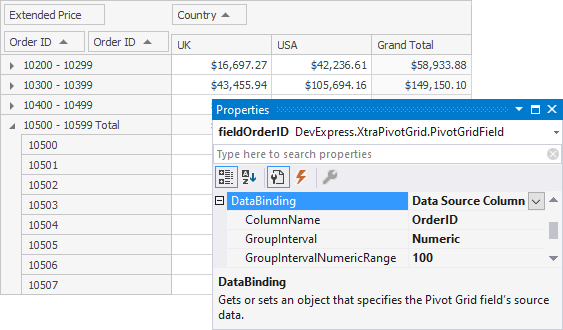
Use the `GroupIntervalNumericRange` property to specify the length of the intervals. For instance, if the `GroupIntervalNumericRange` property is set to 100, the values are combined into the following intervals: 0-100, 101-200, 201-300, and so on. The image below shows the Pivot Grid with two *Order ID* fields. The values of the first field are arranged into groups of 100 orders.
### Group String Values (Alphabetically)
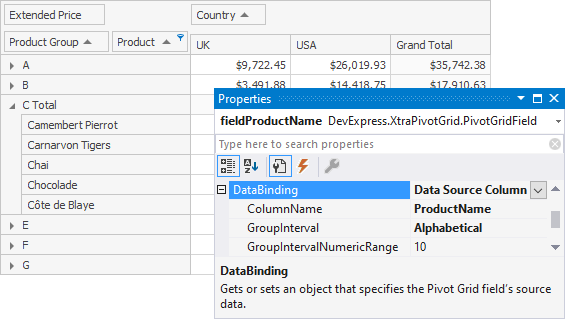
String values can be combined into groups alphabetically by the first letter. For this, set the `GroupInterval` property to **Alphabetical**.
## Custom Group Intervals
If standard grouping modes do not suit your requirements, you can implement custom group intervals. Assign a calculated [expression](/WindowsForms/401376/controls-and-libraries/pivot-grid/binding-to-data/in-memory-mode/Optimized-Mode/bind-pivot-grid-fields-to-data-columns) to a field as follows:
1. Create a Pivot Grid field.
2. Create an [ExpressionDataBinding](/WindowsForms/DevExpress.XtraPivotGrid.ExpressionDataBinding) instance.
3. Initialize the `ExpressionDataBinding` object with an expression that calculates aggregated field values. You can address Pivot Grid fields in this expression by their names ([PivotGridFieldBase.Name](/CoreLibraries/DevExpress.XtraPivotGrid.PivotGridFieldBase.Name)).
4. Assign the created object to the field’s [PivotGridFieldBase.DataBinding](/CoreLibraries/DevExpress.XtraPivotGrid.PivotGridFieldBase.DataBinding) property.
### Example
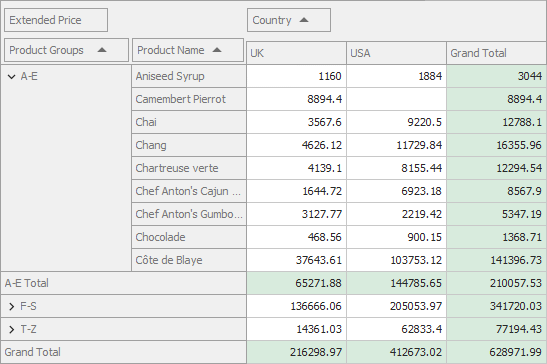
The following example implements custom group intervals in Pivot Grid to group Product Name field values into three ranges: A-E, F-S, and T-Z (according to the initial characters of the product names). The following expression is used:
`Iif(Substring([Product Name], 0, 1) < 'F', 'A-E', Substring([Product Name], 0, 1) < 'T', 'F-S', 'T-Z')`
[View Example: Pivot Grid for WinForms - Custom Group Intervals](https://github.com/DevExpress-Examples/winforms-pivot-grid-custom-group-intervals)
- C#
- VB.NET
using DevExpress.XtraPivotGrid;
using System.Windows.Forms;

namespace CustomGroupIntervals {
    public partial class Form1 : Form {
        public Form1() {
            InitializeComponent();
            // ...
            PivotGridField pivotGridFieldProducts = new PivotGridField();
            pivotGridFieldProducts.Area = PivotArea.RowArea;
            DataSourceColumnBinding productNames = new DataSourceColumnBinding("ProductName");
            pivotGridFieldProducts.DataBinding = productNames;
            pivotGridFieldProducts.Name = "fieldProductName";
            pivotGridControl1.Fields.Add(pivotGridFieldProducts);

            PivotGridField pivotGridFieldGroups = new PivotGridField();
            pivotGridFieldGroups.Area = PivotArea.RowArea;
            pivotGridFieldGroups.Caption = "Product Groups";
            pivotGridFieldGroups.Options.ShowExpressionEditorMenu = true;
            ExpressionDataBinding customInterval = new ExpressionDataBinding("Iif(Substring([fieldProductName], 0, 1) < 'F'," +
                " 'A-E', Substring([fieldProductName], 0, 1) < 'T', 'F-S', 'T-Z')");
            pivotGridFieldGroups.DataBinding = customInterval;
            pivotGridFieldGroups.AreaIndex = 0;
            pivotGridControl1.Fields.Add(pivotGridFieldGroups);
            // ...
        }
    }
}
Imports DevExpress.XtraPivotGrid
Imports System.Windows.Forms

Namespace CustomGroupIntervals

    Public Partial Class Form1
        Inherits Form

        Public Sub New()
            InitializeComponent()
            ' ...
            Dim pivotGridFieldProducts As PivotGridField = New PivotGridField()
            pivotGridFieldProducts.Area = PivotArea.RowArea
            Dim productNames As DataSourceColumnBinding = New DataSourceColumnBinding("ProductName")
            pivotGridFieldProducts.DataBinding = productNames
            pivotGridFieldProducts.Name = "fieldProductName"
            pivotGridControl1.Fields.Add(pivotGridFieldProducts)
            Dim pivotGridFieldGroups As PivotGridField = New PivotGridField()
            pivotGridFieldGroups.Area = PivotArea.RowArea
            pivotGridFieldGroups.Caption = "Product Groups"
            pivotGridFieldGroups.Options.ShowExpressionEditorMenu = True
            Dim customInterval As ExpressionDataBinding = New ExpressionDataBinding("Iif(Substring([fieldProductName], 0, 1) < 'F'," & " 'A-E', Substring([fieldProductName], 0, 1) < 'T', 'F-S', 'T-Z')")
            pivotGridFieldGroups.DataBinding = customInterval
            pivotGridFieldGroups.AreaIndex = 0
            pivotGridControl1.Fields.Add(pivotGridFieldGroups)
            ' ...
        End Sub
    End Class
End Namespace
Handle the [PivotGridControl.CustomGroupInterval](/WindowsForms/DevExpress.XtraPivotGrid.PivotGridControl.CustomGroupInterval) event to implement custom group intervals when the Pivot Grid uses In-Memory mode with the Legacy or LegacyOptimized data processing engine ([DataProcessingEngine](/CoreLibraries/DevExpress.XtraPivotGrid.PivotGridOptionsData.DataProcessingEngine) is set to `Legacy`, `LegacyOptimized`, or `Default`).
## Demos
- [Grouping by Year of first sale](dxdemo://Win/XtraPivotGrid/MainDemo/CodeExamples/Intermediate_Level_Aggregations_%28Optimized_Mode%29.Grouping_by_Year_of_first_sale)
- [Alphabetical Grouping](dxdemo://Win/XtraPivotGrid/MainDemo/CodeExamples/Grouping.Alphabetical_Grouping)
- [Date-Time Grouping](dxdemo://Win/XtraPivotGrid/MainDemo/CodeExamples/Grouping.Date-Time_Grouping)
- [Interval Grouping](dxdemo://Win/XtraPivotGrid/MainDemo/GroupInterval)
*To run these demos, first install the DevExpress WinForms product library*. [Download](https://www.devexpress.com/products/try/).
See Also
[Bind Pivot Grid Fields to Calculated Expressions](/WindowsForms/1799/controls-and-libraries/pivot-grid/binding-to-data/in-memory-mode/Optimized-Mode/bind-pivot-grid-fields-to-calculated-expressions)
[Pivot Grid Expression Syntax](/CoreLibraries/120512/devexpress-pivot-grid-core-library/advanced-analytics/pivot-grid-expression-syntax)