# Excel Style | WinForms Controls | DevExpress Documentation
## Overview
Note
**Demo** Run the [XtraTreeList](dxdemo://Win/XtraTreeList/MainDemo/ExcelFiltering) demo to see the filtering functionality in action.
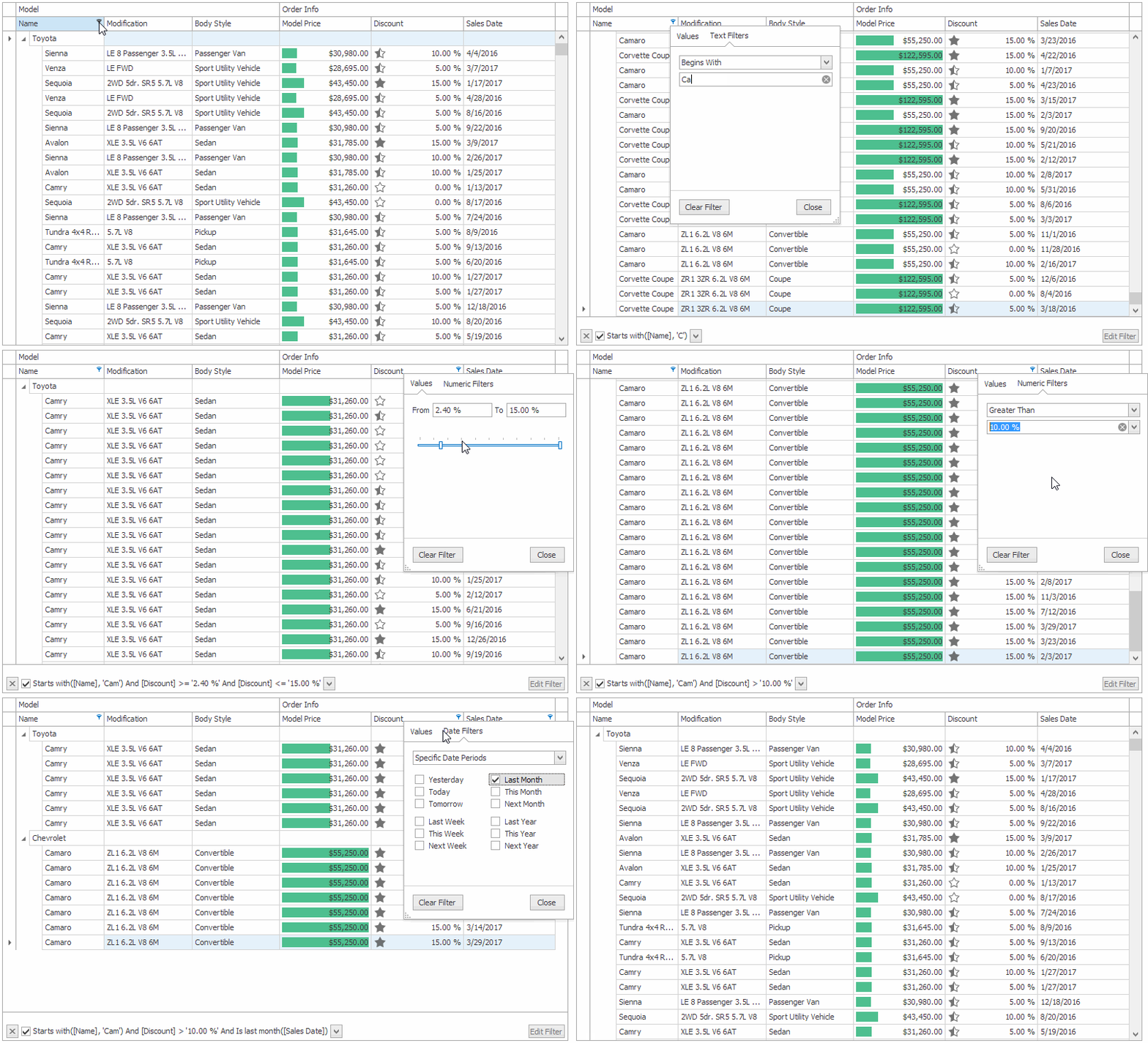
The Excel style menu contains two tabs:
- The *Values* tab — allows users to select specific values or value ranges.
- The tab’s UI changes depending on the data type: list, outline view, check box or track bar (you can also specify which UI to use, see below);
- values can be grouped by multiple columns (see below);
- the *Filters* tab — allows users to create a custom filter using comparison operators that match the data type.
- for example, *Between*, *Greater Than* for numbers; *Today*, *Next Week*, *Last Month*, *This Year* for dates (you can hide specific comparison operators, see below);
- you can also provide custom filters using a dedicated event (see below).
## Options
The [TreeListColumn.OptionsFilter](/WindowsForms/DevExpress.XtraTreeList.Columns.TreeListColumn.OptionsFilter) property provides access to filter options that are specific to a particular column.
- [TreeListOptionsColumnFilter.ImmediateUpdatePopupExcelFilter](/WindowsForms/DevExpress.XtraTreeList.Columns.TreeListOptionsColumnFilter.ImmediateUpdatePopupExcelFilter) — specifies whether to apply a filter immediately or only when the menu closes
- [TreeListOptionsColumnFilter.PopupExcelFilterDefaultTab](/WindowsForms/DevExpress.XtraTreeList.Columns.TreeListOptionsColumnFilter.PopupExcelFilterDefaultTab) — specifies whether the Values or Filters tab is activated when the menu opens
- C#
- VB.NET
using DevExpress.Utils.Filtering;
bcSalesDate.OptionsFilter.PopupExcelFilterDefaultTab = ExcelFilterDefaultTab.Values;
Imports DevExpress.Utils.Filtering
bcSalesDate.OptionsFilter.PopupExcelFilterDefaultTab = ExcelFilterDefaultTab.Values
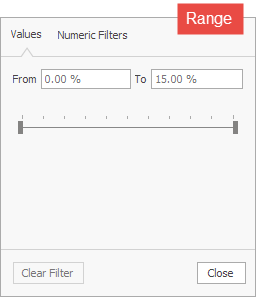
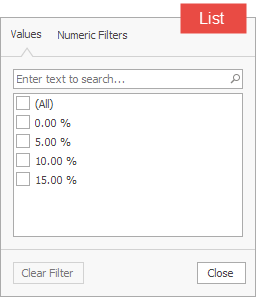
- [TreeListOptionsColumnFilter.PopupExcelFilterNumericValuesTabFilterType](/WindowsForms/DevExpress.XtraTreeList.Columns.TreeListOptionsColumnFilter.PopupExcelFilterNumericValuesTabFilterType) — specifies whether numeric values are arranged in a range or a list
- C#
- VB.NET
using DevExpress.Utils.Filtering;
bcDiscount.OptionsFilter.PopupExcelFilterNumericValuesTabFilterType = ExcelFilterNumericValuesTabFilterType.List;
Imports DevExpress.Utils.Filtering
bcDiscount.OptionsFilter.PopupExcelFilterNumericValuesTabFilterType = ExcelFilterNumericValuesTabFilterType.List
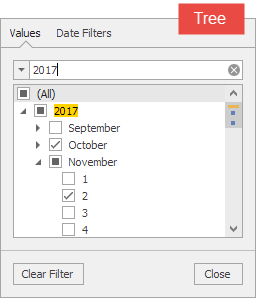
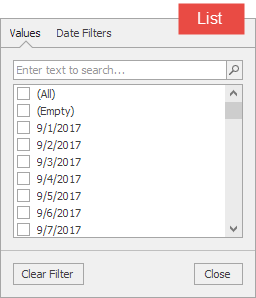
- [TreeListOptionsColumnFilter.PopupExcelFilterDateTimeValuesTabFilterType](/WindowsForms/DevExpress.XtraTreeList.Columns.TreeListOptionsColumnFilter.PopupExcelFilterDateTimeValuesTabFilterType) — specifies whether date-time values are arranged in an outline view or a list
- C#
- VB.NET
using DevExpress.Utils.Filtering;
bcSalesDate.OptionsFilter.PopupExcelFilterDateTimeValuesTabFilterType = ExcelFilterDateTimeValuesTabFilterType.List;
Imports DevExpress.Utils.Filtering
bcSalesDate.OptionsFilter.PopupExcelFilterDateTimeValuesTabFilterType = ExcelFilterDateTimeValuesTabFilterType.List
- [TreeListOptionsColumnFilter.PopupExcelFilterTextFilters](/WindowsForms/DevExpress.XtraTreeList.Columns.TreeListOptionsColumnFilter.PopupExcelFilterTextFilters) — for *text* type columns (see [TreeListColumn.ColumnType](/WindowsForms/DevExpress.XtraTreeList.Columns.TreeListColumn.ColumnType)), specifies whether to show pattern-matching (e.g., *Is Like*) and relational (e.g., *Greater Than*) operators
- [TreeListOptionsColumnFilter.PopupExcelFilterEnumFilters](/WindowsForms/DevExpress.XtraTreeList.Columns.TreeListOptionsColumnFilter.PopupExcelFilterEnumFilters) — for *enumeration* type columns, specifies whether to show the *Greater Than*, *Greater Than Or Equal To*, *Less Than*, *Less Than Or Equal To*, *Between* operators
The [TreeList.ShowFilterPopupExcel](/WindowsForms/DevExpress.XtraTreeList.TreeList.ShowFilterPopupExcel) event fires before the menu is shown for a particular column, and allows you to override the settings.
- C#
- VB.NET
using DevExpress.Utils.Filtering;
using DevExpress.Utils.Filtering.Internal;

private void TreeList_ShowFilterPopupExcel(object sender, FilterPopupExcelEventArgs e) {
    if (e.Column == bcName || e.Column == bcTrademark) {
        e.ShowCustomFilters = false;
        e.DefaultFilterType = CustomUIFilterType.BeginsWith;
    }
    if (e.Column == bcModification) {
        e.ShowFiltersTab = false;
        e.IsRadioMode = true;
    }
}
To determine the column being processed, read the `Column` event argument. The event arguments allow you to specify the following options
- `DefaultFilterType` — the filter type (e.g., *Equals*, *This Quarter*, *Top N*) that is selected when the menu opens;
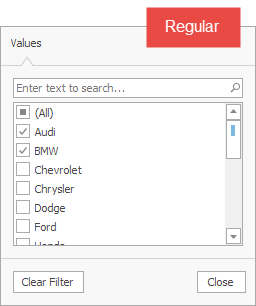
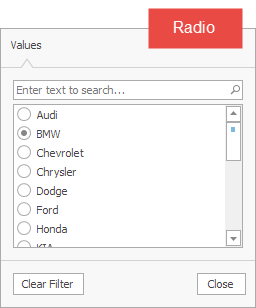
- `IsRadioMode` — gets or sets whether a user can select a single or multiple values at a time;
- `ShowComparisons` — gets or sets whether to show the *Greater Than*, *Greater Than Or Equal To*, *Less Than*, *Less Than Or Equal To*, *Between* operators.
- `ShowAggregates` — for *numeric* values, gets or sets whether to show the *Above Average* and *Below Average* filters;
- `ShowSequences` — for *numeric* values, gets or sets whether to show the *Top N* and *Bottom N* filters;
- `ShowBlanks` — for *text* values, gets or sets whether to show the *Is Blank* and *Is Not Blank* filters;
- `ShowNulls` — for *nullable* types, gets or sets whether to show the *Is Null* and *Is Not Null* filters;
 
- `ShowCustomFilters` — gets or sets whether to show the *Custom Filter* option that allows a user to combine two comparison operators;
- `ShowPredefinedFilters` — gets or sets whether to show the *Predefined Filters* provided by a dedicated event (see below);
- `ShowLikeFilters` — for *text* values, gets or sets whether to show the pattern-matching (*Is Like*, *Is Not Like*) operators.
## How to: Create Custom Filters
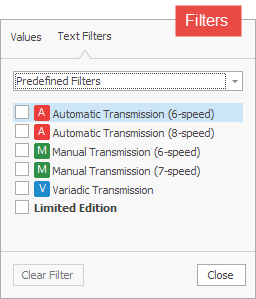
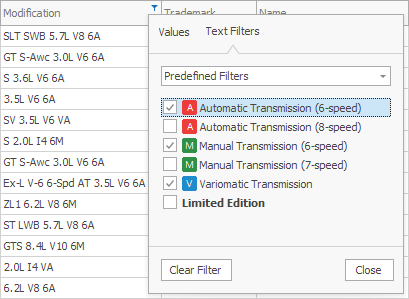
If the `ShowPredefinedFilters` option is enabled, you can display custom filters when a user selects the *Predefined Filters* option in the *Filters* tab. To create custom filters, handle the [TreeList.FilterPopupExcelData](/WindowsForms/DevExpress.XtraTreeList.TreeList.FilterPopupExcelData) event. For example, to show predefined filters (like those on the figure below), use the following code.
- C#
- VB.NET
void gridView_FilterPopupExcelData(object sender, FilterPopupExcelDataEventArgs e) {
    string fieldName = e.Column.FieldName;
    if(e.Column == bcModification) {
        e.AddFilter("<image=A><nbsp>Automatic Transmission (6-speed)", "Contains([" + fieldName + "], '6A')", true);
        e.AddFilter("<image=A><nbsp>Automatic Transmission (8-speed)", "Contains([" + fieldName + "], '8A')", true);
        e.AddFilter("<image=M><nbsp>Manual Transmission (6-speed)", "Contains([" + fieldName + "], '6M')", true);
        e.AddFilter("<image=M><nbsp>Manual Transmission (7-speed)", "Contains([" + fieldName + "], '7M')", true);
        e.AddFilter("<image=V><nbsp>Variadic Transmission", "Contains([" + fieldName + "], 'VA')", true);
        e.AddFilter("<b>Limited Edition</b>", "Contains([" + fieldName + "], 'Limited')", true);
    }
    if(e.Column == bcMPGCity) {
        e.AddFilter("Fuel Economy (<color=green>High</color>)", "[" + fieldName + "]<=15", true);
        e.AddFilter("Fuel Economy (<color=orange>Medium</color>)", "[" + fieldName + "]>15 AND [" + fieldName + "]<25", true);
        e.AddFilter("Fuel Economy (<color=red>Low</color>)", "[" + fieldName + "]>=25", true);
    }
}
Private Sub gridView_FilterPopupExcelData(ByVal sender As Object, ByVal e As Views.Grid.FilterPopupExcelDataEventArgs) Handles bandedGridView1.FilterPopupExcelData
    If e.Column Is bcModification Then
        e.AddFilter("<image=A><nbsp>Automatic Transmission (6-speed)", "Contains([" & e.Column.FieldName & "], '6A')", True)
        e.AddFilter("<image=A><nbsp>Automatic Transmission (8-speed)", "Contains([" & e.Column.FieldName & "], '8A')", True)
        e.AddFilter("<image=M>Manual Transmission (6-speed)", "Contains([" & e.Column.FieldName & "], '6M')", True)
        e.AddFilter("<image=M>Manual Transmission (7-speed)", "Contains([" & e.Column.FieldName & "], '7M')", True)
        e.AddFilter("<image=V>Variadic Transmission", "Contains([" & e.Column.FieldName & "], 'VA')", True)
        e.AddFilter("<b>Limited Edition</b>", "Contains([" & e.Column.FieldName & "], 'Limited')", True)
    End If
    If e.Column Is bcMPGCity Then
        e.AddFilter("Fuel Economy (<color=green>High</color>)", "[" & e.Column.FieldName & "]<=15", True)
        e.AddFilter("Fuel Economy (<color=orange>Medium</color>)", "[" & e.Column.FieldName & "]>15 AND [" & e.Column.FieldName & "]<25", True)
        e.AddFilter("Fuel Economy (<color=red>Low</color>)", "[" & e.Column.FieldName & "]>=25", True)
    End If
End Sub
## How to: Add Custom Functions to Pop-up Menus and the Filter Editor
To create a custom filter function (e.g., ‘discount is more than 15%’), and add this function to Excel-style pop-up filter menus and the filter editor, do the following:
- Implement a [custom function](/WindowsForms/400995/common-features/expressions/custom-function-based-filters);
- [Register](/CoreLibraries/DevExpress.Data.Filtering.CriteriaOperator.RegisterCustomFunction%28DevExpress.Data.Filtering.ICustomFunctionOperator%29) the function;
- Add the function to pop-up filter menus and the filter editor in a [QueryCustomFunctions](/WindowsForms/DevExpress.XtraTreeList.TreeList.QueryCustomFunctions) event handler.
- C#
- VB.NET
using DevExpress.Data.Filtering;

IsBlackFridayDiscountFunction.Register();
treeList1.QueryCustomFunctions += OnQueryCustomFunctions;

void OnQueryCustomFunctions(object sender, CustomFunctionEventArgs e) {
    if(e.PropertyName == "Discount")
        e.Add(IsBlackFridayDiscountFunction.FunctionName);
}

public class IsBlackFridayDiscountFunction : ICustomFunctionDisplayAttributes {
    // See the QueryCustomFunctions event for the complete implementaiton.
}
Imports DevExpress.Data.Filtering

IsBlackFridayDiscountFunction.Register()
AddHandler treeList1.QueryCustomFunctions, AddressOf OnQueryCustomFunctions

Private Sub OnQueryCustomFunctions(ByVal sender As Object, ByVal e As Data.Filtering.CustomFunctionEventArgs)
    If e.PropertyName = "Discount" Then
        e.Add(IsBlackFridayDiscountFunction.FunctionName)
    End If
End Sub

Public Class IsBlackFridayDiscountFunction
    Implements ICustomFunctionDisplayAttributes
    ' See the QueryCustomFunctions event for the complete implementaiton.
End Class
Tip
To add custom functions to filter menus and filter editors of all DevExpress controls in the application, use the static (Shared in VB) [QueryCustomFunctions](/CoreLibraries/DevExpress.Data.Filtering.CriteriaOperator.QueryCustomFunctions) event.
## How to: Filter Data by Multiple Columns from a Single Menu
Note
**Demo** See the *“Task”* column’s filter menu in the [XtraTreeList](dxdemo://Win/XtraTreeList/MainDemo/HierarchyColumn) demo to observe grouped filters in action.
A column’s filter menu shows only values available in that column. To filter data by multiple columns, invoke each column’s menu.
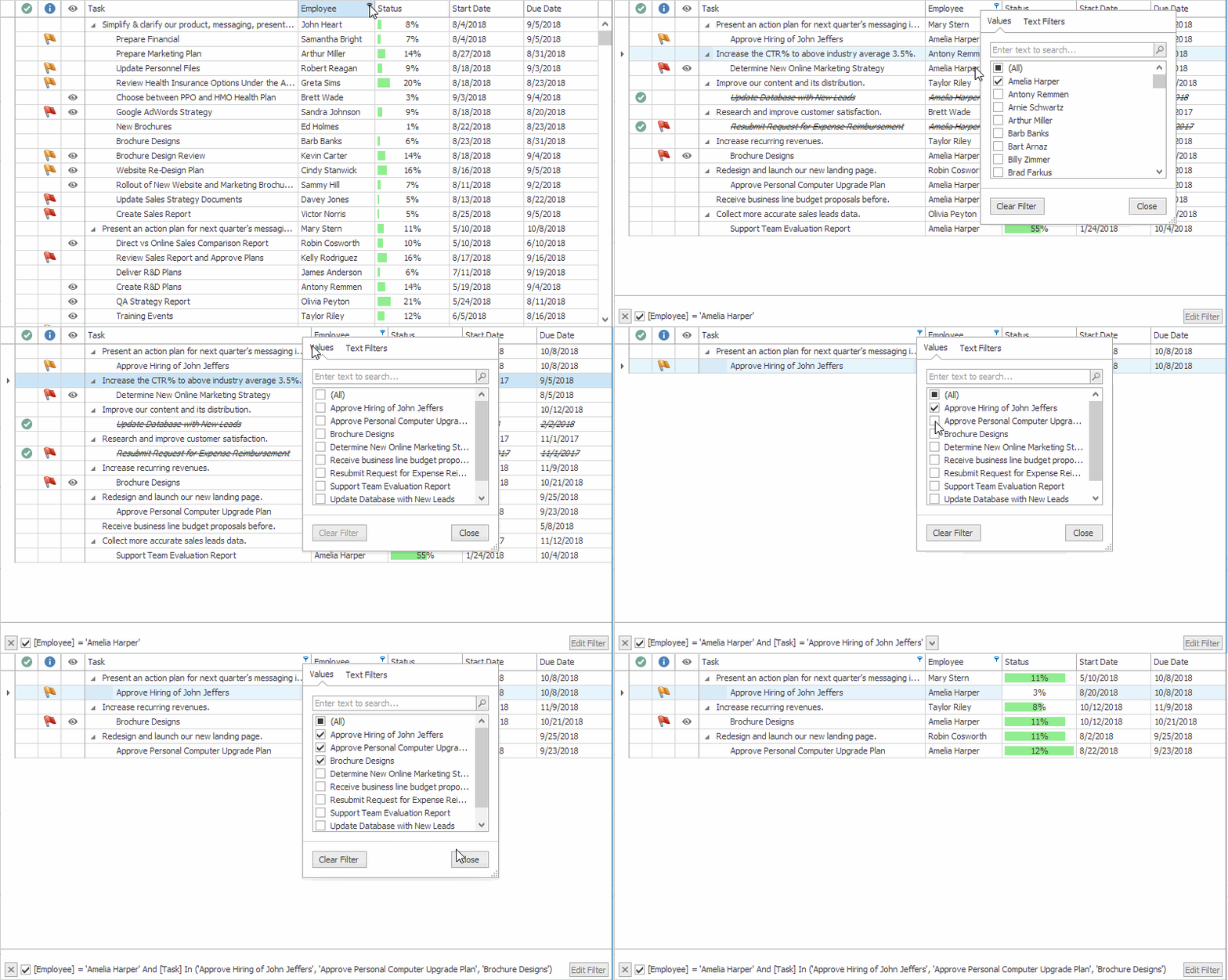
It is also possible to group filter values in the current column’s filter menu by another column. This allows you to filter data for multiple columns from a single menu.
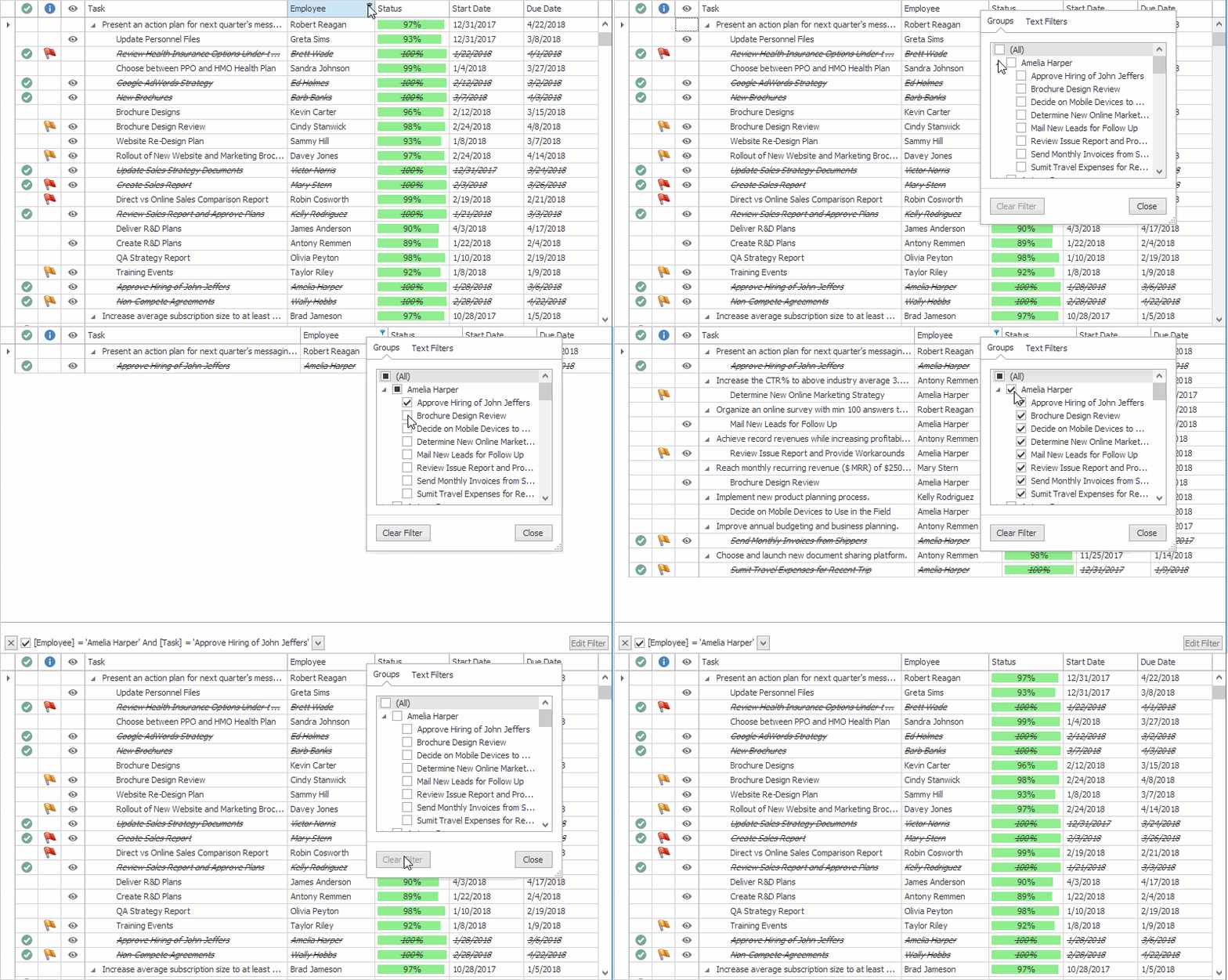
To enable this feature, use the column’s `TreeListColumn.OptionsFilter.PopupExcelFilterGrouping` property (see [TreeListOptionsColumnFilter.PopupExcelFilterGrouping](/WindowsForms/DevExpress.XtraTreeList.Columns.TreeListOptionsColumnFilter.PopupExcelFilterGrouping)). This property specifies data fields (columns) by which you can group filter values in a specific column’s filter menu. Data fields (columns) should be specified by their names as strings separated by a comma, semicolon, space or tab character. The code below shows how to display assigned tasks below each employee as illustrated in the figure above.
- C#
- VB.NET
//Customize the Employee column's filter menu.
colEmployee.OptionsFilter.PopupExcelFilterGrouping = "Employee;Task";
//As values of the customized column are displayed at the root level, you can omit  the column’s name ("Employee").
//The code below has the same effect.
colEmployee.OptionsFilter.PopupExcelFilterGrouping = "Task";
'Customize the Employee column's filter menu.
colEmployee.OptionsFilter.PopupExcelFilterGrouping = "Employee;Task"
'As values of the customized column are displayed at the root level, you can omit the column’s name ("Employee").
'The code below has the same effect.
colEmployee.OptionsFilter.PopupExcelFilterGrouping = "Task"
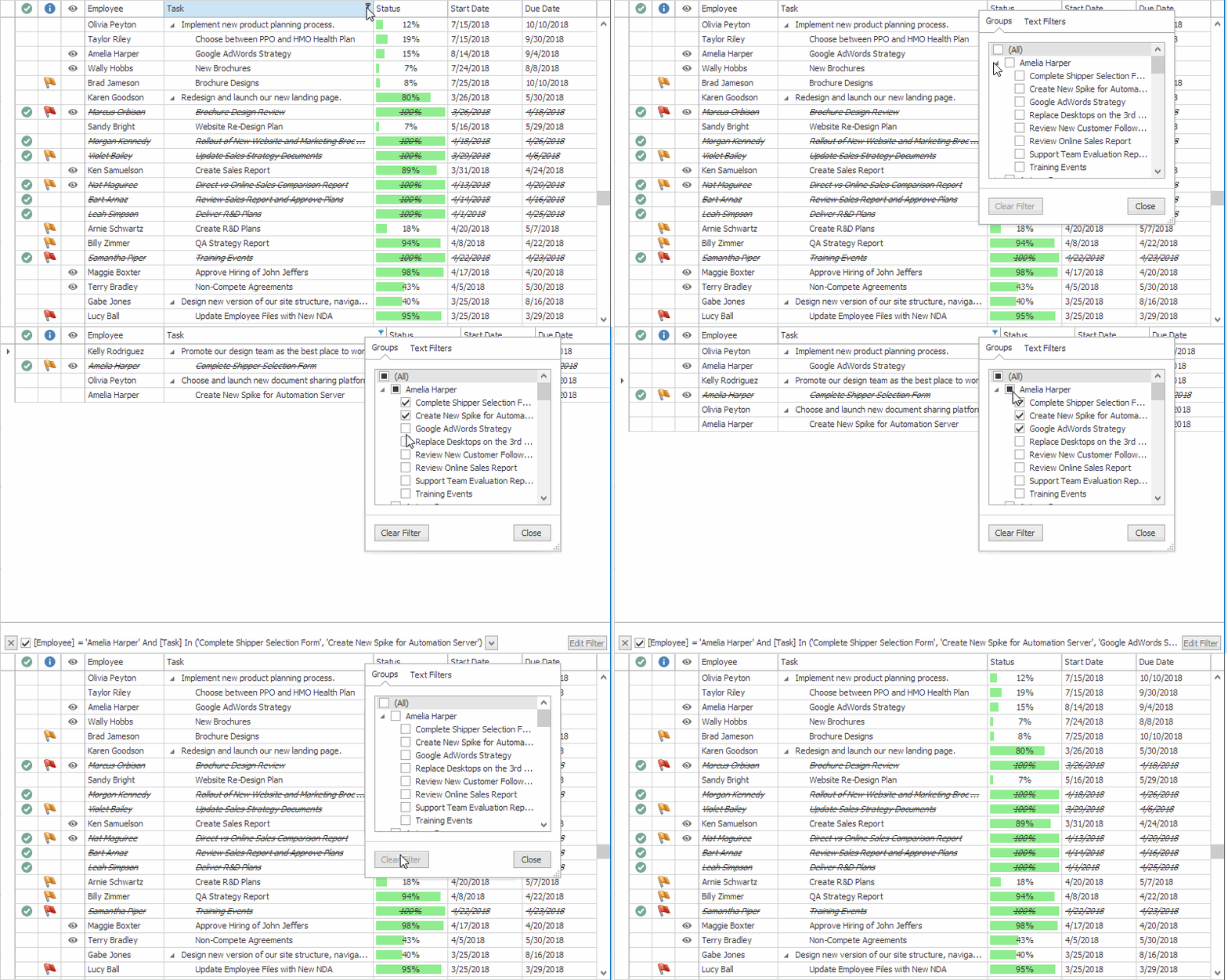
You can specify two or more data fields (columns) to group filter values by multiple columns. The field name order determines the group hierarchy. To show assigned tasks below each employee in the Task column’s filter menu, you can change the group hierarchy using the following code.
- C#
- VB.NET
//Customize the Task column's filter menu.
//As values of the customized column are not displayed at the root level in this case, its name ("Task") cannot be omitted.
colTask.OptionsFilter.PopupExcelFilterGrouping = "Employee;Task";
'Customize the Task column's filter menu.
'As values of the customized column are not displayed at the root level in this case, its name ("Task") cannot be omitted.
colTask.OptionsFilter.PopupExcelFilterGrouping = "Employee;Task"
As a result, values from the Employee column are shown at the root level.
In the case of a Code First data source, you can annotate data fields with the `FilterGroup` [attribute](/WindowsForms/115708/common-features/filtering-ui-context/filtering-attributes) using the same syntax in the attribute parameter.
- C#
- VB.NET
[Utils.Filtering.FilterGroup("Employee;Task")]
public string Task { get; set; }
public string Employee { get; set; }
<Utils.Filtering.FilterGroup("Employee;Task")>
Public Property Task As String
Public Property Employee As String
See Also
[Column Pop-up Filter Menus](/WindowsForms/10605/controls-and-libraries/tree-list/visual-elements/column-pop-up-filter-menus)