# Sorting by Summary | WPF Controls | DevExpress Documentation
**Sorting by Summary** allows you to sort the current [column](/WPF/7985/controls-and-libraries/pivot-grid/ui-elements/column-field) or [row](/WPF/8004/controls-and-libraries/pivot-grid/ui-elements/row-field) field’s values by corresponding summary values.
The following image illustrates the Pivot Grid Control with *Product* field values sorted by the *USA | Margaret Peacock | Quantity* column:

[Run Demo: Sort By Summary](dxdemo://Wpf/DXPivotGrid/MainDemo/SortBySummary)
## End-User Sorting by Summary
End-users can sort by summary through the context menu by right-clicking an innermost column or row header.

The  and  image in the row’s/column’s header indicates if the field values are sorted by this row/column.
Sorting by Summary is available for all fields displayed within the [Column Header Area](/WPF/7986/controls-and-libraries/pivot-grid/ui-elements/column-header-area) or [Row Header Area](/WPF/8005/controls-and-libraries/pivot-grid/ui-elements/row-header-area). There are two ways you can disable this functionality for end-users:
| Property | Description | Note |
| --- | --- | --- |
| [PivotGridControl.AllowSortBySummary](/WPF/DevExpress.Xpf.PivotGrid.PivotGridControl.AllowSortBySummary) | Gets or sets whether end-users can sort the row/column field values by other column/row summary values. This is a dependency property. | This property affects all fields. |
| [PivotGridField.AllowSortBySummary](/WPF/DevExpress.Xpf.PivotGrid.PivotGridField.AllowSortBySummary) | Gets or sets whether end-users can sort the current row/column field values by other column/row summary values. This is a dependency property. | This property affects individual fields. |
Note that in this instance, individual fields’ settings take priority over **PivotGridControl** settings.
## Sorting by Summary in Code
To sort data by summaries, you need to specify a data field whose summary values should define the sort order. Do one of the following:
- Assign the **data field** to the [PivotGridField.SortByField](/WPF/DevExpress.Xpf.PivotGrid.PivotGridField.SortByField) property.
This allows you to sort data by the currently displayed summary values.
**Code-Behind:**
- C#
- VB.NET
fieldProductName.SortByField = fieldExtendedPrice;
fieldProductName.SortByField = fieldExtendedPrice
**Markup:**
```
```
- Assign the **data field name** to the [PivotGridField.SortByFieldName](/WPF/DevExpress.Xpf.PivotGrid.PivotGridField.SortByFieldName) property.
In this instance, data is sorted by summary values calculated with the function whose type the [PivotGridField.SortBySummaryType](/WPF/DevExpress.Xpf.PivotGrid.PivotGridField.SortBySummaryType) property specifies, regardless of which summary values are currently displayed.
For example, the code sample below displays sorting by the average of the *Extended Price*‘s values:
**Code-Behind:**
- C#
- VB.NET
fieldProductName.SortBySummaryType = FieldSummaryType.Average;
fieldProductName.SortByFieldName = "Extended Price";
fieldProductName.SortBySummaryType = FieldSummaryType.Average;
fieldProductName.SortByFieldName = "Extended Price"
**Markup:**
```
```
After you specified a data field, the PivotGrid control sorts field values by a [Grand Total](/WPF/8057/controls-and-libraries/pivot-grid/data-shaping/aggregation/totals) column/row that corresponds to this data field.
The image below shows the Pivot Grid sorted by the *Extended Price*‘s Grand Total values:

To sort field values by any other column/row or their totals, identify this field by adding sorting conditions using the [PivotGridField.SortByConditions](/WPF/DevExpress.Xpf.PivotGrid.PivotGridField.SortByConditions) property. Each condition is a [SortByCondition](/WPF/DevExpress.Xpf.PivotGrid.SortByCondition) object that identifies a field value so that the whole collection identifies a column/row.
Create two sort conditions to sort field values by the *Qtr 2 Total* [column total](/AspNet/3592/components/pivot-grid/ui-elements/totals).
- C#
- VB.NET
fieldProductName.SortBySummaryField = fieldExtendedPrice;
fieldProductName.SortByConditions.Add(new SortByCondition(fieldYear, 2016));
fieldProductName.SortByConditions.Add(new SortByCondition(fieldQuarter, 2));
fieldProductName.SortBySummaryField = fieldExtendedPrice
fieldProductName.SortByConditions.Add(New SortByCondition(fieldYear, 2016))
fieldProductName.SortByConditions.Add(New SortByCondition(fieldQuarter, 2))
The image below demonstrates the corresponding result:

Create an additional condition to sort data by the specified column/row:
- C#
- VB.NET
fieldProductName.SortBySummaryField = fieldExtendedPrice;
fieldProductName.SortByConditions.Add(new SortByCondition(fieldYear, 2016));
fieldProductName.SortByConditions.Add(new SortByCondition(fieldQuarter, 2));
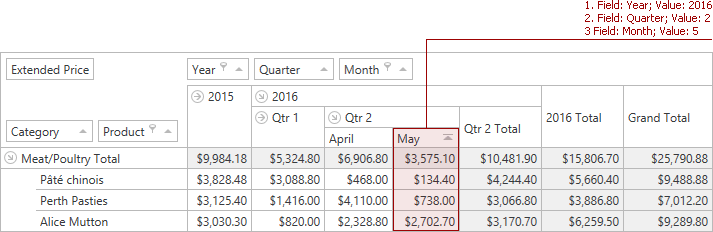
fieldProductName.SortByConditions.Add(new SortByCondition(fieldMonth, 5));
fieldProductName.SortBySummaryField = fieldExtendedPrice
fieldProductName.SortByConditions.Add(New SortByCondition(fieldYear, 2016))
fieldProductName.SortByConditions.Add(New SortByCondition(fieldQuarter, 2))
fieldProductName.SortByConditions.Add(New SortByCondition(fieldMonth, 5))
Three sort conditions identify the highlighted column on the image below:
You can sort data by a [custom total](/WPF/8057/controls-and-libraries/pivot-grid/data-shaping/aggregation/totals) column/row by specifying its type using the [PivotGridField.SortByCustomTotalSummaryType](/WPF/DevExpress.Xpf.PivotGrid.PivotGridField.SortByCustomTotalSummaryType) property.
Use the [PivotGridField.SortOrder](/WPF/DevExpress.Xpf.PivotGrid.PivotGridField.SortOrder) property to specify whether to sort values in [ascending or descending order](/WPF/8011/controls-and-libraries/pivot-grid/data-shaping/sorting/data-sorting).
## Sorting in OLAP
In an OLAP mode, create sort conditions via a [SortByCondition](/WPF/DevExpress.Xpf.PivotGrid.SortByCondition.-ctor.overloads) constructor overload that takes an OLAP member’s unique name as a parameter.
To obtain an OLAP member for a field value, use the [PivotGridControl.GetFieldValueOlapMember](/WPF/DevExpress.Xpf.PivotGrid.PivotGridControl.GetFieldValueOlapMember%28DevExpress.Xpf.PivotGrid.PivotGridField-System.Int32%29) method. This method returns a [PivotOlapMember](/WPF/DevExpress.Xpf.PivotGrid.PivotOlapMember) object. To access the OLAP member’s unique name, use its [PivotOlapMember.UniqueName](/WPF/DevExpress.Xpf.PivotGrid.PivotOlapMember.UniqueName) property.
## Limitations
The following Pivot Grid features are not supported or ignored when you sort data by summary:
- [Running totals](/WPF/8057/controls-and-libraries/pivot-grid/data-shaping/aggregation/totals) are not supported.
- The custom summary representation ([PivotGridField.SummaryDisplayType](/WPF/DevExpress.Xpf.PivotGrid.PivotGridField.SummaryDisplayType)) is ignored.
- The custom values obtained in the [PivotGridControl.CustomCellValue](/WPF/DevExpress.Xpf.PivotGrid.PivotGridControl.CustomCellValue) and [PivotGridControl.CustomCellDisplayText](/WPF/DevExpress.Xpf.PivotGrid.PivotGridControl.CustomCellDisplayText) events are ignored.
- You cannot use the [CalculationBinding](/WPF/DevExpress.Xpf.PivotGrid.CalculationBinding) descendants to apply summary filter or sorting by summary when Pivot Grid operates with [Optimized](/CoreLibraries/401367/devexpress-pivot-grid-core-library/pivot-grid-modes/in-memory-mode/pivot-grid-optimized-calculation-engine) calculation engine.
## Examples
- [How to: Sort Data by Grand Totals](/WPF/8045/controls-and-libraries/pivot-grid/examples/grouping-filtering-and-summarizing/how-to-sort-data-by-grand-totals)
- [How to: Sort Data by Individual Columns (Rows)](/WPF/9616/controls-and-libraries/pivot-grid/examples/grouping-filtering-and-summarizing/how-to-sort-data-by-individual-columns-rows)
- [How to: Sort Data by Individual Columns (Rows) in OLAP Mode](/WPF/9618/controls-and-libraries/pivot-grid/examples/grouping-filtering-and-summarizing/how-to-sort-data-by-individual-columns-rows-in-olap-mode)