# Smart Search AI-powered Extension | WPF Controls | DevExpress Documentation
Smart Search works alongside traditional search algorithms to offer a more powerful and user-friendly search experience. It offers results that are more aligned with what the user is seeking, even if the input contains spelling errors.
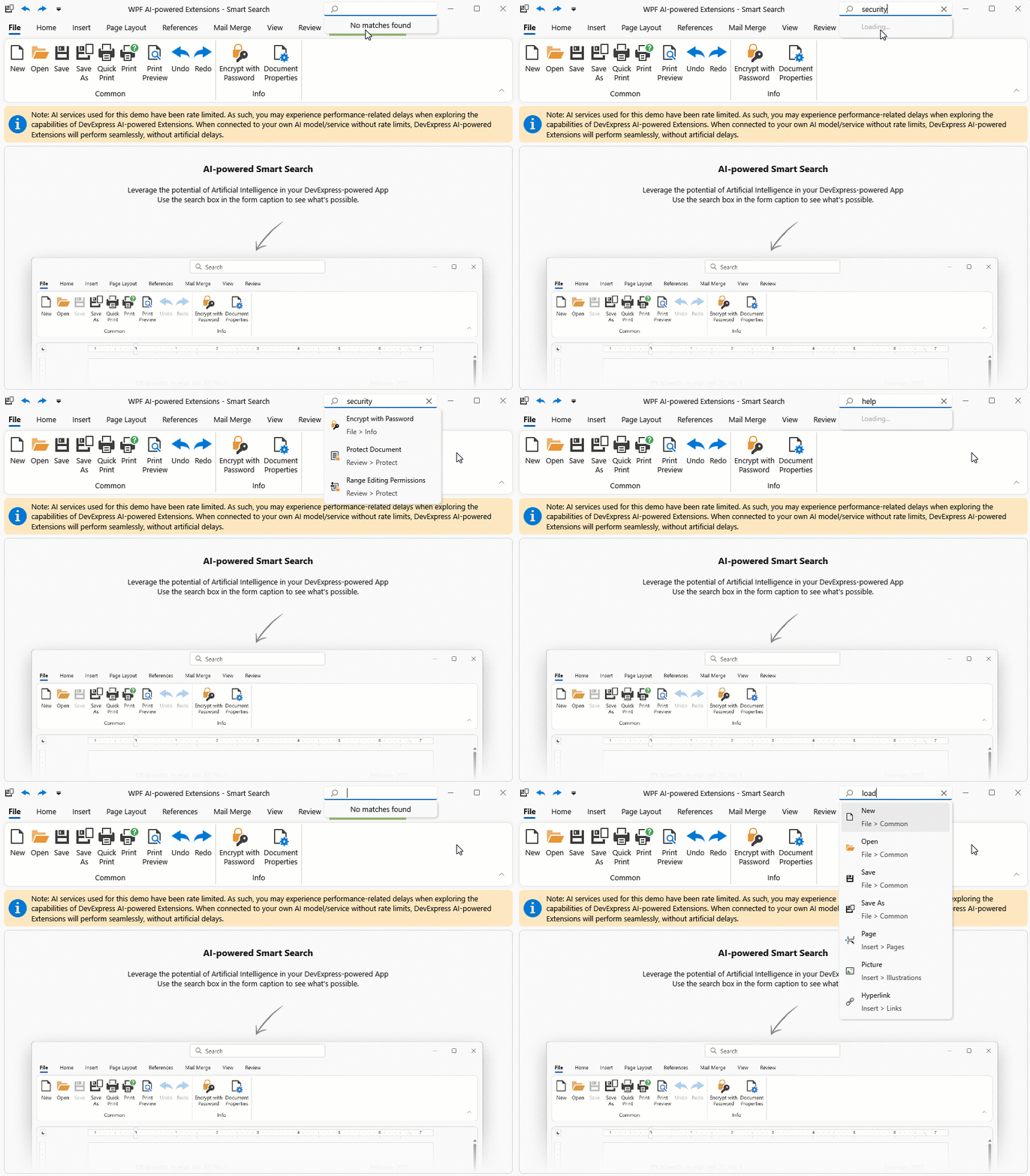
[Run Demo: Smart Search - WPF Ribbon](dxdemo://Wpf/DXAI/MainDemo/SmartSearchModule)
## Applies To
- [Themed Window with integrated Ribbon Control](/WPF/DevExpress.Xpf.Core.ThemedWindow#integrate-the-ribbon--tab-control)
- [Accordion Control](/WPF/118347/controls-and-libraries/navigation-controls/accordion-control)
## How It Works
When the user pauses typing in the search field within the Ribbon or Accordion control, the control sends the current search query to an AI service that understands context, synonyms, and user intent beyond exact keyword matches. Once the AI service returns its results, the control filters items accordingly.
## Activate Smart Search
To activate Smart Search you should install DevExpress AI NuGet packages and register the AI client.
### Install DevExpress NuGet Packages
1. `DevExpress.AIIntegration.Wpf`
2. `DevExpress.Wpf.Ribbon` / `DevExpress.Wpf.Accordion`
Tip
You can also install a unified NuGet package (`DevExpress.Wpf`) if you want to use most UI controls that ship as part of the DevExpress WPF UI Library.
Refer to the following help topics for more information:
- [How to Install DevExpress Products](/GeneralInformation/116042/installation/install-products)
- [Install Packages from NuGet.org: Visual Studio, VS Code, and JetBrains Rider](https://go.devexpress.com/DevExpress_NuGet_Documentation.aspx)
### Register AI Client
See the following help topic for information on required NuGet packages and system requirements: [Register an AI Client](/WPF/405223/ai-powered-extensions).
The following code snippet registers an Azure OpenAI client at application startup within the [AIExtensionsContainerDesktop](/CoreLibraries/DevExpress.AIIntegration.AIExtensionsContainerDesktop) container:
- C#
- VB.NET
using Azure.AI.OpenAI;
using DevExpress.AIIntegration;
using DevExpress.Xpf.Core;
using Microsoft.Extensions.AI;
using System;
using System.Windows;

namespace AIAssistantApp {
    public partial class App : Application {
        static App() {
            CompatibilitySettings.UseLightweightThemes = true;
        }

        protected override void OnStartup(StartupEventArgs e) {
            base.OnStartup(e);
            ApplicationThemeHelper.ApplicationThemeName = "Win11Light";

            // For example, ModelId = "gpt-4o-mini"
            IChatClient azureChatClient = new Azure.AI.OpenAI.AzureOpenAIClient(new Uri(AzureOpenAIEndpoint),
                new System.ClientModel.ApiKeyCredential(AzureOpenAIKey)).GetChatClient(ModelId).AsIChatClient();
            AIExtensionsContainerDesktop.Default.RegisterChatClient(azureChatClient);
        }
    }
}
Imports Azure.AI.OpenAI
Imports DevExpress.AIIntegration
Imports DevExpress.Xpf.Core
Imports Microsoft.Extensions.AI
Imports System
Imports System.Windows

Namespace AIAssistantApp
    Partial Public Class App
        Inherits Application

        Shared Sub New()
            CompatibilitySettings.UseLightweightThemes = True
        End Sub

        Protected Overrides Sub OnStartup(ByVal e As StartupEventArgs)
            MyBase.OnStartup(e)
            ApplicationThemeHelper.ApplicationThemeName = "Win11Light"

            ' For example, ModelId = "gpt-4o-mini"
            Dim azureChatClient As IChatClient = New AzureOpenAIClient(New Uri(AzureOpenAIEndpoint),
                New System.ClientModel.ApiKeyCredential(AzureOpenAIKey)).GetChatClient(ModelId).AsIChatClient()
            AIExtensionsContainerDesktop.Default.RegisterChatClient(azureChatClient)
        End Sub
    End Class
End Namespace
### Attach Smart Search Behavior
Attach the [SmartSearchBehavior](/WPF/DevExpress.AIIntegration.Wpf.SmartSearchBehavior) to a control (Themed Window, Accordion Control).
Tip
You can also use a control’s smart tag menu to attach the `SmartSearchBehavior` at design time.
#### Example: Ribbon Control
The following code snippet attaches the `SmartSearchBehavior` to a Themed Window with the integrated Ribbon control:
- XAML
<dx:ThemedWindow
    xmlns="http://schemas.microsoft.com/winfx/2006/xaml/presentation"
    xmlns:x="http://schemas.microsoft.com/winfx/2006/xaml"
    xmlns:dx="http://schemas.devexpress.com/winfx/2008/xaml/core"
    xmlns:dxmvvm="http://schemas.devexpress.com/winfx/2008/xaml/mvvm"
    xmlns:dxai="http://schemas.devexpress.com/winfx/2008/xaml/ai"
    xmlns:dxr="http://schemas.devexpress.com/winfx/2008/xaml/ribbon"
    x:Class="DXSmartSearch.MainWindow"
    Title="MainWindow" Height="800" Width="700"
    WindowKind="Ribbon" SearchItemDisplayMode="Right" SearchDelay="300">
    <dxmvvm:Interaction.Behaviors>
        <dxai:SmartSearchBehavior"/>
    </dxmvvm:Interaction.Behaviors>
    <Grid x:Name="mainGrid">
        <dxr:RibbonControl x:Name="ribbonControl" RibbonStyle="Office2019">
            <!--Ribbon configuration is omitted for brevity.-->
        </dxr:RibbonControl>
    </Grid>
</dx:ThemedWindow>
Ribbon Control: Attach the Smart Search Behavior to a Themed Window in Code Behind
```
using DevExpress.AIIntegration.Wpf;
using DevExpress.Mvvm.UI.Interactivity;
using DevExpress.Xpf.Bars;
using DevExpress.Xpf.Core;
using System.Windows;
namespace DXSmartSearch {
public partial class MainWindow : ThemedWindow {
public MainWindow() {
InitializeComponent();
this.SearchItemDisplayMode = SearchItemDisplayMode.Right;
this.SearchDelay = 300;
SmartSearchBehavior behavior = new SmartSearchBehavior();
Interaction.GetBehaviors(this).Add(behavior);
}
}
}
```
#### Example: Accordion Control
The following code snippet attaches the `SmartSearchBehavior` to an Accordion control:
- XAML
<dx:ThemedWindow
    xmlns="http://schemas.microsoft.com/winfx/2006/xaml/presentation"
    xmlns:x="http://schemas.microsoft.com/winfx/2006/xaml"
    xmlns:dx="http://schemas.devexpress.com/winfx/2008/xaml/core"
    xmlns:dxmvvm="http://schemas.devexpress.com/winfx/2008/xaml/mvvm"
    xmlns:dxai="http://schemas.devexpress.com/winfx/2008/xaml/ai"
    xmlns:dxa="http://schemas.devexpress.com/winfx/2008/xaml/accordion"
    x:Class="DXSmartSearch.MainWindow"
    Title="MainWindow" Height="800" Width="700">
    <Grid x:Name="mainGrid">
        <dxa:AccordionControl x:Name="accordionControl"
            HorizontalAlignment="Left" VerticalAlignment="Top" Width="180" Height="300"
            ShowSearchControl="True">
            <dxmvvm:Interaction.Behaviors>
                <dxai:SmartSearchBehavior />
            </dxmvvm:Interaction.Behaviors>
            <!--Accordion configuration is omitted for brevity.-->
        </dxa:AccordionControl>
    </Grid>
</dx:ThemedWindow>
## SmartSearchBehavior APIs
In the context of Smart Search, an item refers to a [BarItem](/WPF/DevExpress.Xpf.Bars.BarItem) when working with a RibbonControl, or an [AccordionItem](/WPF/DevExpress.Xpf.Accordion.AccordionItem) when working with an AccordionControl.
### Item Descriptions
Item descriptions are optional if an item’s content or header/caption is specified (for example, `BarItem.Content` and `BarItem.Description` properties or accordion UI element’s `Header` property is set to a non-empty string). Although Smart Search attempts to find items based on their text, we recommend that you also describe items for improved accuracy.
Use the [ItemDescription](/WPF/DevExpress.AIIntegration.Wpf.SmartSearchBehavior.ItemDescription) attached property to add descriptions to certain items:
- XAML
<dxr:RibbonPageGroup Caption="System Protection">
    <dxb:BarButtonItem Content="Enable Protection"
        dxai:SmartSearchBehavior.ItemDescription="Activates software protection against unauthorized access." />
    <dxb:BarButtonItem Content="Login"
        dxai:SmartSearchBehavior.ItemDescription="Displays a sign-in or login form." />
        <dxb:BarButtonItem Content="Settings"
        dxai:SmartSearchBehavior.ItemDescription="Displays settings and options related to security and protection." />
</dxr:RibbonPageGroup>
### Excluded Items
Enable the [HideFromSearch](/WPF/DevExpress.Xpf.Bars.BarItemSearchSettings.HideFromSearch) option for items to exclude them from both regular and smart searches:
- XAML
<dxb:BarButtonItem Content="Help" dxb:BarItemSearchSettings.HideFromSearch="True" />
## ThemedWindow Search Settings
The following table lists additional settings that allow you to customize search experience based on your preferences:
| Property Name | Description |
| --- | --- |
| [SearchItemDisplayMode](/WPF/DevExpress.Xpf.Core.ThemedWindow.SearchItemDisplayMode) | Specifies the visibility and position of the search box in a ThemedWindow. |
| [SearchDelay](/WPF/DevExpress.Xpf.Core.ThemedWindow.SearchDelay) | Specifies the delay (in milliseconds) before the search operation starts after the user stops typing in the search box of a ThemedWindow. |
| [SearchItemFocusShortcut](/WPF/DevExpress.Xpf.Core.ThemedWindow.SearchItemFocusShortcut) | Specifies the hotkey that focuses the search box in a ThemedWindow. |