# AI Assistant Extensions | WPF Controls | DevExpress Documentation
AI Assistant extensions allow you to enhance the way your users interact with and manage text content. These extensions leverage advanced natural language processing (NLP) technologies to offer automated, intelligent text manipulation capabilities directly within your WPF applications.
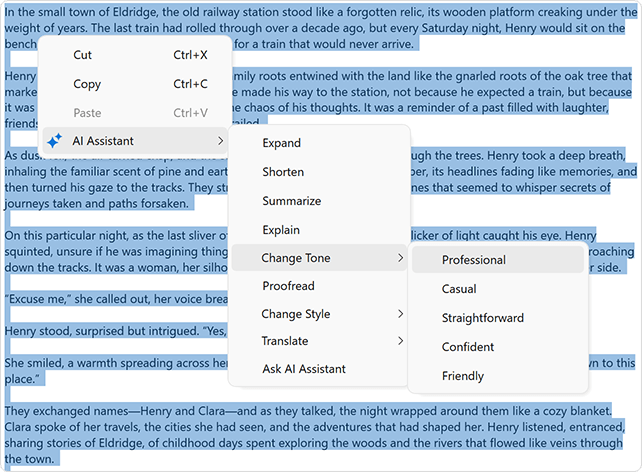
[Run Demo: AI Assistant](dxdemo://Wpf/AI/MainDemo/TextEditModule) [View Example: AI-powered Text Extensions](https://github.com/DevExpress-Examples/winforms-wpf-ai-text-extension)
## Applies To
- [Text Editor](/WPF/DevExpress.Xpf.Editors.TextEdit)
- [Rich Text Editor](/WPF/8651/controls-and-libraries/rich-text-editor)
- [Spreadsheet](/WPF/16118/controls-and-libraries/spreadsheet)
- [PDF Viewer](/WPF/16420/controls-and-libraries/pdf-viewer) (Summarize, Translate, and Ask AI only)
- [Document Preview](/WPF/9697/controls-and-libraries/printing-exporting/concepts/document-preview) (Document Summarization, Document Translation, and Inline Document Translation only)
## Activate AI Assistant
### 1. Install DevExpress NuGet Packages
1. `DevExpress.AIIntegration.Wpf`
2. `DevExpress.Wpf`
Refer to the following help topics for more information:
- [How to Install DevExpress Products](/GeneralInformation/116042/installation/install-products)
- [Install Packages from NuGet.org: Visual Studio, VS Code, and JetBrains Rider](https://go.devexpress.com/DevExpress_NuGet_Documentation.aspx)
### 2. Register AI Client
See the following help topic for information on required NuGet packages and system requirements: [Register an AI Client](/WPF/405223/ai-powered-extensions).
The following code snippet registers an Azure OpenAI client at application startup within the [AIExtensionsContainerDesktop](/CoreLibraries/DevExpress.AIIntegration.AIExtensionsContainerDesktop) container:
- C#
- VB.NET
using Azure.AI.OpenAI;
using DevExpress.AIIntegration;
using DevExpress.Xpf.Core;
using Microsoft.Extensions.AI;
using System;
using System.Windows;

namespace AIAssistantApp {
    public partial class App : Application {
        static App() {
            CompatibilitySettings.UseLightweightThemes = true;
        }

        protected override void OnStartup(StartupEventArgs e) {
            base.OnStartup(e);
            ApplicationThemeHelper.ApplicationThemeName = "Win11Light";

            // For example, ModelId = "gpt-4o-mini"
            IChatClient azureChatClient = new Azure.AI.OpenAI.AzureOpenAIClient(new Uri(AzureOpenAIEndpoint),
                new System.ClientModel.ApiKeyCredential(AzureOpenAIKey)).GetChatClient(ModelId).AsIChatClient();
            AIExtensionsContainerDesktop.Default.RegisterChatClient(azureChatClient);
        }
    }
}
Imports Azure.AI.OpenAI
Imports DevExpress.AIIntegration
Imports DevExpress.Xpf.Core
Imports Microsoft.Extensions.AI
Imports System
Imports System.Windows

Namespace AIAssistantApp
    Partial Public Class App
        Inherits Application

        Shared Sub New()
            CompatibilitySettings.UseLightweightThemes = True
        End Sub

        Protected Overrides Sub OnStartup(ByVal e As StartupEventArgs)
            MyBase.OnStartup(e)
            ApplicationThemeHelper.ApplicationThemeName = "Win11Light"

            ' For example, ModelId = "gpt-4o-mini"
            Dim azureChatClient As IChatClient = New AzureOpenAIClient(New Uri(AzureOpenAIEndpoint),
                New System.ClientModel.ApiKeyCredential(AzureOpenAIKey)).GetChatClient(ModelId).AsIChatClient()
            AIExtensionsContainerDesktop.Default.RegisterChatClient(azureChatClient)
        End Sub
    End Class
End Namespace
### 3. Create and Configure AI Assistant Behaviors
To enable AI-powered functionality in a DevExpress WPF control, add `mvvm` and `ai` namespaces to the `Window` and attach the required AI-powered behaviors to the control.
The following example activates Change Style, Proofread, and Translate AI-powered extensions in a TextEdit control:
- XAML
<dx:ThemedWindow
    xmlns="http://schemas.microsoft.com/winfx/2006/xaml/presentation"
    xmlns:x="http://schemas.microsoft.com/winfx/2006/xaml"
    xmlns:dx="http://schemas.devexpress.com/winfx/2008/xaml/core"
    xmlns:dxe="http://schemas.devexpress.com/winfx/2008/xaml/editors"
    xmlns:dxmvvm="http://schemas.devexpress.com/winfx/2008/xaml/mvvm"
    xmlns:dxai="http://schemas.devexpress.com/winfx/2008/xaml/ai"
    x:Class="AIAssistant.MainWindow"
    Title="MainWindow" Height="800" Width="800">
    <Grid>
        <dxe:TextEdit TextWrapping="Wrap" AcceptsReturn="True" VerticalContentAlignment="Top">
            <dxmvvm:Interaction.Behaviors>
                <dxai:ChangeStyleBehavior x:Name="ChangeStyle"/>
                <dxai:ProofreadBehavior x:Name="Proofread"/>
                <dxai:TranslateBehavior x:Name="Translate">
                    <dxai:LanguageInfo Culture="de-DE"/>
                    <dxai:LanguageInfo Culture="es-ES"/>
                </dxai:TranslateBehavior>
            </dxmvvm:Interaction.Behaviors>
        </dxe:TextEdit>
    </Grid>
</dx:ThemedWindow>
### 4. Define Shortcuts and Bind Commands
The following example defines a Ctrl+Space shortcut that executes the Shorten AI-powered extension. The example also defines a similar command for the button.
- XAML
<dx:ThemedWindow
    xmlns="http://schemas.microsoft.com/winfx/2006/xaml/presentation"
    xmlns:x="http://schemas.microsoft.com/winfx/2006/xaml"
    xmlns:dx="http://schemas.devexpress.com/winfx/2008/xaml/core"
    xmlns:dxe="http://schemas.devexpress.com/winfx/2008/xaml/editors"
    xmlns:dxmvvm="http://schemas.devexpress.com/winfx/2008/xaml/mvvm"
    xmlns:dxai="http://schemas.devexpress.com/winfx/2008/xaml/ai"
    x:Class="AIAssistant.MainWindow"
    Title="MainWindow" Height="800" Width="800">
    <Grid>
        <dxe:TextEdit TextWrapping="Wrap" AcceptsReturn="True" VerticalContentAlignment="Top">
            <dxmvvm:Interaction.Behaviors>
                <dxai:ShortenBehavior x:Name="Shorten"/>
            </dxmvvm:Interaction.Behaviors>
            <dxe:TextEdit.InputBindings>
                <KeyBinding Gesture="Ctrl+Space"
                            Command="{Binding ElementName=Shorten, Path=ShortenCommand}"/>
            </dxe:TextEdit.InputBindings>
        </dxe:TextEdit>
        <Button Content="Shorten Selected Text"
            Command="{Binding ElementName=Shorten, Path=ShortenCommand}"/>
    </Grid>
</dx:ThemedWindow>
## Change Style
[ChangeStyleBehavior](/WPF/DevExpress.AIIntegration.Wpf.ChangeStyleBehavior) rephrases or paraphrases the selected text while retaining its original meaning. This behavior allows you to generate alternative versions of the same content to match a specific genre or format. You can choose from 12 predefined styles (see [WritingStyle](/CoreLibraries/DevExpress.AIIntegration.Extensions.WritingStyle)).
The following example activates the AI-powered “Change Style” extension in a TextEdit control:
- XAML
<dx:ThemedWindow
    xmlns="http://schemas.microsoft.com/winfx/2006/xaml/presentation"
    xmlns:x="http://schemas.microsoft.com/winfx/2006/xaml"
    xmlns:dx="http://schemas.devexpress.com/winfx/2008/xaml/core"
    xmlns:dxe="http://schemas.devexpress.com/winfx/2008/xaml/editors"
    xmlns:dxmvvm="http://schemas.devexpress.com/winfx/2008/xaml/mvvm"
    xmlns:dxai="http://schemas.devexpress.com/winfx/2008/xaml/ai"
    x:Class="AIAssistant.MainWindow"
    Title="MainWindow" Height="800" Width="800">
    <Grid>
        <dxe:TextEdit TextWrapping="Wrap" AcceptsReturn="True" VerticalContentAlignment="Top">
            <dxmvvm:Interaction.Behaviors>
                <dxai:ChangeStyleBehavior x:Name="ChangeStyle"/>
            </dxmvvm:Interaction.Behaviors>
        </dxe:TextEdit>
    </Grid>
</dx:ThemedWindow>
## Change Tone
[ChangeToneBehavior](/WPF/DevExpress.AIIntegration.Wpf.ChangeToneBehavior) adjusts the tone of the text to meet audience or context requirements. This option helps tailor the voice of your content.
Tone styles include:
- Casual
- Confident
- Friendly
- Professional
- Straightforward
The following example activates the AI-powered “Change Tone” extension in a TextEdit control:
- XAML
<dx:ThemedWindow
    xmlns="http://schemas.microsoft.com/winfx/2006/xaml/presentation"
    xmlns:x="http://schemas.microsoft.com/winfx/2006/xaml"
    xmlns:dx="http://schemas.devexpress.com/winfx/2008/xaml/core"
    xmlns:dxe="http://schemas.devexpress.com/winfx/2008/xaml/editors"
    xmlns:dxmvvm="http://schemas.devexpress.com/winfx/2008/xaml/mvvm"
    xmlns:dxai="http://schemas.devexpress.com/winfx/2008/xaml/ai"
    x:Class="AIAssistant.MainWindow"
    Title="MainWindow" Height="800" Width="800">
    <Grid>
        <dxe:TextEdit TextWrapping="Wrap" AcceptsReturn="True" VerticalContentAlignment="Top">
            <dxmvvm:Interaction.Behaviors>
                <dxai:ChangeToneBehavior x:Name="ChangeTone"/>
            </dxmvvm:Interaction.Behaviors>
        </dxe:TextEdit>
    </Grid>
</dx:ThemedWindow>
## Expand
[ExpandBehavior](/WPF/DevExpress.AIIntegration.Wpf.ExpandBehavior) enriches your text with additional information or in-depth explanations.
The following example activates the AI-powered “Expand” extension in a TextEdit control:
- XAML
<dx:ThemedWindow
    xmlns="http://schemas.microsoft.com/winfx/2006/xaml/presentation"
    xmlns:x="http://schemas.microsoft.com/winfx/2006/xaml"
    xmlns:dx="http://schemas.devexpress.com/winfx/2008/xaml/core"
    xmlns:dxe="http://schemas.devexpress.com/winfx/2008/xaml/editors"
    xmlns:dxmvvm="http://schemas.devexpress.com/winfx/2008/xaml/mvvm"
    xmlns:dxai="http://schemas.devexpress.com/winfx/2008/xaml/ai"
    x:Class="AIAssistant.MainWindow"
    Title="MainWindow" Height="800" Width="800">
    <Grid>
        <dxe:TextEdit TextWrapping="Wrap" AcceptsReturn="True" VerticalContentAlignment="Top">
            <dxmvvm:Interaction.Behaviors>
                <dxai:ExpandBehavior x:Name="Expand"/>
            </dxmvvm:Interaction.Behaviors>
        </dxe:TextEdit>
    </Grid>
</dx:ThemedWindow>
## Explain
[ExplainBehavior](/WPF/DevExpress.AIIntegration.Wpf.ExplainBehavior) transforms text into more understandable terms that make complex content more accessible and understandable.
The following example activates the AI-powered “Explain” extension in a TextEdit control:
- XAML
<dx:ThemedWindow
    xmlns="http://schemas.microsoft.com/winfx/2006/xaml/presentation"
    xmlns:x="http://schemas.microsoft.com/winfx/2006/xaml"
    xmlns:dx="http://schemas.devexpress.com/winfx/2008/xaml/core"
    xmlns:dxe="http://schemas.devexpress.com/winfx/2008/xaml/editors"
    xmlns:dxmvvm="http://schemas.devexpress.com/winfx/2008/xaml/mvvm"
    xmlns:dxai="http://schemas.devexpress.com/winfx/2008/xaml/ai"
    x:Class="AIAssistant.MainWindow"
    Title="MainWindow" Height="800" Width="800">
    <Grid>
        <dxe:TextEdit TextWrapping="Wrap" AcceptsReturn="True" VerticalContentAlignment="Top">
            <dxmvvm:Interaction.Behaviors>
                <dxai:ExplainBehavior x:Name="Explain"/>
            </dxmvvm:Interaction.Behaviors>
        </dxe:TextEdit>
    </Grid>
</dx:ThemedWindow>
## Proofread
[ProofreadBehavior](/WPF/DevExpress.AIIntegration.Wpf.ProofreadBehavior) reviews the text for spelling, grammar, punctuation, and style errors.
The following example activates the AI-powered “Proofread” extension in a TextEdit control:
- XAML
<dx:ThemedWindow
    xmlns="http://schemas.microsoft.com/winfx/2006/xaml/presentation"
    xmlns:x="http://schemas.microsoft.com/winfx/2006/xaml"
    xmlns:dx="http://schemas.devexpress.com/winfx/2008/xaml/core"
    xmlns:dxe="http://schemas.devexpress.com/winfx/2008/xaml/editors"
    xmlns:dxmvvm="http://schemas.devexpress.com/winfx/2008/xaml/mvvm"
    xmlns:dxai="http://schemas.devexpress.com/winfx/2008/xaml/ai"
    x:Class="AIAssistant.MainWindow"
    Title="MainWindow" Height="800" Width="800">
    <Grid>
        <dxe:TextEdit TextWrapping="Wrap" AcceptsReturn="True" VerticalContentAlignment="Top">
            <dxmvvm:Interaction.Behaviors>
                <dxai:ProofreadBehavior x:Name="Proofread"/>
            </dxmvvm:Interaction.Behaviors>
        </dxe:TextEdit>
    </Grid>
</dx:ThemedWindow>
## Shorten
[ShortenBehavior](/WPF/DevExpress.AIIntegration.Wpf.ShortenBehavior) removes unnecessary details and makes content more concise.
The following example activates the AI-powered “Shorten” extension in a TextEdit control:
- XAML
<dx:ThemedWindow
    xmlns="http://schemas.microsoft.com/winfx/2006/xaml/presentation"
    xmlns:x="http://schemas.microsoft.com/winfx/2006/xaml"
    xmlns:dx="http://schemas.devexpress.com/winfx/2008/xaml/core"
    xmlns:dxe="http://schemas.devexpress.com/winfx/2008/xaml/editors"
    xmlns:dxmvvm="http://schemas.devexpress.com/winfx/2008/xaml/mvvm"
    xmlns:dxai="http://schemas.devexpress.com/winfx/2008/xaml/ai"
    x:Class="AIAssistant.MainWindow"
    Title="MainWindow" Height="800" Width="800">
    <Grid>
        <dxe:TextEdit TextWrapping="Wrap" AcceptsReturn="True" VerticalContentAlignment="Top">
            <dxmvvm:Interaction.Behaviors>
                <dxai:ShortenBehavior x:Name="Shorten"/>
            </dxmvvm:Interaction.Behaviors>
        </dxe:TextEdit>
    </Grid>
</dx:ThemedWindow>
## Summarize
[SummarizeBehavior](/WPF/DevExpress.AIIntegration.Wpf.SummarizeBehavior) generates a brief summary of long text.
`SummarizeBehavior` supports the following summarization modes:
1. **Abstractive Summarization**
Generates a summary by understanding the context of the original text and rephrasing it in a new, concise form. The AI essentially “writes” a new summary based on its understanding, which may include new sentences that were not present in the original text.
2. **Extractive Summarization**
Selects and extracts key sentences or phrases from the original text. The AI identifies the most important parts of the content and combines them into a summary without altering the original wording.
The following example activates the AI-powered “Summarize” extension in a TextEdit control:
- XAML
<dx:ThemedWindow
    xmlns="http://schemas.microsoft.com/winfx/2006/xaml/presentation"
    xmlns:x="http://schemas.microsoft.com/winfx/2006/xaml"
    xmlns:dx="http://schemas.devexpress.com/winfx/2008/xaml/core"
    xmlns:dxe="http://schemas.devexpress.com/winfx/2008/xaml/editors"
    xmlns:dxmvvm="http://schemas.devexpress.com/winfx/2008/xaml/mvvm"
    xmlns:dxai="http://schemas.devexpress.com/winfx/2008/xaml/ai"
    x:Class="AIAssistant.MainWindow"
    Title="MainWindow" Height="800" Width="800">
    <Grid>
        <dxe:TextEdit TextWrapping="Wrap" AcceptsReturn="True" VerticalContentAlignment="Top">
            <dxmvvm:Interaction.Behaviors>
                <dxai:SummarizeBehavior x:Name="Summarize" SummarizationMode = "Extractive"/>
            </dxmvvm:Interaction.Behaviors>
        </dxe:TextEdit>
    </Grid>
</dx:ThemedWindow>
## Translate
[TranslateBehavior](/WPF/DevExpress.AIIntegration.Wpf.TranslateBehavior) converts the text from one language to another while maintaining the original meaning and context. Use the [Languages](/WPF/DevExpress.AIIntegration.Wpf.TranslateBehavior.Languages) parameter to specify target languages/cultures for text translation.
The following example activates the AI-powered “Translate” extension in a TextEdit control:
- XAML
<dx:ThemedWindow
    xmlns="http://schemas.microsoft.com/winfx/2006/xaml/presentation"
    xmlns:x="http://schemas.microsoft.com/winfx/2006/xaml"
    xmlns:dx="http://schemas.devexpress.com/winfx/2008/xaml/core"
    xmlns:dxe="http://schemas.devexpress.com/winfx/2008/xaml/editors"
    xmlns:dxmvvm="http://schemas.devexpress.com/winfx/2008/xaml/mvvm"
    xmlns:dxai="http://schemas.devexpress.com/winfx/2008/xaml/ai"
    x:Class="AIAssistant.MainWindow"
    Title="MainWindow" Height="800" Width="800">
    <Grid>
        <dxe:TextEdit TextWrapping="Wrap" AcceptsReturn="True" VerticalContentAlignment="Top">
            <dxmvvm:Interaction.Behaviors>
                <dxai:TranslateBehavior x:Name="Translate">
                    <dxai:LanguageInfo Culture="de-DE"/>
                    <dxai:LanguageInfo Culture="es-ES"/>
                </dxai:TranslateBehavior>
            </dxmvvm:Interaction.Behaviors>
        </dxe:TextEdit>
    </Grid>
</dx:ThemedWindow>
## Document Summarization
[DocumentSummarizeBehavior](/WPF/DevExpress.AIIntegration.Wpf.DocumentSummarizeBehavior) generates a brief summary of long text contained in a document.
`DocumentSummarizeBehavior` supports the following summarization modes:
- Abstractive Summarization
Generates a summary by understanding the context of the original text and rephrasing it in a new, concise form. The AI essentially “writes” a new summary based on its understanding, which may include new sentences that were not present in the original text.
- Extractive Summarization
Selects and extracts key sentences or phrases from the original text. The AI identifies the most important parts of the content and combines them into a summary without altering the original wording.
The following example activates the AI-powered “Summarize” extension in a Document Preview control:
- XAML
xmlns:dxp="http://schemas.devexpress.com/winfx/2008/xaml/printing"
xmlns:dxai="http://schemas.devexpress.com/winfx/2008/xaml/ai"
xmlns:dxmvvm="http://schemas.devexpress.com/winfx/2008/xaml/mvvm"
...
<dxp:DocumentPreviewControl Name="preview">
    <dxmvvm:Interaction.Behaviors>
        <dxai:DocumentSummarizeBehavior SummarizationMode="Abstractive" />
    </dxmvvm:Interaction.Behaviors>
</dxp:DocumentPreviewControl>
Review the following help topic for more information on how to use this functionality in the WPF Document Preview: [Summarize and Translate Reports in the WPF Document Preview](/XtraReports/405263/ai-powered-functionality/desktop-reporting/summarize-translate-in-wpf-document-preview).
## Document Translation
[DocumentTranslateBehavior](/WPF/DevExpress.AIIntegration.Wpf.DocumentTranslateBehavior) converts the text contained in a document from one language to another while maintaining the original meaning and context.
Use the [Languages](/WPF/DevExpress.AIIntegration.Wpf.DocumentTranslateBehavior.Languages) property to specify target languages for text translation.
The following example activates the AI-powered “Translate” extension in a Document Preview control:
- XAML
xmlns:dxp="http://schemas.devexpress.com/winfx/2008/xaml/printing"
xmlns:dxai="http://schemas.devexpress.com/winfx/2008/xaml/ai"
xmlns:dxmvvm="http://schemas.devexpress.com/winfx/2008/xaml/mvvm"
...
<dxp:DocumentPreviewControl Name="preview">
    <dxmvvm:Interaction.Behaviors>
        <dxai:DocumentTranslateBehavior>
            <dxai:LanguageInfo Culture="de-DE"/>
            <dxai:LanguageInfo Culture="es-ES"/>
            <dxai:LanguageInfo Culture="pt-BR"/>
        </dxai:DocumentTranslateBehavior>
    </dxmvvm:Interaction.Behaviors>
</dxp:DocumentPreviewControl>
Review the following help topic for more information on how to use this functionality in the WPF Document Preview: [Summarize and Translate Reports in the WPF Document Preview](/XtraReports/405263/ai-powered-functionality/desktop-reporting/summarize-translate-in-wpf-document-preview).
## Inline Document Translation
[DocumentTranslateInlineBehavior](/WPF/DevExpress.AIIntegration.Wpf.DocumentTranslateInlineBehavior) converts the text contained in a document from one language to another on the document preview. Unlike [DocumentTranslateBehavior](/WPF/DevExpress.AIIntegration.Wpf.DocumentTranslateBehavior) the **Translate Inline** command translates text directly on the document preview without additional dialogs. You can export or print the translated document.
The following example activates the AI-powered “Translate Inline” extension in a Document Preview control:
- XAML
xmlns:dxp="http://schemas.devexpress.com/winfx/2008/xaml/printing"
xmlns:dxai="http://schemas.devexpress.com/winfx/2008/xaml/ai"
xmlns:dxmvvm="http://schemas.devexpress.com/winfx/2008/xaml/mvvm"
...
<dxp:DocumentPreviewControl Name="preview">
    <dxmvvm:Interaction.Behaviors>
        <dxai:DocumentTranslateInlineBehavior>
            <dxai:LanguageInfo Culture="de-DE"/>
        </dxai:DocumentTranslateInlineBehavior>
    </dxmvvm:Interaction.Behaviors>
</dxp:DocumentPreviewControl>
Additionally, you can specify the following properties:
- [PromptAugmentation](/WPF/DevExpress.AIIntegration.Wpf.DocumentTranslateInlineBehavior.PromptAugmentation)
- Specifies additional instructions that modify the prompt before processing.
- [Temperature](/WPF/DevExpress.AIIntegration.Wpf.DocumentTranslateInlineBehavior.Temperature)
- Specifies the balance between creativity and consistency in AI responses.
Review the following help topic for more information on how to use this functionality in the WPF Document Preview: [Translate Reports Inline in the WPF Document Preview](/XtraReports/405609/ai-powered-functionality/desktop-reporting/document-translate-inline-wpf-viewer).
## Prompt Augmentation
DevExpress AI-powered extensions allow you to specify additional instructions that modify the default prompt before processing. Prompt augmentation improves the relevance and accuracy of the AI’s response. Use the [PromptAugmentation](/WPF/DevExpress.AIIntegration.Wpf.Internal.TextModificationBehavior.PromptAugmentation) property to specify additional instructions.
The following code snippet registers a [ChangeStyleBehavior](/WPF/DevExpress.AIIntegration.Wpf.ChangeStyleBehavior) and assigns it to a `TextEdit` control. It uses the AI-powered extension to change style of the original text and obtain the result in English, regardless of the language used in the original text:
- XAML
<dx:ThemedWindow
    xmlns="http://schemas.microsoft.com/winfx/2006/xaml/presentation"
    xmlns:x="http://schemas.microsoft.com/winfx/2006/xaml"
    xmlns:dx="http://schemas.devexpress.com/winfx/2008/xaml/core"
    xmlns:dxe="http://schemas.devexpress.com/winfx/2008/xaml/editors"
    xmlns:dxmvvm="http://schemas.devexpress.com/winfx/2008/xaml/mvvm"
    xmlns:dxai="http://schemas.devexpress.com/winfx/2008/xaml/ai"
    x:Class="AIAssistant.MainWindow"
    Title="MainWindow" Height="800" Width="800">
    <Grid>
        <dxe:TextEdit TextWrapping="Wrap" AcceptsReturn="True" VerticalContentAlignment="Top">
            <dxmvvm:Interaction.Behaviors>
                <dxai:ChangeStyleBehavior x:Name="ChangeStyle"
                                PromptAugmentation="Always translate the result into English."/>
            </dxmvvm:Interaction.Behaviors>
        </dxe:TextEdit>
    </Grid>
</dx:ThemedWindow>
## Ask AI Assistant (Custom Prompt)
[CustomRequestBehavior](/WPF/DevExpress.AIIntegration.Wpf.CustomRequestBehavior) displays the “Ask AI Assistant” item in the context menu. The “Ask AI Assistant” item invokes a dialog that allows users to interact with an AI-powered assistant directly within your application. A user can enter a question or prompt, and the AI assistant will process the query and generate an answer.
The user can insert the answer directly into a document or text field with a single click. The user can insert the answer above/below the cursor, replace all content or selected text, or copy the answer to the clipboard.
The following example activates the AI-powered “Ask” extension in a TextEdit control:
- XAML
<dx:ThemedWindow
    xmlns="http://schemas.microsoft.com/winfx/2006/xaml/presentation"
    xmlns:x="http://schemas.microsoft.com/winfx/2006/xaml"
    xmlns:dx="http://schemas.devexpress.com/winfx/2008/xaml/core"
    xmlns:dxe="http://schemas.devexpress.com/winfx/2008/xaml/editors"
    xmlns:dxmvvm="http://schemas.devexpress.com/winfx/2008/xaml/mvvm"
    xmlns:dxai="http://schemas.devexpress.com/winfx/2008/xaml/ai"
    x:Class="AIAssistant.MainWindow"
    Title="MainWindow" Height="800" Width="800">
    <Grid>
        <dxe:TextEdit TextWrapping="Wrap" AcceptsReturn="True" VerticalContentAlignment="Top">
            <dxmvvm:Interaction.Behaviors>
                <dxai:CustomRequestBehavior x:Name="CustomRequest"/>
            </dxmvvm:Interaction.Behaviors>
        </dxe:TextEdit>
    </Grid>
</dx:ThemedWindow>
## Chunking (Processing Long Input Text)
If input text is too long, the DevExpress control displays a dialog that informs a user that the input text must be divided into manageable chunks to ensure accurate processing.
To process chunks one by one, the user can click the “Proceed” button, or enable the “I consent to process all remaining chunks” option to process all chunks automatically.
After processing, chunks are reassembled into a single output.
Tip
Use the [ChunkMaxLength](/CoreLibraries/DevExpress.AIIntegration.AIIntegration.ChunkMaxLength) property to specify how much text can be processed at once. The chunk length is limited to 6,000 symbols. The [TextBufferMaxSize](/CoreLibraries/DevExpress.AIIntegration.AIIntegration.TextBufferMaxSize) property specifies the maximum size of the input text, in bytes.
See Also
[AI-powered Extensions for WPF](/WPF/405223/ai-powered-extensions)